 StreamLive Pro
Schedule live streams and posts: the complete guide
Schedule live streams and posts on YouTube, Facebook and more: lives, posts, Shorts, groups and AI, the Content calendar, what runs by itself, and the limits.
In StreamLive Pro you schedule a live from Live stream, Schedule broadcast, and a post from Publish everywhere, Schedule; both then appear in the Content calendar, and our servers carry them out at the set time even when your computer is off. A pre-recorded video goes live entirely on its own, while a live from OBS, the browser studio or the phone starts when your picture arrives. Scheduling is part of the StreamLive Pro platform, works in the 7-day trial and on every plan, and TikTok is the one network that cannot be scheduled.
This guide is the map: what you can schedule, which way to use, what happens at the set time, and where the detailed page for each step is.
What can be scheduled, and how
| You want to schedule | Where | Runs with nobody present? | Detailed guide |
|---|---|---|---|
| A live from OBS, vMix or another encoder | Live stream, Schedule broadcast | No: it starts when the encoder sends | Schedule a broadcast you will stream from OBS |
| A live from the browser studio or the phone | Live stream, Schedule broadcast | No: it starts when the camera sends | Schedule a live broadcast in advance |
| A recorded video played as a live | Live stream, Pre-recorded broadcast | Yes | Broadcast a pre-recorded video as a live stream |
| A post, photo or video to several networks | Publish everywhere, Schedule | Yes | Schedule social media posts to several networks at once |
| A batch of Shorts, one a day | Shorts, Publish all | Yes | Publish all your Shorts at once |
| A post sent from your WhatsApp or Telegram group | A line in the caption | Yes | Post to every network from a WhatsApp or Telegram group |
| A live or a post from ChatGPT or Claude | A chat with the assistant | As above, by type | Schedule a live stream from ChatGPT or Claude |
Scheduling a live
You fill in a title, a description, who can watch on YouTube, the date and time, the channels and a thumbnail. Each channel can get its own title and description. Times are in your browser's time zone.
Three things happen on their own:
- Pre-announce. If you tick it for YouTube or Facebook, an event is created right away, so you have a link to share. On YouTube it is a real event; on Facebook, when an event is not allowed, a Page post announcing the time goes out instead. Without the tick, nothing appears on the networks until air time.
- A check half an hour before. Every destination is checked, and a dead connection sends you an alert with a link to reconnect it: Reconnect a channel whose connection expired.
- An early start. The broadcast is brought up a little over a minute before the time, so you are on air at the time you announced.
Cancelling the schedule keeps the broadcast as a draft and leaves an event already created on the networks. Deleting a broadcast that never aired also removes its event. Full details: Schedule a live broadcast in advance.
The most common surprise is a live that waits. That is by design: for a live from an encoder, the browser studio or the phone, StreamLive Pro does not put a black screen on air; it waits for your picture. If you need it to run with nobody present, schedule a pre-recorded broadcast instead. When a scheduled live did not start: My scheduled live did not start.
Scheduling a post
In Publish everywhere you upload the file once, or write a text post, tick the networks, choose Schedule and pick the date and time. The file goes into your Storage, so the post does not depend on your computer. You can adjust the text for each network: Adjust the post for each network.
- Time zone. The time is the time zone of the device you schedule from: Which time zone are my scheduled posts in?.
- TikTok. A scheduled post cannot include TikTok. Schedule the other networks and post to TikTok by hand from the Publish screen: Post a video to TikTok from your computer.
- Changing or cancelling. Edit the time, the text or the networks, duplicate, or cancel: Edit, copy or cancel a scheduled post.
Scheduling Shorts
After a live, StreamLive Pro can cut Shorts with captions. On the Shorts page, Publish all spreads them out, one a day at your best hour by default, with a few seconds to undo: Publish all your Shorts at once. YouTube uploads have a daily number by plan; above it the upload waits in a queue and is not dropped: My YouTube upload is waiting in a queue.
Scheduling from a WhatsApp or Telegram group
When you post from your own WhatsApp group or Telegram channel, a line at the start of the caption sets the time, as the dashboard says: Want to schedule from the group? Write "schedule 18:00" in the caption. A date can be added too. Posting from groups is on Pro, Studio and the trial, not Creator. Rules and setup: Rules for posting from a group: words, signature, logo.
Scheduling from ChatGPT or Claude
With StreamLive Pro connected to ChatGPT or Claude, you can ask the assistant to schedule a live, change its time or cancel it, and to change or cancel a scheduled post. Cancelling always asks you to confirm. Guides: Schedule a live stream from ChatGPT or Claude, Change or cancel a scheduled live with ChatGPT or Claude, Edit or cancel a scheduled post with ChatGPT or Claude.
The Content calendar
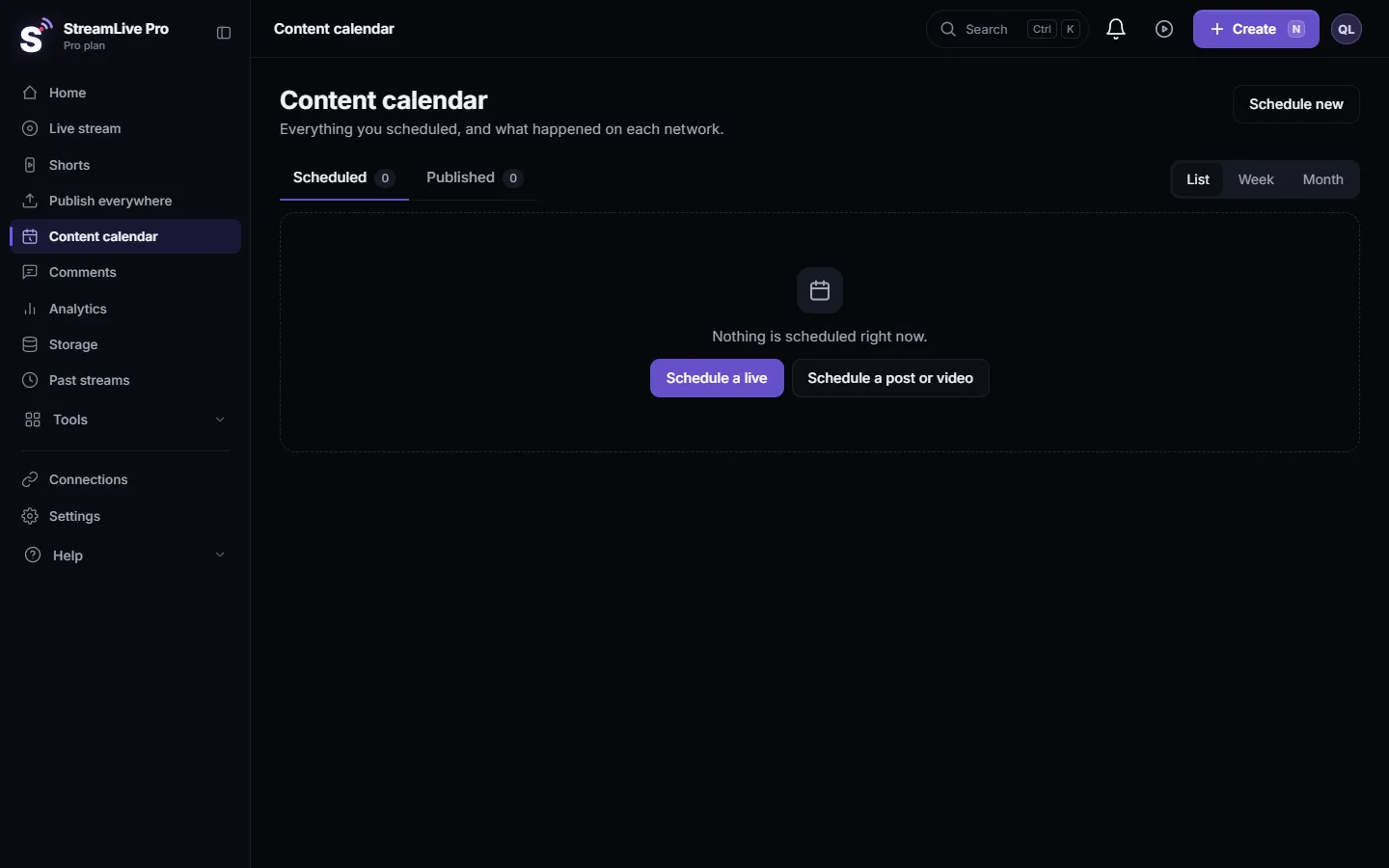
Everything you scheduled is in one place, the Content calendar in the menu. The Scheduled tab shows what is still coming; Published shows what went out, with a link and a status for every network. Switch between List, Week and Month, filter by network, status or type, and open an item to edit, duplicate or cancel it. Items that failed recently are listed at the top, each with Try again: Use the Content calendar for posts and lives.
Steps
A weekly show, planned in one sitting:
- Connect the networks. In Connections, connect YouTube and the Facebook Page. Do YouTube a day early the first time.
- Schedule the live. In Live stream choose Schedule broadcast, set the date, time, title and thumbnail, and tick the channels.
- Tick Pre-announce. For YouTube and Facebook, so you get a link to share during the week.
- Schedule the reminder post. In Publish everywhere write a short post with the link, choose Schedule and set it for the morning of the show.
- Check the calendar. Open the Content calendar and confirm both items are under Scheduled, at the right times.
- Be ready at air time. Open the browser studio or start the encoder a few minutes early. The live goes on air when your picture arrives.
- Spread the Shorts. After the live, open Shorts and use Publish all to post one a day.
Plans and limits
Scheduling works on every plan and in the trial. A scheduled item cannot be set later than the end of what pays for it: in the trial, the trial's last day; on a plan, the end of the current period. The message then names the date: I cannot schedule: "You can schedule up to" a date. A pre-recorded broadcast is on Pro, Studio and the trial, not Creator. Current plans are on the pricing page.
Common mistakes
| Mistake | What happens | Fix |
|---|---|---|
| Scheduling an encoder live and leaving | The live waits for a picture that never comes | Be at the encoder, or schedule a pre-recorded broadcast |
| No Pre-announce tick | No link to share before the live | Tick Pre-announce for YouTube and Facebook |
| TikTok ticked in a scheduled post | The schedule is refused | Untick TikTok and post to it by hand |
| Scheduling from a laptop set to another time zone | The post goes out at the wrong hour | Check the device's time zone first |
| A connection that expired during the week | The half-hour check sends an alert | Reconnect the channel before air time |
Where StreamLive Pro fits
StreamLive Pro Studio is free, professional streaming software for Windows and Mac, still in testing, that goes live with your own stream keys. Scheduling belongs to the StreamLive Pro platform, which schedules lives and posts, cuts and spreads Shorts, and keeps it all in one calendar, with a 7-day free trial. For the basics of going live, read How to live stream: the complete guide for 2026; to reach several networks at once, How to multistream: the complete guide to several networks.
Frequently asked questions
Can I schedule a live on YouTube and Facebook at the same time?
Yes. Schedule one broadcast, tick both channels, and tick Pre-announce on each if you want a link to share before air time.
Does a scheduled live start if I am not at the computer?
Only a pre-recorded broadcast. A live from OBS, the browser studio or the phone waits until your picture arrives, so someone has to start the encoder or the camera.
Can I schedule TikTok posts?
No. TikTok posts are made by hand from the Publish screen. You can schedule the same post to the other networks.
Is scheduling included in the trial?
Yes. The 7-day trial schedules posts and lives, up to the trial's last day.
Where do I see everything I scheduled?
In the Content calendar, in the menu. It has a Scheduled tab, a Published tab, and list, week and month views.
What time zone does scheduling use?
The time zone of the computer or phone you schedule from. When you schedule a live, the form shows the time zone's name next to the time.
Keep reading
Live streaming for a small business: which live formats sell, which networks to pick, a weekly routine, and turning each live into a week of Shorts and posts.
What is OAuth? Connecting an account without a passwordWhat OAuth is: how one app gets limited access to your account on another service without your password. Tokens, scopes, why connections expire, how to revoke.
How to host a live Q&A session on YouTube and FacebookRun a live Q&A: collect questions before, read YouTube and Facebook chat in one panel, show a question on screen, bring in an expert by link, and reuse the answers.
How to live stream a local or youth sports gameLive stream a youth or amateur sports game with one or two phones: where to stand, sound, the score on screen, the venue's internet, privacy and highlights afterwards.
Want to try it? 7-day trial, no credit card.
Start free