 StreamLive Pro
Schedule social media posts to several networks at once
Schedule one post to YouTube, Facebook, Instagram, Threads, Telegram and more from one screen, then edit, copy or cancel it in the Content calendar.
You write a post once in Publish everywhere, pick the networks, choose "Schedule" under When, and pick a date and time. The post is stored on our servers and goes out at that moment even if your computer is off. Everything you scheduled then lives in the Content calendar, where you can change the time, the text or the networks, make a copy, or cancel it.
TikTok is the one exception: TikTok posts cannot be scheduled. More on that below.
Before you start
- At least one network connected in Connections. The number of publishing accounts you can connect follows your plan; see /pricing?lang=en.
- The file ready: a video, a photo, or no file at all for a text post. Uploads go into your Storage, so a scheduled post does not depend on the file staying on your computer.
- Know your time zone. The time you pick is your browser's local time.
Steps
- Open the publish screen. In the menu click Publish everywhere. Drop the video or photo on Drop a video or photo here, or add no file for a text post, and write the text in the Text box.
- Pick the networks. Under Post to click each account the post should go to. If a mark says Needs reconnecting, click Reconnect first, or the post will fail on that network at the scheduled time.
- Adjust per network if needed. Open Adjust per network to give one network a shorter text. If YouTube is picked, fill in its choices (who can watch, made for kids) in the YouTube part below; they are required before the button lets you continue. Leave As a Story instead of a post unticked unless you want a Story instead of the post on Instagram or Facebook.
- Choose the time. Under When choose "Schedule" and set the date and time. The time must be at least a minute from now.
- Schedule it. Click the button at the bottom (it reads "Schedule for" and the date). You see a confirmation with the date, and you can close the page.
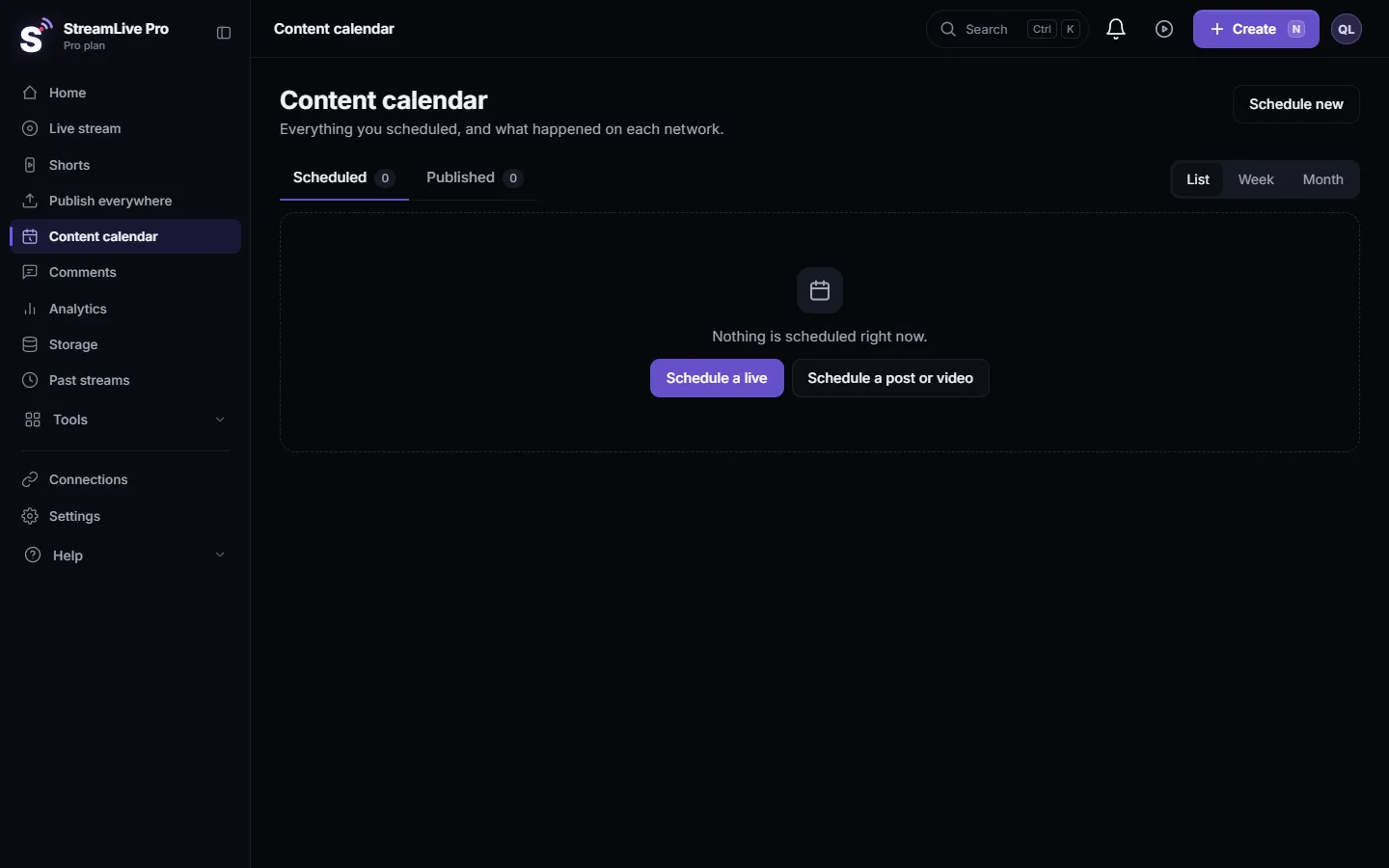
- Check it in the Content calendar. Open the Content calendar from the menu. The Scheduled tab lists every scheduled post with its cover, time and networks. Switch between List, Week and Month to see your week at a glance.
- Edit, copy or cancel. On a scheduled item click Edit to change the time, title, text, cover or networks. Duplicate makes a new copy with the same file, text and networks, and asks when. Cancel post stops it; the file stays in Storage.
What happens at the scheduled time
The publish job starts at the time you set and uploads to each network separately. Each network gets its own result: a link to the published post, or the reason it failed. A network that fails for a temporary reason is retried automatically a few times. After the time passes, the item moves to the Published tab with a status per network.
There is also a guard against posting too densely. If you schedule many posts to the same account in a short time, the screen warns you, because networks can limit accounts that post at a spam-like rate.
TikTok cannot be scheduled
TikTok requires that a person presses Publish for each post, after choosing who can view it. So StreamLive Pro refuses a scheduled post that includes TikTok and tells you to publish to TikTok now or untick it. A practical way to work: schedule the other networks, and post the TikTok version yourself at the same time. Details: Post a video to TikTok from your computer.
If an item in the Content calendar shows Manual on TikTok, it is waiting for you: click Open the TikTok form when the time comes.
What can go wrong
| Symptom | Likely cause | Fix |
|---|---|---|
| The schedule button is greyed out with a message about YouTube | YouTube needs "who can watch" and "made for kids" | Answer both in the YouTube section under the networks |
| "TikTok posts cannot be scheduled" | TikTok is ticked | Untick TikTok, schedule the rest, post TikTok by hand |
| The post failed on one network | The connection expired, or the network refused the file | Open the item, read the reason, click Reconnect and then Try again |
| Your plan allows fewer channels per publish | You ticked more accounts than your plan allows | Untick some, or see /pricing?lang=en |
| The post went out an hour off | The browser's time zone differs from where you are | Check the computer's time zone before scheduling while travelling |
Related pages
- Publish a finished video to social networks: what each network accepts and how publishing works.
- Adjust the post for each network: different text per network, Stories, YouTube and TikTok settings.
- Publish all your Shorts at once: schedule a whole batch of Shorts, one a day.
- Post to every network from a WhatsApp or Telegram group: schedule by writing "schedule 18:00" in a group message.
- Schedule a live broadcast in advance: scheduling a live broadcast, which is a different thing.
Frequently asked questions
Do I need to keep my computer on until the post goes out?
No. The scheduled post is stored on our servers with its file, and a background process publishes it at the time you set.
Can I schedule to TikTok?
No. TikTok requires a person to press Publish for each post, so scheduled TikTok posts are refused. Schedule the other networks and post the TikTok version yourself.
How do I change the time of a scheduled post?
Open the Content calendar, find the post in the Scheduled tab and click Edit. You can change the time, title, text, cover and networks while it is still scheduled.
Can I reuse a post I already scheduled?
Yes. Duplicate creates a new copy with the same file, text and networks and asks you for a new time.
Can an assistant like ChatGPT or Claude change my scheduled posts?
Yes, if you connected it. It can list, edit and cancel scheduled posts, and it asks for your approval before cancelling.
Keep reading
How StreamLive Pro decides if your video goes out as a YouTube Short, a Reel or a regular video: shape and length per network, and how to get the other one.
My post failed on one networkA post went out on some networks and failed on one. How to read the reason, fix the usual causes, and send it again only to the network that failed.
Delete a published post from every networkRemove a post you published from YouTube, Facebook, LinkedIn and X in one step with Delete everywhere, and what to do on Instagram, TikTok and the others.
Post a Short to YouTube Shorts, Reels and TikTokPost one Short to YouTube Shorts, Instagram Reels and TikTok from StreamLive Pro: connect the accounts, pick them, fill TikTok's form, publish. TikTok is manual only.
Want to try it? 7-day trial, no credit card.
Start free