 StreamLive Pro
Edit or cancel a scheduled post with ChatGPT or Claude
Move a scheduled post to a new time, change its title or text, or cancel it before it goes out, by asking ChatGPT or Claude. What the chat can and cannot change.
A post that is still scheduled in StreamLive Pro can be changed from ChatGPT or Claude. Ask, for example, "Move tomorrow's Short to 18:00" or "Change the text of Thursday's post". The assistant can change the time, the title and the text. It can also cancel the post, after you confirm in the chat. Channels, the cover and YouTube settings are changed in the content calendar.
Before you start
- The assistant is connected: Use StreamLive Pro from ChatGPT and Claude. Changing and cancelling posts use the permission to publish and schedule posts, which is on by default.
- The post is still scheduled. Once a post started publishing or went out, it cannot be edited. To find out where a post stands, see Check if your posts went out, with ChatGPT or Claude.
- The post was scheduled through StreamLive Pro. From the publish screen, the content calendar, the phone app or an assistant.
Steps
- List what is scheduled. Ask "What posts are scheduled?" Each one comes with its title, text, channels and time.
- Pick the post. Name it by title or by day and time, for example "the Short scheduled for Thursday at 18:00".
- Ask for the change. "Move it to Friday at 12:00 Israel time", "Change the title to Five tips for a clear voice", or "Replace the text with: Full class on our YouTube channel."
- Say the time zone. A new time must be at least a minute ahead and no more than a year ahead. Saying the time zone avoids a post at the wrong hour.
- Read the answer. The assistant replies with the post's status, scheduled, and its new time.
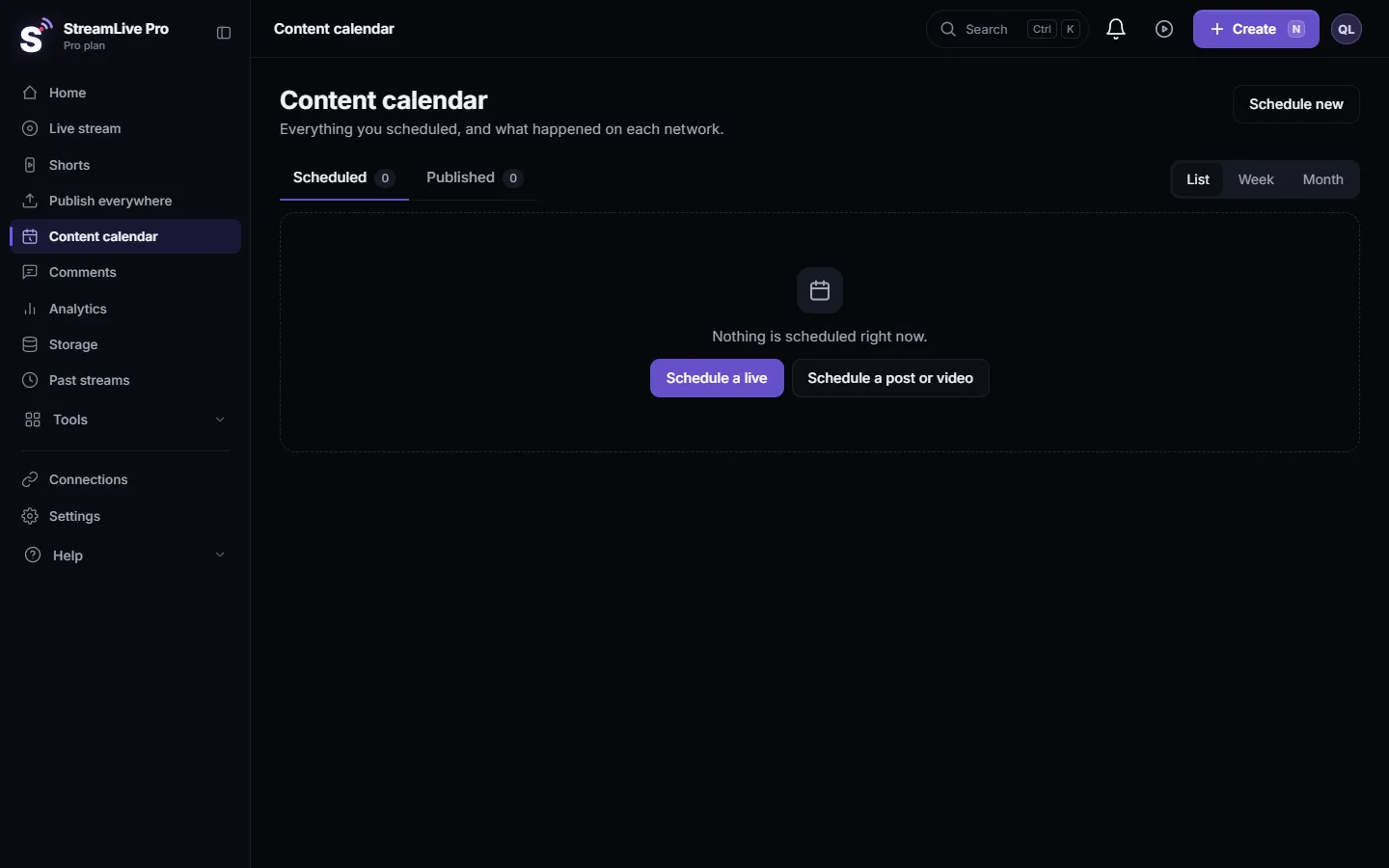
- Check it in the calendar. The content calendar shows the new time and text, the same as a change you made by hand. See Use the Content calendar for posts and lives.
Cancelling a scheduled post
- Ask to cancel. "Cancel Thursday's post."
- Read the confirmation question. The assistant tells you which post it means. Cancelling cannot be undone, so the tool acts only after you agree.
- Say yes. The post status becomes cancelled, and it does not go out. Your video file is not deleted.
What you change where
| Change | From the chat | In the content calendar |
|---|---|---|
| Time | Yes | Yes |
| Title | Yes, up to 100 characters | Yes |
| Text (description) | Yes | Yes |
| Channels | No | Yes |
| Cover image | No | Yes |
| YouTube privacy and Made for kids | No | Yes |
| Cancel | Yes, after you confirm | Yes |
| Duplicate for another day | No | Yes |
The calendar steps are in Edit, copy or cancel a scheduled post.
When the chat is the faster way
The chat saves time when several posts must move together, for example when the live was pushed back a day and all its Shorts should move too. Ask "Move all of tomorrow's posts two hours later", and the assistant goes through them one by one and shows what changed. For channels or the cover image, the content calendar is faster, because there you see the post as it will look.
TikTok and other networks posted by hand
A post to TikTok is never scheduled: TikTok posts leave StreamLive Pro only when you press Publish yourself on the publish screen. So there is no scheduled TikTok post to edit. See Post a video to TikTok from your computer.
What can go wrong
| What happens | Likely cause | Fix |
|---|---|---|
| "The time must be at least a minute from now" | The new time passed, often a time zone mix-up | Say the date, hour and time zone again |
| "You can schedule up to a year ahead" | The date is too far | Pick a date within a year |
| The change is refused | The post already started publishing or went out | Check its status; a published post is not edited |
| "Nothing to change" | The request had no clear change | Say exactly what to change |
| "Missing permission: publish" | Publishing was unticked when you connected | Reconnect the assistant and approve it |
To change scheduled lives instead of posts, see Change or cancel a scheduled live with ChatGPT or Claude.
Frequently asked questions
Can Claude reschedule a post I scheduled in StreamLive Pro?
Yes, while it is still scheduled. Ask for the new day and hour with a time zone.
Can the assistant change which networks a post goes to?
No. Channels are changed in the content calendar. The assistant changes time, title and text.
Does cancelling delete my video?
No. Cancelling stops the post. The video file stays in your account.
Will the assistant cancel a post without asking me?
No. Cancelling needs your confirmation in the chat before the tool acts.
Can I edit a post that was already published?
No. Only scheduled posts can be changed. A published post can be edited on the network itself, or removed from StreamLive Pro with delete everywhere.
Keep reading
Ask ChatGPT or Claude whether a post went out: the status of recent and scheduled posts, the link on each network, and the reason when one network failed.
Schedule live streams and posts: the complete guideSchedule live streams and posts on YouTube, Facebook and more: lives, posts, Shorts, groups and AI, the Content calendar, what runs by itself, and the limits.
What is OAuth? Connecting an account without a passwordWhat OAuth is: how one app gets limited access to your account on another service without your password. Tokens, scopes, why connections expire, how to revoke.
My YouTube upload is waiting in a queueYour YouTube upload says it is queued? Why it waits for midnight Pacific time, how to check when it starts, and what to do when it cannot wait.
Want to try it? 7-day trial, no credit card.
Start free