 StreamLive Pro
Reconnect a channel whose connection expired
A channel shows Token expired or Authorization expired? Reconnect YouTube, Facebook or another network in one click, and fix the causes that make it expire again.
A connection expires when the network stops accepting the permission it gave StreamLive Pro: for example you changed the password, removed our access in the network's settings, or the network's own sign-in time ran out. The channel then shows a red mark such as Token expired — reconnect or Authorization expired — reconnect, and broadcasts and posts to it stop until you reconnect. For YouTube, Facebook, Instagram, TikTok, X, LinkedIn, Threads, Twitch and Kick, reconnecting is one click and a fresh sign-in. Channels added with a stream key do not expire this way; for them you paste a new key.
Symptom, cause and fix
| Symptom | Likely cause | Fix |
|---|---|---|
| Red mark Token expired — reconnect on the channel | The network's permission ran out or was withdrawn | Click the mark or Reconnect, sign in again, approve every permission |
| Authorization expires soon — reconnect | The network gives the permission for a fixed time and the end is near | Reconnect now so publishing does not stop |
| A message that a permission is missing | A box was unticked on the network's consent screen | Reconnect and allow every permission |
| The Google account you connected has no YouTube channel | You signed in with a Google account that has no channel | Reconnect with the Google account that owns the channel |
| Page needs reconnecting, or No page linked to this connection | The Facebook Page was not ticked when you connected, or your role on the Page changed | Reconnect, choose Edit settings in Facebook's window and tick the Page |
| Instagram account ticked but its Facebook Page not | Instagram publishing goes through the linked Page | Reconnect, choose Edit settings and tick the Page too |
| An old connection shows as Not connected | It has been broken for more than 30 days, or the network deleted its data | Connect it again from scratch |
| Instagram, TikTok or X live fails although the channel looks fine | These stream keys change between sessions | Paste a fresh key before each live: Live on Instagram and TikTok with a stream key |
Steps
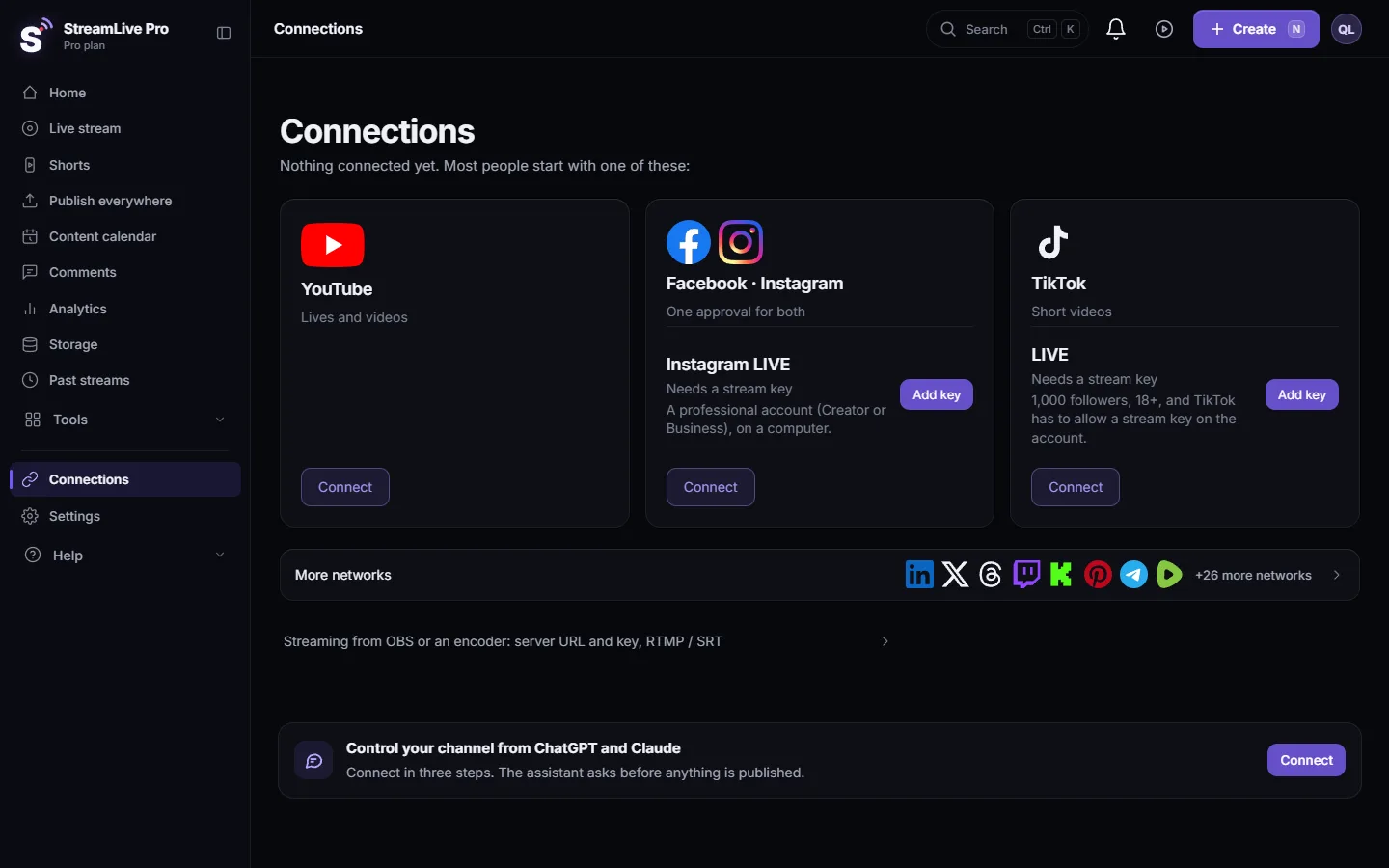
- Open Connections. Choose Connections. Each card has one status: connected, needs reconnecting, not connected, or manual setup.
- Find the red card. The broken channel shows a red or amber line that says what is wrong in one sentence.
- Click Reconnect. The network's sign-in opens. Sign in with the same account that owns the channel or Page.
- Approve everything. On the network's consent screen keep every permission ticked. On Facebook choose Edit settings if you need to tick the right Page and the linked Instagram account.
- Wait for the card to turn green. The card refreshes by itself. The notice in the bell closes when the next check sees the connection working, usually within minutes.
- Check a scheduled broadcast. If a broadcast is scheduled, open it and confirm the channel is ticked and healthy. Half an hour before a scheduled broadcast we check every channel on it and alert you if one is broken.
Reconnecting without losing a half-filled form
When the warning appears while you are filling in a scheduled broadcast, click the red mark next to the channel in that form. The sign-in opens in a separate window, so the title, time, thumbnail and channel choice you already entered stay where they are. If your browser blocks the window, the page switches to a full redirect instead; allow pop-ups for streamlivepro.io to avoid that.
Why it keeps expiring
- A change on the account. For example a password change or a security check on the network side can end the permission it gave us.
- Access removed on the network side. If someone removed StreamLive Pro from the account's connected apps, the permission is gone. Google describes this on its page about linked apps: support.google.com
- Role on the Page changed. A Facebook Page can only be used by someone who still manages it.
- Different account. Reconnecting with another Google or Facebook account does not fix the channel that belongs to the first one. Use the account that owns the channel.
We send one notice per broken connection and leave it until it is fixed; reminders follow only after 1, 3, 7 and 14 days. See Notifications: what the bell tells you, and how often.
When to contact support
Write to [email protected] if the card stays red after you reconnected with the right account and approved every permission. Send the network name, the channel or Page name, the exact text on the card, and the time you tried. Never send passwords or stream keys.
Related: Connecting your channels — YouTube, Facebook and the rest, Connecting your networks: the complete guide, My live stream does not start on YouTube, My Facebook live does not start.
Frequently asked questions
Do I lose my scheduled broadcasts when a channel expires?
No. The schedule stays. Reconnect the channel before the start time and the broadcast goes to it as planned.
Why does the card say connected but the live does not reach Instagram?
An Instagram live goes out with a stream key that works for one session. Paste a fresh key from Instagram before each live.
Can I reconnect from my phone?
Yes. Open Connections in the phone browser and press Reconnect. The network's sign-in opens in the same way.
I reconnected but the card is still red.
Check that you signed in with the account that owns the channel or Page and that every permission stayed ticked. Then refresh the page. If it stays red, contact support.
How often does a connection need reconnecting?
It depends on the network. Most stay connected until something changes on the network side. When a network gives the permission for a fixed time, the card warns you before it ends.
Keep reading
Analytics shows no data, no views or old numbers: accounts not switched on, missing permissions, Waiting for Meta approval, networks that give nothing, and the fix.
My post failed on one networkA post went out on some networks and failed on one. How to read the reason, fix the usual causes, and send it again only to the network that failed.
My live reached only some of the networksLive reached only some networks? Why one destination stays empty while the others work: expired connection, old stream key, plan limit or the network's own rules.
My scheduled live did not startYour scheduled live did not start, or started without some channels? Read the notice you got, match it in the table, and fix the cause before the next slot.
Want to try it? 7-day trial, no credit card.
Start free