 StreamLive Pro
Broadcast a pre-recorded video as a live stream
Broadcast a pre-recorded video as a live stream to several networks at a set time, with no computer on: plans, steps, what the server sends, and the limits.
You can take a video from your StreamLive Pro storage and have it broadcast as a live stream at a time you choose, to every channel you tick. Our server plays the file from start to end at normal speed and sends it as a live broadcast, so your computer does not need to be on. It suits a recorded lecture released at a fixed hour, a weekly class repeated for another time zone, or an event you edited before airing.
Before you start
- Plan. Pre-recorded broadcasts are included in the 7-day trial, Pro and Studio. They are not included in Creator. Details on the pricing page.
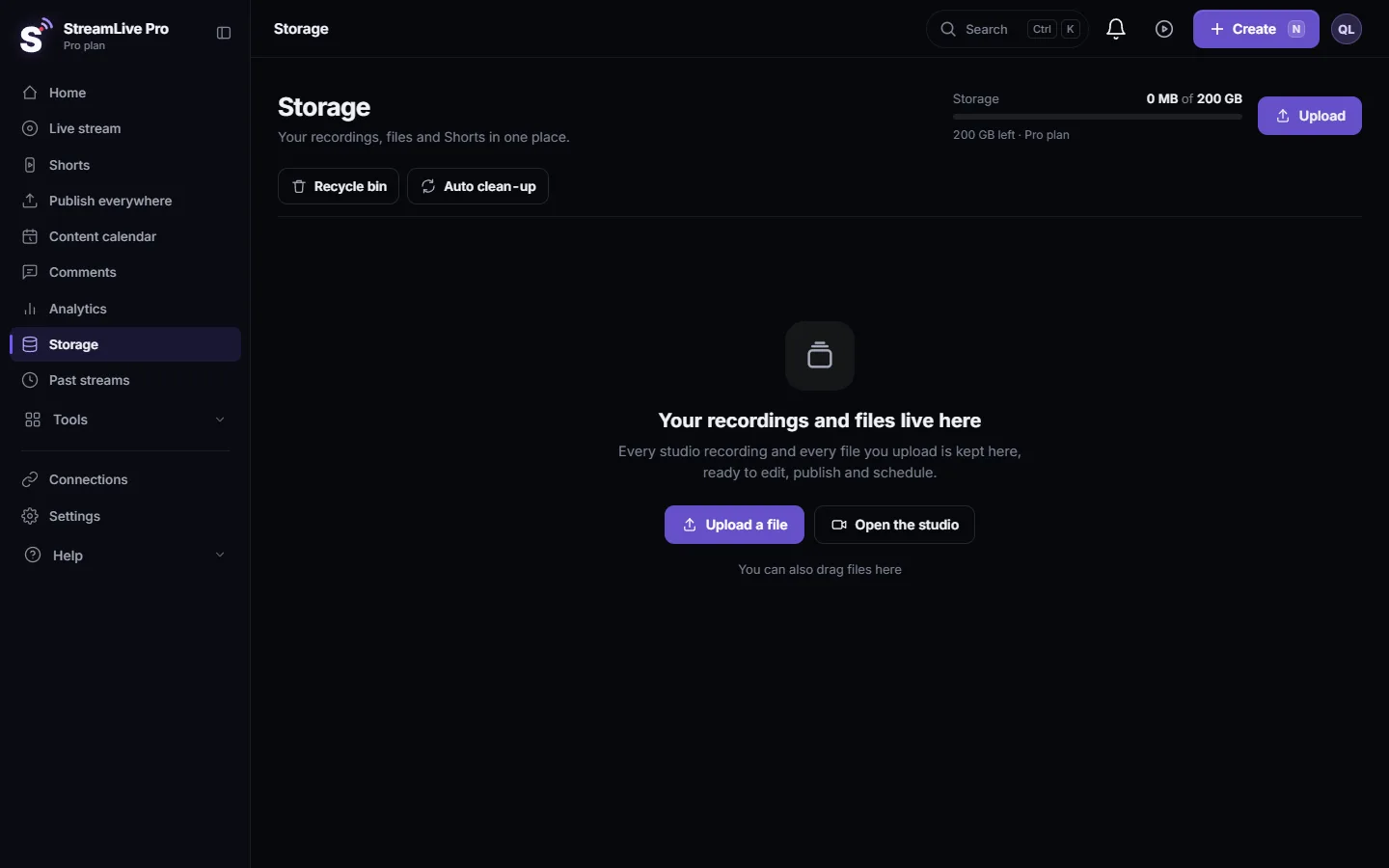
- The video must be in your library. Upload it under Storage (one file can be up to 6 GB), or use a recording of a past broadcast that you kept (Recordings and storage — what is kept and for how long explains which recordings are kept). Links to other people's files are refused.
- Connected channels. YouTube, a Facebook Page, Twitch, Kick and destinations with a saved key can go out on their own. Instagram and TikTok need a fresh key for each session (see below).
Steps
- Start from the menu. Click New stream at the top of the dashboard and choose Pre-recorded broadcast. StreamLive Pro opens Storage and reminds you to pick a video.
- Pick the video. Open the menu of the video you want to air and choose "Schedule as Live Broadcast". The schedule window opens with the video already set as the source and the file name as the title.
- Fill in the broadcast. Title, description, who can watch (this sets YouTube's visibility) and a thumbnail. Each channel can get its own title and description.
- Choose the time. Date and time are in your browser's time zone, shown next to the field. To go out soon, set a time a few minutes ahead.
- Tick the channels. Choose every destination that should carry the broadcast, within your plan's number of channels.
- Announce it if you want a link in advance. Tick Pre-announce next to YouTube or Facebook to create the event on the network now, with a link you can share. Without it, nothing appears on the network until airtime.
- Save. The broadcast appears in your scheduled list. You can open it later to edit, or cancel it.
What happens at airtime
- About a minute and a quarter before the time, StreamLive Pro starts setting up the broadcast and checks your plan again. If the plan no longer includes pre-recorded broadcasts, it does not start and you get a notification.
- Our server reads the file once at normal speed and sends it as a live stream. It is re-encoded to H.264 at about 4.5 Mbps and 30 frames per second, with a keyframe every 2 seconds and AAC audio at 128 kbps, which the networks accept.
- If the connection to the ingest drops for a moment, the server reconnects and resumes close to where it stopped, rather than starting the video again.
- When the file ends, the broadcast ends on every channel. It does not loop.
- Half an hour before, the destinations are checked, and an expired connection is reported with a link to reconnect it. More in Schedule a live broadcast in advance.
Limits to know
| Limit | What it means |
|---|---|
| Instagram, TikTok, X | Their keys change per session. A broadcast scheduled for tomorrow cannot hold tomorrow's key, and Instagram also needs your press on Go live in its own tab. Plan to be present for those, or leave them out (Live on Instagram and TikTok with a stream key). |
| Plays once | No loop and no playlist. To air two videos, schedule two broadcasts. |
| Frame rate | Sent at 30 fps. A 60 fps file is sent at 30. |
| The file is locked | A video that is scheduled or on air cannot be deleted until you cancel the schedule. |
| Creator | Not included. Pro, Studio and the trial include it. |
Viewers see a live broadcast. If you are replaying older material, say so in the title or description; your audience will trust the next live more.
Frequently asked questions
Can I stream a pre-recorded video as live without my computer on?
Yes. The server plays the file from your StreamLive Pro storage at the scheduled time and sends it to the channels you ticked. Your computer can be off.
Which plans include pre-recorded broadcasts?
The 7-day trial, Pro and Studio. Creator does not include them.
Can the video loop or play a playlist?
No. A pre-recorded broadcast plays one video once and ends when the file ends. Schedule another broadcast for the next video.
Can I send a pre-recorded video to Instagram or TikTok at a set time?
Not unattended. Their stream keys change per session, and Instagram also needs a press on Go live in its own tab, so someone has to be there.
Where do I find the video to schedule?
Under Storage. Upload the file there, or use a past broadcast you kept, then choose Schedule as Live Broadcast from the video's menu.
Keep reading
Run a live Q&A: collect questions before, read YouTube and Facebook chat in one panel, show a question on screen, bring in an expert by link, and reuse the answers.
How to live stream a community meeting or town hallHow to live stream a community meeting or town hall to a Facebook Page and YouTube at once: room sound, residents' questions from chat, remote speakers, and minutes.
How many networks can I stream to at onceHow many networks one StreamLive Pro live can reach: set by your plan, two in the trial, what counts as one destination, and what the channel limit message means.
How to live stream a local or youth sports gameLive stream a youth or amateur sports game with one or two phones: where to stand, sound, the score on screen, the venue's internet, privacy and highlights afterwards.
Want to try it? 7-day trial, no credit card.
Start free