 StreamLive Pro
Rules for posting from a group: words, signature, logo
Control what a WhatsApp group or Telegram channel publishes: approved senders, stop words, a required word, the text layout, a signature and your logo as a watermark.
Each group in Post from groups has its own rules. They decide which messages are published, what the final text looks like and whether your logo is added to photos and videos. The defaults are simple: only you post, no filters, the whole message as the text, no signature and no watermark. You change them in the group's Settings, and you can check the result with Test before sending anything real.
Posting from groups is on Pro and Studio, and in the 7-day trial with a small daily allowance; not on Creator. See /pricing?lang=en.
Before you start
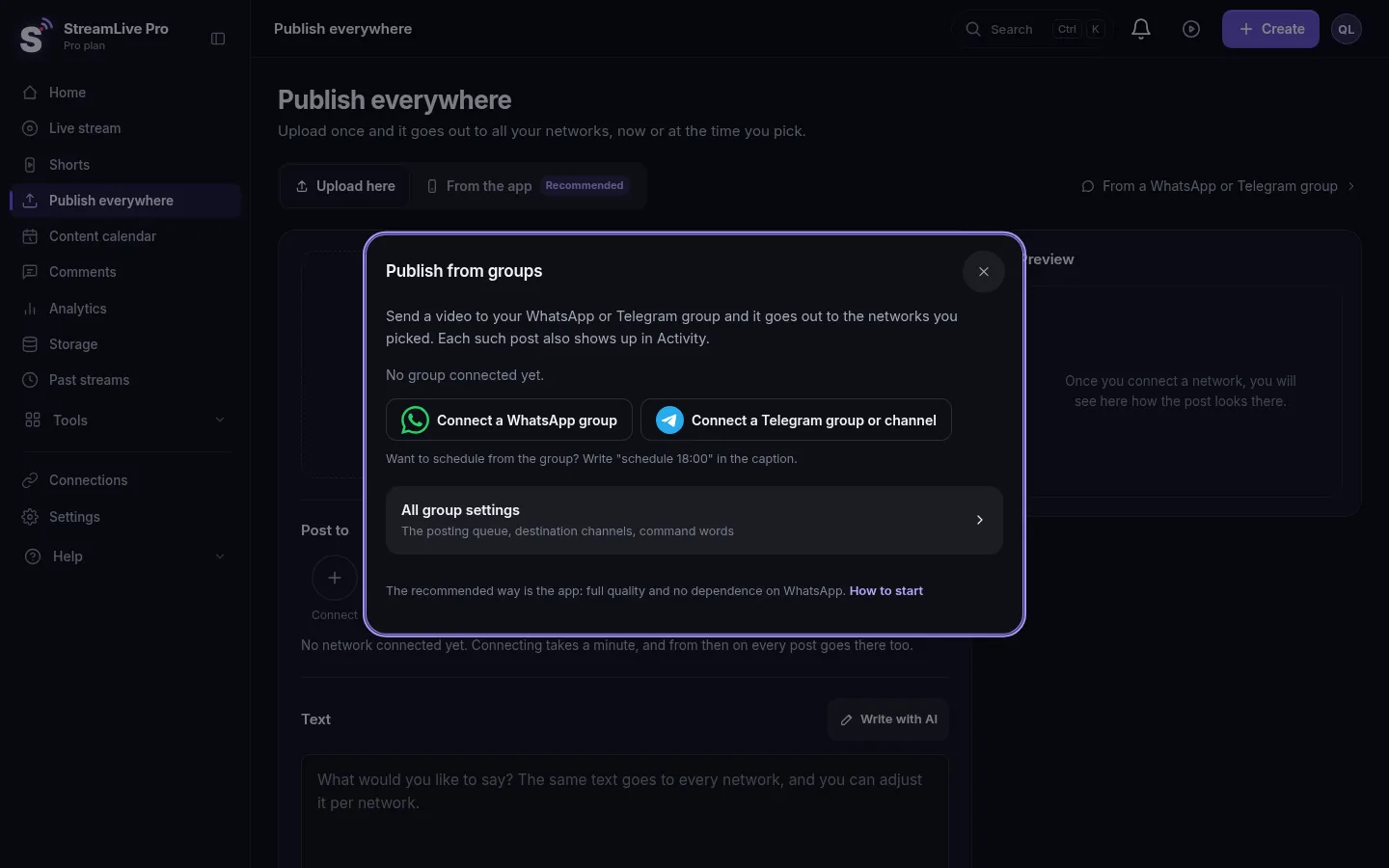
- A group is already linked: a WhatsApp group through the linked number, or a Telegram channel or group through the bot. Setup: Post to every network from a WhatsApp or Telegram group.
- The networks you publish to are connected in Connections.
- For a watermark: your logo, ideally a PNG with a transparent background, up to 5MB.
Steps
- Open the group's Settings. In Post from groups open the Groups tab and click Settings on the group. The card already shows badges for the rules that are on (stop words, required word, signature, watermark, approved senders).
- Choose where it publishes. Under Where to publish tick the accounts. Under each network you see which account it is.
- Choose who can post. On WhatsApp the linked number always can; add other numbers with their country code, one per line. On Telegram every post in a channel counts (only admins can post there), and in a group only group admins; you can add extra users by @username or user id. Messages from everyone else are not published.
- Add stop words. Type a word and press Enter. A message that contains any of them is not published, for example a word you use in internal notes.
- Set a required word if you want one. Only messages that contain it are published, for example #post. Leave Remove the required word from the text on, so the tag does not appear in the post.
- Choose the text layout. The whole message as is; only the first line; first line, a blank line, then the rest; or Custom, where you place three fields in your own wording: the caption, the title (the first line) and the description (the rest of the message).
- Add a signature. Turn on Add a signature at the end of every post and write it, for example a line with your channel name and a link. It is added once, at the end.
- Add your logo. Under Watermark turn on Add my logo to photos and videos, upload the logo (it is the same logo as your automatic Shorts), and choose position, size and opacity. Under More options: motion (Still, Float, Corners, Slide, Pulse), speed, distance from the edge, and whether the logo shows for the whole video or only the first seconds.
- Test, then save. Press Test, type a sample message, choose Video, Photo or Text and who sends it, and run it. You see whether it would be published, the final text, the destinations and the watermark. Nothing is sent. Then Save.
How the rules are applied, in order
| Order | Rule | What happens |
|---|---|---|
| 1 | Group on or off | Off: nothing is published from it |
| 2 | Who can post | A sender not allowed is filtered |
| 3 | Stop words | Any match blocks the message |
| 4 | Required word | Missing: filtered; present: removed from the text if you chose so |
| 5 | Text layout and signature | The text is built from the message, and the signature is added at the end, once |
| 6 | Schedule command | A line that starts with "schedule 18:00" sets the time and is removed from the text |
| 7 | Watermark | Photos and videos are processed before they go out |
Matching ignores upper and lower case. Each group keeps its own rules, so one WhatsApp group can publish everything while a second publishes only tagged messages.
Things to know about the watermark
- A video with a watermark is re-encoded first, so it goes out a little later than one without.
- Photos have no motion: the logo is placed, still, where you put it, and always shown.
- If the logo cannot be used (none uploaded, too large, could not load), the activity log says "No watermark" with the reason. If processing fails, the original is published and the log says so.
What can go wrong
| Problem | Fix |
|---|---|
| Nothing is published since you added a required word | Every message now needs the word. Add it, or clear the rule |
| The tag still shows in the post | Turn on Remove the required word from the text |
| The signature appears twice | It is skipped when the text already contains it; check that your message does not end with a slightly different version |
| "The watermark is on, but no logo is uploaded yet" in Test | Upload a logo under Watermark |
| A colleague's videos are ignored | Add their number under Who can post |
Why a specific message was held back is always written on its row in the Activity tab.
Related pages
- Post to every network from a WhatsApp or Telegram group
- Adjust the post for each network
- The trial watermark and TikTok
Frequently asked questions
Can I publish only some of the messages in my WhatsApp group?
Yes. Set a required word, for example #post. Only messages that contain it are published, and the word can be removed from the text automatically.
Can each network get a different text from the group?
Not from the group rules. The same final text goes to every ticked network. To give one network its own text, publish that post from the Publish everywhere screen.
Does the watermark go on TikTok too?
Posts from groups do not go to TikTok at all, because TikTok takes posts from StreamLive Pro only when you press Publish yourself.
Can I use the same logo as on my Shorts?
Yes. The group watermark uses the logo you uploaded for your automatic Shorts; replacing it in one place replaces it in the other.
Will the rules change messages that were already published?
No. Rules apply to messages that arrive after you save them.
Keep reading
The WhatsApp QR code for Post from groups expires, keeps changing or will not link: why, how to link with a phone-number code, and what each status means.
I sent a video to my group and it was not publishedA post sent to your WhatsApp group or Telegram channel did not reach your networks: how to read the activity log, every filter reason and the fix for each.
Post to every network from a WhatsApp or Telegram groupSend a video to your own WhatsApp group or Telegram channel and it is published to the networks you chose: linking, rules, scheduling and the activity log.
Download a Short as an MP4 fileDownload a Short as an MP4 from StreamLive Pro: the Download button on its card, the size of the file, the edited version, and posting it by hand on any network.
Want to try it? 7-day trial, no credit card.
Start free