 StreamLive Pro
Use the Content calendar for posts and lives
The Content calendar shows every scheduled post and live and what happened on each network: list, week and month views, filters, statuses and what to do next.
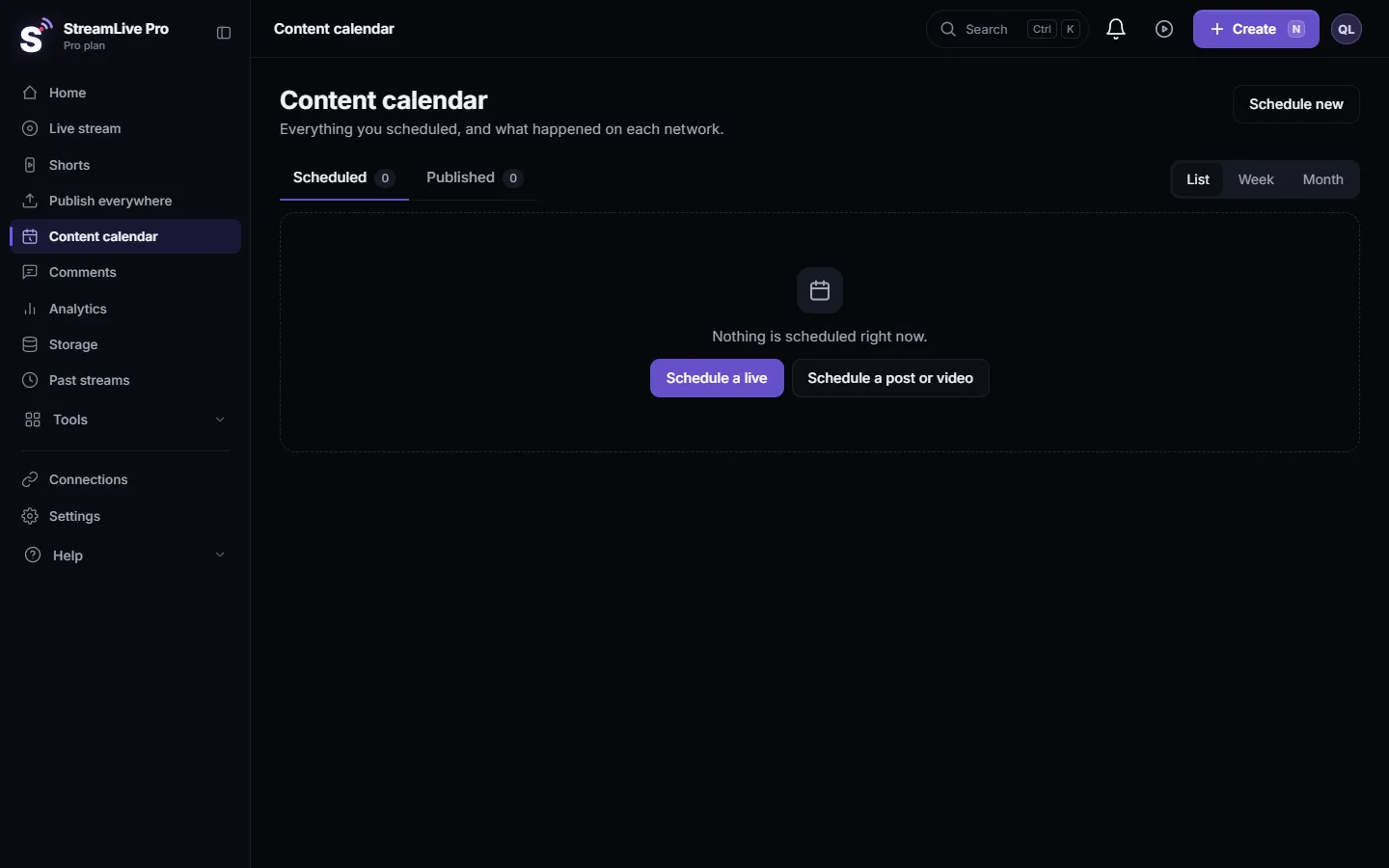
The Content calendar is one page for everything you scheduled: posts, Shorts and live broadcasts, with what happened to each of them on every network. Open it from the menu, switch between a list, a week and a month, filter by network or status, and open any item to see its links, its errors and its actions.
You schedule from Publish everywhere or from Live stream. The calendar is where you watch and manage what you scheduled. How to schedule a post: Schedule social media posts to several networks at once. How to schedule a live: Schedule a live broadcast in advance.
Before you start
- Open the calendar from the menu item Content calendar. Its heading reads "Everything you scheduled, and what happened on each network."
- Times are shown in your browser's time zone.
- Items show up here once something is scheduled or published. An empty calendar says "Nothing is scheduled right now."
Steps
- Pick the tab. Scheduled shows what is still coming. Published shows what already went out, newest first, with a link per network.
- Pick the layout. List groups items by day. Week and Month show a grid; use Previous, Today and Next to move. Click a day to see its items.
- Filter. Use Network, Status and Type (A live, A post or video, Shorts). Clear resets them.
- Open an item. Click it to open its sheet: cover, title, date and time, type, overall status, and a row for each network with its own status, link and error.
- Act on it. At the bottom of the sheet: Edit, Duplicate, and Cancel post (for a live, Cancel schedule). Items from your groups' queue can also have Publish now. Details: Edit, copy or cancel a scheduled post.
- Fix what failed. A network row with an error has Try again. Items that failed in the last three days also appear at the top under Needs attention.
- Add something new. Schedule new offers Schedule a live or Schedule a post or video.
- Go further back. In the Published tab, Load more brings older items.
The statuses you will see
| Status | Meaning |
|---|---|
| Scheduled | Waiting for its time |
| Publishing | Going out right now |
| Published | Out on every network, with links |
| Partly published | Out on some networks, failed on others |
| Failed | Did not go out; the reason is in the network row |
| Cancelled | You cancelled it |
| Manual on TikTok | Waiting for you to post it on TikTok yourself |
| Delayed, not out yet | Its time passed more than 5 minutes ago and it has not started |
| Waiting: the trial ended | Held because your trial ended before its time |
| Live now / Aired / Did not air | For scheduled lives: on air, broadcast, or the time passed without a broadcast |
Lives in the calendar
A scheduled live sits next to your posts. Its sheet shows how it will go out:
- From the phone or the browser: you go live yourself, and a reminder comes 10 minutes before.
- From OBS or other software: start the software on time.
- A pre-recorded video: it goes live by itself at the set time.
Editing, duplicating and cancelling a live open the same form you used to schedule it.
Posts from groups and TikTok
- From a group. A post that came from your WhatsApp group or Telegram channel through Post from groups is marked From a group.
- TikTok. TikTok does not allow automatic posting. A TikTok row shows Manual on TikTok, with Open the TikTok form. At your time, post from that form; see Post a video to TikTok from your computer.
What can go wrong
| Symptom | Likely cause | Fix |
|---|---|---|
| "Nothing matches these filters." | A filter hides everything | Click Clear filters |
| A network row says "This connection is no longer in your account." | The connection was removed after scheduling | Edit the item and pick another network, or reconnect |
| An item stays on Delayed, not out yet | The publisher has not picked it up | Wait a few minutes; if it stays, contact [email protected] |
| The times look an hour off | The computer's time zone differs from where you are | Check the time zone before scheduling while travelling |
| "Could not load your calendar." | A temporary error | Try again in a minute |
Related pages
- Edit, copy or cancel a scheduled post
- Schedule social media posts to several networks at once
- Publish all your Shorts at once: a batch of Shorts, one a day, which then appear here.
- My post failed on one network
Frequently asked questions
Does the Content calendar show scheduled lives too?
Yes. Scheduled lives, posts and Shorts all appear in the same calendar, with a Type filter to show only one kind.
Can I see what was already published?
Yes. The Published tab lists what went out, with a link and status for each network. Load more brings older items.
Can I see the calendar by week or month?
Yes. Switch the layout between List, Week and Month, and move with Previous, Today and Next.
Why does an item say Waiting: the trial ended?
Your trial ended before the item's time, so the item is held and not posted. The plans are on the pricing page.
Why does TikTok show Manual on TikTok?
TikTok accepts only posts a person publishes. At your time, open the TikTok form from the calendar and post it yourself.
Keep reading
How to live stream a product launch: announce it ahead, live demo or a pre-recorded video at a set time, questions from the chat, and Shorts that keep selling after.
My trial ended: what happens to my account and filesWhen the StreamLive Pro trial ends nothing is charged and nothing is deleted. You can still sign in, watch, download and delete; creating new things needs a plan.
What ChatGPT and Claude cannot do in StreamLive ProThe limits of ChatGPT and Claude in StreamLive Pro, with the reason for each and what to do instead: connecting networks, TikTok posts, uploads, approvals and more.
AI clip makers compared: OpusClip, Klap, Vizard (2026)AI clip makers compared from each company's own pages: OpusClip, Klap, Vizard and StreamLive Pro. Prices, video sources, Hebrew and where each one fits.
Want to try it? 7-day trial, no credit card.
Start free