 StreamLive Pro
How to live stream: the complete guide for 2026
How to live stream in 2026: pick a device, connect your networks, choose a studio and the gear, run the checklist, then go live. Links to every detailed guide.
To live stream you need three things: a camera and microphone, a tool that turns them into a stream, and a network that accepts it, such as YouTube or a Facebook Page. With StreamLive Pro the tool can be a browser on your computer, your phone's browser, or software such as OBS, and one stream can reach several networks at once. A first broadcast takes four decisions: the device, the networks, the studio and the gear.
This guide walks through those decisions in order, gives you a short path to a first live, and links to the detailed page for every step, so you read only what you need.
The four decisions at a glance
| Decision | The simple start | When you grow | Read more |
|---|---|---|---|
| Device | A laptop with a webcam, or a phone | A computer with external cameras | Which browsers and devices work with StreamLive Pro |
| Networks | One network you sign in to | Several at once | Connecting your networks: the complete guide |
| Studio | The browser studio | Encoder software or StreamLive Pro Studio | Browser studio, OBS or a desktop app: which to stream from |
| Gear | Webcam, a USB microphone, light in front of you | Cameras, a capture card, an audio interface | Video podcast setup by budget: one person or two |
1. Choose the device you broadcast from
| You have | How you go live | What to know |
|---|---|---|
| A computer (Windows or Mac) | The browser studio in Chrome, Edge or Safari | Nothing to install; camera check before air |
| A phone | The site in the phone browser, or the StreamLive Pro app on Android | The app is not in the stores yet: Android installs from our site, iPhone uses Safari |
| An iPad | The browser studio in Safari | Go live from an iPad with the browser studio |
| OBS, vMix or other software | Paste the server and key StreamLive Pro gives you (RTMP, RTMPS or SRT) | On paid plans; the trial is browser studio only |
| A hardware encoder (ATEM Mini, YoloBox, Web Presenter) | The same server and key, typed into the device | Connect Streamlabs, Larix or a hardware encoder by RTMP |
The phone is a full studio for a talk or an event: Go live from your phone and Go live from the StreamLive Pro Android app. On a phone, keep the screen on and the browser or the app in front until you end.
Encoder software sends its picture to StreamLive Pro, and StreamLive Pro sends it on to your networks. The setup for each program is on its own page: Connect OBS to StreamLive Pro and multistream, Connect vMix to StreamLive Pro and stream everywhere, Stream with SRT from OBS, vMix or a hardware encoder.
2. Choose your networks and connect them
Networks connect in one of three ways, and the way decides how much work there is each time.
- Sign in once. YouTube, a Facebook Page you manage, Twitch and Kick connect by signing in from Connections. After that you only tick them.
- Paste a stream key. Instagram, TikTok, X, LinkedIn, Telegram, Rumble and many others take a key you copy from the network. Instagram and TikTok give a new key for every session, so you paste a fresh one each time: Live on Instagram and TikTok with a stream key.
- Any server. A custom RTMP or SRT address for a website player or a private server: Stream to a custom RTMP or SRT server.
Each network has its own rules, and they decide whether your first live works:
- YouTube needs live streaming switched on for the channel, and the first time can take up to 24 hours. YouTube also asks you to verify the channel and have no live streaming restrictions in the past 90 days (YouTube Help, checked 5 November 2026). Step by step: How to go live on YouTube from your computer.
- Facebook live goes to a Page you manage: How to go live on a Facebook Page from your computer.
- LinkedIn Live needs LinkedIn's approval first: How to go live on LinkedIn with a custom stream.
- Instagram and TikTok from a computer use a key per session: How to go live on Instagram from a computer, How to go live on TikTok from a computer.
Every other network has a page too: Going live on each network: what it needs.
3. Choose your studio
The studio is where you switch cameras, add a title, share a screen and bring in a guest. There are three kinds, and you can move between them later.
| Studio | Good for | Status today |
|---|---|---|
| The browser studio | Classes, talks, interviews, weekly shows, guests by link | Available; nothing to install |
| StreamLive Pro Studio | Several cameras, recording every camera, PTZ control, local production on a computer | Version 0.5.0 is in testing and not downloadable yet |
| OBS, vMix or other encoder software | People who already know them | Works with StreamLive Pro on paid plans |
StreamLive Pro Studio is free, professional streaming software for Windows and Mac. It goes live to several networks with your own stream keys. A StreamLive Pro account adds the platform: AI Shorts, scheduling, managed lives through your connected networks, and comments, with a 7-day free trial. When it is released, the download will be on streamlivepro.io after a free sign-up. Until then, details are on /desktop?lang=en and in What is StreamLive Pro Studio? The free desktop studio, defined.
What the browser studio does: Preview and Program, layouts, screen share, lower thirds, green screen, guests by link and a phone as a second camera. Start with Preview, Program, Take and Cut explained and Scenes and layers in the browser studio: build a scene.
4. Choose the gear
Better sound does more for viewers than a sharper picture. Spend in this order.
| Budget step | What to add | Read more |
|---|---|---|
| Nothing extra | A phone or laptop, a window or lamp in front of you | Live streaming software for beginners: start simple |
| Small | A USB microphone close to your mouth, headphones for guests | Echo during a live stream with guests |
| Second angle | Your phone as a camera, by link | Use your phone as an extra camera |
| Real camera | A DSLR or mirrorless camera through a capture card, on a computer | Use a DSLR or mirrorless camera for live streaming |
| Several cameras | Multi-camera layouts, PTZ cameras | How to live stream with several cameras |
The capture card connects to a computer and the browser studio: Connect an HDMI capture card to the browser studio. Your upload speed matters as much as the gear, and a cable to the router holds it steadier than Wi-Fi: Upload speed and bitrate for multistreaming.
Steps
The shortest path to a first live with StreamLive Pro, from a computer:
- Start the trial. It lasts 7 days, needs no card, and includes two lives from the browser studio to up to two networks: What the StreamLive Pro 7-day trial includes.
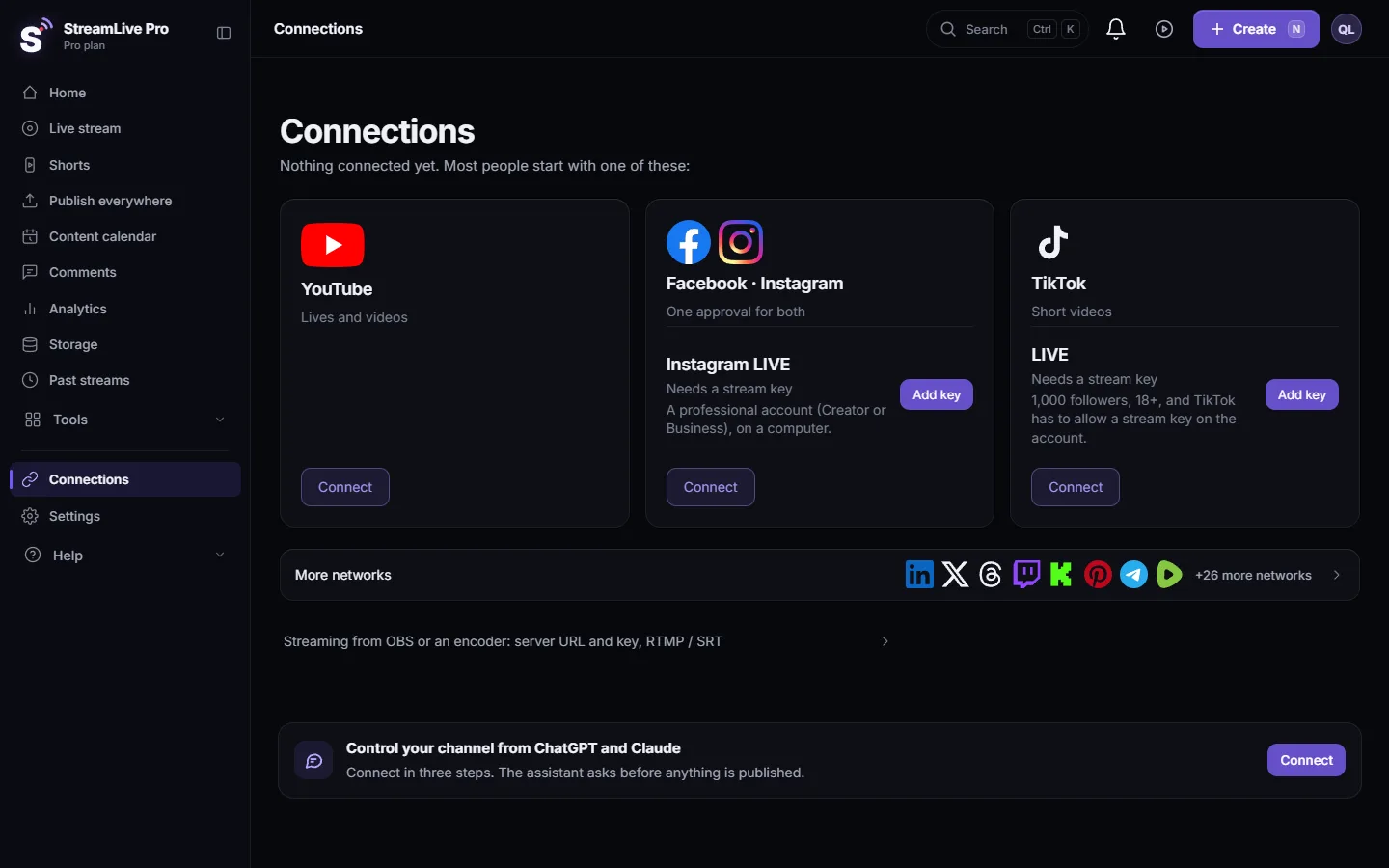
- Connect one network. Open Connections and sign in to YouTube or a Facebook Page. Do it a day early for YouTube.
- Open the studio. Go to Live stream and choose Browser Studio. Allow the camera and the microphone.
- Run the camera check. Ten seconds that confirm there is a picture and sound: The 10-second camera check before you go live.
- Tick the network. In the Channels list tick where it goes. With nothing ticked the broadcast goes only to your own StreamLive Pro watch page, which makes a private rehearsal.
- Write the title and go live. Press Start stream. Press Record if you want to keep the recording.
- End it. Press Stop stream. The broadcast ends on the networks too.

Every screen of this, with pictures: Your first live broadcast, step by step.
The checklist before you press Start
- The network is connected, and YouTube live is switched on.
- Laptop on power, phone on a charger, notifications off.
- The right microphone is chosen, and guests wear headphones.
- A rehearsal with nothing ticked, the day before.
- The title says what the broadcast is about.
The full printable list: Live stream checklist: before, during and after.
What usually goes wrong, and where the fix is
| Symptom | Where to look |
|---|---|
| The live does not start on YouTube | My live stream does not start on YouTube |
| Facebook does not start, or the Page is missing | My Facebook live does not start |
| No sound | Viewers cannot hear me: no sound in the live stream |
| The picture freezes or stutters | My live stream drops frames or keeps buffering |
| Only some networks received the live | My live reached only some of the networks |
| The phone live keeps cutting out | My live from the phone keeps disconnecting |
After the live
A recording is kept only if you pressed Record; otherwise it is removed about two hours after the broadcast. Kept recordings are in Past streams and Storage: Where is my live stream recording?.
From the same broadcast the platform can cut Shorts with captions (How to make Shorts from a live stream automatically), post them to your networks (Publish all your Shorts at once), and show what people said and watched (Manage comments from your networks in one place, Analytics and viewers — what the numbers mean). To go out to several networks every time, read How to multistream: the complete guide to several networks. To plan a regular show, read Schedule live streams and posts: the complete guide.
Where StreamLive Pro fits
StreamLive Pro is a live streaming platform you use in the browser: one upload from you, and our servers send the broadcast to every network you tick. Around the live it adds AI Shorts, scheduling, publishing, comments and analytics. It is a subscription with a 7-day free trial and no card; plans are on the pricing page.
Frequently asked questions
What do I need to start live streaming?
A camera and a microphone, which a laptop or phone already has, an internet connection with a steady upload, and an account on the network you want to reach. Everything else can come later.
Can I live stream without OBS?
Yes. You can go live from the browser studio on a computer or from your phone. OBS is useful later, and it can still send to StreamLive Pro on a paid plan.
Can I live stream to YouTube and Facebook at the same time?
Yes. Connect both, tick both in the channel list and go live once. StreamLive Pro sends the broadcast to each of them from its servers, so your upload does not double.
Is there an app for live streaming from a phone?
The StreamLive Pro app is not in the App Store or Google Play yet. On Android you can install it from our site, and on an iPhone you go live from the site in Safari.
Do I need a capture card?
Only to use a real camera, a game console or another HDMI source with a computer. A webcam or a phone needs no capture card.
How do I practise without anyone seeing?
Go live with no network ticked. The broadcast then goes only to your own StreamLive Pro watch page.
Keep reading
How to multistream to several platforms at once: your own keys from your computer, or one upload sent on by a server. Upload needs, network rules and pair guides.
Live streaming software for beginners: start simpleLive streaming software for beginners: why a browser studio is the easiest start, a first live in eight steps, the camera check, and the mistakes to avoid.
How to live stream a music performance with good soundLive stream a concert or a music performance with good sound: take audio from the mixer, switch off voice processing, set levels, and send it to several networks.
Live streaming apps and software compared (2026)Desktop, browser and phone live streaming tools in one table: OBS, Streamlabs, vMix, Ecamm, PRISM, Larix and StreamLive Pro, checked 5 November 2026.
Want to try it? 7-day trial, no credit card.
Start free