 StreamLive Pro
Schedule a broadcast you will stream from OBS
Schedule a broadcast you will stream from OBS: set the time and channels, put that broadcast's key in OBS ahead of time, and start OBS at the right moment.
To schedule a broadcast you will stream from OBS, create it with Schedule broadcast, choose the channels and the time, and copy that broadcast's server address and key into OBS before the day. At the time, StreamLive Pro opens the broadcast on your networks and sends your picture to them as soon as OBS is streaming. Scheduling does not start OBS for you: someone has to press Start Streaming.
How scheduling works for every kind of source, pre-announcing on YouTube and Facebook, and cancelling, are in Schedule a live broadcast in advance. This page is the OBS side.
Before you start
- A paid plan. Encoder ingest is on the paid plans; the 7-day trial streams from the Browser Studio only. See the pricing page.
- Healthy connections under Connections. Instagram and TikTok keys work for one session, so for those two, paste a fresh key shortly before the time (Live on Instagram and TikTok with a stream key).
- OBS set up once as in Connect OBS to StreamLive Pro and multistream: H.264, CBR, keyframe interval 2.
Steps
- Create the scheduled broadcast. Click New stream and choose Schedule broadcast. Fill in the title, the date and time (in your browser's time zone, shown next to the field), the channels and a thumbnail. If you are asked how you will go live, choose OBS or other broadcasting software.
- Pre-announce if you want a link to share. Tick Pre-announce next to YouTube or Facebook to create the event on the network now. Without it, scheduling only tells StreamLive Pro when to go on air.
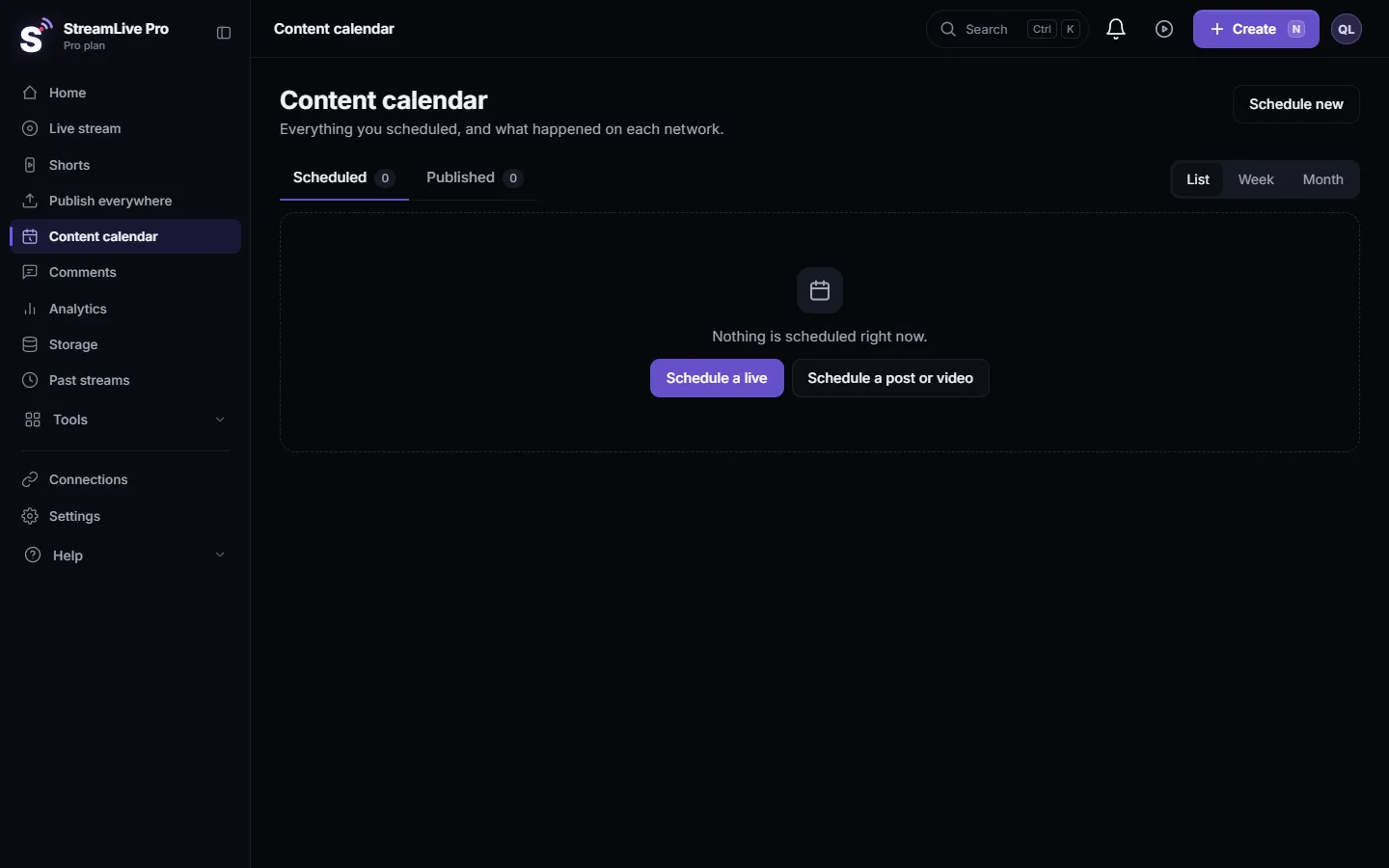
- Open the scheduled broadcast. It appears in the Content calendar with the note "You go live from OBS or other broadcasting software. Start it on time." Open it on the Live stream page to see its Encoder card.
- Copy this broadcast's address and key into OBS. Each broadcast has its own key. Copy both from the Encoder card of the scheduled broadcast, not from an older one, and paste them in OBS under Settings, Stream, with Service set to Custom. Click Apply.
- Fix any channel the half-hour check flags. About thirty minutes before the time, StreamLive Pro checks every channel of the broadcast. If one is broken you get "A channel is not connected for your scheduled broadcast", naming the channel and the reason. Reconnect it then (Reconnect a channel whose connection expired).
- Watch for the reminders. For a broadcast scheduled with OBS as its source, a reminder comes about ten minutes before ("Start OBS or your encoder with this broadcast's key") and one at the time.
- Start Streaming in OBS at the time. StreamLive Pro starts bringing the broadcast up about a minute and a quarter early, so it is on air at the time on the invitation. Start OBS in that last minute or two, not long before: an encoder stream that arrives early can put the broadcast on air before its time.
- End from StreamLive Pro. Press Stop stream to end on every network, then Stop Streaming in OBS.
If OBS starts late
At the time, StreamLive Pro opens the broadcast whether or not OBS is already sending, and your networks receive the picture from the moment OBS connects. While a live broadcast receives no video, you get "Your broadcast is not receiving video" after about two minutes, a reminder to check that OBS is streaming.
If the slot is missed by more than about a quarter of an hour and no stream has arrived, StreamLive Pro does not open the broadcast on an empty input. It keeps checking and brings the broadcast up as soon as OBS connects, without a failure notice. If OBS is running but nothing is detected, see My encoder says it is streaming, but there is no picture.
Testing without going public
Do not test on the scheduled broadcast itself: once OBS connects, StreamLive Pro treats it as going live. Create a separate broadcast with Stream from software like OBS (RTMP / SRT), tick one channel where nobody watches yet (for example an unlisted YouTube broadcast), run OBS for a few minutes, and end it. Then put the scheduled broadcast's own key back in OBS.
Running with nobody at the computer
An OBS broadcast always needs OBS to be started. If nobody can be there at the time, upload the video and use a Pre-recorded broadcast instead: it goes live by itself at the time you set (Broadcast a pre-recorded video as a live stream). Pre-recorded broadcasts are on the trial, Pro and Studio, not on Creator.
What can go wrong
| Symptom | Fix |
|---|---|
| OBS streams, the scheduled broadcast never starts | OBS has the key of a different broadcast. Copy the key from the scheduled broadcast's Encoder card |
| "Scheduled broadcast did not start" because the plan is not active | Renew the plan, then schedule again |
| "Some channels did not go live" | The broadcast is on, but the named channels failed. Reconnect them |
| The broadcast went live before the time | OBS was started early. Start it in the last minute or two |
| Instagram or TikTok missing | Their key was used or expired. Paste a fresh one before the time |
All scheduling problems in one place: My scheduled live did not start.
Frequently asked questions
Can StreamLive Pro start OBS for me at the scheduled time?
No. StreamLive Pro opens the broadcast on your networks at the time, but OBS has to be started on your computer. For a broadcast with nobody present, use a pre-recorded broadcast.
Which key do I put in OBS for a scheduled broadcast?
The key on the Encoder card of that scheduled broadcast. Each broadcast has its own key, so a key from an earlier broadcast does not start this one.
What happens if I start OBS ten minutes early?
The stream can be detected and the broadcast can go live early. Start OBS within the last minute or two before the time.
What if I start OBS twenty minutes late?
StreamLive Pro keeps waiting and brings the broadcast up when OBS connects. Viewers who came on time will have waited.
Do I get a warning if YouTube is disconnected before the broadcast?
Yes. About thirty minutes before the time, StreamLive Pro checks every channel and sends an alert naming any channel that is not connected, with a link to reconnect it.
Keep reading
Stream a game to Twitch, Kick and YouTube at once: OBS sends one stream, StreamLive Pro sends it on, plus chat, upload, platform rules and Shorts of your best moments.
What is an ingest server in live streaming?What is an ingest server: the address your encoder sends a live stream to, with a stream key. How ingest differs from playback, what it checks, and where to find yours.
Connect PRISM Live Studio to StreamLive ProAdd StreamLive Pro as a custom channel in PRISM Live Studio on the computer and send one stream to YouTube, Facebook Pages, Twitch and more: steps, settings and fixes.
Connect XSplit Broadcaster to StreamLive ProAdd a Custom RTMP output in XSplit Broadcaster with StreamLive Pro's address and key, and reach YouTube, Facebook Pages, Twitch and more from one stream: steps and fixes.
Want to try it? 7-day trial, no credit card.
Start free