 StreamLive Pro
Go live from your phone
How to go live from a phone browser with StreamLive Pro, why the Facebook and Instagram browsers cause a black screen, and how to use the phone as a camera for a computer instead.
You can go live from a phone, in Safari or Chrome, with no app to install.
Step by step
- Open streamlivepro.io in Safari (iPhone) or Chrome (Android) and sign in.
- Go to Live Stream and pick where to send it: your connected channels, or your own watch page on StreamLive Pro if no channel is chosen yet.
- Press Go live. The camera turns on in the same tap, and the 10-second check makes sure viewers will see and hear you. When it is fine you are live by yourself.
Do not use the Facebook or Instagram browser
If you opened the link from inside Facebook, Instagram or TikTok, the page runs in their built-in browser. The camera does not work well there and viewers may see a black screen. StreamLive Pro shows To go live, open the site in your browser:
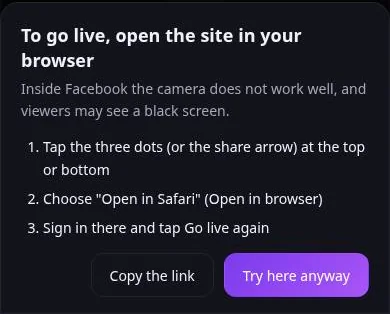
- Tap the three dots (or the share arrow) at the top or bottom.
- Choose Open in Safari (or Open in browser).
- Sign in there and tap Go live again.
Tips for a phone broadcast
- Keep the screen on and the browser in front until the end. A locked screen or a switch to another app can stop the camera.
- Connect to power and use Wi-Fi when you can.
- Turn on Do Not Disturb so a call does not interrupt the broadcast.
A computer plus a phone is often easier
Going live is easiest from a computer, and the phone can still be the camera: in the computer studio choose Add phone camera and open the link on the phone. See Use your phone as a camera.
If something goes wrong
If your last broadcast had no picture, Home tells you so the next time you open it, with Check the camera, so you can fix it before going live again.
Frequently asked questions
Do I need the StreamLive Pro app to go live from a phone?
No. The phone browser is enough. From version 1.2.0 the app can also add your phone as a camera to a computer studio; until then the phone browser does that too, with a link or QR code.
Viewers see a black screen.
Most often the page was opened inside Facebook, Instagram or TikTok. Open it in Safari or Chrome and go live again.
Can I lock the phone during the broadcast?
No. Keep the screen on and the browser in front until you end the broadcast.
Keep reading
Live stream a synagogue event on a weekday: a bar mitzvah at a Monday or Thursday reading, a siyum, a hachnasat sefer Torah. Rav's approval, cameras, sound, privacy.
How to live stream a local or youth sports gameLive stream a youth or amateur sports game with one or two phones: where to stand, sound, the score on screen, the venue's internet, privacy and highlights afterwards.
How to live stream a school ceremony or graduationHow to live stream a school ceremony or graduation: consent and privacy first, the hall's sound, phones as cameras, a link for families, and keeping the recording.
The WhatsApp QR code does not connectThe WhatsApp QR code for Post from groups expires, keeps changing or will not link: why, how to link with a phone-number code, and what each status means.
Want to try it? 7-day trial, no credit card.
Start free