 StreamLive Pro
How to go live on LinkedIn with a custom stream
Go live on LinkedIn from StreamLive Pro: get LinkedIn Live access, create a scheduled LinkedIn Live event with a custom stream, and paste its URL and key.
LinkedIn Live works with a stream key from a LinkedIn Live event. LinkedIn first has to make your profile or Page eligible for LinkedIn Live. Then you create a LinkedIn Live event that uses a custom stream (RTMP), copy its stream URL and key into StreamLive Pro, and start the broadcast from StreamLive Pro. Every event has its own key, so you paste a new one for each LinkedIn live.
Before you start
- LinkedIn Live access. LinkedIn offers live video to eligible members and Pages and decides who qualifies (LinkedIn Help: LinkedIn Live overview). StreamLive Pro cannot request or grant it for you.
- An event scheduled ahead. LinkedIn's help page says all live events must be scheduled ahead of time, and suggests scheduling one a few minutes before you go live if you want to start soon (same page).
- Public by design. LinkedIn says all LinkedIn Lives are public and recorded, and the video stays on the profile or Page afterwards (same page). Plan the content with that in mind.
- A StreamLive Pro account. The browser studio works on the 7-day trial. OBS or vMix as the source needs a paid plan (see the /pricing?lang=en page).
Steps
- Create the LinkedIn Live event. On LinkedIn, on a computer, create an event (on your profile or on the Page) and choose the LinkedIn Live format. For the broadcast tool choose the custom stream (RTMP) option, set the date and time, and create the event.
- Open the stream setup. Open the event and its stream setup. LinkedIn shows a stream URL and a stream key for that event.
- Paste them into StreamLive Pro. On Connections add LinkedIn Live (stream key) and paste the URL and the key. One box takes both at once. For the next event you only paste the new key when you go live.
- Tick LinkedIn and start. At the event time, open Live stream, tick LinkedIn in the Channels list together with any other networks, and press Start stream.
- Check LinkedIn. Open the event on LinkedIn and confirm the preview shows your picture. If LinkedIn asks you to confirm going live there, do it.
- End. Press Stop stream, then check on LinkedIn that the event shows as ended. LinkedIn keeps the recording on the profile or Page.
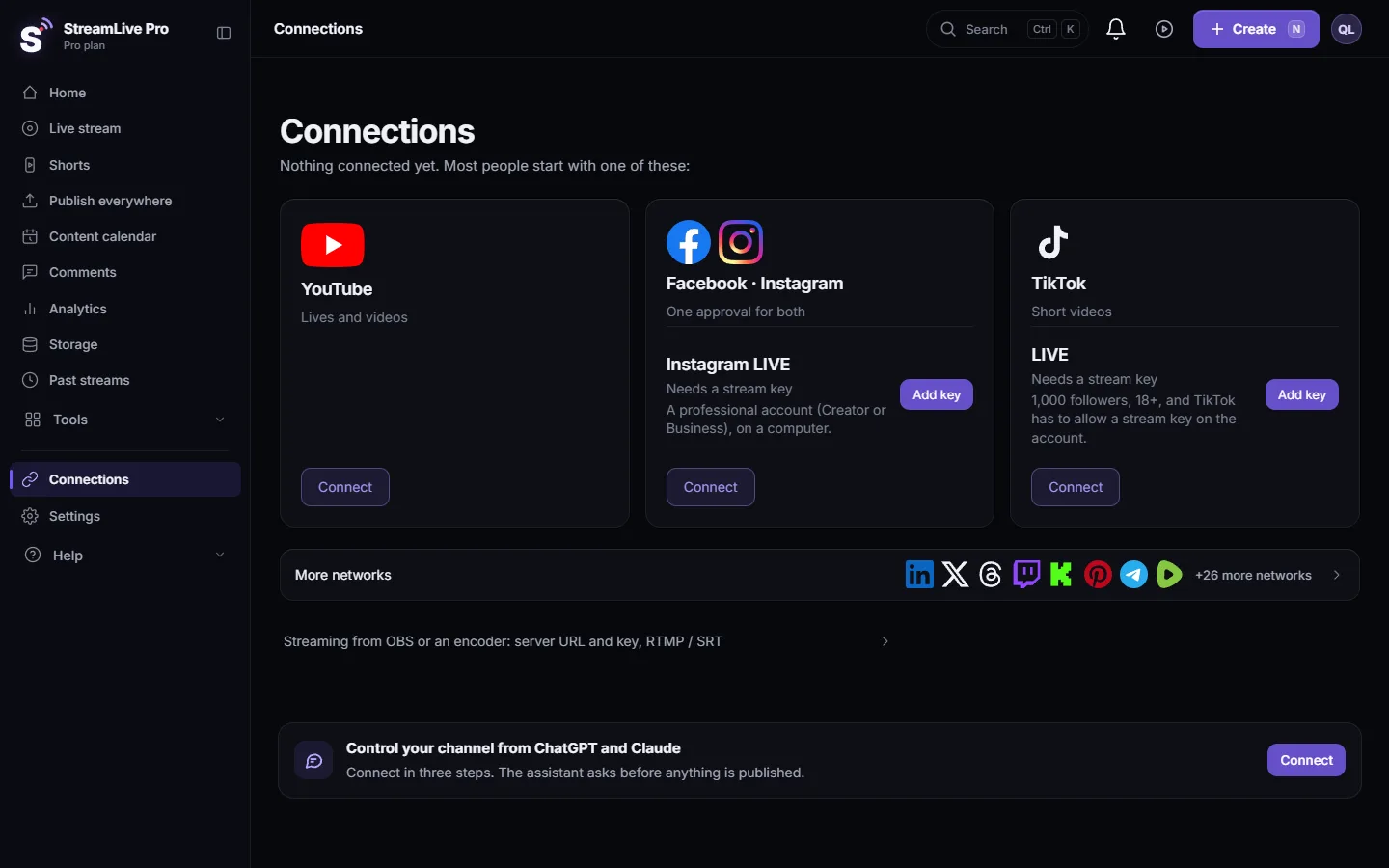
Two LinkedIn connections, two jobs
The LinkedIn card you connect with a sign-in is for posting finished videos and text: see Publish a finished video to social networks. Live goes through the LinkedIn Live (stream key) card, with the key of each event. Connecting LinkedIn for posting does not make it a live destination by itself.
What can go wrong
| What you see | Likely cause | Fix |
|---|---|---|
| No LinkedIn Live format when you create an event | LinkedIn has not made the profile or Page eligible | Check LinkedIn's access criteria. Only LinkedIn can change this |
| No custom stream option in the event | The event was created with a partner tool selected | Create a new event and pick the custom stream (RTMP) option |
| "New key needed" on the LinkedIn channel | The saved key belongs to an earlier event | Open the stream setup of the new event and paste its key |
| StreamLive Pro is live, the LinkedIn event stays empty | Wrong event's key, or the event time has not come | Check that the key comes from today's event and that the event is open |
| You wanted to start right now | LinkedIn requires a scheduled event | Schedule an event a few minutes ahead, then use its key |
Limits to know
- StreamLive Pro does not read LinkedIn live comments or viewer numbers. Live chat covers YouTube and Facebook (with replies) and Twitch and Kick (read only).
- LinkedIn connections for posting expire after a while and ask to be reconnected. See Notifications: what the bell tells you, and how often.
- The key changes with every event. A schedule made in StreamLive Pro does not create the LinkedIn event for you.
Going further
All networks and what they ask for: Going live on each network: what it needs. X and other key-based networks: How to multistream to X (Twitter) and other networks at the same time. What a stream key is: RTMP and stream keys: where to find them, what breaks. Sending the same broadcast to YouTube and Facebook as well: How to live stream to several platforms at once.
Frequently asked questions
Can anyone go live on LinkedIn?
No. LinkedIn offers live video to eligible members and Pages and decides who qualifies. StreamLive Pro cannot grant access.
Do I need a new LinkedIn key every time?
Yes. Each LinkedIn Live event has its own stream key, so paste the key of the event you are about to stream.
Can I go live on LinkedIn without scheduling an event?
No. LinkedIn says every live event must be scheduled ahead of time. You can schedule one a few minutes ahead and use it right away.
Can I stream to LinkedIn and YouTube at the same time?
Yes. Tick LinkedIn and YouTube in the same broadcast. YouTube connects once with a sign-in; LinkedIn uses the key of each event.
Is a LinkedIn live private?
No. LinkedIn says every LinkedIn Live is public and recorded, and it stays on your profile or Page.
Will I see LinkedIn comments in StreamLive Pro?
No. Live chat in StreamLive Pro reads YouTube, Facebook, Twitch and Kick. LinkedIn comments stay on the LinkedIn event.
Keep reading
A live streaming glossary in plain words: stream key, RTMP, SRT, bitrate, multistream, Preview and Program, ISO, captions, reframe. Where each shows up in StreamLive Pro.
How to stream on Bilibili Live with a stream keyStream on Bilibili Live from your browser: start a live in your Bilibili room, copy the server and fresh key into the Bilibili Live card, then go live.
How to go live on Dailymotion with a stream keyGo live on Dailymotion: get live enabled on your account, create a live stream in Dailymotion Studio, and paste its stream URL and key into StreamLive Pro.
How to stream on DLive with your stream keyStream on DLive from your browser: copy the key from your DLive dashboard, paste it into the DLive card in StreamLive Pro, and go live alone or with other networks.
Want to try it? 7-day trial, no credit card.
Start free