 StreamLive Pro
Stream to a custom RTMP or SRT server
Stream to any custom RTMP, RTMPS or SRT server from StreamLive Pro: add the address and key once, tick it next to YouTube and Facebook, and go live.
Any service or server that gives you an RTMP, RTMPS or SRT address can be a destination of your broadcast. Add it once on the Connections page with the Custom RTMP or Custom SRT card, paste the address and the key, and from then on tick it in the channel list like any network. StreamLive Pro sends a copy of the broadcast to it from our servers, together with YouTube, Facebook and the rest. WHIP and HLS addresses are not supported as destinations.
Before you start
- The address and key from the receiving side. A streaming service shows them in its stream or encoder settings, usually as a server URL and a stream key. Your own server's admin can give them to you.
- A public address. The copy is sent from our servers over the internet, so the server must be reachable from the internet. Addresses on a private network, such as 127.0.0.1 or 192.168.x.x, are refused.
- A supported protocol. The address has to start with rtmp://, rtmps:// or srt://. If the service offers both, rtmps:// is RTMP over an encrypted connection. The differences are explained in RTMP vs RTMPS vs SRT: which one to use and when.
- Check for a ready-made card first. Many services already have their own card on Connections, for example Rumble, Vimeo Live, Dailymotion Live, VK Video Live, Trovo, DLive, Odysee, Bilibili Live, Huya and Steam Broadcasting. Those cards check that the address belongs to the service, which catches a wrong paste before you go live. Use Custom RTMP for everything else.
Steps
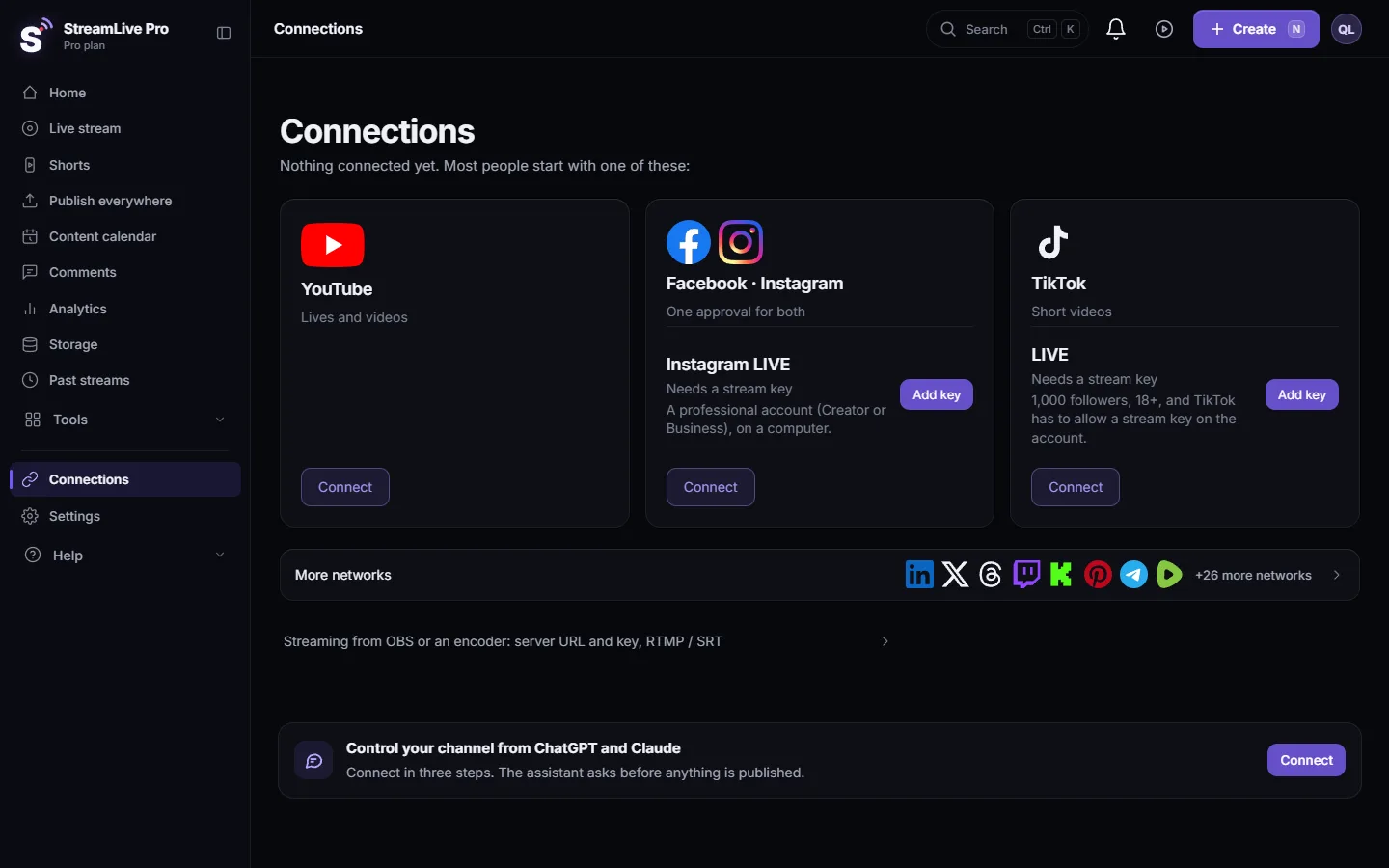
- Open the custom cards. Open Connections and scroll to Custom destinations, below the networks that work with a stream key.
- Choose the card. Click Custom RTMP for an rtmp:// or rtmps:// address, or Custom SRT for an srt:// address.
- Fill in the fields. Display name is optional; it is how the destination appears in your channel list, for example "Website player". Paste the server address in the URL field and the key in the Stream Key field. For SRT, paste the full address exactly as your server gives it, including the streamid part if it has one.
- Save. Click Save connection. If the same address and key were already saved, the existing destination is updated instead of a duplicate being made.
- Tick it and go live. On Live stream, tick the destination in the Channels list together with any networks, and press Start stream. It counts as one destination of the broadcast, like any network.
- Check the receiving side. Open the service's dashboard or your server's player and confirm the picture arrives.
Good to know
- One upload from you. Your computer sends one stream to StreamLive Pro. The copy to your server is made on our side, so adding a destination does not add load on your connection. See Upload speed and bitrate for multistreaming.
- The same address twice. If two destinations of one broadcast have the same address and key, only one copy is sent.
- Sending into StreamLive Pro is a different thing. This page is about where the broadcast goes. To send from OBS, vMix or a hardware encoder into StreamLive Pro over RTMP or SRT, see Connect OBS to StreamLive Pro and multistream and Stream with SRT from OBS, vMix or a hardware encoder.
- WHIP and HLS. Some text on the Connections page still mentions WHIP and HLS. As destinations they are refused with a message, because broadcasts leave our servers only over RTMP, RTMPS or SRT. If your service also offers an RTMP or SRT address, use that.
What can go wrong
| What you see | Likely cause | Fix |
|---|---|---|
| "That address points to a private network" | The address is a local or private one (127.0.0.1, 192.168.x.x and similar) | Use the server's public address and open its port to the internet |
| "The URL must start with rtmp://, rtmps://, srt:// or https://" | The address is missing its protocol, or something else was pasted | Copy the full address again from the service |
| "RTMP URL and Stream Key required" | One of the two fields is empty | Fill in both. Ask the server's admin for the key if you do not have one |
| "WHIP and HLS destinations are not supported yet" | A WHIP or HLS address was used | Ask the service for an RTMP or SRT address |
| A message that the address belongs to another network | The address was pasted into a named card of a different service | Use the matching card, or Custom RTMP for any other service |
| Saved, but nothing arrives at the server | Firewall, wrong application path, or the server expects a different key | Check the server's logs and its expected address with its admin, then test with a short broadcast |
Test a new custom destination with a short private broadcast before an important event.
Going further
Other networks that work with a key: How to multistream to X (Twitter) and other networks at the same time. What a stream key is: RTMP and stream keys: where to find them, what breaks. All networks: Going live on each network: what it needs. Several destinations in one broadcast: How to live stream to several platforms at once.
Frequently asked questions
Can I restream to my own RTMP server?
Yes, if it has a public address. Add it with the Custom RTMP card and tick it in the channel list next to your other networks.
Does StreamLive Pro support SRT as a destination?
Yes. Use the Custom SRT card and paste the full srt:// address your server gives you, including the streamid part if it has one.
Can I send to a server on my local network?
No. The copy is sent from our servers over the internet, and private addresses such as 192.168.x.x are refused. The server needs a public address.
Can I add a WHIP or HLS destination?
No. Broadcasts leave StreamLive Pro over RTMP, RTMPS or SRT only. If your service offers an RTMP or SRT address, use that.
Does a custom destination count toward my plan?
Yes. Each ticked destination counts as one of the destinations your plan allows in a single broadcast.
Will this use more of my upload?
No. You upload one stream to StreamLive Pro, and the copy to your server is sent from our side.
Keep reading
A live streaming glossary in plain words: stream key, RTMP, SRT, bitrate, multistream, Preview and Program, ISO, captions, reframe. Where each shows up in StreamLive Pro.
How to stream on Bilibili Live with a stream keyStream on Bilibili Live from your browser: start a live in your Bilibili room, copy the server and fresh key into the Bilibili Live card, then go live.
How to go live on Dailymotion with a stream keyGo live on Dailymotion: get live enabled on your account, create a live stream in Dailymotion Studio, and paste its stream URL and key into StreamLive Pro.
How to stream on DLive with your stream keyStream on DLive from your browser: copy the key from your DLive dashboard, paste it into the DLive card in StreamLive Pro, and go live alone or with other networks.
Want to try it? 7-day trial, no credit card.
Start free