 StreamLive Pro
Manage comments from your networks in one place
Read and answer YouTube, Facebook Page, Instagram and Threads comments on the Comments page: which networks work, filters, replies, likes and hiding, and limits.
The Comments page in StreamLive Pro gathers comments from your connected YouTube channel, Facebook Pages, Instagram and Threads accounts, and from Bluesky and Mastodon, and lets you answer them without opening each network. It reads comments on what you published through StreamLive Pro, including YouTube and Facebook lives, and on your accounts' own recent posts on Facebook, YouTube, Instagram and Threads. Each network decides through its connection whether comments can be read and answered from here; TikTok and LinkedIn comments are not available, and nothing is ever answered automatically.
Before you start
- Connected accounts. Comments come from the accounts in Connections. For Facebook, the Pages you switched on are read.
- The permissions you approved. When you connected the account, the network asked what StreamLive Pro may do. If reading or replying to comments was not approved, that network cannot show or answer comments here. Reconnecting and approving all the permissions fixes it: Reconnect a channel whose connection expired.
- Recent posts. StreamLive Pro reads recent posts and videos. A comment it has not read again from the network for 30 days is removed from StreamLive Pro; it stays on the network.
What each network supports
| Network | Comments arrive | Reply from StreamLive Pro | Other actions |
|---|---|---|---|
| YouTube | Yes, when the connection allows reading comments | When the connection has YouTube's permission to manage comments; otherwise a Reply on YouTube link | Load older comments from YouTube |
| Facebook Pages | Yes, on the Pages you switched on | Yes, as the Page | Like and hide, as the Page |
| Yes | Yes | Hide | |
| Threads | Yes | Depends on the connection | |
| Bluesky | Yes | Yes | |
| Mastodon | Yes | Yes | |
| X | Off by default | ||
| TikTok | No: TikTok gives apps no access to comments | ||
| Not shown |
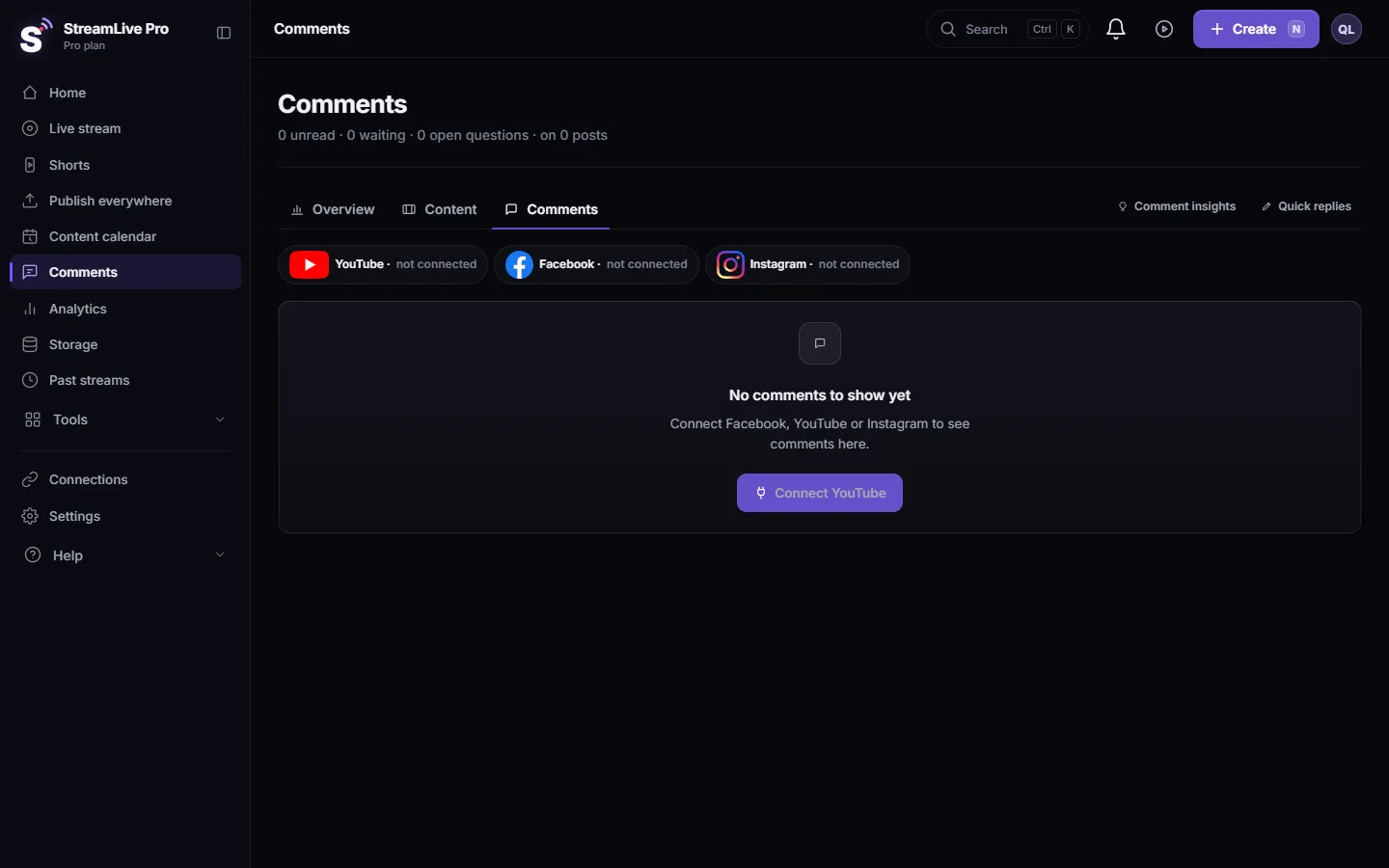
The row of networks at the top of the page shows the state of each one: connected or not, and whether comments arrive. When a network cannot be answered from here, its comments carry a link to reply on the network itself.
Steps
- Open Comments. Choose Comments in the menu. The line under the heading counts unread comments, comments waiting for a reply, open questions, and the posts they are on.
- Pick a filter. All, Unread, Waiting, Questions or Negative. With several networks connected you can also choose one network. Refresh fetches new comments now; new ones also arrive by themselves while the page is open.
- Open a post. Each post or video shows its comments, with replies under them. Sort by Newest, Most popular or Oldest.
- Press Reply under a comment. A reply box opens under it. On YouTube it names the channel your reply is posted as.
- Write, or start from a suggestion. Suggest replies asks the AI for a few drafts; pick one and edit it. Each request uses your monthly AI allowance, which depends on the plan.
- Press Send reply. The reply is posted on the network under the viewer's comment, and the comment is marked Replied.
- Tidy the list. Mark as done for a comment you answered elsewhere, or Mark as waiting to bring it back. On Facebook you can Like a comment or hide it as your Page; on Instagram you can hide it. Unhide shows it again.
Alerts, insights and quick replies
- Alerts. Choose to be told about new questions, negative comments or every new comment, in the bell and, if you want, by e-mail at most every 6 hours. A weekly summary e-mail on Sundays is optional.
- Comment insights. Open questions, recurring words, the people who comment most, and sentiment by day.
- Quick replies. Ready-made answers, built in and your own, managed from the Quick replies button at the top of the page.
What can go wrong
| What you see | Why | Fix |
|---|---|---|
| A network shows as not connected | The account is not connected, or was disconnected | Connect it in Connections |
| Comments arrive but there is no Reply, only a link to the network | The connection was not given permission to reply | Reconnect and approve every permission, or reply on the network |
| An older post is missing | Only recent posts and videos are read | Open the post on the network |
| The reply was refused as too long | Each network has its own length limit | Shorten it |
| Replies stopped for today | A daily safety limit on replies sent from StreamLive Pro | Reply on the network, or wait until tomorrow |
| No TikTok comments at all | TikTok gives apps no access to comments | Reply in the TikTok app |
What this page is not
- Live chat. Messages during a live are in the chat next to the player on the Live stream page, not here: Live chat from YouTube and Facebook in one panel. To show a viewer's message on screen: Show a viewer's comment on screen during a live.
- Automatic replies. Nothing is sent unless you press Send reply. Automatic and smart replies are not open to customers today: Smart replies to comments (off by default).
- On the phone. The Android app has an Inbox tab for the same comments: Reply to comments from the phone app.
Related pages
- Analytics: every account, every post, your audience
- Which networks give numbers to Analytics
- How to live stream: the complete guide for 2026
- Schedule live streams and posts: the complete guide
Frequently asked questions
Can I reply to YouTube, Facebook and Instagram comments in one place?
Yes, where each connection allows it. Open Comments, open the post and press Reply under the comment. If a network does not allow replying from StreamLive Pro, the comment has a link to reply on the network.
Does it show comments on posts I did not publish through StreamLive Pro?
Yes, your accounts' recent posts on Facebook, YouTube, Instagram and Threads are read too, as well as everything you published through StreamLive Pro.
Why do I not see TikTok comments?
TikTok does not give apps access to comments, so they cannot reach StreamLive Pro. Reply in the TikTok app.
Does the AI answer comments by itself?
No. Suggest replies only writes drafts when you press it. Nothing is posted until you press Send reply.
Does hiding a comment delete it?
No. On Facebook and Instagram, hiding hides it on the network, and Unhide shows it again. It is not deleted.
How long are comments kept?
StreamLive Pro removes a comment it has not read again from the network for 30 days. The comment itself stays on the network.
Keep reading
Which networks give numbers to StreamLive Pro Analytics: YouTube, Instagram, Facebook Pages, Threads and Twitch, and why TikTok, LinkedIn and X differ.
Delete a published post from every networkRemove a post you published from YouTube, Facebook, LinkedIn and X in one step with Delete everywhere, and what to do on Instagram, TikTok and the others.
Export your analytics to CSV or a PDF reportExport social media analytics from StreamLive Pro: a CSV of numbers per day, a CSV of every post, or a PDF report of the account and period on screen.
Compare two accounts in Analytics, per followerCompare your social accounts side by side in Analytics: a ranking, 2 to 4 accounts in columns, and account vs account per follower, fair to small Pages.
Want to try it? 7-day trial, no credit card.
Start free