 StreamLive Pro
My live reached only some of the networks
Live reached only some networks? Why one destination stays empty while the others work: expired connection, old stream key, plan limit or the network's own rules.
When a broadcast reaches YouTube but not Facebook, or every network except Instagram, the problem is almost always with that one destination, not with your stream. Each destination is sent on its own, so one that fails does not stop the others. The most likely causes, in order: the connection to that network expired and needs Reconnect; the stream key is from an earlier session; you ticked more destinations than your plan sends at once; or the network itself has not opened the live on its side.
StreamLive Pro checks the destinations it can before going live. If a connection is revoked or expired, a window says "These destinations cannot receive the broadcast", names each one with the reason, and offers Reconnect or Go live without them.
Symptom table
| Symptom | Likely cause | Fix |
|---|---|---|
| Before going live: "These destinations cannot receive the broadcast" | The connection was revoked or expired, or a Facebook Page needs reconnecting | Press Reconnect, or go live without them and fix it after |
| During the live: "[network] session expired, please reconnect this account" | The sign-in to that network expired | Reconnect it in Connections; the other networks keep going |
| Instagram, TikTok or LinkedIn stay empty | The pasted key is from an earlier session or event | Paste the fresh key of today's session, then start again |
| X stays empty | No Broadcast was created on your Producer source for today, or Go live was not pressed there | In X Media Studio, Producer, create a Broadcast on the source and press Go live once the picture arrives |
| Instagram receives, but nobody sees the live | Instagram waits for you to press Go live in its own window | Go back to the Instagram tab and press Go live |
| YouTube stays empty on a new channel | Live streaming is not enabled on the channel yet | Enable it in YouTube; the first time can take up to 24 hours (YouTube Help, checked 5 November 2026) |
| The last networks you ticked never get anything | You ticked more destinations than your plan sends at once | Untick some, or see the number per plan on the /pricing?lang=en page |
| From OBS: nothing reaches any network | The dashboard tab was closed while the encoder started | Keep the dashboard tab open while the encoder starts |
Steps
- Read the window before going live. If it names destinations, press Reconnect to fix them now, or Go live without them so the rest of the show is not delayed.
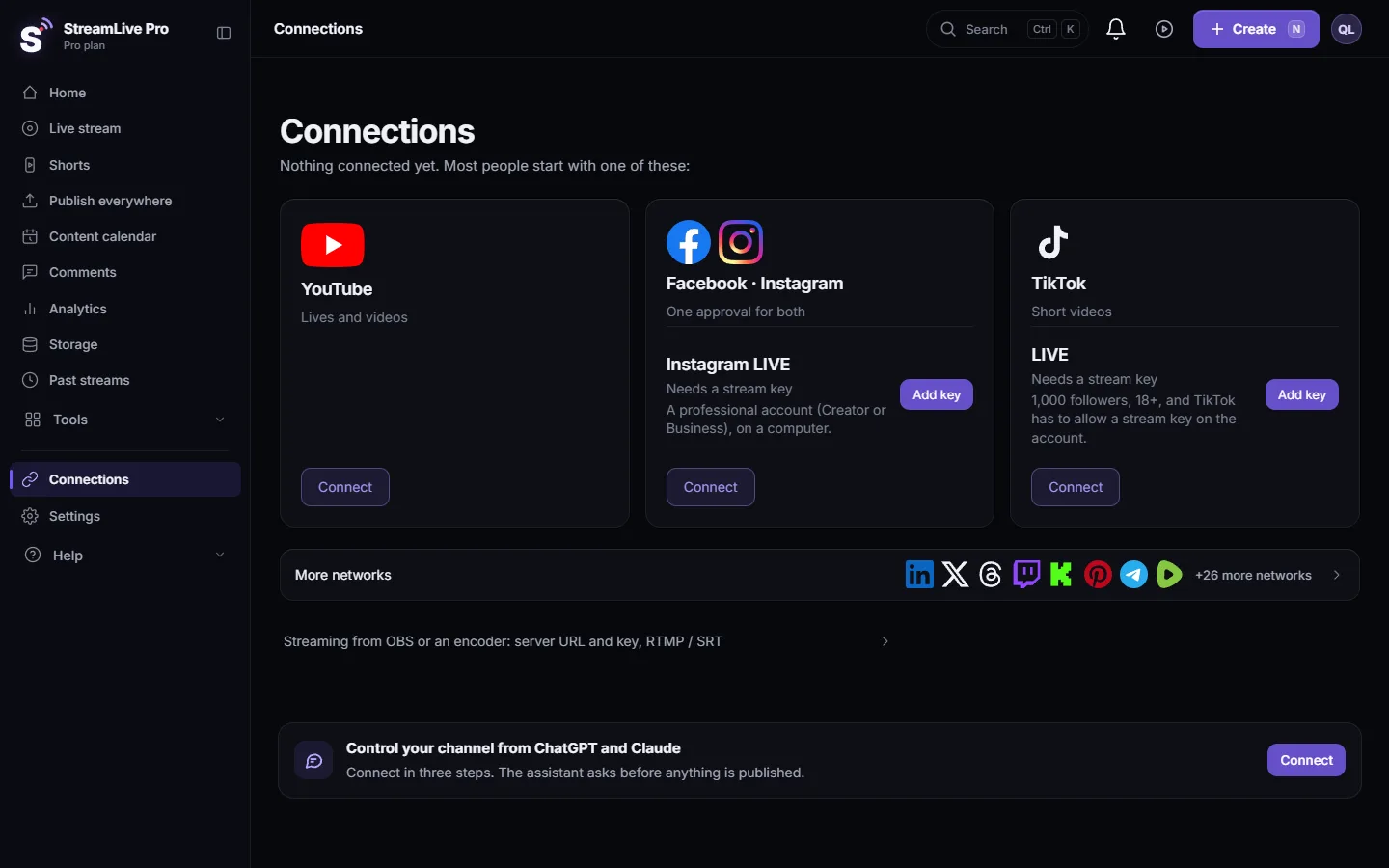
- Check the channel in Connections. Open Connections. A channel that needs attention shows Reconnect. Renew it: Reconnect a channel whose connection expired.
- Paste a fresh key where the network rotates it. Instagram and TikTok give a new key per session; LinkedIn gives one per event. An X Producer source keeps the same key, but each broadcast needs its own Broadcast on that source in X Media Studio. Copy the key of today's session into the channel, then stop and start the broadcast. See Persistent and one-time stream keys, network by network.
- Count your destinations. One broadcast reaches at most the number of destinations your plan allows. Ticking more does not send to more.
- Check the network's own side. On the network, open the live or event page. Some networks receive the picture but wait for a click (Instagram's Go live, LinkedIn's Go live), or have a rule of their own (YouTube live must be enabled; LinkedIn needs approval and a scheduled event).
- Start the broadcast again if needed. A destination fixed during the live is picked up when you stop and start. Tell viewers on the working networks before you restart.
Network-specific pages
- YouTube: My live stream does not start on YouTube.
- Facebook (a Page you manage): My Facebook live does not start.
- Instagram and TikTok: My Instagram or TikTok stream key does not work.
- LinkedIn: My live does not start on LinkedIn.
- A custom server: Stream to a custom RTMP or SRT server.
How sending to several networks works
Your browser or encoder sends one stream to StreamLive Pro. Our servers add an output for each destination you ticked and push the copy there. That is why one network can fail while the others work, and why fixing one does not need a faster connection. More: How to live stream to several platforms at once.
When to contact support
If a destination stays empty after you reconnected it and pasted a fresh key, write to [email protected]. Send the network, the account or Page name, the time of the broadcast, and any message you saw. Do not send stream keys.
Frequently asked questions
Why did my live go to YouTube but not to Facebook?
Usually the Facebook connection expired or a Page needs reconnecting. StreamLive Pro names it before you go live; press Reconnect, or fix it in Connections and start again.
Does one failed network stop the whole broadcast?
No. Each destination is sent on its own. The others keep receiving the broadcast.
Why does Instagram show nothing although StreamLive Pro is live?
Either the key is from an earlier session, or Instagram is waiting for you to press Go live in its own window. Paste a fresh key each time and press Go live there.
Can I add a network in the middle of a live?
Fix or add it in Connections, then stop and start the broadcast so the new destination is included.
I ticked five networks and only three got the live. Why?
Your plan sends one broadcast to a set number of destinations at once. The pricing page lists the number per plan.
Keep reading
Run a live Q&A: collect questions before, read YouTube and Facebook chat in one panel, show a question on screen, bring in an expert by link, and reuse the answers.
How to live stream a community meeting or town hallHow to live stream a community meeting or town hall to a Facebook Page and YouTube at once: room sound, residents' questions from chat, remote speakers, and minutes.
How many networks can I stream to at onceHow many networks one StreamLive Pro live can reach: set by your plan, two in the trial, what counts as one destination, and what the channel limit message means.
How to live stream a local or youth sports gameLive stream a youth or amateur sports game with one or two phones: where to stand, sound, the score on screen, the venue's internet, privacy and highlights afterwards.
Want to try it? 7-day trial, no credit card.
Start free