 StreamLive Pro
Live on Instagram and TikTok with a stream key
How to go live on Instagram and TikTok LIVE from StreamLive Pro with a stream key: who can, where the key is, why it changes every live, and what the "New key needed" and "Key ready" badges mean.
Instagram and TikTok do not let other apps start a live for you. They do let you stream to them with a stream key: an address and a key you copy from Instagram or TikTok and paste into StreamLive Pro. The key changes for every live, so you paste a new one each time. StreamLive Pro guides you through it, step by step, with pictures.
Instagram Live
You need an Instagram account that offers Live video on instagram.com on a computer (Instagram decides which accounts get it). Then:
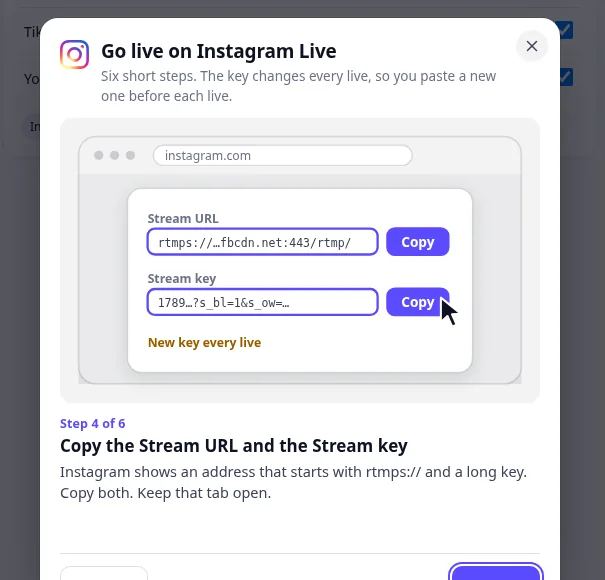
- On instagram.com on a computer: Create, then Live video.
- Give it a title and choose the audience, then Next.
- Instagram shows a Stream URL (it starts with rtmps://) and a long Stream key. Copy both and keep that tab open.
- In StreamLive Pro, paste them into the key window for Instagram. One box takes both at once, or use the two separate fields.
- Press Go live in StreamLive Pro.
- Go back to the Instagram tab and press Go live there too. Until you do, Instagram receives the broadcast but viewers see nothing.
TikTok LIVE
TikTok gives a stream key only to accounts it has allowed (Stream key or LIVE Studio access). TikTok sets the rules (age is one of them) and lists them in its own help. If the option is not in your TikTok, the account has no access yet, and there is no way around that.
- In TikTok, start a LIVE with a stream key.
- Copy the Server URL and the Stream key.
- Paste them into StreamLive Pro and press Go live.
- If TikTok shows Go LIVE, press it there.
The badges in the channel list
- New key needed: the key of the last live was used. Click the badge to paste a new one.
- Key ready: a fresh key is saved for this live.
While you are live, a bar reminds you: Now press Go live in the Instagram tab, with Open Instagram and Done. If an output fails, StreamLive Pro says so, usually because the key was already used: stop, take a new key, start again.
Your key stays private
The key is saved encrypted and is never shown again in full, never written to logs and never sent back to your browser. Instagram keys are accepted only for Instagram and Meta addresses (rtmps://), and TikTok keys only for TikTok addresses, so a mistyped paste cannot send your broadcast somewhere else.
Frequently asked questions
Can StreamLive Pro start the Instagram live for me?
No. Instagram and TikTok have no official way for other apps to do that, so the last press on Go live is always in their own tab or app.
Why does it say "New key needed" again?
Instagram and TikTok give a new key for every live. Paste the new one before each broadcast.
I do not see a stream key option in TikTok.
TikTok has not given your account stream-key access yet. TikTok decides which accounts get it; its own help lists the rules.
Keep reading
YouTube, Facebook, Twitch and Kick connect with a sign-in. Instagram, TikTok, X and LinkedIn live take a stream key from the network. What each one asks of you.
Streaming from OBS or vMix with RTMPWhere to find the server address and stream key, which encoder settings to use, and what to check when the connection is not picked up.
RTMP and stream keys: where to find them, what breaksRTMP, RTMPS, SRT, WHIP and RTSP in plain words, where the stream key is on YouTube, Facebook, Twitch and Kick, how to reset it, and the usual errors.
Want to try it? 7-day trial, no credit card.
Start free