 StreamLive Pro
How to go live on a Facebook Page from your computer
Go live on a Facebook Page from a computer: connect Facebook once, tick the Page, give it its own title, and start from the browser studio or from OBS.
To go live on a Facebook Page from a computer, connect your Facebook account to StreamLive Pro once and tick the Page on Facebook's approval screen. After that, every broadcast can go to that Page: StreamLive Pro creates the live video on the Page, sends your picture, and shows the Page's comments next to your studio. The destination is a Page you manage. Facebook groups and personal profiles are not destinations for this one-click connection.
Before you start
- A Facebook Page you manage. You need a role on the Page that lets you go live on it. Facebook explains roles and live tools in its own help center (Meta Business Help: Go live with streaming software).
- A StreamLive Pro account. The 7-day trial works from the browser studio to up to two destinations. Sending from OBS or vMix needs a paid plan (see the /pricing?lang=en page).
- A camera and a microphone, or a screen to share. Your computer uploads one stream to StreamLive Pro; the copies to each network are made on our servers.
Steps
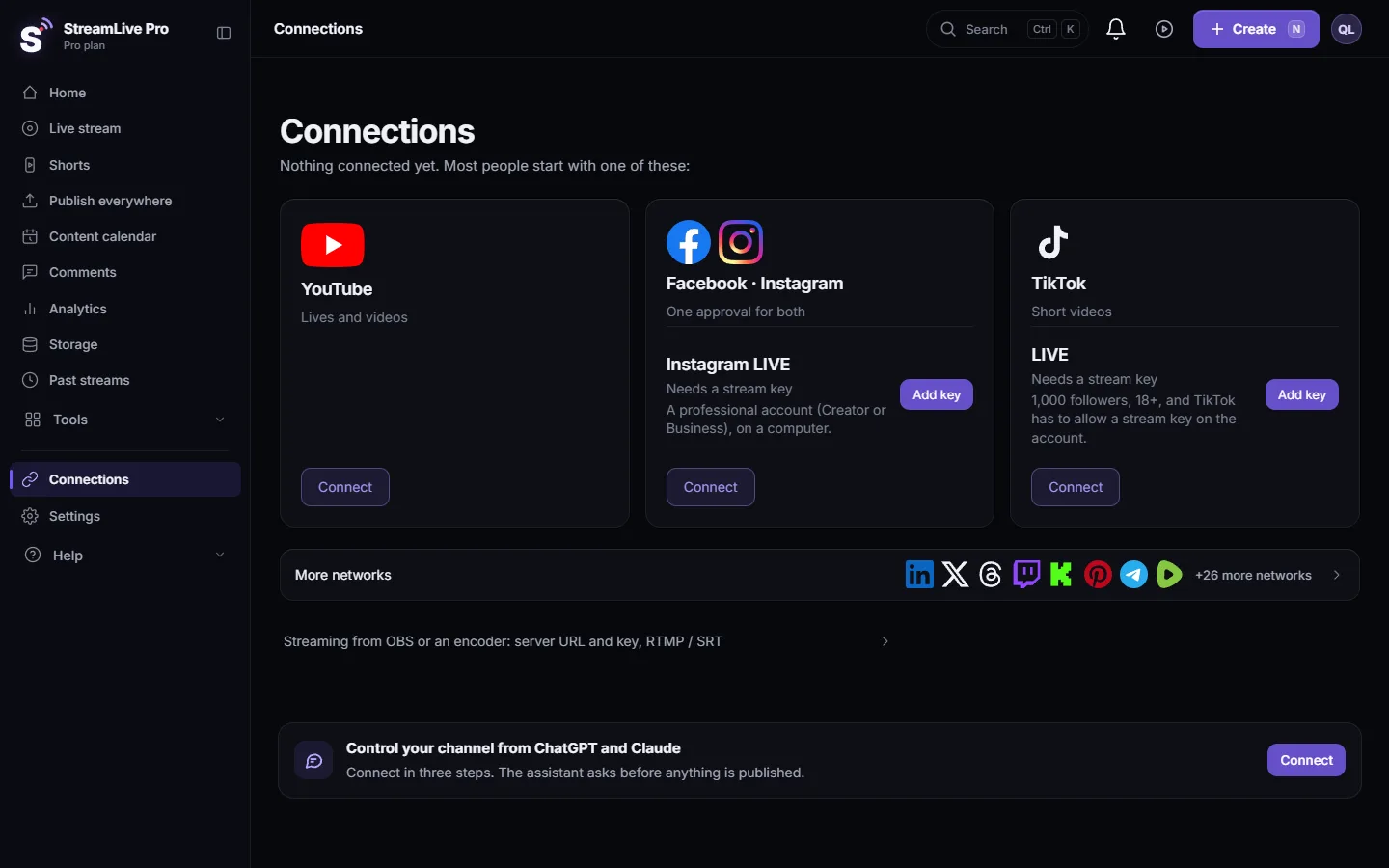
- Connect Facebook. Open Connections, find Facebook and click Connect. Sign in on Facebook's own screen. When Facebook asks which Pages to allow, tick the Page you want to stream to. If you skip it there, StreamLive Pro cannot see that Page.
- Pick the Page. If you manage several Pages, click Manage pages on the Facebook card, tick the ones to use and click Save.
- Open the studio. Go to Live stream and choose Browser Studio. Allow the camera and microphone. If you work with OBS or vMix, choose Stream from software like OBS (RTMP / SRT) instead.
- Tick the Page. In the Channels list tick the Facebook Page. Click it to give Facebook its own title, description and thumbnail. That is useful when the YouTube title is written for search and the Facebook one for your followers.
- Go live. Press Start stream. StreamLive Pro creates a live video on the Page and starts sending. The broadcast appears on the Page a few seconds later.
- Answer comments. Facebook comments show in the chat next to the player, and you can reply from there. See Live chat from YouTube and Facebook in one panel.
- End. Press Stop stream. The live video ends on the Page. Press Record during the broadcast if you want StreamLive Pro to keep the full recording; otherwise our temporary copy is removed about two hours after the broadcast.
Announce it on the Page in advance
Schedule the broadcast with Schedule broadcast and tick Pre-announce next to the Facebook Page. StreamLive Pro tries to create a scheduled live event on the Page. Facebook does not always allow it, and then a Page post announcing the time is published instead. A green mark means an event was created; an amber mark means the announcement went out as a post. When the time comes, the announced event is the one that goes live, so people who asked to be reminded see the right broadcast. Details: Schedule a live broadcast in advance.
With a Facebook stream key instead
There is also a Facebook Live (stream key) card on Connections. It takes the Server URL and Stream key from Facebook Live Producer: choose Streaming software as the video source and turn on Use a persistent stream key, so the key stays the same between broadcasts. For a Page the regular Facebook card is the better choice: it creates the live video, title and thumbnail for you, and its comments reach your chat. With a key you set those up in Live Producer yourself.
What can go wrong
| What you see | Likely cause | Fix |
|---|---|---|
| The Page is not in the list | The Page was not ticked on Facebook's approval screen | Click Reconnect on the Facebook card, choose to edit the settings, and tick the Page |
| "Facebook session expired, please reconnect" | The permission ended: password change, removed access, or a change of your role on the Page | Click Reconnect on the Facebook card. The other networks of the broadcast carry on meanwhile |
| The live went to the wrong Page | Several Pages are ticked | Untick the Pages you do not want in the channel list before you start |
| You want to stream to a group or a personal profile | The one-click connection covers Pages only | Use a Page. Groups and personal profiles are not destinations for the Facebook connection |
| Facebook shows the broadcast late | Facebook's own viewing delay | Nothing to fix. It is Facebook's latency |
More symptoms and fixes: Troubleshooting the problems that come up most and Notifications: what the bell tells you, and how often.
Going further
Most Facebook broadcasts also go to YouTube: How to stream to YouTube and Facebook at the same time shows the setup. Instagram live from a computer works differently, with a key per session: see How to go live on Instagram from a computer. Every network's requirements are in Going live on each network: what it needs, and connecting accounts is covered in Connecting your networks: the complete guide.
Frequently asked questions
Can I go live on a Facebook Page without OBS?
Yes. The browser studio sends your camera, microphone and screen from the browser, and StreamLive Pro creates the live video on the Page.
Can I stream to a Facebook group?
No. StreamLive Pro goes live on Facebook Pages you manage. You can go live on the Page and share the post to the group from Facebook.
I manage several Pages. Can I stream to two of them at once?
Yes, if your plan allows that many destinations in one broadcast. Tick each Page in the channel list; each counts as one destination.
Do I see Facebook comments while I am live?
Yes. Comments from the Page appear in the chat next to the player, together with YouTube comments, and you can reply to both from there.
Can people get a reminder before the live?
Tick Pre-announce when you schedule the broadcast. StreamLive Pro tries to create a scheduled event on the Page, and if Facebook refuses, it publishes a Page post with the time.
Why did my Facebook connection stop working?
Facebook permissions end when you change your password, remove access, or your role on the Page changes. Click Reconnect on the Facebook card and approve again.
Keep reading
Go live on a Facebook Page and Instagram at the same time from one computer: what each network requires, the Instagram key per live, and the fixes.
How to go live on Facebook and LinkedIn at the same timeGo live on a Facebook Page and LinkedIn at the same time: the Page connects once with a sign-in, LinkedIn needs the stream key of each event, and one upload feeds both.
How to go live on Facebook and TikTok at the same timeGo live on a Facebook Page and TikTok at the same time from a computer: the Page connects once, TikTok takes a fresh key per session, and one upload feeds both.
How to stream to Facebook and Twitch at the same timeStream to a Facebook Page and Twitch at the same time from your browser: connect both once with a sign-in, give Facebook its own title, and one upload reaches both.
Want to try it? 7-day trial, no credit card.
Start free