 StreamLive Pro
 dashboard tour: where everything is
A tour of the StreamLive Pro dashboard: what each menu item does, where Billing, Settings and the tools live, and the fastest way to find a screen.
The StreamLive Pro dashboard is the page you see after you sign in. The menu on the side holds everything: going live, Shorts, publishing, the calendar, comments, analytics and your files at the top; Connections and Settings below them; the less used tools folded under Tools, and help under Help. Billing and Sign out are in the account menu behind your initials at the top. The search box at the top finds pages, recent broadcasts and uploaded files by name.
The side menu, from the top
| Menu item | What you do there | Read more |
|---|---|---|
| Home | Start something: turn a video into Shorts, go live, or post to several networks. New accounts also see the first-week steps here | Your first week: the four steps on Home |
| Live stream | Create a live: Browser Studio, Stream from software like OBS (RTMP / SRT), Pre-recorded broadcast or Schedule broadcast | Your first live broadcast, step by step |
| Shorts | The Shorts made from your lives and uploads, ready to check, edit and publish | How to create Shorts from any video, no live stream needed |
| Publish everywhere | Upload a video once and post it to your connected networks, now or later | Publish a finished video to social networks |
| Content calendar | Everything scheduled and published, by list, week or month | Schedule social media posts to several networks at once |
| Comments | Comments on what you published through StreamLive Pro, from the networks that allow it | Connecting your networks: the complete guide |
| Analytics | Views, reach and engagement per network and per post | Read your social media analytics for every account |
| Storage | Your uploads, studio recordings, Shorts and exports, and how much space they use | Recordings and storage — what is kept and for how long |
| Past streams | One card per broadcast, with its recording if you kept it | Where is my live stream recording? |
| Tools | Folded group: Translate and subtitles, Video editor, Podcast and Video calls | Automatic Hebrew subtitles — transcribe, edit, and burn them in |
| Connections | Connect YouTube, Facebook, Instagram, TikTok and the other networks, and see which need attention | Connecting your channels — YouTube, Facebook and the rest |
| Settings | Profile, security, language, team, privacy and the danger zone | Change your StreamLive Pro password or account email |
| Help | Folded group: Support, Help Center, Report a problem and Mobile app | When you are connected to a person |
Posting from your own WhatsApp or Telegram group to your networks is set up inside Publish everywhere, through the From a WhatsApp or Telegram group link: Post to every network from a WhatsApp or Telegram group.
Click Tools or Help to open the group. The dashboard remembers which groups you left open. When you open a page that sits inside a folded group, the group opens for that visit.
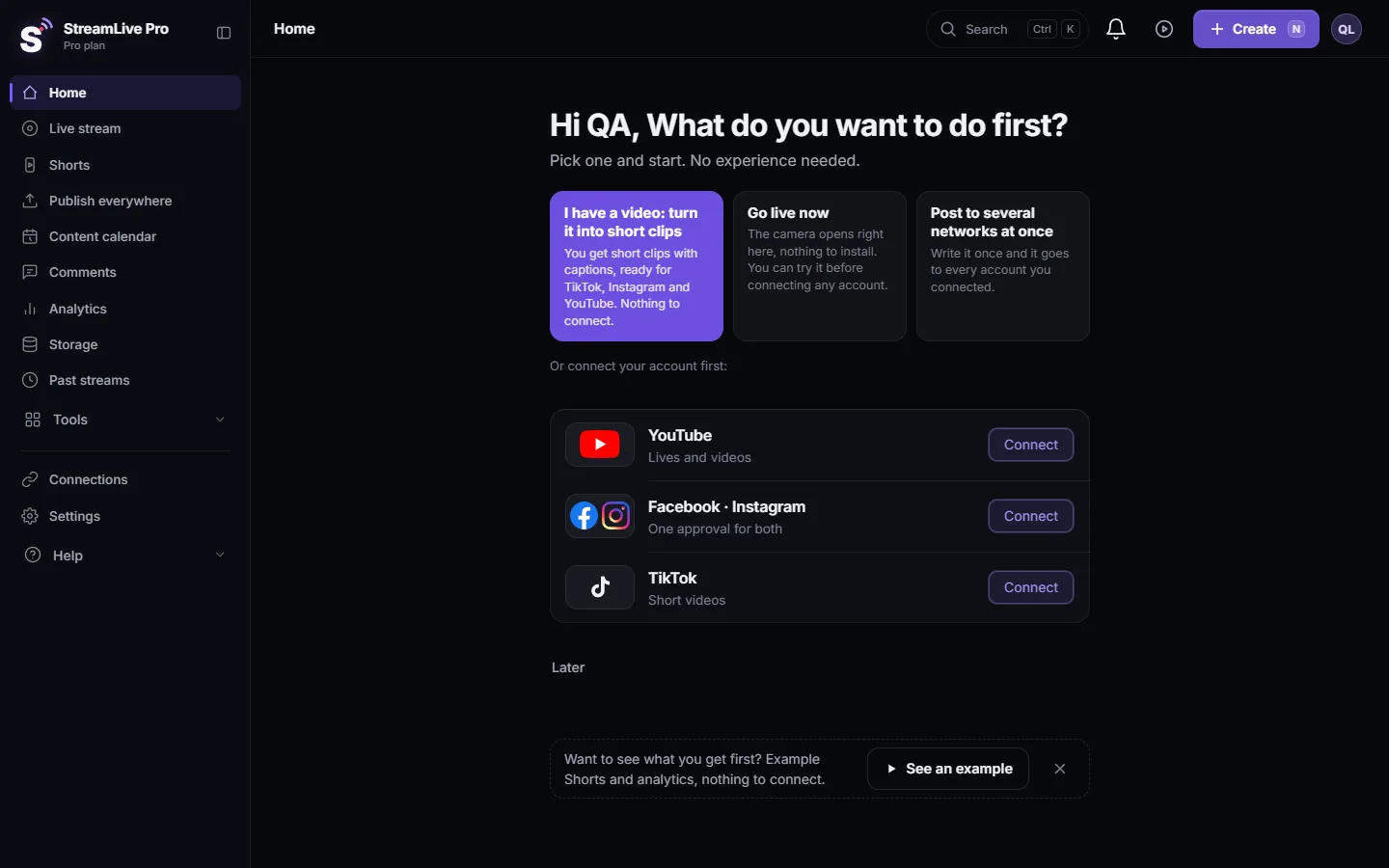
The top bar
- Search. Searches the pages of the dashboard, your recent broadcasts and your uploaded files. Open it with Ctrl and K (Command and K on a Mac), or with the / key.
- Notifications. The bell shows messages such as a network that needs reconnecting or a scheduled live that has a problem. See Notifications: what the bell tells you, and how often.
- Create. The purple button starts something new. Its keyboard shortcut, N, is printed on it.
- Account menu. Click your initials or photo. It shows your name and email, the colour theme, and links to Settings, Billing and Sign out.
Under the logo you see the name of your current plan, for example Pro plan, or the trial.
Where people look for things that moved
- Billing and invoices are in the account menu (your initials), not in the side menu. The Billing page has Current plan, Choose plan, Usage, Invoices, Coupon and, on a paid plan, Cancel. See Find and download your StreamLive Pro invoices and Change or cancel your StreamLive Pro plan.
- The interface language is in Settings, Preferences: Switch the dashboard language between Hebrew and English.
- The live chat is on the live page, next to the player, not in a menu item of its own: Live chat from YouTube and Facebook in one panel.
- ChatGPT and Claude connect from Settings, Security, Connected apps and API: Use StreamLive Pro from ChatGPT and Claude.
- Team members are in Settings, Team: Invite team members to your account.
Keyboard shortcuts
Outside a text field, press G and then a letter to jump: G then H for Home, S for Live stream, C for Publish everywhere, L for Shorts, A for Analytics, P for Connections, B for Billing. Shift and ? shows the list of shortcuts.
On a phone
On a narrow screen the main pages (Home, Live stream, Publish everywhere, Shorts) become tabs at the bottom, and the rest open from a sheet. In that sheet the groups are Tools, Account and display (Billing, Settings, language, theme, the app, sign out) and Help. See The StreamLive Pro app: every way to use it today for the phone app and the phone browser.
Frequently asked questions
Where is Billing in StreamLive Pro?
Click your initials or photo at the top of the dashboard and choose Billing. On a phone it is in the sheet of extra pages, under Account and display.
Why do I not see Translate or the video editor in the menu?
They are inside the Tools group. Click Tools in the side menu to open it, or type the name in the search box at the top.
Where do I connect YouTube or Facebook?
In Connections, in the lower part of the side menu. Home also offers Connect buttons for the main networks on a new account.
Can I find a screen without the menu?
Yes. Press Ctrl and K, or the / key, and type the page's name, for example Storage or Analytics. G followed by a letter also jumps to the main pages.
Where do I change my password?
In Settings, Security. The page Change your password and email explains each step.
Keep reading
How to live stream a product launch: announce it ahead, live demo or a pre-recorded video at a set time, questions from the chat, and Shorts that keep selling after.
Hootsuite alternative for creators: vs StreamLive ProHootsuite alternative for video creators: plans, trial, networks, inbox, analytics and AI, vs live streaming and Shorts, from Hootsuite's pages checked November 2026.
Buffer alternative for video posting: Buffer vs StreamLive ProBuffer alternative for video posting: networks, scheduling, TikTok, comments, analytics, plus live streaming and Shorts, from Buffer's own pages checked November 2026.
StreamLive Pro MCP tools: full list for ChatGPT and ClaudeAll 24 StreamLive Pro MCP tools that ChatGPT and Claude can use: what each one does, which only read, which change things and which need your approval.
Want to try it? 7-day trial, no credit card.
Start free