 StreamLive Pro
Invite team members to your account
Invite team members to your StreamLive Pro account: send an email invite, choose Viewer, Editor or Manager, and let them work without sharing your password.
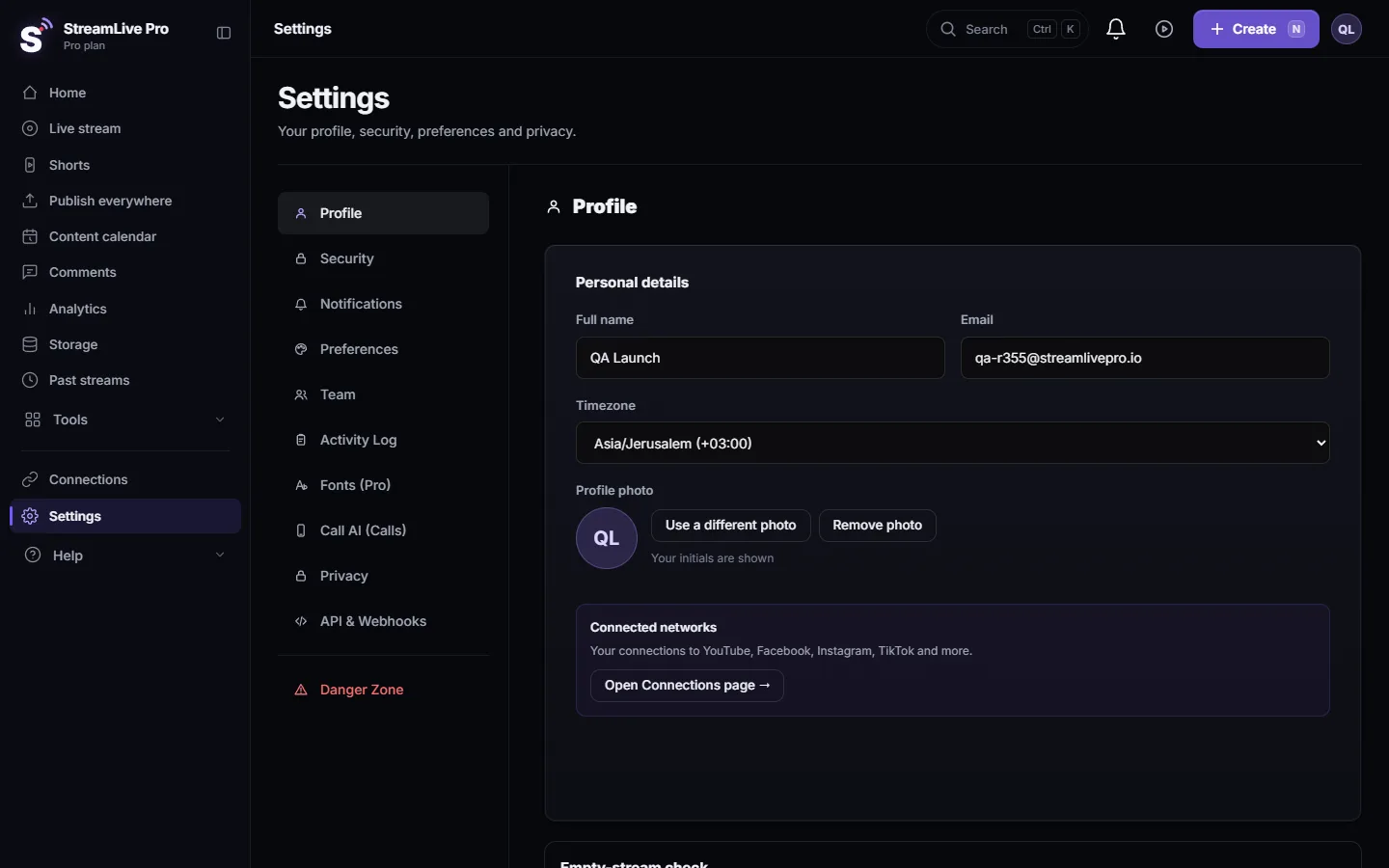
To give someone access to your StreamLive Pro account, open Settings, go to Team Members, press Invite member, enter their email and choose a role. They get an email in their language, sign in with their own account, and switch to your workspace. You never share your password, and you can remove them at any moment. The number of team seats depends on your plan.
Before you start
- Team seats. Each plan includes a number of seats; see /pricing?lang=en. A pending invitation already takes a seat, so revoke invitations nobody will accept.
- The right email. The person must accept while signed in with the same email address you invited. An invitation sent to a work address cannot be accepted from a personal one.
- A role. Decide what the person needs to do before you invite them.
| Role | What the person can do | Good for |
|---|---|---|
| Viewer | Read only: see broadcasts, Shorts and analytics | A client or manager who follows results |
| Editor | Stream and publish (the default) | A producer, an editor, a social media person |
| Manager | Every action except billing | A partner who runs the account day to day |
Billing stays with the account owner in every role.
Steps
- Open Settings. Choose Settings and open the Team Members section.
- Press Invite member. The window Invite new team member opens.
- Enter the email. Type the person's email address. The window checks the format before sending.
- Choose the role. Viewer, Editor or Manager, as in the table above. Editor is selected by default.
- Send. Press Send invite. The invitation is emailed, and the invitation link is also copied to your clipboard, in case the email lands in spam or does not arrive. You can send that link yourself, for example on WhatsApp.
- The person accepts. They open the link, sign in or create an account with the invited email, and accept. The invitation is valid for 7 days.
- They switch to your workspace. In their dashboard, the Workspace selector lists their own workspace (mine) and yours with their role. While they work in yours, a line at the top says whose workspace they are acting in.
- Manage the team. Back in Team Members you see every member with their role, and Pending invites with the date each one expires. Revoke an invitation with the cross, remove a member with the bin. A removed member loses access at once.
Good practice
- Give the smallest role that works. An editor can stream and publish to every connected channel; a viewer cannot change anything.
- One person, one seat. Do not share a single team login between people. Each person gets their own invitation, so you can see who did what and remove one person without affecting the others.
- Connections stay yours. Channels are connected once, by the owner, in Connections. Team members work through those connections; they do not need the passwords of your YouTube channel or Facebook Page.
- Assistants are separate. Connecting ChatGPT or Claude to the account is not a team seat: Use StreamLive Pro from ChatGPT and Claude. Developers who need programmatic access use API keys: API keys for developers: create, use and revoke.
What can go wrong
| Message or symptom | Cause | Fix |
|---|---|---|
| Your plan does not include team members | The plan has no team seats | See /pricing?lang=en or Plans, billing and limits |
| Team seat limit reached | Members plus pending invitations fill every seat | Revoke a pending invitation or remove a member |
| Invalid or expired invitation | More than 7 days passed, or the invitation was revoked or already used | Send a new invitation |
| Invitation was sent to a different email | The person is signed in with another address | Sign out and sign in with the invited email, or invite the address they use |
| The email did not arrive | Spam folder, or a typo in the address | Send the copied link directly, or revoke and invite again with the right address |
| The person sees only their own account | They are still in their own workspace | Choose your workspace in the Workspace selector |
Frequently asked questions
Do team members need their own StreamLive Pro account?
Yes. They sign in with their own account, using the email address you invited, and switch to your workspace. Nobody shares a password.
How long is a team invitation valid?
Seven days. After that, send a new invitation from Team Members.
Can a team member see my billing?
No. Even the Manager role covers every action except billing, which stays with the account owner.
How many team members can I add?
It depends on your plan. The seats each plan includes are listed on the pricing page and in Settings, Team Members.
What happens when I remove a team member?
They lose access to your workspace at once. Their own account stays as it is.
Keep reading
How to live stream a product launch: announce it ahead, live demo or a pre-recorded video at a set time, questions from the chat, and Shorts that keep selling after.
Team roles: what Viewer, Editor and Manager can doWhat each StreamLive Pro team role can do, what no team member can ever reach, and how to give one person view-only or no access to a single area.
Hootsuite alternative for creators: vs StreamLive ProHootsuite alternative for video creators: plans, trial, networks, inbox, analytics and AI, vs live streaming and Shorts, from Hootsuite's pages checked November 2026.
Buffer alternative for video posting: Buffer vs StreamLive ProBuffer alternative for video posting: networks, scheduling, TikTok, comments, analytics, plus live streaming and Shorts, from Buffer's own pages checked November 2026.
Want to try it? 7-day trial, no credit card.
Start free