 StreamLive Pro
Switch the dashboard language between Hebrew and English
Switch the StreamLive Pro dashboard between Hebrew and English in Settings, Preferences. What changes with it, and why it does not change your captions.
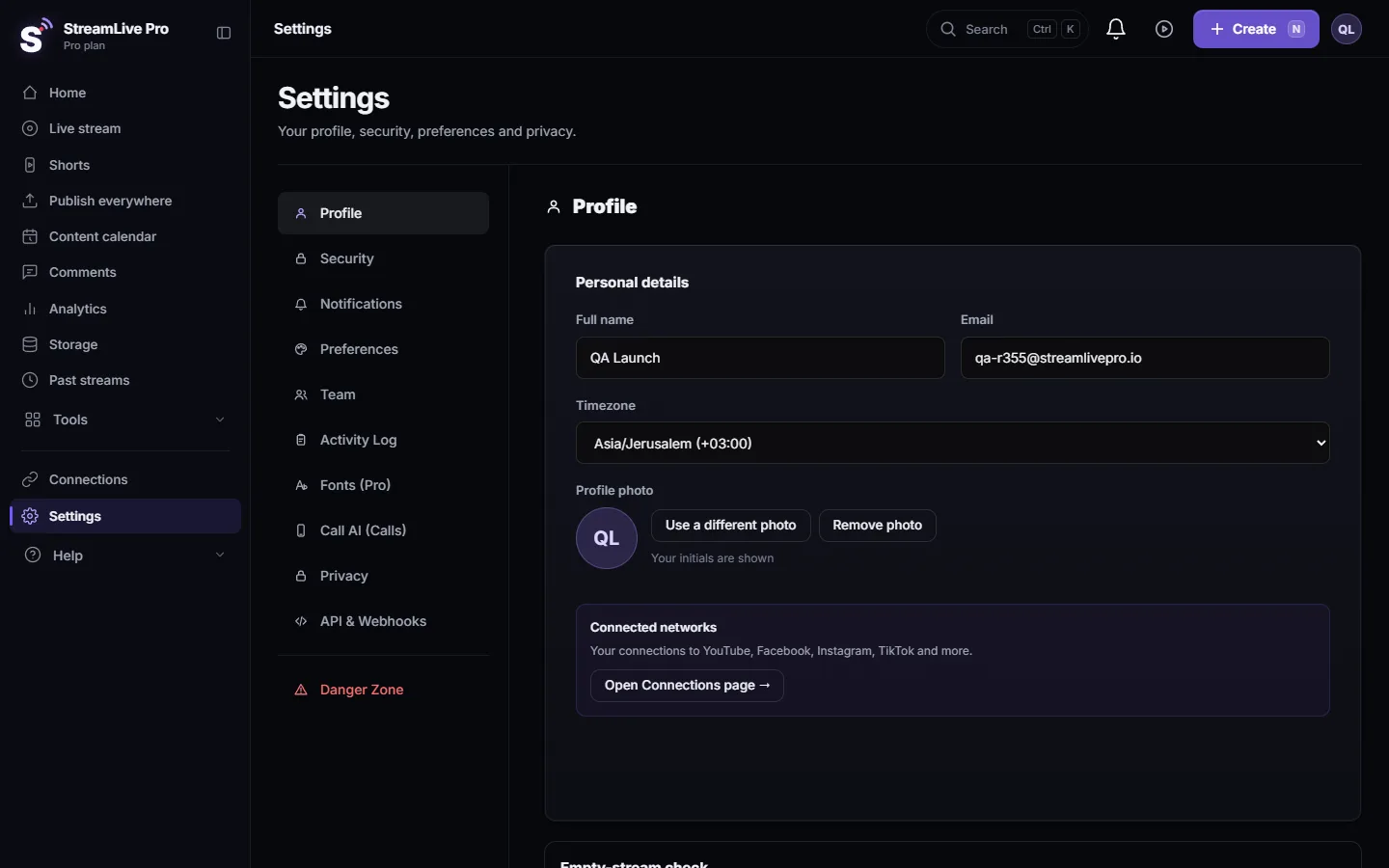
The StreamLive Pro dashboard works in Hebrew and in English. To switch, open Settings, choose Preferences, and in Language and Region pick עברית or English under Interface language. The dashboard changes at once, including the direction of the page: right to left in Hebrew, left to right in English. The choice is saved with your account, and the emails we send you follow it too. It does not change the language of your captions, translations or posts.
Before you start
- Any account. The language setting is the same on every plan and in the trial.
- Two interface languages. The dashboard itself is in Hebrew or English. The help center also has articles in other languages, and translation of your videos covers far more languages; see below.
- Signed in. The setting lives in your account settings, so sign in first.
Steps
- Open Settings. In the side menu choose Settings. You can also click your initials at the top and choose Settings.
- Open Preferences. In the list of settings sections choose Preferences.
- Find Interface language. The first card is Language and Region. The field is called Interface language.
- Pick the language. Choose עברית for Hebrew or English for English. There is no Save button for this field: the dashboard switches as soon as you pick.
- Check the direction. In Hebrew the menu moves to the right side and text runs right to left. In English the menu is on the left.
- Carry on. The choice is saved with your account. If saving fails, a short message says the language could not be saved; pick it again.
On a phone, open the sheet with the rest of the pages, then Account and display. The language switch is there, next to the colour theme.
What changes with the interface language
| Changes | Stays as it is |
|---|---|
| Menus, buttons and messages in the dashboard | The spoken language detected in your videos |
| The direction of the page (right to left or left to right) | The language of captions on your Shorts |
| The emails StreamLive Pro sends you, such as security notices | The languages you chose for translation |
| The language an AI assistant connected through MCP uses for StreamLive Pro's own messages | The titles and texts of your posts |
Captions and translation have their own settings. Transcription detects the spoken language of each video, and the translation list offers 143 target languages (Creator and the trial translate into 25 of them; Pro and Studio into all). So a Hebrew dashboard can make English captions, and an English dashboard can make Hebrew ones. See Translate a video from English to Hebrew with captions and Automatic Hebrew subtitles — transcribe, edit, and burn them in.
One thing does not flip with Hebrew: the timeline in the video editor runs left to right in both languages, like other video editors.
Team members choose their own language
The interface language belongs to the person, not to the account. A team member who works in your workspace keeps the language they chose in their own settings, so one person can work in Hebrew and another in English on the same broadcasts, Shorts and posts. Inviting people: Invite team members to your account.
What can go wrong
| What you see | Likely cause | Fix |
|---|---|---|
| "Could not save language" | The dashboard switched, but saving to the account failed (for example, the connection dropped) | Pick the language again once you are online |
| One screen still shows the old language | A page that was open before the switch | Open another page and come back, or reload the browser tab |
| Captions came out in the wrong language | Captions follow the spoken language, not the interface | Set the source and target language in Translate and subtitles |
| Some words stay in English in a Hebrew dashboard | Network and product names (YouTube, OBS, StreamLive Pro) stay in Latin letters on purpose | Nothing to fix |
Related
The tour of every screen is in StreamLive Pro dashboard tour: where everything is. For the phone, see The StreamLive Pro app: every way to use it today. Hebrew captions that read correctly right to left: Automatic Hebrew captions on Shorts.
Frequently asked questions
Can I use StreamLive Pro in English?
Yes. Open Settings, then Preferences, and choose English under Interface language. The dashboard switches at once.
Which languages does the dashboard support?
Hebrew and English. The help center has articles in more languages, and translation of your videos offers 143 target languages.
Does changing the language change my captions?
No. Captions follow the language spoken in the video, and translation uses the languages you choose for it. The interface language only changes the dashboard and our emails.
Why did the menu move to the right?
In Hebrew the page runs right to left, so the side menu moves to the right. Switch to English to move it back to the left.
Is the language saved for my next visit?
Yes. It is kept in this browser and saved with your account, so the next visit opens in the same language.
Keep reading
Open vs closed captions: burned into the picture or sent as a file the viewer can switch off. What each is good for, which networks take which, and how to make both.
My transcript came out in the wrong languageTranscript in the wrong language? Auto-detect decides from the opening of the video and keeps that choice. Set the source language yourself and run it again.
Edit captions on the timelineEdit captions on the StreamLive Pro editor timeline: move a line, drag its edges to retime it, split it, change its text on the video, and shift the lines after it.
A weekly Torah class online: live, Shorts and a podcastHow to run a weekly Torah class online: a weekday live, scheduling ahead, Shorts with Hebrew captions, translation for students abroad and a podcast episode.
Want to try it? 7-day trial, no credit card.
Start free