 StreamLive Pro
My transcript came out in the wrong language
Transcript in the wrong language? Auto-detect decides from the opening of the video and keeps that choice. Set the source language yourself and run it again.
With Auto-detect, StreamLive Pro listens to the beginning of the video, decides which language is spoken, and keeps that language for the whole video. If the video opens with music, an English intro, or a few words in another language, the guess can be wrong, and then every line comes out wrong: written in the wrong alphabet, or translated instead of transcribed. The fix is to run it again with the Source language set to the language that is actually spoken.
Symptom, cause, fix
| What you see | Likely cause | Fix |
|---|---|---|
| A Hebrew video came out in English words, or in Latin letters | Auto-detect chose another language from the opening | New run with Source language set to Hebrew |
| Every line is a strange approximation of the speech | The same: the whole video is read as the wrong language | The same |
| The project shows the wrong "Spoken language" | The language that was detected and locked | The same |
| The opening is fine, but a passage in a second language comes out wrong | One language is used for the whole video | Correct those lines by hand, or cut that part into its own video |
| "We did not hear speech in the video." | No clear speech, or only music | Check the sound track; see Transcribe a video to text (Hebrew and about 100 languages) |
| The language is right but names and terms are wrong | Recognition, not language | Fix names and terms in a transcript (find and replace) |
Steps
- Check the detected language. Open the project and look at Spoken language under Languages and translation. If it is wrong, the whole transcript was made in that language.
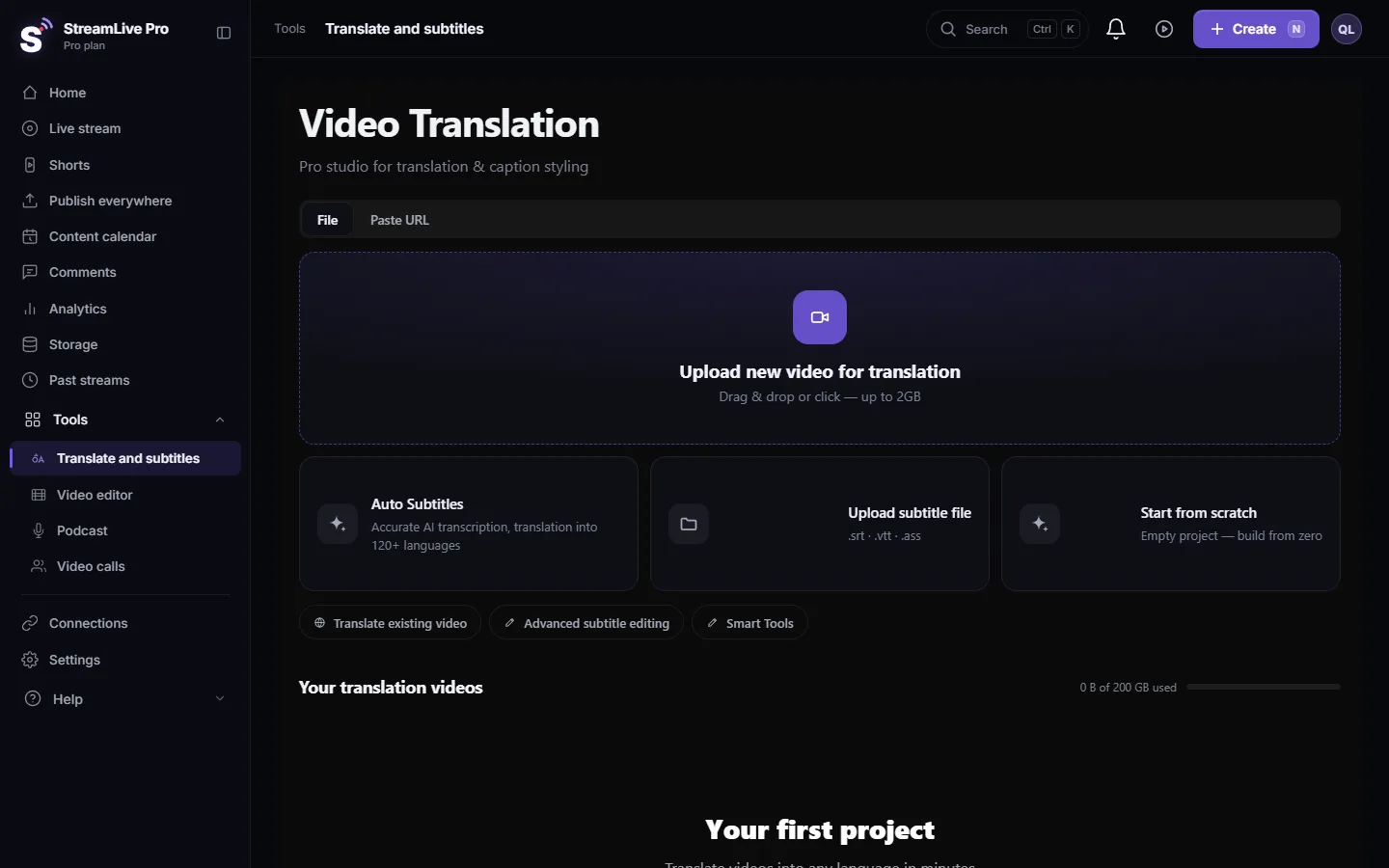
- Start a new translation of the same video. In Translate and subtitles, upload the same video file again.
- Set the source language. In the Translation settings window, change Source language from Auto-detect to the language that is spoken, for example Hebrew.
- Choose the target. Set Target language. For captions in the spoken language only, pick the same language as the source.
- Start it. Press Start translation. The new run uses minutes equal to the video's length again.
- Check the opening lines. When it is ready, read the first minute. If it is right, the rest is in the same language.
- Remove the wrong project. Delete the old project from the list so you do not edit the wrong one.
Why the first seconds decide
The video is transcribed in pieces. With auto-detect, the language is detected on the first piece and then locked for all the others, so the transcript does not jump between languages in the middle of a sentence. That makes a long video consistent, and it is also why a misleading opening affects everything. The source languages offered in the window are the common ones, such as Hebrew, English, Arabic, Russian, Spanish and French. For a language that is not in that list, leave Auto-detect, and if you can, trim a long musical or silent opening before you upload.
Videos with two languages
A transcript is written in one language. In a lecture that is mostly Hebrew with a few English quotes, choose Hebrew; the English quotes may come out spelled in Hebrew letters or slightly wrong, and you fix them by hand in the editor. If a long part is in another language, cut it into its own video and run it with its own source language.
Next time: set it before you upload
- You know the language? Choose it. Auto-detect is for videos whose language you do not know. For a Hebrew lecture, choosing Hebrew removes the guess entirely.
- Trim long intros. A minute of music or a jingle before the first sentence gives the detector nothing useful.
- Use the transcript, not a translation, to check. Set the target to the spoken language first, check the transcript, and translate into other languages after it is right. Each extra language is a new run, so correcting first saves minutes.
- Several speakers in different languages? Split the video by language and run each part with its own source language, so each part gets a correct transcript from the start.
When to contact support
Write to [email protected] if you set the source language yourself and the transcript still comes out in another language. Send the project name, the language you chose, and a short description of the first minute of the video (music, speech, which language).
Related: Out of translation minutes: what counts and what to do, Which languages can I translate captions to?, Transcribe a live stream after the broadcast.
Frequently asked questions
Can I change the spoken language of an existing project?
No. The spoken language is fixed for a project. Start a new translation of the same video with the source language set.
Does running it again use minutes?
Yes. A new run uses minutes equal to the video's length, like the first one.
Why did auto-detect choose English for my Hebrew video?
Usually because the video opens with English words, music or a jingle. The language heard first is kept for the whole video.
In how many languages can speech be transcribed?
About 100. Translation of the captions is offered into 143 languages.
Keep reading
Open vs closed captions: burned into the picture or sent as a file the viewer can switch off. What each is good for, which networks take which, and how to make both.
Another translation is already runningAnother translation is already running? Your plan's limit on parallel translations is reached. How long to wait, what counts as running, and stuck jobs.
The source video of my project is no longer storedSource video no longer stored in a subtitle project? What you can still open and download, why it happens, and how to get the captions back onto the video.
Could not parse the subtitle file: fixing an SRT importCould not parse the subtitle file? The editor found no timed lines in your SRT, VTT or ASS. The usual causes, how to check the file in a text editor, and the fix.
Want to try it? 7-day trial, no credit card.
Start free