 StreamLive Pro
Transcribe a video to text (Hebrew and about 100 languages)
Transcribe a video to text: upload it to StreamLive Pro, pick the same language as source and target, correct the lines and download TXT, or SRT with times.
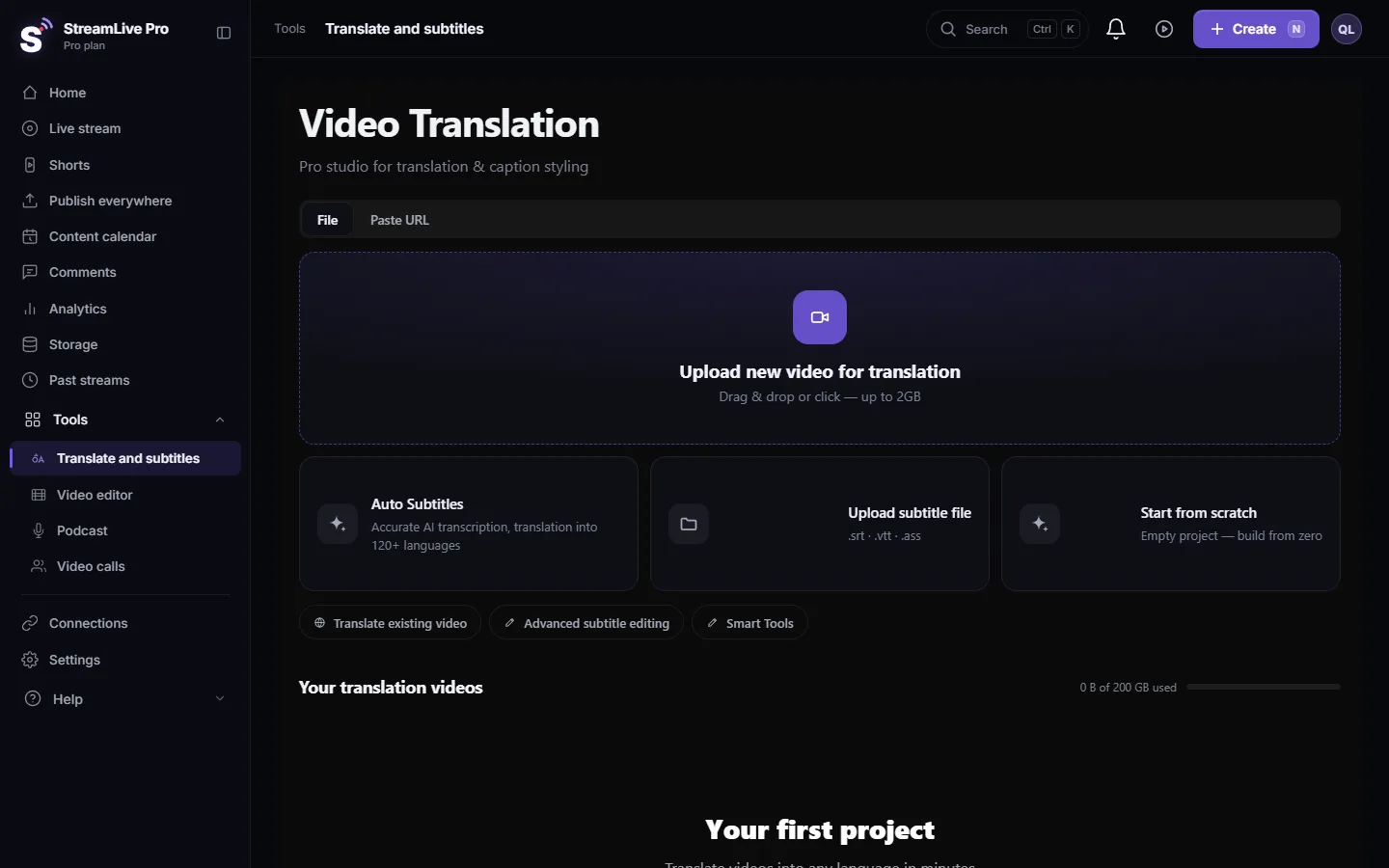
To turn a video into text, upload it in Translate and subtitles and choose the spoken language as both the source and the target. The same language on both sides means a transcript, not a translation. Correct the lines beside the video, then download TXT — Plain text for plain text, or SRT — Subtitles if you need the times too. Transcription works in about 100 spoken languages, Hebrew included.
Before you start
- A file with sound. The upload card names the accepted files (MP4, MOV, AVI) and the size limit. A video with no audio track is refused, because there is nothing to transcribe.
- Minutes. Transcription uses the plan's translation minutes, equal to the video's length; amounts per plan are on the /pricing?lang=en. The trial includes 10 minutes, for videos up to 10 minutes long.
- Audio decides the quality. A microphone close to the speaker gives far better text than a room microphone. Music under speech and people talking over each other lower it most.
- A live broadcast? Use the recording; see Transcribe a live stream after the broadcast.
Steps
- Upload. Open Translate and subtitles and press Upload new video for translation, or drag the file onto the page. A video already in your account: Translate existing video.
- Same language twice. Choose the spoken language under Source language and the same one under Target language. Press Start translation.
- Wait for processing. The card shows Processing with a percentage and then Ready. You can leave the page meanwhile.
- Read and correct. Open the project and go to Subtitles. Every line sits in a list beside the video; clicking a line plays that moment. Fix names and terms first with find and replace, then read the rest.
- Mark speakers if there are several. Each line can carry a Speaker. Use Change Speaker so an interview reads as a conversation.
- Remove filler words if you want clean text. In the properties panel, Smart Tools has AI Cleanup, which removes "uh", "um" and similar words. Skip it if you need a verbatim record.
- Download. Press Export. In the Subtitles tab, TXT gives text without times; SRT or VTT keeps a time on every line; on paid plans, JSON keeps a time for every word.
Which file for which use
| You need | Download | Notes |
|---|---|---|
| An article, a summary, show notes | TXT | Text only; every plan, the trial too |
| Quotes with the moment they were said | SRT | Each line has a start and end time; every plan |
| Captions for YouTube or an editor | SRT or VTT | See Export captions as SRT, VTT or ASS |
| Your own scripts or a search index | JSON | A time for every word; paid plans |
| The text on the video itself | MP4 with burned-in captions | See Burn captions into a video |
Getting a better transcript
- Choose the language yourself. Auto-detect exists, but when you know the language, picking it avoids a wrong guess on a short clip or one that opens with music.
- Upload the original file. A copy recorded from a speaker or re-compressed several times loses the detail the recogniser needs.
- One language per video. A lecture that switches between Hebrew and English transcribes best in the language spoken most; check the passages in the other language by hand.
- Rate the result. The workspace asks whether you are satisfied with the transcription. Your answer goes to us and helps us find weak spots.
What can go wrong
- "Video too long" message. Each plan has a maximum video length for transcription, and the trial's is 10 minutes. Cut the video into parts, or see the /pricing?lang=en.
- Not enough minutes. See Out of translation minutes.
- Lines run slightly after the speech. Small offsets can be fixed by dragging a line's edge; a fixed offset across the whole video, with Shift time.
- Empty transcript. The video has music only, or the audio is on a channel the file does not play. Check the file plays with sound on your computer.
- Wrong language detected. Start again with the source language chosen by hand.
Frequently asked questions
Can StreamLive Pro transcribe Hebrew video to text?
Yes. Choose Hebrew as both the source and the target language, correct the lines and download TXT or SRT.
How many languages can it transcribe?
About 100 spoken languages. Translation of the captions afterwards covers 143 target languages.
Can I download the transcript without times?
Yes. TXT is plain text without times, on every plan including the trial.
Does transcribing use my translation minutes?
Yes. A transcription uses minutes equal to the length of the video, the same as a translation.
Can I transcribe a live stream while it is running?
No. Live captions are not available. Transcribe the recording after the broadcast.
Keep reading
Open vs closed captions: burned into the picture or sent as a file the viewer can switch off. What each is good for, which networks take which, and how to make both.
My transcript came out in the wrong languageTranscript in the wrong language? Auto-detect decides from the opening of the video and keeps that choice. Set the source language yourself and run it again.
Edit captions on the timelineEdit captions on the StreamLive Pro editor timeline: move a line, drag its edges to retime it, split it, change its text on the video, and shift the lines after it.
A weekly Torah class online: live, Shorts and a podcastHow to run a weekly Torah class online: a weekday live, scheduling ahead, Shorts with Hebrew captions, translation for students abroad and a podcast episode.
Want to try it? 7-day trial, no credit card.
Start free