 StreamLive Pro
The source video of my project is no longer stored
Source video no longer stored in a subtitle project? What you can still open and download, why it happens, and how to get the captions back onto the video.
This message means the original video file behind a subtitle or editing project is no longer on StreamLive Pro's servers, most often because the file was deleted. The project itself is not deleted: its captions are kept, and you can open, correct and download them. What you cannot do is play the video, burn the captions into it, or translate it again. To work on the video again, upload the same file and bring the saved captions back into it.
Symptom, cause, fix
| What you see | Likely cause | Fix |
|---|---|---|
| "The source video of this project is no longer stored. Upload it again to keep editing." | The original video file is gone | Download the captions, upload the video again and import them (steps below) |
| The project moved from the main list into a group called "Unavailable", with the note "Their original video is no longer stored" | The same: the list moves such projects out of the way | Open the group; each row offers Open, Download SRT and Remove from list |
| Inside the project: "The original video is no longer stored. You can edit the subtitles and download them as a file. Burning them into a video is not available for this project." | The video cannot be played or burned | Edit and download the captions; burn them in a new project |
| "This project has no source video on record, so it cannot be translated again" | Translate again needs the original file | Start a new translation from the video |
| A row says "No subtitles were kept" | The project never finished, or had no lines | Only the video itself can bring the captions back: upload it and transcribe it |
Steps
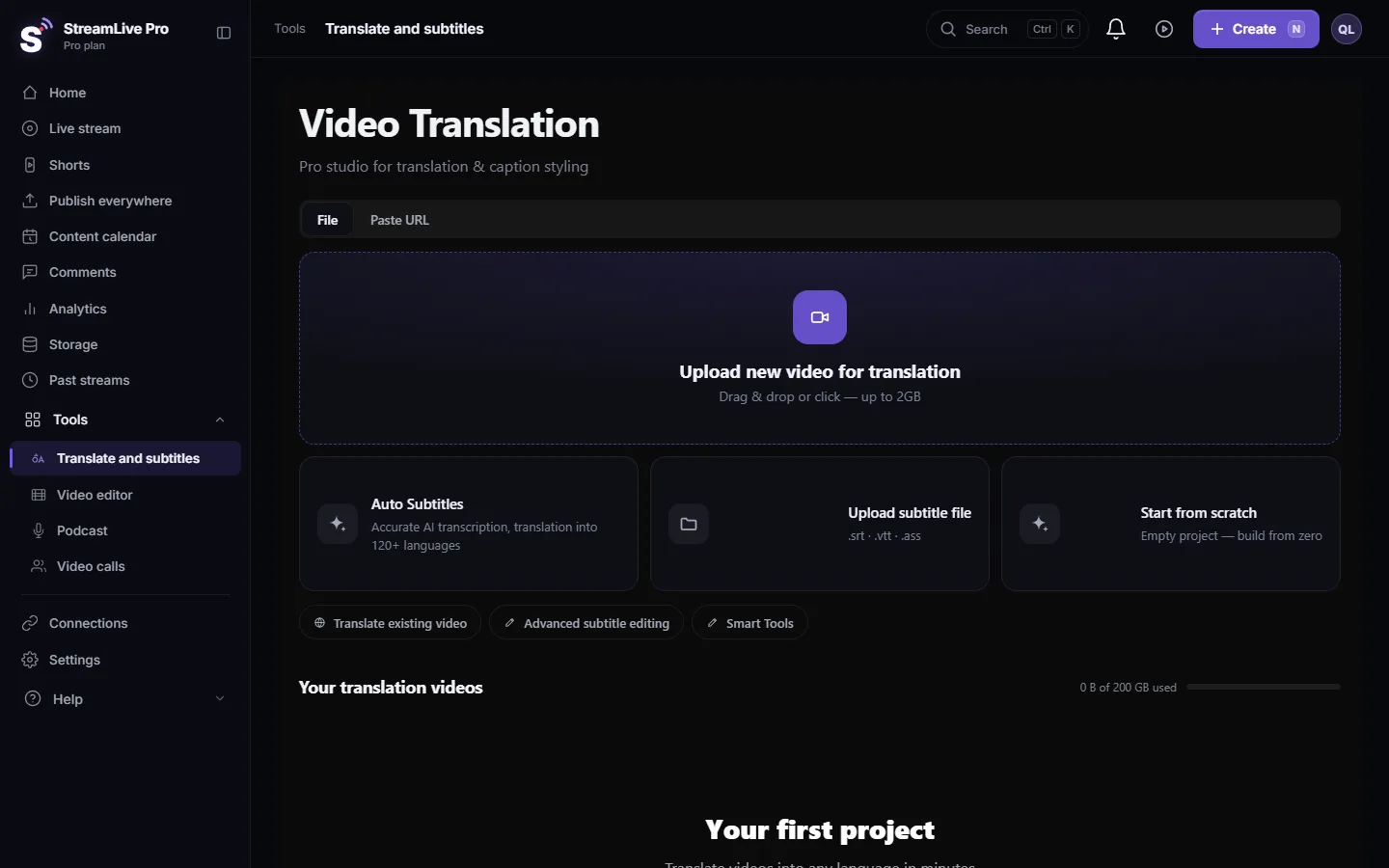
- Open the Unavailable group. In Translate and subtitles, scroll below your projects and open "Unavailable". The number next to it is how many projects lost their video.
- Download the captions. On the project's row press Download SRT. The file keeps every line and its timing. You can also press Open to correct lines first; editing and downloading still work.
- Find the original video. Use the same file you uploaded the first time. A different cut or a trimmed copy will not match the timings in the SRT.
- Upload it to Storage. Open Storage and upload the file. One upload can be up to 6 GB; if it fails, see My video upload failed.
- Open it in the editor. On the file in Storage choose Edit the video (or Open in editor). This opens an editing project without starting a transcription, so it does not use translation minutes.
- Import the captions. In the editor's Subtitles panel choose Upload SRT-VTT and pick the SRT you downloaded. The lines return with their timings.
- Check a few lines and export. Play the start, the middle and the end. If everything is in place, press Export to burn them in.
What still works on an unavailable project
- Opening the captions, correcting the text and the times.
- Downloading the captions as SRT, and from the project the other text formats.
- Remove from list: this only hides the project from the Unavailable group. Nothing is deleted, and Show removed items brings it back.
What does not work: playing the video, burning captions into it, Translate again, and translating into more languages. All of them need the original file.
How to avoid it
- Keep your own copy of every video you upload for subtitles. A video in Storage is not a backup of your computer.
- Before you delete a large video from Storage to free space, download the captions of every project made from it.
- If a project matters, export the finished MP4 and keep it. See Exporting from the editor — formats and render settings.
When to contact support
Write to [email protected] if you did not delete the video and the project shows this message within days of creating it. Send the project's name, the date you uploaded the video, the file name, and a screenshot of the message.
Related: My storage is full, Export captions as SRT, VTT or ASS, and which one to use, Add subtitles to a video that is already in your storage.
Frequently asked questions
Were my captions deleted?
No. The captions of the project are kept. You can open them, correct them and download them as SRT even though the video is gone.
Can I upload the video into the same project?
No. Upload it again as a new file, open it in the editor, and import the SRT you downloaded from the old project.
Does bringing the captions back use translation minutes?
Not if you open the video with Edit the video from Storage and import the SRT. Starting a new translation of the video runs a new transcription, and that uses minutes.
What does Remove from list do?
It hides the project from the Unavailable group. Nothing is deleted, and Show removed items brings it back.
Keep reading
Another translation is already running? Your plan's limit on parallel translations is reached. How long to wait, what counts as running, and stuck jobs.
My transcript came out in the wrong languageTranscript in the wrong language? Auto-detect decides from the opening of the video and keeps that choice. Set the source language yourself and run it again.
Undo, history and autosave in the video editorHow the StreamLive Pro editor saves your work: autosave status, 100 undo steps, the resume offer after a refresh, and caption versions you can restore.
Out of translation minutes: what counts and what to doOut of translation minutes? How StreamLive Pro counts them (the video's length, per run), when they renew, and how to finish the job with the minutes you have.
Want to try it? 7-day trial, no credit card.
Start free