 StreamLive Pro
Transcribe a live stream after the broadcast
Transcribe a live stream after it ends: keep the recording, open it from Past streams, run automatic subtitles, fix the text and download TXT or SRT.
StreamLive Pro transcribes a live stream from its recording, after the broadcast ends. It does not show captions to viewers during the live. Press Record during the broadcast so the recording is kept, then open it from Past streams, run automatic subtitles, correct the text and download it as a plain transcript (TXT) or as a caption file (SRT or VTT).
Before you start
- Press Record in the studio. A temporary copy of the broadcast exists for the preview and for cutting Shorts, but the recording is kept only if you pressed Record. Otherwise it is removed about 2 hours after the broadcast. Details: Recordings and storage — what is kept and for how long.
- Plan for sound, not only picture. The transcript is as good as the audio. A microphone close to each speaker matters more than the camera. Several people talking at once lowers accuracy the most.
- Minutes. Transcription runs in Translate and subtitles; how many minutes each plan includes is on the /pricing?lang=en. The 7-day trial handles videos of up to 10 minutes there, so a full-length broadcast needs a paid plan.
- Live captions are not available. If you need text on screen during the broadcast itself, StreamLive Pro does not do that today. See Captions and translation for live streams: what works today and what is coming.
Steps
- End the broadcast and wait a moment. The recording is processed after the live ends, usually within 1 to 3 minutes. If you open it too early, the system tells you and opens it by itself when it is ready.
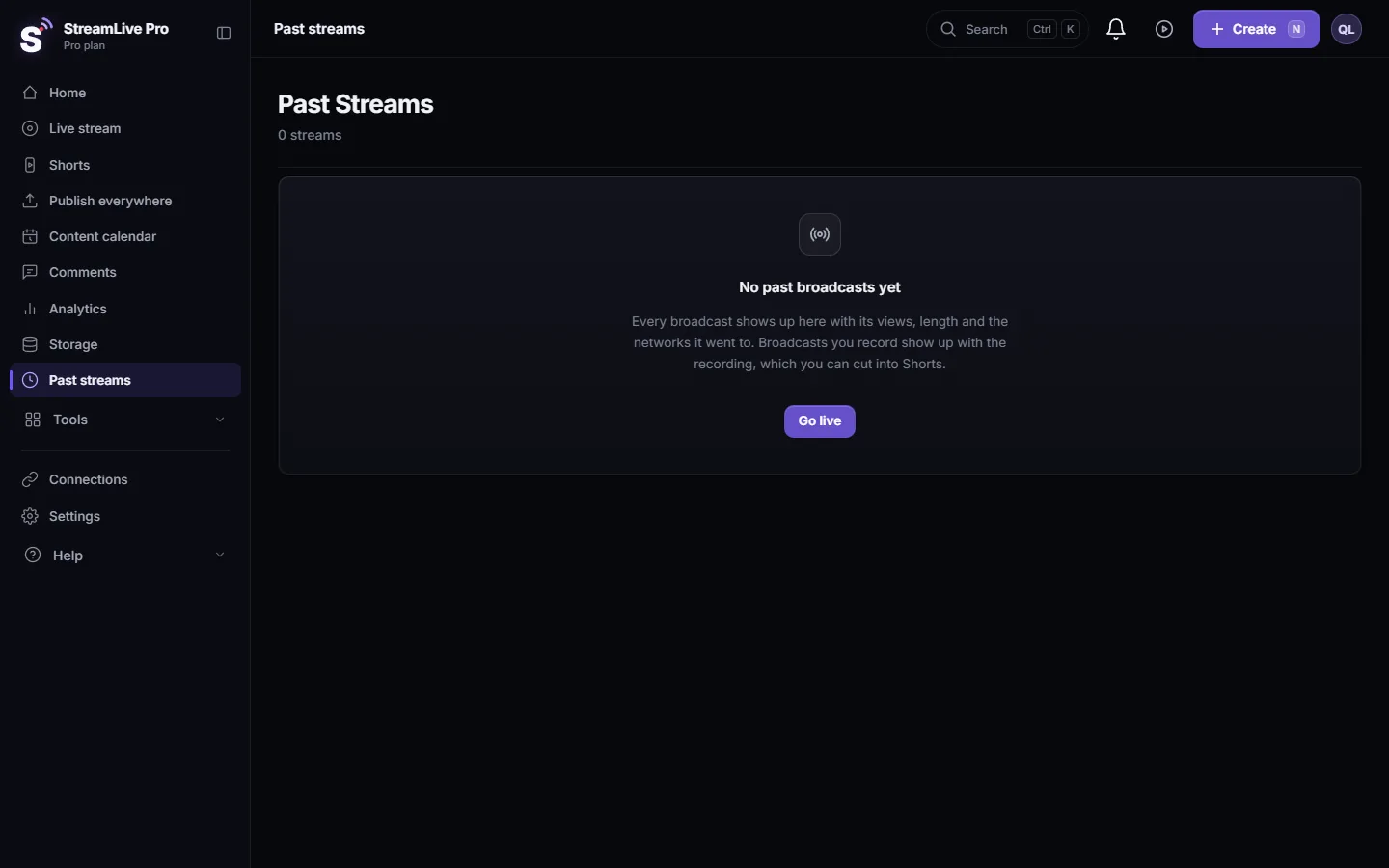
- Open Past streams. In the menu choose Past streams and find the broadcast.
- Open it in the editor. Choose Edit Video on the broadcast. The recording is copied into your library and opens in the editor.
- Run automatic subtitles. Open Subtitles and choose Auto Subtitles. Speech becomes text with a time for every word, split into lines at natural pauses.
- Correct the text. Click a line to jump to it and fix names, terms and numbers. For a long broadcast, fix the recurring names first with find and replace.
- Download the transcript. Press Export. In the Subtitles tab, TXT gives the text without times, for an article or show notes. SRT or VTT gives timed captions for YouTube or an editor.
- Optional: translate it. The corrected transcript is the starting point for captions in other languages; see Translate a video from English to Hebrew.
A broadcast that was not recorded here
If you streamed from OBS or vMix and recorded on your own computer, or the cloud recording was already removed, upload your local file: Translate and subtitles > Upload new video for translation, with the same language as both source and target. The rest of the steps are the same.
What you get, and what you do not
| Output | What it is good for |
|---|---|
| TXT | Plain text of everything said: a summary, a blog post, a searchable archive of classes |
| SRT / VTT | Captions with times: YouTube captions for the recorded video, Premiere Pro or DaVinci Resolve |
| Burned-in MP4 | The recording with captions in the picture |
| Shorts | Short vertical clips with captions, made from the broadcast automatically unless you turned automatic Shorts off |
What it does not give you: text during the live, dubbing, or a transcript of a broadcast whose recording was removed and that you did not keep yourself.
What can go wrong
- No recording on the broadcast. Record was not pressed and more than about 2 hours passed. Upload a local copy if you have one; next time press Record.
- The editor says the recording is still processing. Wait; it opens by itself when ready.
- Names and terms are wrong all through the text. Speech recognition writes the nearest common word for rare names and specialist terms, for example Aramaic terms in a Gemara class. Fix each with find and replace.
- Two speakers merged into one line. Split the line at the change of speaker.
- Long silences or music at the start. Trim the recording in the editor first, so the transcript and the captions start with the speech.
Related pages
- How the Hebrew transcription works: Automatic Hebrew subtitles — transcribe, edit, and burn them in
- File formats: Export captions as SRT, VTT or ASS
- Shorts from the broadcast: How to make Shorts from a live stream automatically
Frequently asked questions
Can StreamLive Pro transcribe my live stream while it is on air?
No. Live captions are not available. The transcript is made from the recording after the broadcast ends.
Is my broadcast recorded automatically?
It is kept only if you press Record. Otherwise the temporary recording is removed about 2 hours after the broadcast.
How do I get the transcript as plain text?
Export it as TXT from the Subtitles tab of the export window. TXT has the text without times.
Can I transcribe a broadcast I streamed from OBS?
Yes, if the recording was kept, open it from Past streams. If you recorded it on your own computer, upload that file in Translate and subtitles.
Does the transcript work in Hebrew?
Yes. Hebrew is transcribed and the captions are written right to left, with punctuation on the correct side.
Keep reading
How to run a weekly Torah class online: a weekday live, scheduling ahead, Shorts with Hebrew captions, translation for students abroad and a podcast episode.
How to live stream a lecture or an online classLive stream or video call, slides and camera layout, lecture hall sound, student privacy, chat moderation, and captions and clips from the recording.
Live streaming software in Hebrew: what to checkLive streaming software in Hebrew: a Hebrew interface, captions that read right to left, Hebrew Shorts and translation. What to check and how StreamLive Pro does it.
Kapwing alternative: Kapwing vs StreamLive Pro comparedKapwing alternative for subtitles, translation and short clips: plan limits, languages, Hebrew, exports and live streaming, from Kapwing's pages checked November 2026.
Want to try it? 7-day trial, no credit card.
Start free