 StreamLive Pro
Burn captions into a video (hardcoded subtitles)
Burn captions into a video in StreamLive Pro: correct the text, pick one of more than 80 designs, and render an MP4 with the captions drawn into the picture.
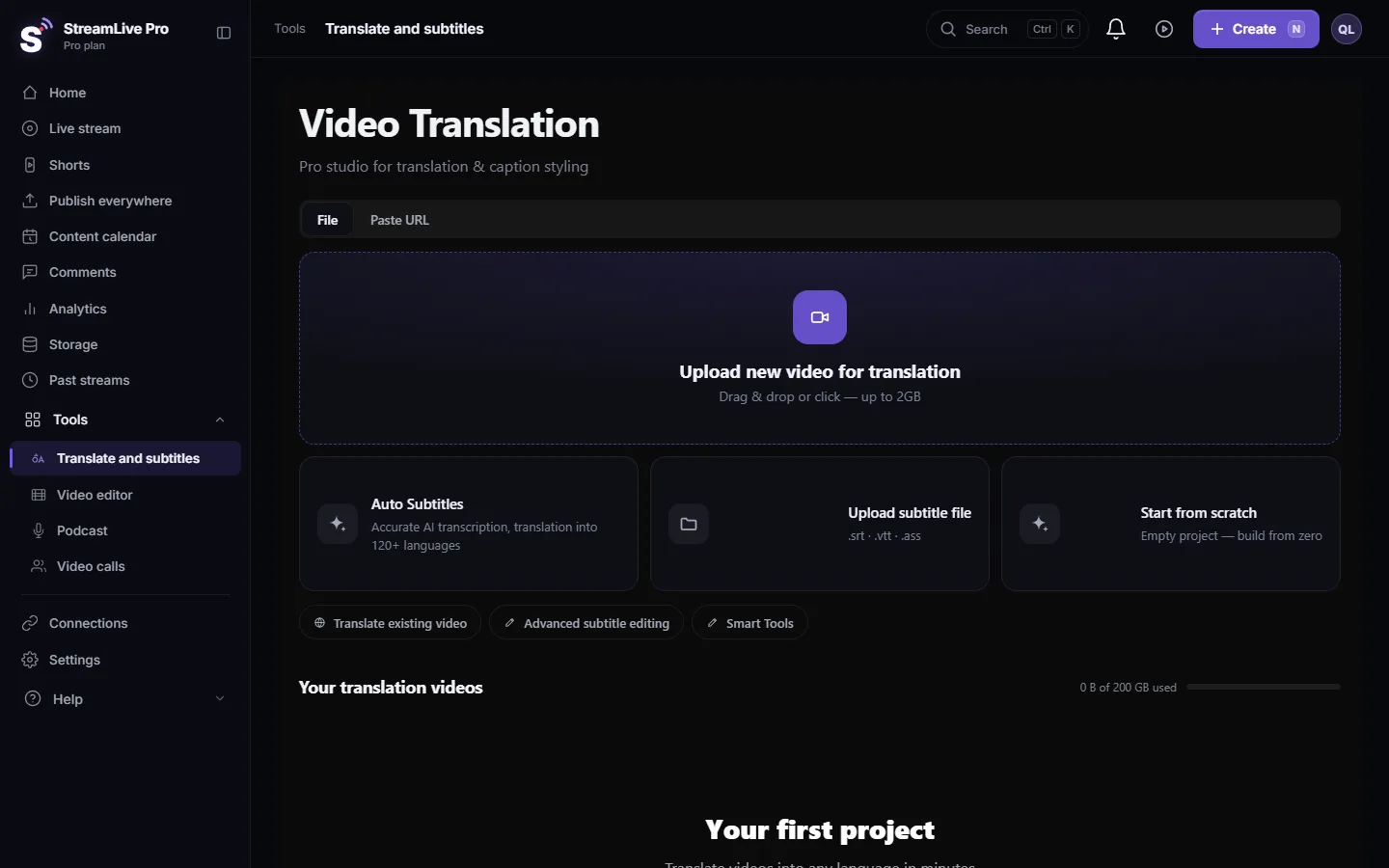
Burning captions in means drawing them into the picture, so they show in every player, feed and forwarded copy, and can never be switched off. In StreamLive Pro you correct the text in Translate and subtitles, choose a design, then press Export and MP4 — Burned-in subtitles. The render runs on our server and the MP4 downloads when it is ready.
Burn in or attach a file
| Feature | Burned in | Caption file (SRT, VTT) |
|---|---|---|
| Shows on Instagram, TikTok, WhatsApp, Shorts | Yes, it is part of the picture | Often no place to attach it |
| Viewer can turn it off or pick a language | No | Yes |
| Keeps your design and the spoken-word highlight | Yes | No, text and timing only |
| More than one language | One video per language | One file per language on the same video |
| Edit the text afterwards | Render again | Edit and re-upload the file |
Short vertical clips: burn in. Long videos on YouTube or your site: usually a file; see Upload SRT captions to YouTube.
Before you start
- Minutes. Transcription and translation use the plan's translation minutes; amounts per plan are on the /pricing?lang=en. The trial includes 10 minutes, for videos up to 10 minutes long.
- Watermark in the trial. Burned videos made during the trial carry a small watermark; paid plans do not. See The trial watermark and TikTok.
- Correct before you render. A burned caption cannot be fixed in the file. Every typo means a new render.
Steps
- Upload or open the video. In Translate and subtitles press Upload new video for translation, or open an earlier project from Your translation videos.
- Transcribe or translate. Pick Source language and Target language (the same language for captions in the original language), choose a Caption style and press Start translation.
- Correct the lines. In Subtitles, fix the text and split lines that stay on screen too briefly. For recurring names use find and replace.
- Pick a design. Open Templates. There are more than 80 designs; a click applies one to the preview so you can judge it on your own video.
- Adjust it. In Properties set Font, Text color, the outline and a background plate, the position (drag the caption in the preview), and the Animation. For a highlight on the word being spoken, set Spoken text color.
- Check the safe area. For vertical video, turn on the safe-zone guide of the network in the player (Safe) and keep the captions clear of buttons and descriptions.
- Render. Press Export and choose MP4 — Burned-in subtitles. The render runs on our server, so you can keep working; the file downloads when it finishes.
- Watch the result on a phone. Check the first and last caption, a line with punctuation and a line with a number, in the downloaded file.
Hebrew and Arabic in a burned video
Burned captions are where right-to-left text is most reliable, because direction is fixed in the picture and no player can re-order it. The render sets the direction of each Hebrew or Arabic line explicitly, so a question mark or full stop stays at the left end whichever font draws it. The fonts on our render server include Hebrew and Arabic faces. If a template's font has no Hebrew letters, the editor substitutes a Hebrew face rather than showing boxes; if you upload your own font, make sure it has the letters you need.
Several languages
Each language is a separate version of the captions. Translate the corrected transcript into the next language, check it, and render an MP4 for that language. For a long video where viewers should choose the language, use files instead. More: How to translate video subtitles into other languages.
What can go wrong
- **Render failed.** Try the render again; if it repeats, write to [email protected] with the project name and the time.
- The caption sits under the network's buttons. Move it up using the safe-zone guide and render again.
- Text too small on a phone. Increase Size; what looks big on a monitor is small on a phone.
- Words appear before they are spoken. Timing of that line needs a nudge: drag its edge in the line list. See Captions out of sync.
- Watermark on the video. Trial renders carry it.
- You need a live broadcast captioned. Not available during the live; caption the recording afterwards: Transcribe a live stream after the broadcast.
Frequently asked questions
Can burned-in captions be removed later?
No. They are part of the picture. Keep the original video, and render again if the text changes.
Do burned captions keep the karaoke highlight?
Yes. The design you chose, including the highlight on the spoken word, is drawn into the video as the preview showed it.
Is burning captions available in the trial?
Yes, with a small watermark on the video. Paid plans render without it.
Can I burn two languages into one video?
Each render carries one caption version. For two languages, render two videos, or attach caption files to one video on YouTube.
Do I need to keep the browser open while it renders?
The render runs on our server and you can keep working in the dashboard. Keep the page open until the file has downloaded.
Keep reading
Open vs closed captions: burned into the picture or sent as a file the viewer can switch off. What each is good for, which networks take which, and how to make both.
A weekly Torah class online: live, Shorts and a podcastHow to run a weekly Torah class online: a weekday live, scheduling ahead, Shorts with Hebrew captions, translation for students abroad and a podcast episode.
How to translate video subtitles into other languagesTranscription vs translation vs dubbing, SRT vs VTT vs burned-in, a workflow that stops errors multiplying, Netflix line-length rules and Hebrew RTL.
Import SRT captions into CapCut (desktop and web)Import SRT captions into CapCut: make and correct them in StreamLive Pro, download the SRT, and import it on CapCut desktop or web. The phone app cannot.
Want to try it? 7-day trial, no credit card.
Start free