 StreamLive Pro
Edit captions on the timeline
Edit captions on the StreamLive Pro editor timeline: move a line, drag its edges to retime it, split it, change its text on the video, and shift the lines after it.
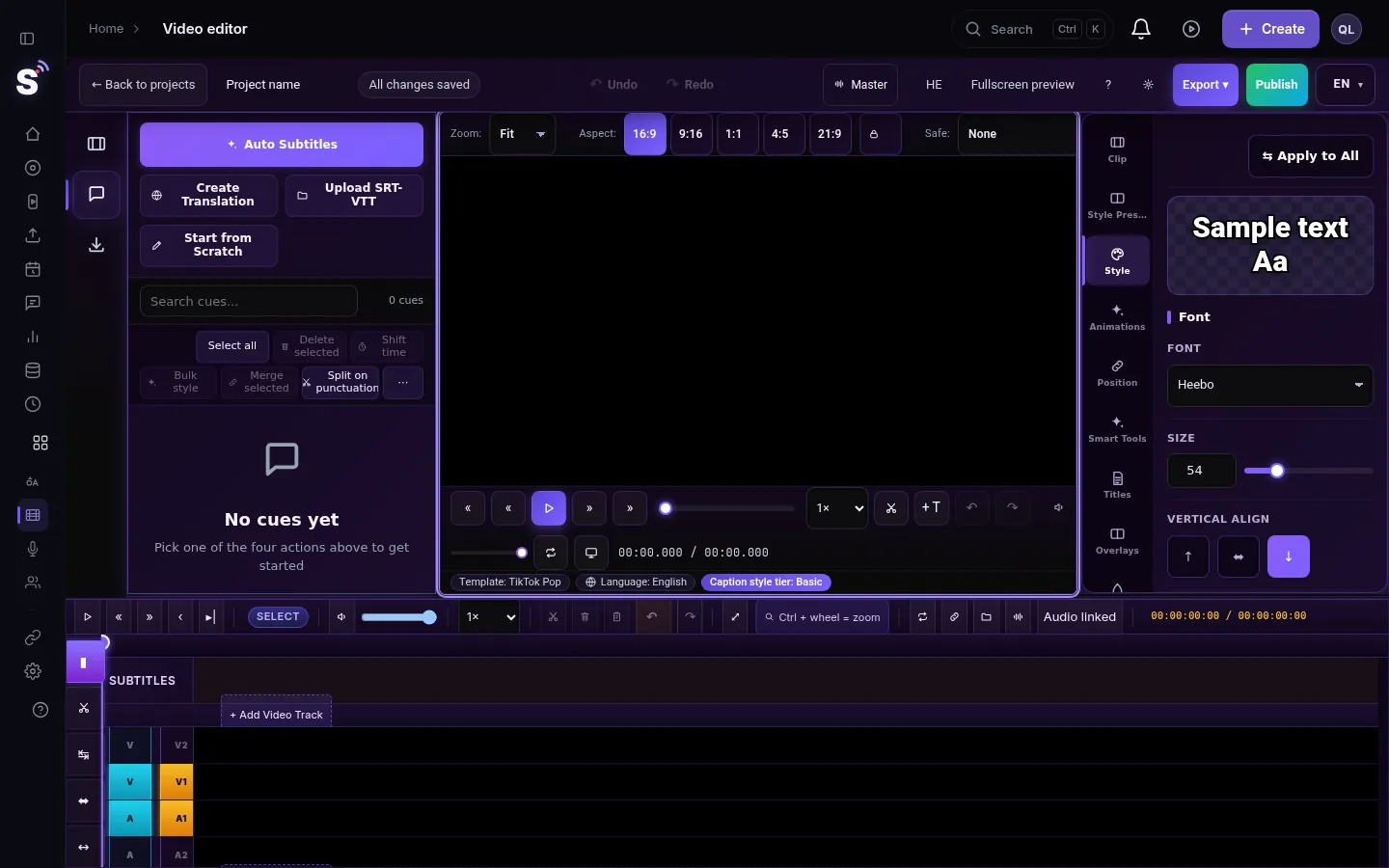
In the StreamLive Pro editor every caption line is a block on the subtitles track. Drag a block to move the line, drag its left or right edge to change when it starts or ends, and double-click it to edit the text right on the video. The Razor tool splits a long line in two, and Ripple edit shifts every following line when you lengthen one. Word timings move with the line, so the highlighted-word animation stays in step.
Before you start
- The video needs captions. They come from the transcription in Translate and subtitles, or with a Short opened with Edit. See Transcribe a video to text.
- Text or timing. To fix many words, use the Subtitles panel and Find & Replace (Ctrl+F); see Fix names and terms in a transcript. This page is about where lines sit in time.
- Everything is all out of step? If every line is early or late by the same amount, see My captions are out of sync.
- Open the project. In the menu choose Video editor.
Steps
- Find the line. Play the video, or zoom the timeline in with + so the blocks are wide enough to grab. The block under the playhead is the line shown on the video.
- Move a whole line. Drag the block left or right. Its length stays the same.
- Change when it starts or ends. Hover over the left or right edge until the cursor changes, then drag. A line cannot be dragged over its neighbour, and cannot be shorter than 0.1 seconds. Press Esc during the drag to cancel.
- Edit the text on the video. Double-click the block. The video jumps to the line and the text opens for editing on the picture itself.
- Split a long line. Choose the Razor tool (C) in the Toolbox and click the block where it should break. Press V to go back to the Select tool.
- Shift everything after a line. Switch on Ripple edit in the timeline toolbar, then drag a line's right edge. Every line after it moves by the same amount. Switch Ripple off when you are done.
- Move several lines together. Drag a selection box across empty space on the subtitles track, then drag one of the selected blocks.
- Undo a mistake. Ctrl+Z. A razor cut across several selected lines is one step.
- Export. Press Export for a video with the captions burned in, or download SRT, VTT or TXT. The times in the file follow your edit.
Good timing on a phone
| Rule | Why |
|---|---|
| Show a line from the first sound of its first word | Late captions feel wrong even when the words are right |
| Keep each line up long enough to read twice | A short line flashed for half a second is missed |
| Break at a natural pause, not mid-phrase | One idea per line reads faster |
| Leave no tiny gaps between lines in continuous speech | A flicker between lines is distracting |
| Two lines at most on screen | Vertical videos have little room |
What changes with the video
Captions belong to the video they were made from. If you delete a part of the video on the timeline, its caption lines are deleted with it, and a message says how many lines went. Ctrl+Z brings back the clip and its lines together.
What can go wrong
- The edge will not move further. The neighbouring line is in the way. Shorten the neighbour first, or switch on Ripple edit.
- Every line after my change moved. Ripple edit is on. Switch it off, then Ctrl+Z the move.
- Double-click did not open the text. The click landed on the edge handle. Double-click the middle of the block.
- The highlighted word is ahead of the voice. The line was moved but the speech was not. Drag the left edge until the line starts on the first sound.
- The SRT file still has the old times. Download it again after the change; downloads are made from the current edit.
Related pages
- Burn the captions into the picture: Burn captions into a video
- Caption files for other editors: Export captions as SRT, VTT or ASS
- The timeline itself: Video editor timeline basics
Frequently asked questions
How do I change when a subtitle appears?
Drag the left edge of its block on the subtitles track to change the start, and the right edge to change the end. Drag the whole block to move it.
Can I edit caption text directly on the video?
Yes. Double-click the caption block on the timeline. The video jumps to that line and the text opens for editing on the picture.
How do I split one caption into two?
Choose the Razor tool with C and click the caption block where it should break. Press V to return to the Select tool.
How do I move all captions after a point?
Switch on Ripple edit, then drag the right edge of the line before the point. All following lines move by the same amount.
Do the word highlights follow my timing change?
Yes. When you move or resize a line, its word timings move with it and stay inside the line.
Keep reading
Open vs closed captions: burned into the picture or sent as a file the viewer can switch off. What each is good for, which networks take which, and how to make both.
My transcript came out in the wrong languageTranscript in the wrong language? Auto-detect decides from the opening of the video and keeps that choice. Set the source language yourself and run it again.
A weekly Torah class online: live, Shorts and a podcastHow to run a weekly Torah class online: a weekday live, scheduling ahead, Shorts with Hebrew captions, translation for students abroad and a podcast episode.
Add subtitles to a video that is already in your storageAdd subtitles to a video already in StreamLive Pro storage, a kept recording or an upload, without uploading again: open it in the translation studio.
Want to try it? 7-day trial, no credit card.
Start free