 StreamLive Pro
Add subtitles to a video that is already in your storage
Add subtitles to a video already in StreamLive Pro storage, a kept recording or an upload, without uploading again: open it in the translation studio.
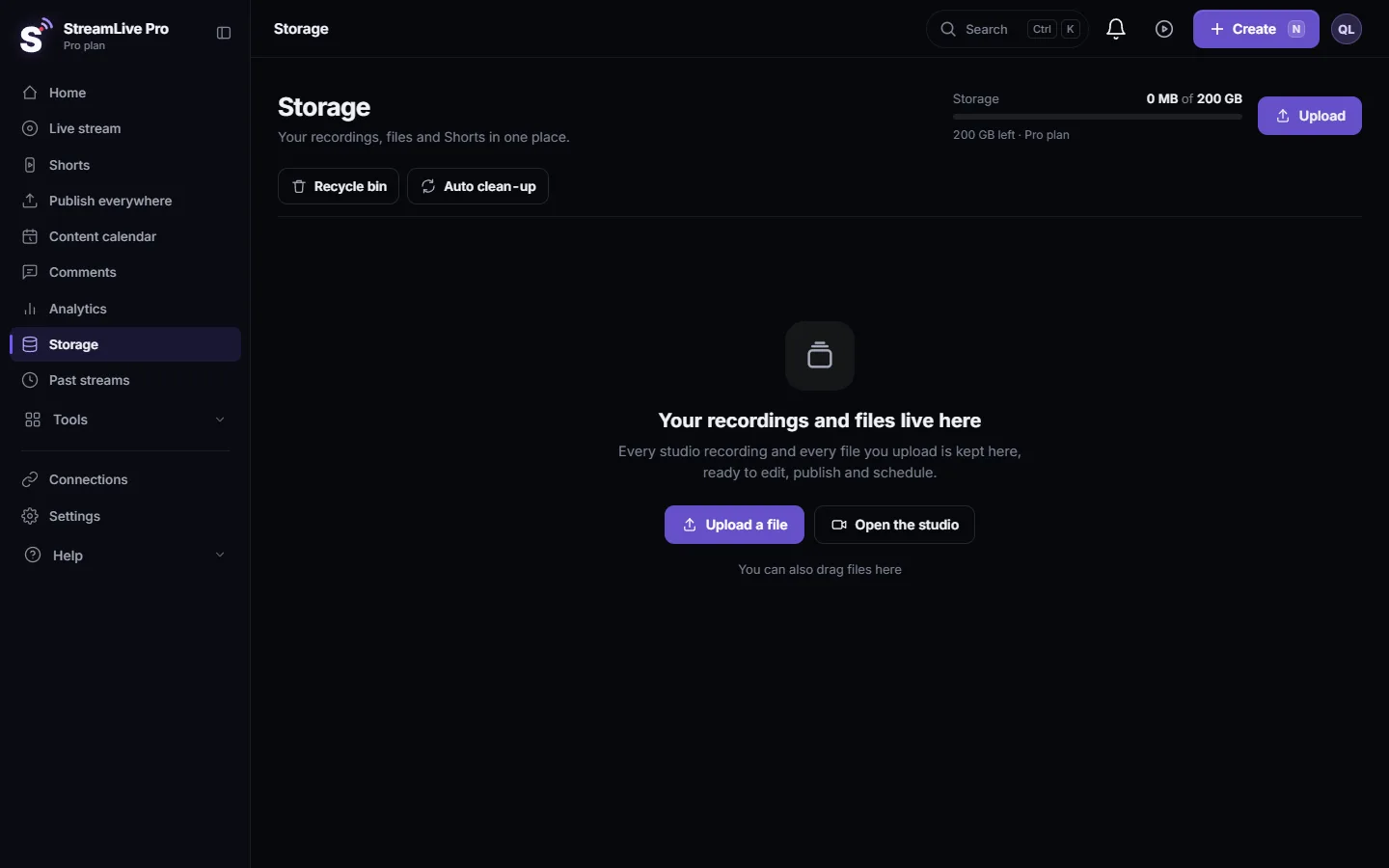
A video that is already in your account does not need to be uploaded again to get captions. In Storage, open the "⋮" menu on the video's card and choose Open in Translation Studio. Pick the spoken language and the caption language, press Open in Translation, and the video opens as a new project in Translate and subtitles, where it is transcribed or translated. This works for a recording you kept from a live broadcast and for any video you uploaded.
Before you start
- The recording must be kept. A live broadcast stays in storage only if you pressed Record; otherwise it is removed about two hours after the broadcast. See Where is my live stream recording?.
- Video files only. The menu item appears for videos. Audio files and images in storage do not get it.
- Minutes. Opening the video starts the automatic transcription and translation, which use translation minutes according to the video's length. Minutes and the longest video each plan can translate are on the /pricing?lang=en; the trial includes 10 minutes, for videos up to 10 minutes long.
- Languages. Creator and the trial translate into 25 languages, Pro and Studio into all 143: Which languages can I translate captions to?.
Steps
- Open Storage. Click Storage in the dashboard. Every file you uploaded or kept is here.
- Find the video. Look for its card. Recordings carry the title of the broadcast.
- Open the menu. Click "⋮" on the card. The menu has Watch, Download, editing, Shorts and publishing actions.
- Choose Open in Translation Studio. A window says the video will load into the studio without uploading it again.
- Pick the languages. Under source language choose the spoken language, or leave Auto-detect. Under target language choose the caption language. Hebrew is selected by default.
- Press Open in Translation. The project is created and Translate and subtitles opens with it. Wait while it is transcribed and translated.
- Correct and design. In Subtitles fix names and numbers; choose a look in Templates.
- Export. Press Export: SRT — Subtitles for YouTube and editors, or MP4 — Burned-in subtitles for a video with the captions in the picture.
Captions in the spoken language
The window does not let you pick the same language as both source and target: you see "Source and target languages cannot be the same". For captions in the language that is spoken, leave the source on Auto-detect and choose that language as the target.
For example: a weekly class with captions
A weekly class is broadcast live and you press Record. After the broadcast the recording is in Storage. Open it in the translation studio with Hebrew as the target, correct the names of books and places in the transcript, and export an SRT for the YouTube video of the class. If part of the audience reads English, open the same recording a second time with English as the target, or translate the corrected Hebrew in a new project. Each language is its own project and its own file.
If the same recording also needs Shorts, you can cut them from the same "⋮" menu in storage. The captions of the Shorts are made by the Shorts process itself, and the project in the translation studio stays for the full video.
Storage or a new upload
| From Storage | Upload in Translate | |
|---|---|---|
| Upload again | No | Yes |
| Kept live recordings | Yes | Only if you download and upload them |
| File size | Any video already in storage (storage uploads go up to 6 GB) | The upload card says up to 2 GB |
| Caption style at the start | A default style; change it in the project | You pick one in the upload window |
| Minutes | By the video's length | By the video's length |
What can go wrong
- The menu item is missing. The file is audio or an image, or the card is not a video. Only videos can be captioned.
- "Source and target languages cannot be the same". Set the source to Auto-detect.
- The recording is not in storage. It was not kept. Press Record next time, or upload the file you have.
- "This language is not included in your plan". On Creator and the trial choose one of the 25 included languages.
- Not enough minutes. See Out of translation minutes: what counts and what to do.
- "Failed to create project". Try again. If it repeats, write to [email protected] with the file name and the time.
Related pages
Frequently asked questions
Do I need to upload a video again to add subtitles?
No. Open it from Storage with Open in Translation Studio and it loads into the translation studio as it is.
Can I subtitle a recording of my live broadcast?
Yes, if the recording was kept. Recordings you did not keep are removed about two hours after the broadcast.
Does opening a video from Storage use translation minutes?
Yes. The transcription and translation use minutes according to the video's length, the same as an upload.
Can I get captions in the original language from Storage?
Yes. Leave the source language on Auto-detect and choose the spoken language as the target.
Why is the menu item not shown for my file?
It appears only for videos. Audio files and images cannot be captioned this way.
Keep reading
Open vs closed captions: burned into the picture or sent as a file the viewer can switch off. What each is good for, which networks take which, and how to make both.
My transcript came out in the wrong languageTranscript in the wrong language? Auto-detect decides from the opening of the video and keeps that choice. Set the source language yourself and run it again.
Edit captions on the timelineEdit captions on the StreamLive Pro editor timeline: move a line, drag its edges to retime it, split it, change its text on the video, and shift the lines after it.
A weekly Torah class online: live, Shorts and a podcastHow to run a weekly Torah class online: a weekday live, scheduling ahead, Shorts with Hebrew captions, translation for students abroad and a podcast episode.
Want to try it? 7-day trial, no credit card.
Start free