 StreamLive Pro
Post an Instagram Story from your computer
Post an Instagram Story from the computer with StreamLive Pro, now or scheduled: a photo or a vertical video. What the Story box does, and the limits.
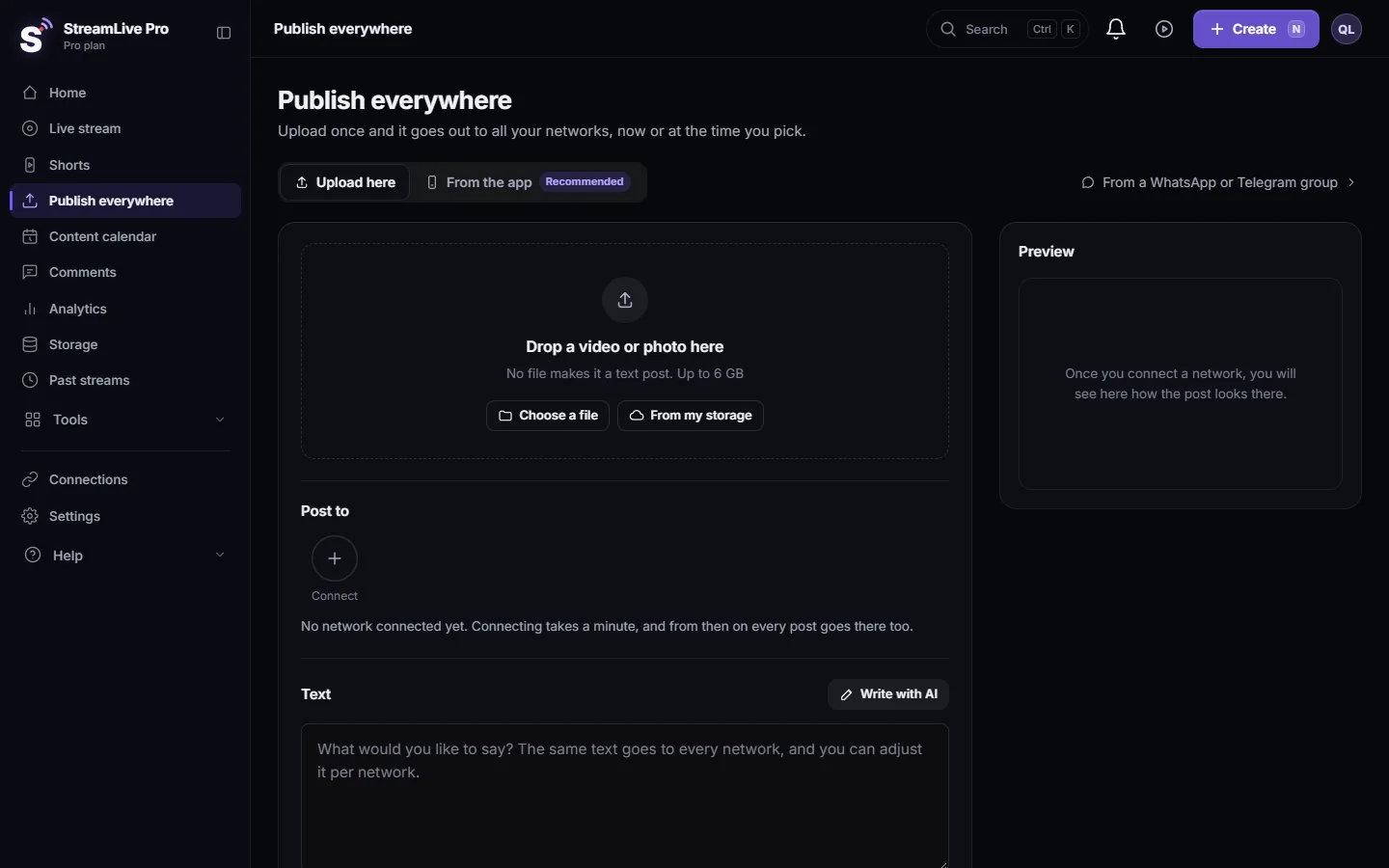
You can post a Story to Instagram from the computer on the Publish everywhere page: add a photo or a vertical video, tick Also as a Story in the Instagram part, and publish now or at a set time. The same box exists for a Facebook Page. One thing to know before you start: in our check of November 2026, a post with the Story box ticked goes to Instagram as a Story only, not as a Story plus a Reel. To get both, publish twice.
Before you start
- An Instagram professional account. Instagram lets apps publish only to professional (business or creator) accounts. Connect it in Connections: Connecting your channels — YouTube, Facebook and the rest.
- A file. A Story needs a photo or a video; Instagram takes no text-only Story. Vertical 9:16 fills the screen. For photos, Instagram's publishing system takes JPEG; a PNG may be refused, so export a JPG.
- No caption. Stories carry no post text. Text you write in the box is not shown on the Story; put any words into the picture or video itself.
- Meta's own rules. Instagram limits how many posts an app can publish per account per day: Instagram content publishing (checked 5 November 2026).
Steps
- Open the page. Choose Publish everywhere.
- Add the file. Drop the photo or video, or use Choose a file or From my storage. The preview says Vertical or Horizontal and the length.
- Tick the Instagram account. Under Post to, select the Instagram account. Untick other networks if this is meant for Instagram only.
- Open Adjust per network. Under the text, open Adjust per network and choose the Instagram tab.
- Tick Also as a Story. The list Where it goes, next to the preview, now shows "Plus a Story" for Instagram.
- Choose when. Now, or Schedule with a date and time in your time zone. Stories can be scheduled; TikTok posts cannot.
- Publish. Press the publish button. The result per network appears under the page. A Story is visible on Instagram for 24 hours, as with any Story.
- Untick it next time. The Story box is remembered for your next post. Before an ordinary Reel or photo post, open the Instagram tab and untick it.
Story and post: how it works today
| You tick | Instagram gets | Facebook Page gets |
|---|---|---|
| Nothing | A Reel (video) or a feed photo | A Reel (short vertical video), a video, a photo or a text post |
| Also as a Story on Instagram | A Story only | Unchanged |
| Also as a Story on Facebook | Unchanged | A Page Story only |
The box label says "Also", but the code we checked sends one item per network. If you want the Reel and the Story, publish the same file twice: once with the box ticked and once without. We will update this page when that changes.
What can go wrong
| Symptom | Likely cause | Fix |
|---|---|---|
| A Reel was expected but a Story went out | The Story box was still ticked from last time | Untick Also as a Story before publishing |
| The Instagram account cannot be ticked for a text post | Instagram needs a photo or a video | Add a file |
| The photo Story failed | The image is not JPEG | Export the photo as JPG and try again |
| The Story looks cropped | A horizontal file on a vertical screen | Use a 9:16 version: Turn a horizontal video into a vertical 9:16 video |
| Instagram is missing from Post to | The account is not connected, or not a professional account | Reconnect it in Connections |
| A message about too many posts today | You are near a daily posting limit | See How many posts per day can I publish to each network? |
Related: Post Instagram Reels from your computer, Adjust the post for each network, Schedule social media posts to several networks at once, Post a video, photo or text to a Facebook Page.
Frequently asked questions
Can I post an Instagram Story from a computer?
Yes. On the Publish everywhere page, add a photo or video, tick the Instagram account, and tick Also as a Story under Adjust per network.
Can I schedule an Instagram Story?
Yes. Choose Schedule, set the date and time, and the Story goes out then.
Does Also as a Story post a Reel too?
Not today. With the box ticked, Instagram gets the Story only. Publish a second time without the box for the Reel.
Can I add a caption, link or sticker to the Story?
No caption is shown on a Story published this way, and StreamLive Pro does not add stickers or links. Put the words in the picture, or add stickers in the Instagram app.
Does it work for a personal Instagram account?
No. Instagram allows publishing from apps only to professional accounts.
Keep reading
A post went out on some networks and failed on one. How to read the reason, fix the usual causes, and send it again only to the network that failed.
Delete a published post from every networkRemove a post you published from YouTube, Facebook, LinkedIn and X in one step with Delete everywhere, and what to do on Instagram, TikTok and the others.
My Instagram account is not in the listYour Instagram account does not appear after connecting, or says it has no linked Page: professional accounts, the linked Facebook Page, ticking both, and the fix.
How many posts per day can I publish to each network?The daily and hourly posting limits StreamLive Pro uses for Instagram, Facebook, Threads and others, the networks' own limits, and what the warnings mean.
Want to try it? 7-day trial, no credit card.
Start free