 StreamLive Pro
My Instagram account is not in the list
Your Instagram account does not appear after connecting, or says it has no linked Page: professional accounts, the linked Facebook Page, ticking both, and the fix.
StreamLive Pro reaches Instagram for posting through Meta's sign-in, and Meta lets apps publish only to an Instagram professional account that is connected to a Facebook Page. So when your Instagram account is missing, it is almost always one of three things: the account is a personal Instagram account, it is not linked to a Facebook Page you manage, or on Meta's approval screen you ticked the Instagram account but not the Page it is linked to (or the other way round). The last one is the most common, and the Instagram card says so in plain words.
Meta's rule is on its developer page for content publishing, which names "Instagram professional accounts" and a Facebook Page token for accounts connected through Facebook Login: Instagram Platform: Content publishing (checked 5 November 2026).
Symptom, likely cause, fix
| You see | Likely cause | Fix |
|---|---|---|
| "You ticked the Instagram account ... but not the Facebook Page linked to it" | On Meta's screen the Page was left unticked | Click Reconnect, choose Edit settings, and tick the Page too |
| "No Instagram Business or Creator account is linked to your Facebook Pages, so Instagram was not connected" | The Instagram account is personal, or not linked to any of your Pages | Switch it to a professional account in the Instagram app, link it to your Page (the message points to Meta Business Suite, Settings, Instagram), then connect again |
| "Account with no linked page" on the card | Same as above, or the Page was not granted | Reconnect and tick both the Page and the Instagram account |
| One of several Instagram accounts is missing | It was not ticked on Meta's screen | Reconnect, Edit settings, tick it and its Page |
| The account appears but publishing fails at once | Meta did not grant publishing to this account | Reconnect and approve every permission Meta asks for |
| Connected, but the live does not reach Instagram | Lives use a stream key, not this connection | Paste a fresh Instagram key before each live: Live on Instagram and TikTok with a stream key |
Steps
- Check the account type in Instagram. In the Instagram app open your profile settings and check that it is a professional account (Creator or Business). A personal account cannot be offered to apps for publishing.
- Check the link to a Facebook Page. The Instagram account must be connected to a Facebook Page that your Facebook account manages. You can check it in the Page's settings or in Meta Business Suite.
- Open Connections. In Connections find the Instagram card. If it shows a notice about the Page, it also names the Page that is missing.
- Click Reconnect. Meta's own screen opens. If you are already signed in, it may show what you allowed last time.
- Choose Edit settings. Tick the Facebook Page and the Instagram account linked to it. Both are needed: Instagram publishing goes through the linked Page.
- Approve every permission. Keep every permission Meta asks for ticked, then finish. You come back to StreamLive Pro and the card updates.
- Check the publish list. Open Publish everywhere. The Instagram account should be a tick box under Where?. Posting steps: Post Instagram Reels from your computer.
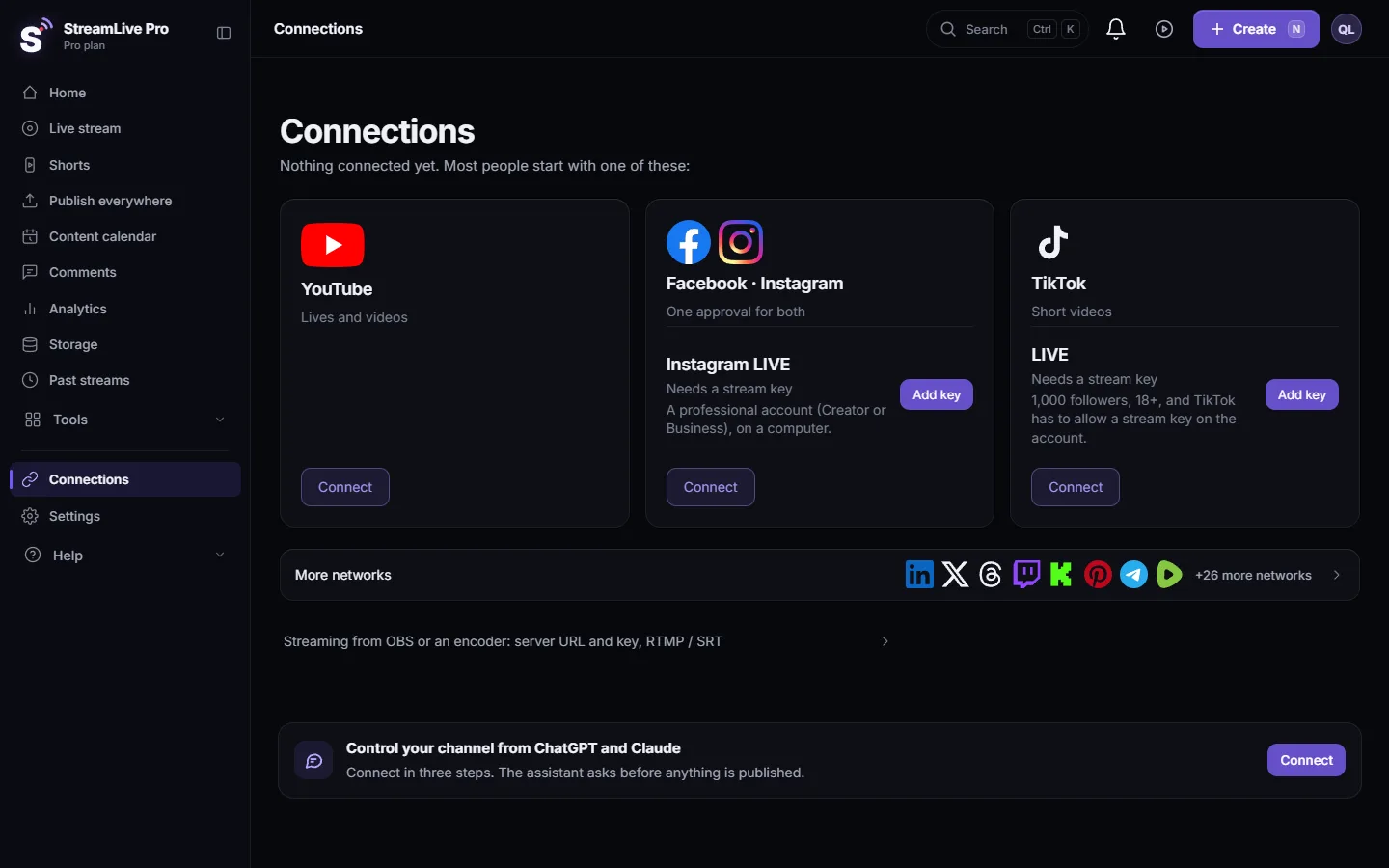
Two separate things: posting and live
The Instagram connection on this page is for posts, Reels and Stories. Going live on Instagram works with a stream key from Instagram itself, pasted on the Instagram Live card, and that key works for one session only. A missing account in the connection list does not stop a live by key, and a working connection does not make a live work without a fresh key. See How to go live on Instagram from a computer.
When to contact support
If the Instagram account is professional, linked to a Page you manage, you ticked both on Meta's screen, and the card still shows no account, write to [email protected]. Send the Instagram handle, the name of the linked Facebook Page, the Facebook account you sign in with (the name, never the password), and a screenshot of the Instagram card.
Related pages
- My Facebook Page is not in the list
- Reconnect a channel whose connection expired
- Connecting your channels — YouTube, Facebook and the rest
Frequently asked questions
Why does my Instagram account not show up in StreamLive Pro?
Usually it is a personal account, it is not linked to a Facebook Page you manage, or the Page was not ticked on Meta's screen. Reconnect, choose Edit settings and tick both the Page and the Instagram account.
Can I connect a personal Instagram account?
Not for publishing. Meta lets apps publish only to professional accounts. Switching to a Creator or Business account is done in the Instagram app.
Do I need a Facebook Page to post to Instagram?
For a connection through Facebook, yes. The Instagram account has to be linked to a Facebook Page that you manage, and both have to be ticked when you connect.
I ticked everything and it worked yesterday. Why is it gone?
Your role on the Page may have changed, the Instagram account may have been unlinked from the Page, or the access was removed in Meta's settings. Fix that, then click Reconnect.
Does this affect going live on Instagram?
No. Instagram lives use a stream key that you paste before each live. The connection on this page is for posts, Reels and Stories.
Keep reading
A post went out on some networks and failed on one. How to read the reason, fix the usual causes, and send it again only to the network that failed.
My analytics are empty or numbers are missingAnalytics shows no data, no views or old numbers: accounts not switched on, missing permissions, Waiting for Meta approval, networks that give nothing, and the fix.
Delete a published post from every networkRemove a post you published from YouTube, Facebook, LinkedIn and X in one step with Delete everywhere, and what to do on Instagram, TikTok and the others.
How many posts per day can I publish to each network?The daily and hourly posting limits StreamLive Pro uses for Instagram, Facebook, Threads and others, the networks' own limits, and what the warnings mean.
Want to try it? 7-day trial, no credit card.
Start free