 StreamLive Pro
Post a video, photo or text to a Facebook Page
Post to a Facebook Page you manage from StreamLive Pro: video, Reel, photo, text or Story, now or scheduled. Why personal profiles and groups are not possible.
StreamLive Pro posts to a Facebook Page you manage. Connect your Facebook account, tick the Page on Publish everywhere, write the text and publish now or later. A short vertical video goes out as a Reel by itself, a longer one as a regular video, and a photo or plain text as a feed post. You can send a video or photo as a Story instead of the post.
Before you start
- A Facebook Page, and you are its admin. Facebook does not let apps post to a personal profile, and StreamLive Pro does not post to groups. If you only have a profile, create a Page on Facebook first.
- The Page chosen when you connect. In Connections choose Facebook and sign in. The connection shows as Facebook account (Page admin). In Facebook's window, tick every Page you want to post to. A Page you did not tick there will not appear in the list.
- The file, if any. Video, photo, or no file for a text post.
Steps
- Connect Facebook. In Connections choose Facebook, sign in and approve. Tick your Pages in Facebook's window.
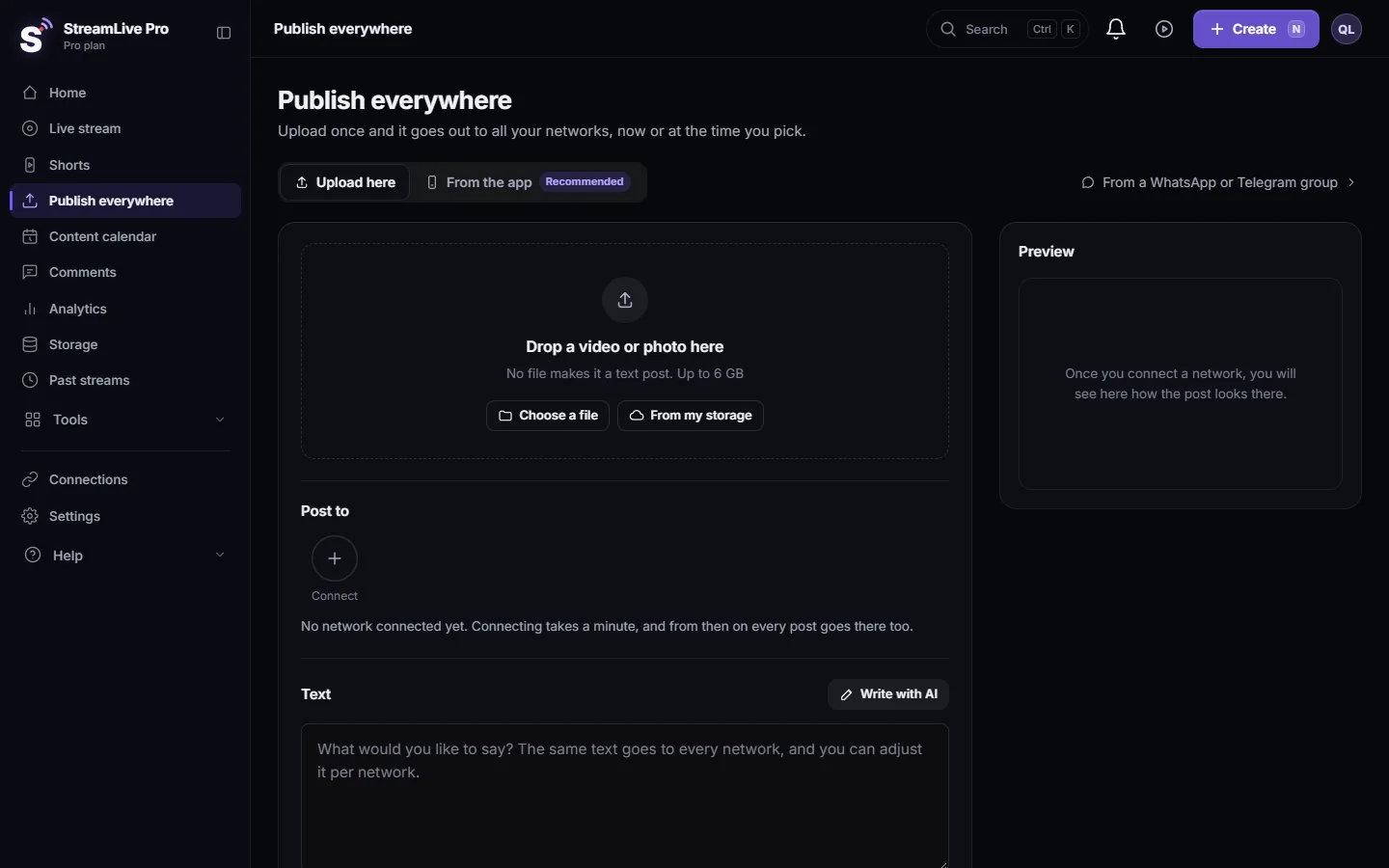
- Open the publish screen. Click Publish everywhere. Drop the video or photo on Drop a video or photo here (or click Choose a file), or add no file for a text post. Write your text in the Text box.
- Pick the Page. Under Post to click the Page so it is selected. You can pick several Pages in one post; each one gets its own result.
- Story only if you want a Story instead. Open Adjust per network and go to the Facebook tab. As a Story instead of a post sends the video or photo to the Page's Story in place of the Reel or post, not in addition. The tick is remembered for your next post, so check it each time.
- Give Facebook its own text if needed. On the same tab, tick the box for a different text for Facebook. See Adjust the post for each network.
- Publish or schedule. Under When choose Now, or Schedule and a date and time, then click the button at the bottom (for example "Publish to Facebook").
- Open the post. In Activity, lower on the same page, click the Facebook mark on the post to open it on the Page.
Reel, video, photo or text
You do not pick the format. StreamLive Pro reads the file:
| What you upload | How it goes out on the Page |
|---|---|
| A vertical video of up to 90 seconds | A Reel |
| Any other video | A regular Page video |
| A photo | A photo post |
| No file | A text post |
| A video or photo, with As a Story instead of a post ticked | A Story instead of the Reel, video or photo post |
If Facebook refuses the Reel, the video is posted as a regular Page video instead, so it is not lost. The result says this happened and why.
Personal profiles and groups
Facebook removed the way for apps to post to personal profiles in 2018 and has not brought it back for any kind of post. That is why a personal profile picked as a destination is refused with an explanation instead of failing quietly. StreamLive Pro does not post to Facebook groups either. If your audience is in a group, share the Page post into the group from Facebook.
Deleting a post later
From Activity, Delete everywhere removes the post from the Page, as long as the Facebook connection is still valid. Stories are the exception: Facebook does not allow apps to delete them, so remove a Story on Facebook. See Delete a published post from every network.
What can go wrong
| Symptom | Likely cause | Fix |
|---|---|---|
| The Page is not in the list | It was not ticked in Facebook's window when you connected | Reconnect, choose to edit the settings, and tick the Page |
| "Facebook personal profiles cannot receive uploads" | A profile was picked, not a Page | Pick a Page you manage |
| Posted as a regular video, not a Reel | Horizontal, longer than 90 seconds, or Facebook refused the Reel | Check the note in the result; for a Reel, upload a vertical clip of up to 90 seconds |
| The post failed with a sign-in message | The Facebook connection expired or lost its rights | Reconnect in Connections, then Retry in Activity |
| Instagram is missing next to the Page | The Instagram account is linked to a Page you did not tick | Reconnect and tick that Page too |
Related pages
- Publish a finished video to social networks
- Post Instagram Reels from your computer: the same file to Instagram.
- How to go live on a Facebook Page from your computer: live video on the Page.
- Schedule social media posts to several networks at once
Frequently asked questions
Can StreamLive Pro post to my personal Facebook profile?
No. Facebook stopped allowing apps to post to personal profiles in 2018. Create a Page and post there.
Can I post to a Facebook group?
No. Post to your Page and share that post into the group from Facebook.
How do I make my video a Facebook Reel?
Upload a vertical video of up to 90 seconds. StreamLive Pro sends it as a Reel. Longer or horizontal videos go out as regular Page videos.
Can I post to two Pages at once?
Yes. Tick both Pages under Where. Each Page gets its own post and its own result.
Why did my Reel go out as a regular video?
Either the video was horizontal or longer than 90 seconds, or Facebook refused the Reel. In that case it is posted as a regular Page video so it is not lost, and the result explains why.
Keep reading
How StreamLive Pro decides if your video goes out as a YouTube Short, a Reel or a regular video: shape and length per network, and how to get the other one.
Schedule social media posts to several networks at onceSchedule one post to YouTube, Facebook, Instagram, Threads, Telegram and more from one screen, then edit, copy or cancel it in the Content calendar.
Live streaming for small business: a practical guideLive streaming for a small business: which live formats sell, which networks to pick, a weekly routine, and turning each live into a week of Shorts and posts.
Schedule live streams and posts: the complete guideSchedule live streams and posts on YouTube, Facebook and more: lives, posts, Shorts, groups and AI, the Content calendar, what runs by itself, and the limits.
Want to try it? 7-day trial, no credit card.
Start free