 StreamLive Pro
Turn a horizontal video into a vertical 9:16 video
Turn a horizontal video into vertical 9:16 two ways: as Shorts that follow the speaker, or with a centre crop on export. The arithmetic of what each keeps.
There are two ways to turn a 16:9 video into a vertical 9:16 one in StreamLive Pro. As Shorts: upload the video in Shorts and each Short is cropped to follow the speaker, with captions. Or as a full video: open it in the editor and export with the 9:16 aspect ratio, which crops the centre of the frame. Use Shorts when the speaker moves or is off-centre; use the export crop when the action is in the middle and you need the whole video, not highlights.
What a vertical crop keeps
A vertical frame cut from a horizontal one keeps only a strip. The arithmetic, for a 1920 x 1080 video:
- A 9:16 frame as tall as the video is 1080 x 9 / 16 = 607.5, about 608 pixels wide.
- 608 of 1920 pixels is about 32%. Roughly two thirds of the width is cut away.
- That strip is then scaled to 1080 x 1920. 1080 / 608 is about 1.8, so a 1080p source is enlarged and looks softer. A 4K source (3840 x 2160) gives a strip about 1215 pixels wide, which is scaled down and stays sharp.
So two people sitting side by side rarely fit in one vertical frame, and a shot that is already wide (a stage, a classroom) turns into a crop of one person. Film with the vertical cut in mind: the subject near the centre, and free space in the lower part of the frame for captions.
Before you start
- Which you need. Highlights for a feed: Shorts. The whole video, upright: the export crop.
- Shorts count. Each Short counts toward the plan's Shorts for the month; see the /pricing?lang=en. Trial Shorts carry a small watermark.
- Where it will play. YouTube treats vertical videos of up to 3 minutes as Shorts (Get started creating YouTube Shorts). Keep that in mind when choosing the length.
Steps
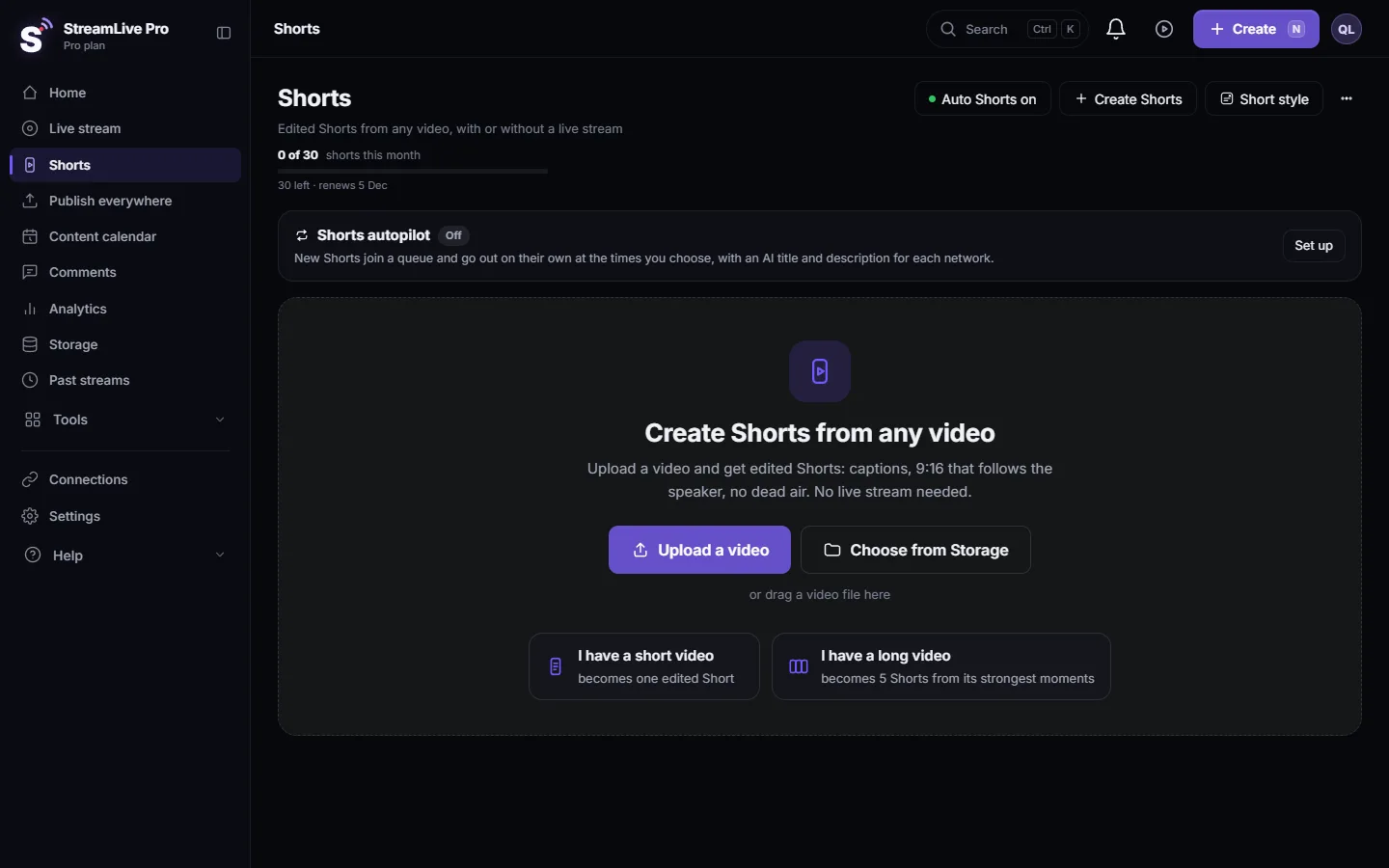
- Open Shorts. In the menu choose Shorts and press Create Shorts, or upload the video on that page or choose it from Storage.
- Pick one Short or several. A short video becomes one edited Short; a long one becomes up to 5 Shorts from its strongest moments.
- Let it frame the speaker. Smart reframe is on by default: it finds the face or movement in each frame and keeps it inside the vertical crop. It is in Settings, in the automatic Shorts section, where you can switch it to "Center crop only".
- Check the aspect ratio. In the same section the aspect ratio is 9:16 for Reels, Shorts and TikTok. 4:5 (Instagram feed), 1:1 and 16:9 are there too.
- For the whole video: open the editor. Open the video in Translate and subtitles (or use Edit on a Short or a past broadcast) and press Export.
- Choose 9:16 Vertical. In the export window set the aspect ratio to 9:16 Vertical. The centre of the frame is kept and the file is made at exactly 1080 x 1920. 4:5 comes out 1080 x 1350, 1:1 comes out 1080 x 1080.
- Watch it on a phone. Check that faces are inside the frame and that the captions sit clear of the network's buttons.
Which way, side by side
| Feature | Shorts | Export with 9:16 |
|---|---|---|
| What you get | Up to 5 clips of the strongest moments | The whole video, upright |
| How it crops | Follows the speaker's face or movement | The centre of the frame |
| Captions | Burned in automatically | Whatever is on the timeline, burned in if you chose it |
| Best for | Talking head, interview, a class | A centred subject, a product, a slide in the middle |
| Not good for | A full-length video | A speaker who walks to the side |
What can go wrong
- The speaker is cut in half. In the export crop the speaker is off-centre. Use Shorts, which follow the speaker, or reposition the shot in the editor before exporting.
- The Short follows the wrong person. Smart reframe follows the face or movement it finds. With two speakers, it can pick the one you did not want. Switch to "Center crop only" for that kind of video, or film one person at a time.
- The picture looks soft. A 1080p source is enlarged by about 1.8 times. Film in 4K when you know the video will also be vertical.
- Black bars in the vertical video. That happens when a horizontal video is fitted, not cropped. Export with 9:16 instead of uploading the horizontal file to a vertical feed.
- The file comes out smaller than 4K. The export is never larger than its source, so a 1080p source gives at most 1080p. Recording in 4K is on Pro and Studio.
Related pages
- How Shorts are made: How to create Shorts from any video, no live stream needed
- Fixing a Short before posting: Edit a Short before you publish it
- Posting the result: Post Shorts to YouTube, Reels and TikTok
- Export settings: Exporting from the editor — formats and render settings
Frequently asked questions
Can StreamLive Pro make a horizontal video vertical automatically?
Yes, two ways. Shorts are cropped to 9:16 following the speaker. In the editor you can export any video at 9:16, which crops the centre of the frame.
How much of the picture is lost?
From a 16:9 frame a full-height 9:16 crop keeps about 32% of the width, a strip about 608 pixels wide out of 1920.
Can I keep the whole picture with bars above and below?
The 9:16 export crops rather than fitting with bars. Vertical feeds show a cropped picture larger, which usually reads better on a phone.
Can I switch off the speaker tracking?
Yes. In Settings, in the automatic Shorts section, set Smart reframe to Center crop only.
Keep reading
Add stickers to a video in the StreamLive Pro editor: arrows, highlight boxes, Subscribe and Like badges, reactions, with their place, size and timing.
Change a video's aspect ratio in the editorSwitch a video between 16:9, 9:16, 1:1 and 4:5 in the StreamLive Pro editor, choose which part of the picture stays, lock the frame, and export at the network's size.
Fade in, fade out and dissolves in the video editorAdd a fade in, fade out, dip to black or white, or a dissolve at a cut in the StreamLive Pro editor, and fade music with the handles on audio clips.
Keyframes and effects in the video editorAnimate a clip with keyframes in the StreamLive Pro editor, such as a slow zoom, a move or a fade of opacity, and add looks like black and white or a vignette.
Want to try it? 7-day trial, no credit card.
Start free