 StreamLive Pro
My storage is full
Storage full in StreamLive Pro? What uses the space, what stops working, which files to delete first, and how to keep a recording from being cut short.
Storage fills with three things: the recordings you kept, the videos you uploaded, and the exports you rendered in the editor. When it is full, new uploads are refused with a message that shows how much of how much is used. Your live broadcasts still reach the networks. To free space, open Storage, download anything you want to keep, and delete the largest old recordings and exports first. You are warned at about 85%, before it is full.
Symptom, cause and fix
| Symptom | Likely cause | Fix |
|---|---|---|
| "Your storage is full: ... of ... used. Delete files or upgrade your plan." | No free space left | Delete files (steps below), or see /pricing?lang=en |
| "Not enough free space for this file" | Some space left, but less than the file | Delete files or upload a smaller file: My video upload failed |
| A notification that storage is about 85% full | Close to the limit | Clear space now, while nothing depends on it |
| A recording made in the browser stopped early | Storage filled during the recording | Free space before the next recording |
| Deleting a file was refused | A scheduled or running broadcast uses it | Wait until that broadcast is over |
What uses the space
- Kept recordings. A broadcast is kept only if you pressed Record or kept it afterwards, and then it stays until you delete it. Long broadcasts are the biggest files.
- Uploaded videos. Everything you uploaded to make Shorts, translate, edit or publish.
- Exports. Every render from the editor is a new file, including several versions of the same video.
Broadcasts you did not record are not in storage at all; their temporary copy is removed about two hours after the end. See Where is my live stream recording?.
Steps
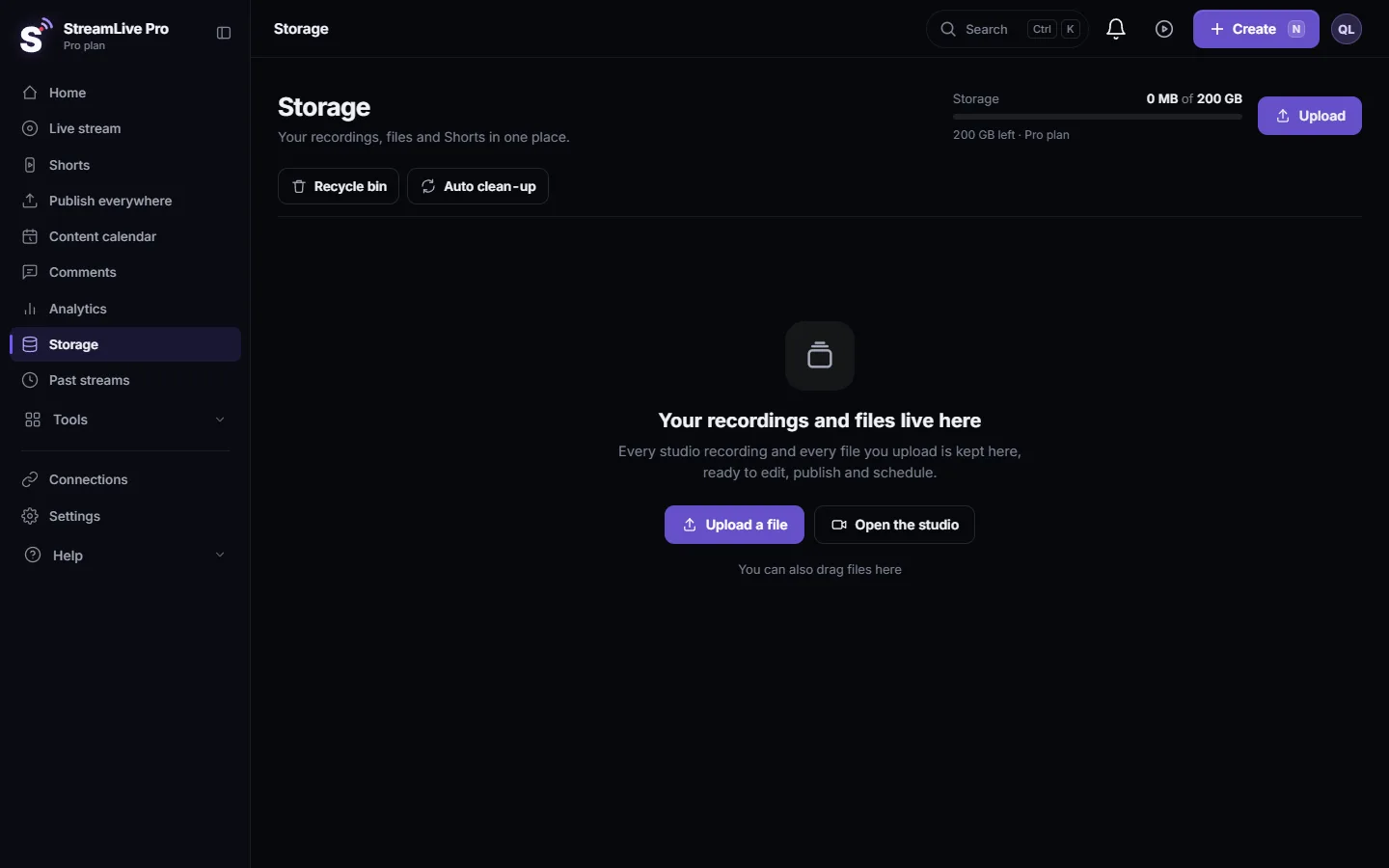
- Open Storage. Choose Storage. The meter at the top shows how much of your plan's storage is in use. Uploads and system recordings are listed separately.
- Find the largest files. Old full-length recordings and repeated exports of the same video are usually the bulk.
- Download what you want to keep. A recording from its card in Past streams; anything else straight from Storage.
- Delete. Deleting really deletes: the file, its cloud copy and the pieces saved during the recording. If editing projects use the file, you are asked to confirm that you are deleting them too.
- Check the meter again. It should show the space you freed. Try the upload again.
- Decide what to keep from now on. Press Record only on the broadcasts you need in full. Shorts are still cut automatically from the temporary copy when a broadcast ends.
What stops and what keeps working
| Keeps working | Stops |
|---|---|
| Going live to all your networks | New uploads to Storage, Create Shorts and Publish everywhere |
| Watching, downloading and publishing files you already have | Saving more files once there is no room |
| Shorts already made | A browser recording in progress, once the space runs out |
The last row is the reason for the warning at about 85%. A recording made in the browser studio is saved in pieces as it goes; when storage fills in the middle, the rest of it cannot be saved. Free space before a long recording, not after.
What to delete first
- Exports you have already published or downloaded.
- Several versions of the same export.
- Full recordings whose Shorts are already made and posted.
- Uploaded source videos you have a copy of on your computer.
Keep anything a scheduled broadcast uses, such as the video of a pre-recorded broadcast; deletion is refused while a broadcast needs it.
When to contact support
Write to [email protected] if the meter still shows full after you deleted large files, or if a file cannot be deleted and no broadcast uses it. Send a screenshot of the Storage page with the meter, the names of the files you deleted, and your plan.
Related: Recordings and storage — what is kept and for how long, Plans, billing and limits.
Frequently asked questions
What happens when my storage is full?
New uploads are refused with a message showing how much is used. Live broadcasts keep going to your networks, but a recording that is being saved can be cut short, so free space early.
Does going live use storage?
Only if you keep the recording. A broadcast you did not record is removed about two hours after the end and does not stay in storage.
Are deleted files recoverable?
No. Deleting removes the file and its cloud copy. Download anything you want to keep first.
Do I get a warning before storage is full?
Yes. At about 85% you get a notification, so you can clear space while nothing depends on it.
How do I get more storage?
Delete files you do not need, or move to a plan with more storage. The amounts per plan are on the pricing page.
Keep reading
Shorts were not created after your live? Check the automatic Shorts setting, your monthly Shorts, the length of the live and how to make them by hand.
Trial has ended and other trial messages explainedWhat the trial messages in StreamLive Pro mean: the 7-day trial has ended, the trial's lives are used up, or a subscription ended. What still works and what to do.
Turn automatic Shorts on or offTurn automatic Shorts on or off in StreamLive Pro: the Autopilot button, the Settings card, a count for one live, and how to still make Shorts by hand when off.
StreamLive Pro app: questions and answersAnswers about the StreamLive Pro app: App Store and Google Play status, the Android download, iPhone, iPad, going live, Shorts, capture cards and the account.
Want to try it? 7-day trial, no credit card.
Start free