 StreamLive Pro
Undo, history and autosave in the video editor
How the StreamLive Pro editor saves your work: autosave status, 100 undo steps, the resume offer after a refresh, and caption versions you can restore.
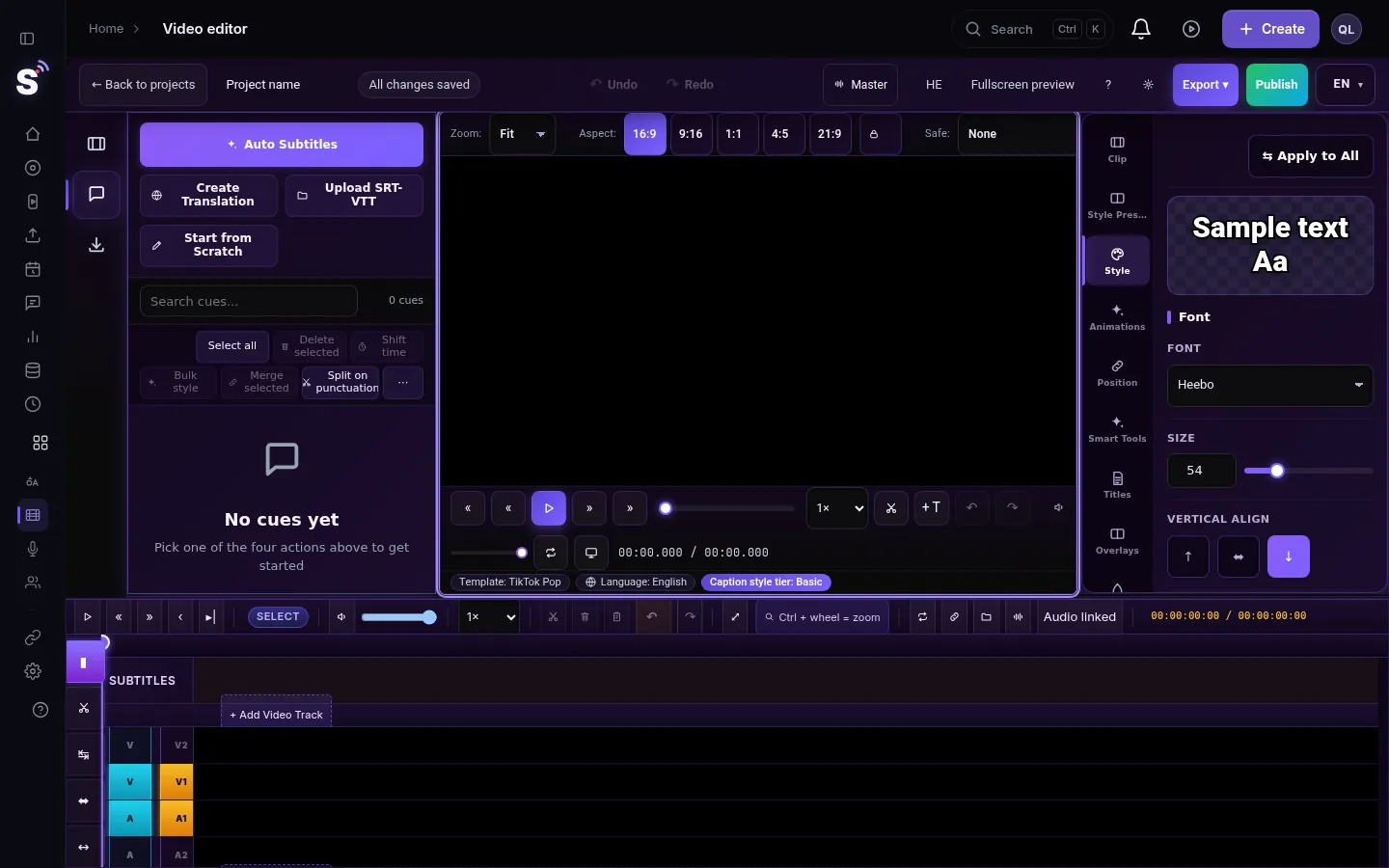
The StreamLive Pro editor has no save button. Every change is saved to your account a moment after you make it, and the mark beside the project name shows where it stands. Ctrl+Z undoes up to 100 steps in the open project. If the tab closes before a save finishes, the editor offers to continue where you left off. Caption text also has versions you can restore from the Export window.
The four safety nets
| Net | What it keeps | Where you see it | How long |
|---|---|---|---|
| Autosave | The whole project: timeline, captions, titles, style | The mark beside the project name | Permanently, in your account |
| Undo history | The last 100 steps | Undo and Redo buttons, Ctrl+Z | Until you open another project |
| Resume offer | Captions, style and the playhead, saved in this browser | A banner when the editor opens | Up to 24 hours, until the next successful save |
| Versions | The caption lines at a moment | Export window, Versions tab | Until you delete the version |
Autosave
The mark beside the project name shows one of these states:
| State | Meaning |
|---|---|
| Saving… | A change is being sent |
| Saved just now | The last change is stored |
| All changes saved | Nothing is waiting |
| Error — click to retry | The last save did not reach the server |
If you see the error, click it to retry at once. It usually means the connection dropped for a moment. Do not close the tab while it shows an error.
Undo and redo
- Keys. Ctrl+Z undoes. Ctrl+Y or Ctrl+Shift+Z redoes. On a Mac use Cmd.
- Buttons. Undo and Redo also sit in the top bar of the video area.
- What is covered. Caption edits (text, add, delete, move, split), caption style and position, titles, timeline edits, effects, colour and green screen.
- One step per action. Dragging a clip or a slider is recorded once, when you let go, not as many small steps.
- A short message names the action that was undone, so you know what changed.
- Limits. Up to 100 steps; the oldest drop off. The history is cleared when you switch to another project.
Steps
To get back a change you lost, go through these in order.
- Try undo first. Press Ctrl+Z, watching the message, until the change is back. Ctrl+Y goes forward again.
- After a refresh, choose Resume. If the editor shows "Continue from ... ?", press Resume to load what you had. Start fresh discards that local copy and keeps what is saved in your account.
- For caption text, restore a version. Press Export and open the Versions tab. A version is taken each time a render finishes, and you can make one yourself with Create new version.
- Restore it. Press Restore on the version. The current state is saved first, so restoring can itself be undone by restoring the newer version.
- Check the result. A version brings back the words of the captions only. The timeline, titles and style stay as they are.
What is never touched
Your original video in Storage is not changed by any edit. Cuts, colour, effects and captions live in the project, and the export creates a new file. Deleting a clip from the timeline does not delete the file from the Media library.
What can go wrong
- The editor keeps showing the error mark. The connection is unstable. Click the mark to retry. If it stays, copy any long caption text you just typed before you reload.
- Ctrl+Z does nothing. The project was just opened or switched, so the history is empty, or the keyboard focus is in a text field, where Ctrl+Z undoes typing in that field.
- The Resume banner did not appear. The last change was already saved, or more than 24 hours passed, or the project was opened in another browser.
- Versions is empty. No render has finished yet and no version was created by hand.
Related pages
- The editor's keys and tracks: Video editor timeline basics
- Cutting safely: Cut and split clips in the editor
- Fixing caption text: Fix names and terms in a transcript
Frequently asked questions
Is there a save button in the video editor?
No. Every change is saved automatically. The mark beside the project name shows whether the last change is stored.
How many steps can I undo?
Up to 100 in the open project. The history is cleared when you switch to another project.
I refreshed the page. Is my work gone?
Usually not. Saved changes are in your account, and if the last ones were not saved yet the editor offers to continue from where you were, for up to 24 hours.
Can I go back to an earlier version of the captions?
Yes. In the Export window open Versions and press Restore. Only the caption text is restored; the rest of the edit stays.
Keep reading
Another translation is already running? Your plan's limit on parallel translations is reached. How long to wait, what counts as running, and stuck jobs.
The source video of my project is no longer storedSource video no longer stored in a subtitle project? What you can still open and download, why it happens, and how to get the captions back onto the video.
My transcript came out in the wrong languageTranscript in the wrong language? Auto-detect decides from the opening of the video and keeps that choice. Set the source language yourself and run it again.
Out of translation minutes: what counts and what to doOut of translation minutes? How StreamLive Pro counts them (the video's length, per run), when they renew, and how to finish the job with the minutes you have.
Want to try it? 7-day trial, no credit card.
Start free