 StreamLive Pro
Download a past export again, or export it once more
Download a past export again in StreamLive Pro: every MP4 and caption file you exported from a project is listed under Past exports, with Download, Re-export and Remove.
Every file you export from a subtitle project is listed in that project. Open the project in Translate and subtitles, press Export, and look at the bottom of the Video or Subtitles tab: the Past exports list shows each MP4 and caption file with its date and size. Press Download to get the file again, Re-export to make it again with the same settings, or Remove to delete it.
What the list shows
| Column or button | What it means |
|---|---|
| Type | MP4 video, SRT, VTT or ASS subtitles, plain text or JSON data |
| Name and time | The file name, and when it was made ("2 hr ago", "3 days ago") |
| Download | Gets the same file again, while it is still stored |
| Re-export | Makes the file again with the settings it was made with |
| Remove | Takes the entry off the list and deletes the stored file |
| "File no longer available" | The stored file is gone; use Re-export |
The list belongs to one project and shows its most recent exports. A new export is added automatically. While a render is running, the list says so, and the file appears as soon as it is done.
Before you start
- Download or re-export. Download gives you the exact file you made then. Re-export makes a new file from the project as it is now, so it includes any text you corrected since.
- Burned videos take time. Re-exporting an MP4 renders it again on our server. A caption file is ready at once.
- Remove deletes the file. Removing an entry also deletes the stored file. Do it for old renders you no longer need; keep the ones you may want again.
- Trial. Burned videos made on the trial carry a small watermark, including re-exports made on the trial.
Steps
- Open the project. In Translate and subtitles, open it from Your translation videos.
- Open the export window. Press Export. The window has the tabs Video, Subtitles, Versions and Share.
- Go to Video or Subtitles. Scroll to the bottom of the tab to the Past exports list.
- Find the file. Look at the type, the name and the time.
- Download it. Press Download. If the button is greyed out and the row says "File no longer available", go to the next step.
- Or export it again. Press Re-export. For a caption file the download starts at once; for an MP4 the render runs, and the new file is added to the top of the list.
- Tidy the list. Press Remove on renders you no longer need. Each one is deleted along with its file.
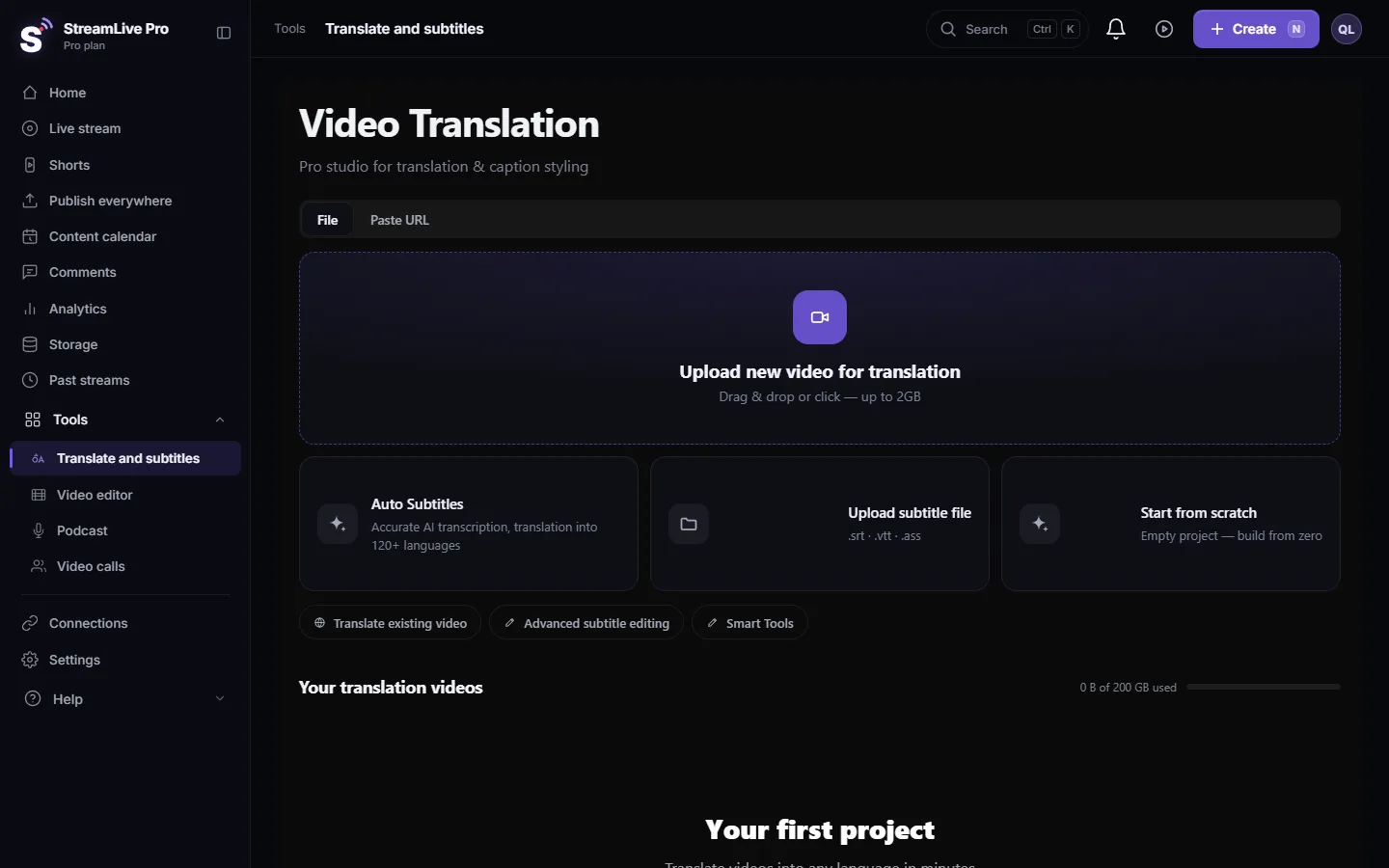
Past exports, versions and the project list
| You want | Where |
|---|---|
| A file you already exported from this project | Past exports in the Video or Subtitles tab |
| An earlier text of the captions, before later edits | Versions: restore, compare or download a version |
| A project you worked on last week | Your translation videos in Translate and subtitles |
| Your recordings and uploads | Storage |
More about versions and autosave: Undo, history and autosave in the video editor.
What can go wrong
- "File no longer available". The stored file was removed. Re-export makes it again from the project.
- The re-exported video has different text. Re-export uses the project as it is now. To get the old text, restore an earlier version first, then export.
- "Project changed, re-export cancelled". You opened another project while the re-export was starting. Open the project again and press Re-export.
- The list is empty. Nothing was exported from this project yet, or you are in another project, for example a duplicate. Each project has its own list.
- **Render failed.** Try again; if it repeats, write to [email protected] with the project name and the time.
Related pages
Frequently asked questions
Where do I find a subtitle file I exported last week?
Open the same project, press Export, and look under Past exports at the bottom of the Video or Subtitles tab.
Does Re-export give me the same file as before?
It uses the same settings, but the text of the project as it is now. If you corrected lines since, the new file has the corrections.
Does Remove delete the file or only the entry?
Both. The entry leaves the list and the stored file is deleted.
Why is the Download button greyed out?
The stored file is no longer available. Press Re-export to make it again.
Does re-exporting use translation minutes?
Re-export makes the file from lines that already exist; it does not transcribe or translate again.
Keep reading
Open vs closed captions: burned into the picture or sent as a file the viewer can switch off. What each is good for, which networks take which, and how to make both.
Another translation is already runningAnother translation is already running? Your plan's limit on parallel translations is reached. How long to wait, what counts as running, and stuck jobs.
The source video of my project is no longer storedSource video no longer stored in a subtitle project? What you can still open and download, why it happens, and how to get the captions back onto the video.
My transcript came out in the wrong languageTranscript in the wrong language? Auto-detect decides from the opening of the video and keeps that choice. Set the source language yourself and run it again.
Want to try it? 7-day trial, no credit card.
Start free