 StreamLive Pro
My Facebook Page is not in the list
Facebook Page missing after you connect Facebook? Usually it was not ticked on Facebook's approval screen. How to add it with Reconnect, and the other causes.
When a Facebook Page you manage does not appear after you connect Facebook, the most likely cause is Facebook's approval screen: Facebook lets you choose which Pages StreamLive Pro may use, and a Page that was not ticked there stays invisible to us. The fix is to click Reconnect on the Facebook card in Connections, choose to edit the settings on Facebook's screen, tick the Page and finish. The second most likely cause is your role: the Facebook account you signed in with must have a role on the Page that lets it go live and publish.
Remember what Facebook allows: StreamLive Pro streams and posts to Facebook Pages. Personal profiles and groups are not destinations of the Facebook connection.
Symptom, likely cause, fix
| Symptom | Likely cause | Fix |
|---|---|---|
| Facebook is connected, but one Page is missing | The Page was not ticked on Facebook's approval screen | Reconnect, edit the settings, tick the Page |
| No Pages at all | No Pages were ticked, or the account manages no Page | Reconnect and tick the Pages; check you are signed in to the right Facebook account |
| The Page is managed through a business portfolio | Facebook shows it under the business, not the person | Reconnect and grant access to the business and its Pages; StreamLive Pro also looks through business portfolios your account can see |
| You see your name, not the Page | You expected your personal profile | Personal profiles are not live destinations; create or use a Page |
| A message about the Instagram account and its Page | You ticked Instagram but not the Facebook Page linked to it | Click Reconnect, choose Edit settings, and tick the Page too |
| The Page was there and disappeared | Your role on the Page changed, or access was removed in Facebook | Ask a Page admin to restore your role, then Reconnect |
| "Facebook session expired, please reconnect" | Password change or removed access | Click Reconnect |
Steps
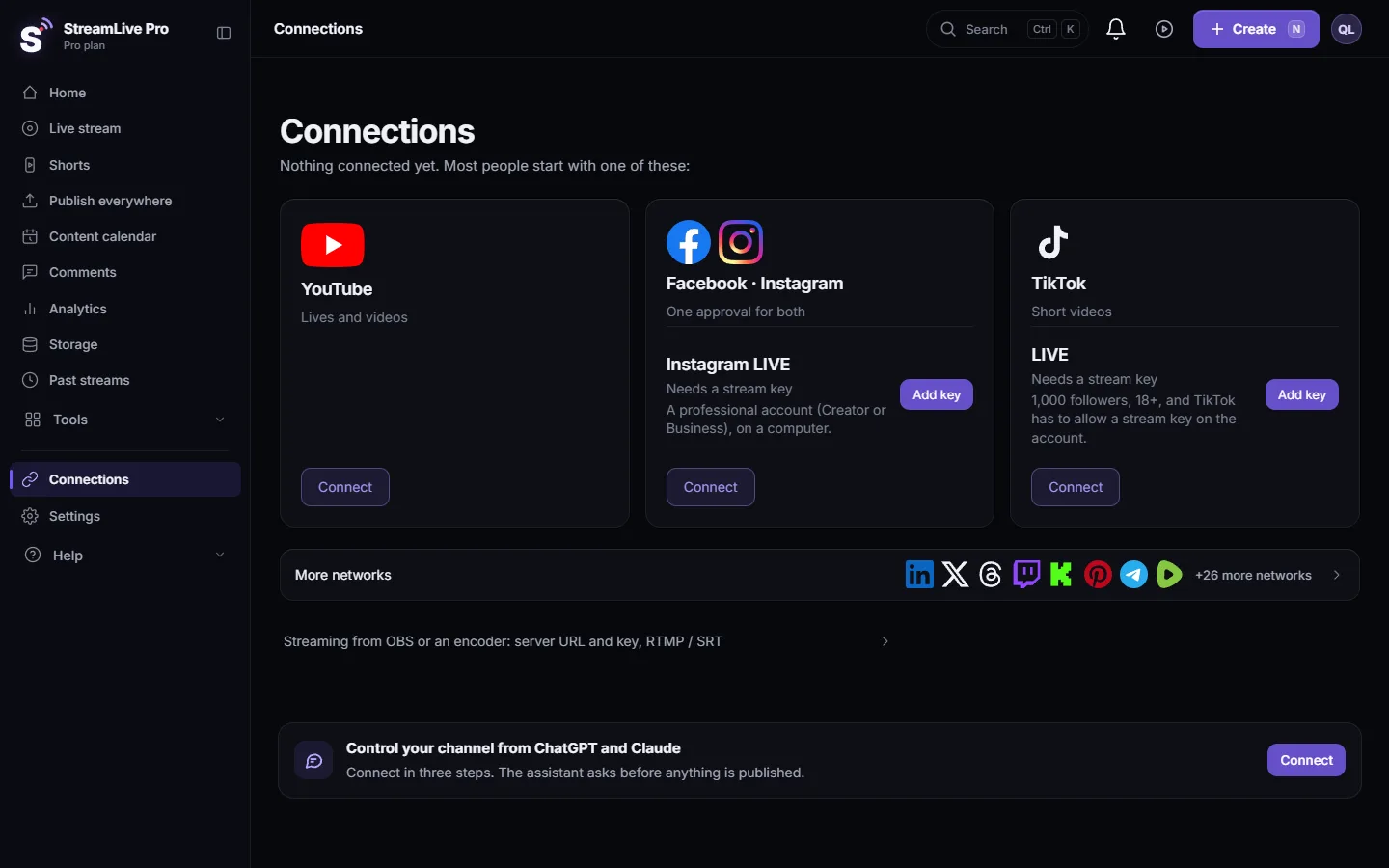
- Open Connections. In the dashboard, open Connections and find the Facebook card.
- Check which account is connected. The card shows the Facebook account. If it is the wrong person, use Add another account and sign in with the right one.
- Click Reconnect. Facebook's own screen opens. If you are already signed in, Facebook may show what you allowed before.
- Edit the settings. On Facebook's screen choose to edit the settings or the access, so you see the list of Pages, and of businesses if you have them.
- Tick the Page. Tick every Page you want to stream or post to, and the Instagram accounts linked to them if you use Instagram. Then approve each permission Facebook asks for.
- Finish and come back. You return to StreamLive Pro and the card updates.
- Choose the Pages to use. If you manage several Pages, click Manage pages on the Facebook card and switch on the ones that should appear when you go live or publish.
- Check the Page in a broadcast. Open a new broadcast and look at the channel list. The Page should be there to tick. Step-by-step for a broadcast: How to go live on a Facebook Page from your computer.
Check your role on the Page
Facebook decides who may go live on a Page. If the Page still does not show after you ticked it, ask whoever manages the Page to check your access in the Page settings or in Meta Business Suite, and to give you a role that includes going live and publishing. Facebook explains live tools for Pages in Meta Business Help: Go live with streaming software. After your role changes, click Reconnect.
Another way: the stream key card
If the connection still cannot see the Page, you can go live to it with a Facebook stream key: Connections also has a Facebook Live (stream key) card, which takes the server URL and stream key from Facebook Live Producer. This covers live only, not posts. See Connecting your channels — YouTube, Facebook and the rest. Expired connections in general: Reconnect a channel whose connection expired.
When to contact support
If you ticked the Page on Facebook's screen, you have a role on it that allows going live, and it still does not appear after Reconnect, write to [email protected]. Send the Page name and link, the Facebook account you connect with (the name, never the password), whether the Page belongs to a business portfolio, and a screenshot of the Facebook card in Connections.
Frequently asked questions
Why does my Facebook Page not show up in StreamLive Pro?
Usually because it was not ticked on Facebook's approval screen. Click Reconnect on the Facebook card, edit the settings and tick the Page.
Can I go live on my personal Facebook profile?
No. The Facebook connection streams to Pages you manage. Personal profiles and groups are not destinations.
Can I go live to a Facebook group?
No. Groups are not destinations of the Facebook connection. Use a Page.
I manage the Page through Business Suite. Does that work?
Yes, when your account was given access to the Page there. On Facebook's screen grant access to the business and tick the Page.
Will Reconnect change my other networks?
No. Reconnect only renews the Facebook permission. YouTube and your other connections stay as they are.
Keep reading
Scheduling a post or a live is refused: the date is past your trial or plan period, the account has no active plan, TikTok is ticked, or the time has passed.
My post failed on one networkA post went out on some networks and failed on one. How to read the reason, fix the usual causes, and send it again only to the network that failed.
My Instagram account is not in the listYour Instagram account does not appear after connecting, or says it has no linked Page: professional accounts, the linked Facebook Page, ticking both, and the fix.
My StreamLive Pro API call fails: error codes and fixesStreamLive Pro API errors explained: invalid or expired key, missing permission, plan limit, 409 conflicts, 429 and 5xx, plus the older uppercase key codes.
Want to try it? 7-day trial, no credit card.
Start free