 StreamLive Pro
Import an SRT, VTT or ASS file into a subtitle project
Import an SRT, VTT or ASS file into a StreamLive Pro subtitle project to restyle, fix and burn captions you already have, or export them again as a clean file.
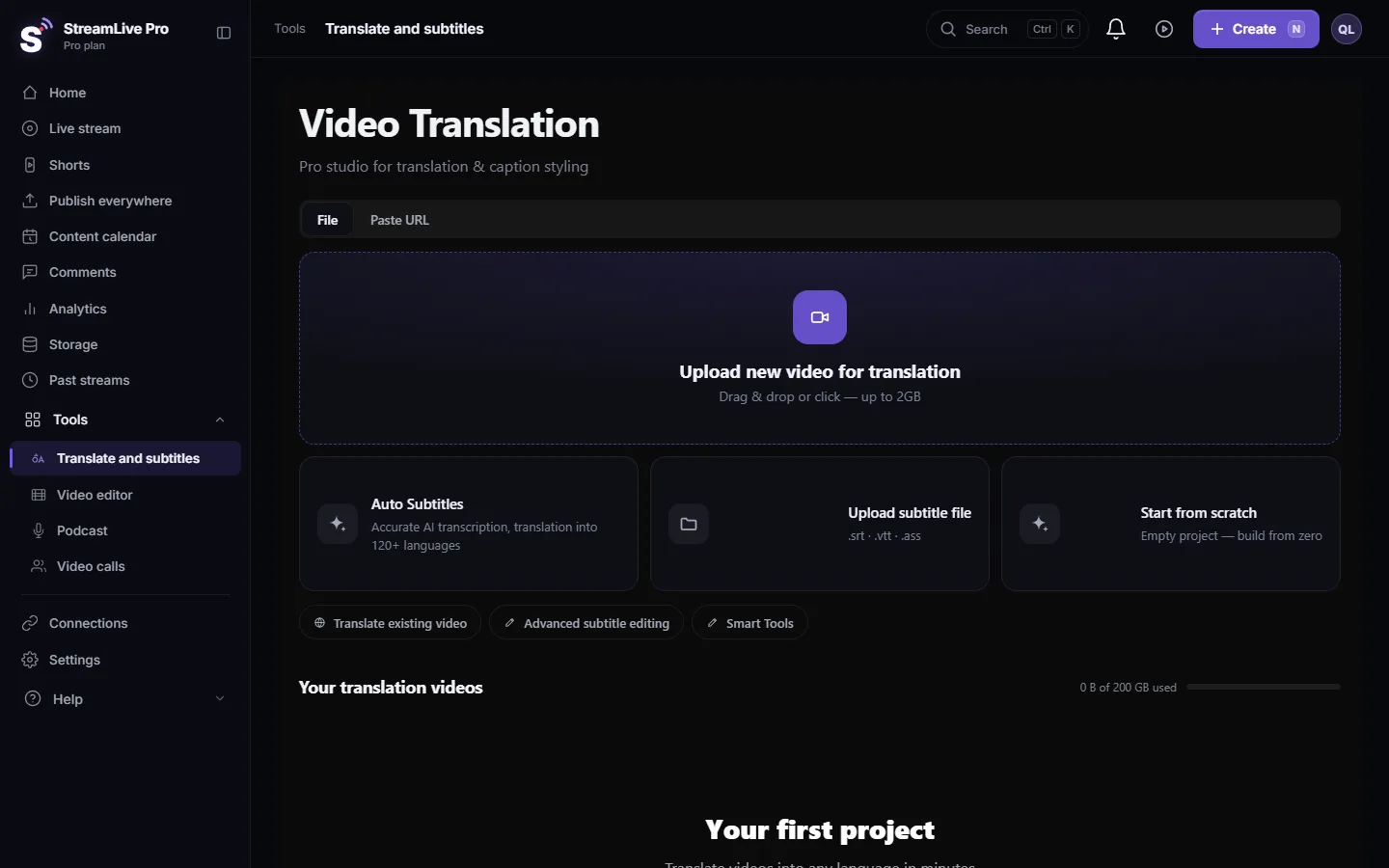
If you already have captions for a video, from a transcriber, another app or an older project, you can bring the file into StreamLive Pro and keep working on it there. Open the project of that video in Translate and subtitles, and in Subtitles press Upload SRT-VTT (SRT, VTT or ASS), or drag the file onto the list of lines. The lines in the file replace the lines in the project. Then pick a design, correct, and export.
Why import a file
| You have | What the import gives you |
|---|---|
| An SRT from a professional transcriber | More than 80 caption designs, burned into the video |
| Hebrew captions that show in the wrong direction elsewhere | An export where every Hebrew line gets a right-to-left mark |
| A VTT from a web player | An SRT for YouTube or an editing program, and the other way round |
| An ASS file with styling | The text and timing, in our editor and designs |
| Captions of an older version of the video | Lines you can shift and fix instead of typing again |
Before you start
- You need the video in a project. Captions are imported into a project, and a project starts from a video: upload it in Translate and subtitles with Upload new video for translation, or open it from Storage. Creating a project runs the automatic transcription, which uses translation minutes according to the length of the video; plans and minutes are on the /pricing?lang=en.
- The card on the start page is not the import. The Upload subtitle file card on the start page opens the video picker, because the file needs a video first. The import itself is in the Subtitles pane of an open project.
- Save the file as UTF-8. The file is read as UTF-8. An SRT saved in an old Hebrew code page shows gibberish; save it again as UTF-8 in a text editor.
- The file replaces everything. If the project already has lines, you are asked to confirm, and the imported file then replaces all of them. To keep the automatic lines too, duplicate the project first with Duplicate on its card.
Steps
- Open the project. In Translate and subtitles, open the project of the video from Your translation videos.
- Go to the Subtitles pane. Click Subtitles. At the top there are four actions: automatic subtitles, create a translation, upload a file and start from scratch.
- Import the file. Press Upload SRT-VTT and choose the .srt, .vtt or .ass file, or drag it from your computer onto the pane.
- Confirm the replace. If the project has lines, a message says the imported file will replace them all. Confirm only if that is what you want.
- Check the timing. Play the start, the middle and the end. If every line is early or late by the same amount, select all lines and shift them together.
- Pick a design. Open Templates and choose one; set the font and colours in Properties.
- Export. Press Export: MP4 — Burned-in subtitles for a video with the captions in the picture, or SRT — Subtitles / VTT — WebVTT for a clean file.
What the import keeps
| In the file | After the import |
|---|---|
| Text of each line | Kept |
| Start and end time of each line | Kept |
| Colours, fonts and positions of an ASS file | Not kept; use our designs instead |
| Timing of each word | SRT and VTT have none, so the highlighted-word effect may not follow each word |
What can go wrong
- **Could not parse the subtitle file.** The file is empty, is not really SRT, VTT or ASS, or has broken time codes. Open it in a text editor and check the first lines look like a number, a time range and text.
- Hebrew letters show as gibberish. The file is not UTF-8. Save it as UTF-8 and import it again.
- The automatic lines are gone. The import replaced them, as the message warned. If you made a version before, restore it from Versions.
- Every caption is a few seconds off. The file was made for a different cut of the video. Shift all lines together, or fix the start of the video.
- Punctuation on the wrong side after export. Check in the player you use; our SRT and VTT export adds the direction mark to Hebrew lines. See Hebrew captions reversed or punctuation on the wrong side.
Related pages
Frequently asked questions
Can I import captions without uploading the video?
No. Captions live in a project, and every project is built on a video. Upload the video first, then import the file.
Does importing an SRT use translation minutes?
The import itself does not. Creating the project for the video runs the automatic transcription, and that uses minutes according to the video's length.
Which subtitle formats can I import?
SRT, VTT and ASS. Files from most editing programs and transcription services come in one of these.
Will my existing lines be lost?
The imported file replaces all lines in the project, after you confirm. Duplicate the project first if you want to keep both.
Are the styles of an ASS file kept?
No. The text and timing are imported; the look comes from the design you pick in StreamLive Pro.
Keep reading
Open vs closed captions: burned into the picture or sent as a file the viewer can switch off. What each is good for, which networks take which, and how to make both.
My transcript came out in the wrong languageTranscript in the wrong language? Auto-detect decides from the opening of the video and keeps that choice. Set the source language yourself and run it again.
Edit captions on the timelineEdit captions on the StreamLive Pro editor timeline: move a line, drag its edges to retime it, split it, change its text on the video, and shift the lines after it.
A weekly Torah class online: live, Shorts and a podcastHow to run a weekly Torah class online: a weekday live, scheduling ahead, Shorts with Hebrew captions, translation for students abroad and a podcast episode.
Want to try it? 7-day trial, no credit card.
Start free