 StreamLive Pro
Upload SRT captions to YouTube, step by step
Upload SRT captions to YouTube: make and correct the file in StreamLive Pro, then add it in YouTube Studio as a caption track, one file per language.
To put your own captions on a YouTube video, make an SRT file in Translate and subtitles, correct it, download it, and upload it in YouTube Studio under Subtitles, with timing. YouTube shows it as a caption track that viewers can switch on or off, and you can add one file for each language.
Before you start
- The same cut. The SRT is timed to the video you upload to StreamLive Pro. Upload exactly the version that is on YouTube (or will be), not an earlier edit.
- Minutes. Transcription and translation use the plan's translation minutes; the amount on each plan is on the /pricing?lang=en. The 7-day trial includes 10 translation minutes, for videos up to 10 minutes long. Downloading SRT works on every plan, the trial included.
- What YouTube accepts. YouTube lists SRT and WebVTT among its supported caption files and asks for plain UTF-8 text (Supported subtitle and closed caption files). Our files are UTF-8.
- Why not rely on YouTube's own captions. YouTube's automatic captions cover the video's own language only, and you cannot correct them before they go out. A file you checked yourself, and files in more languages, come from you (Add subtitles and captions).
Steps
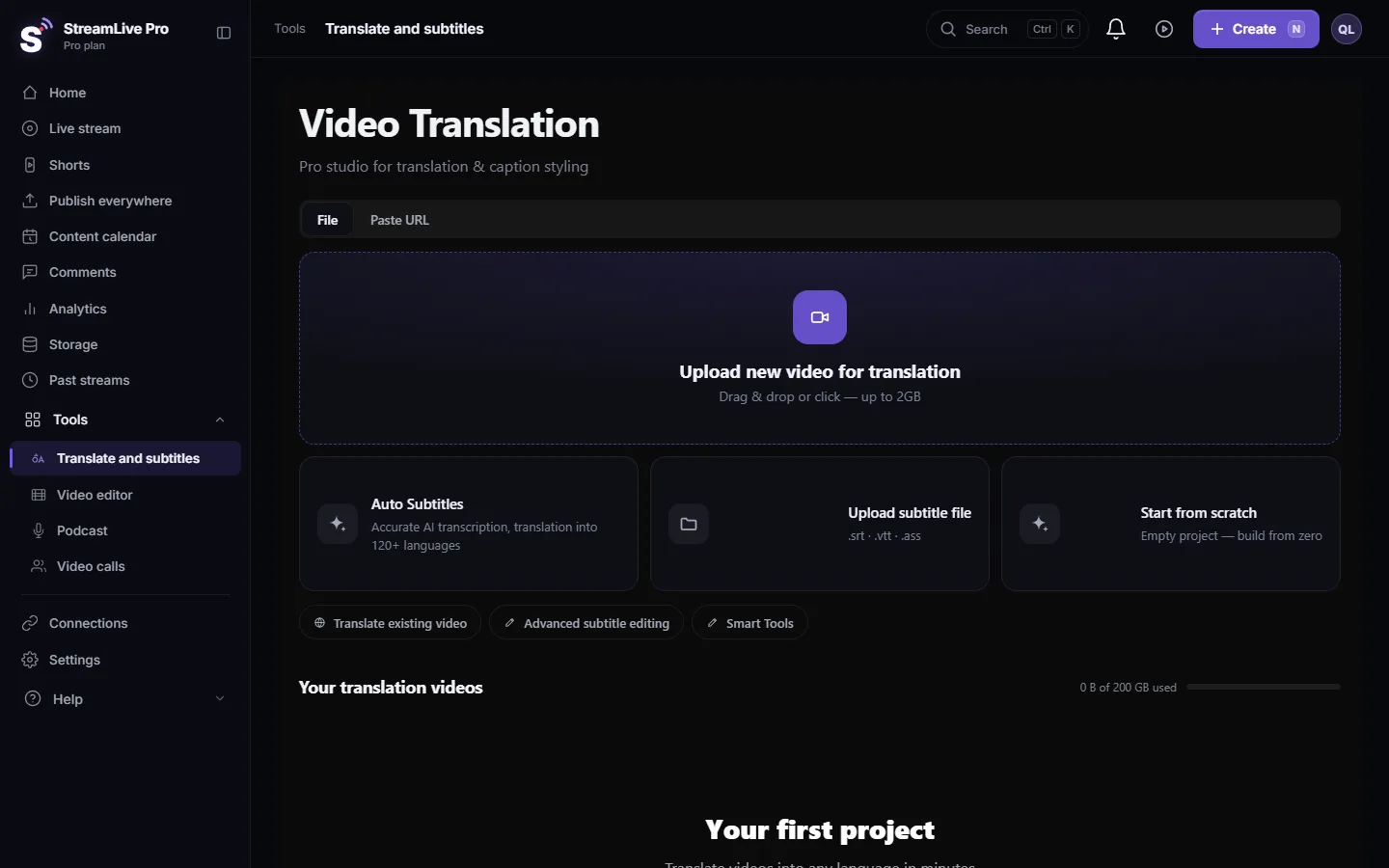
- Upload the video. Open Translate and subtitles and press Upload new video for translation. A video already in your account can be picked through Translate existing video.
- Choose the languages. Under Source language pick the language spoken in the video. Under Target language pick the same language for captions in the original language, or another language for translated captions. Press Start translation.
- Correct the lines. Open Subtitles. Click a line to jump to its moment and fix names, terms and numbers. The SRT is built from this list.
- Download the SRT. Press Export and choose SRT — Subtitles. The file downloads at once, without a render.
- Open YouTube Studio. Sign in at studio.youtube.com, choose Subtitles in the left menu and pick the video.
- Add the language. Choose Add language and select the language of the file. Under that language's subtitles choose Add.
- Upload the file with timing. Choose Upload file, select With timing, continue, pick the SRT and save. These are the names YouTube's help page uses today; YouTube can rename them, so its page is the reference: Add subtitles and captions.
- Check it in the player. Open the video on YouTube, switch the captions on and watch the first and the last line, and one line with punctuation if the language is Hebrew or Arabic.
More than one language
Each language is its own track on YouTube and its own file from us. In StreamLive Pro, translate the corrected transcript into the next language, download that version's SRT, and in YouTube Studio add another language and upload it. Viewers pick the language in the player. Correct the source language first: every error in it is copied into every translation. The order is explained in How to translate video subtitles into other languages.
Hebrew and Arabic lines
A caption file has no direction of its own, so a Hebrew line ending in a question mark can show the mark on the wrong side. Our SRT adds an invisible right-to-left mark at the start of every line with Hebrew or Arabic letters. If you open the file in a text editor and save it again, some editors remove that mark or change the encoding; download it again instead. More checks: Hebrew captions in the wrong direction.
What can go wrong
| Symptom | Likely cause | Fix |
|---|---|---|
| YouTube refuses the file | It was re-saved in another encoding, or edited by hand and broken | Download the SRT again from Translate and subtitles and upload it unchanged |
| Every caption is early or late by the same amount | The video on YouTube is not the cut you uploaded (an intro was added or cut) | Shift the timing in the line list, or upload the published cut and export again; see Captions out of sync |
| Captions show, but in the wrong language name | The file was added under another language in Studio | Delete that track and add it under the right language |
| Punctuation on the wrong side | The file lost its direction marks | Download it again; do not re-save it in a text editor |
| Only one language appears | Each language needs its own upload | Add a language in Studio for every file |
Burned in instead of a file
A file is right for a long YouTube video: viewers can turn it off and choose a language. For Shorts and vertical clips, captions burned into the picture are usually the better fit, because the design travels with the video. See Burn captions into a video and Export captions as SRT, VTT or ASS.
Frequently asked questions
Can I upload an SRT file to YouTube from the trial?
Yes. SRT, VTT and TXT downloads are on every plan, including the trial. The trial transcribes videos up to 10 minutes long.
Should I upload SRT or VTT to YouTube?
Both are on YouTube's list of supported files. SRT is the safer default because almost every tool reads it.
Can I add captions in several languages to one YouTube video?
Yes. Make one file per language and add each one in YouTube Studio as its own language. Viewers choose the language in the player.
Does StreamLive Pro upload the caption file to YouTube for me?
No. You download the SRT and upload it yourself in YouTube Studio, which takes a minute per language.
Will my caption design show on YouTube?
No. An SRT carries text and timing only, and YouTube uses its own caption look. To keep a design, burn the captions into the video.
Keep reading
English subtitles for a Hebrew video: transcribe the Hebrew, correct it, translate to English in StreamLive Pro, then upload the SRT to YouTube or burn it in.
Open and closed captions: burned in or a separate fileOpen vs closed captions: burned into the picture or sent as a file the viewer can switch off. What each is good for, which networks take which, and how to make both.
My transcript came out in the wrong languageTranscript in the wrong language? Auto-detect decides from the opening of the video and keeps that choice. Set the source language yourself and run it again.
Edit captions on the timelineEdit captions on the StreamLive Pro editor timeline: move a line, drag its edges to retime it, split it, change its text on the video, and shift the lines after it.
Want to try it? 7-day trial, no credit card.
Start free