 StreamLive Pro
AI polish: a second pass over a translated video
AI polish in StreamLive Pro reads the translated captions again with their context and glossary, and rewrites lines that read badly. When to run it and what to check.
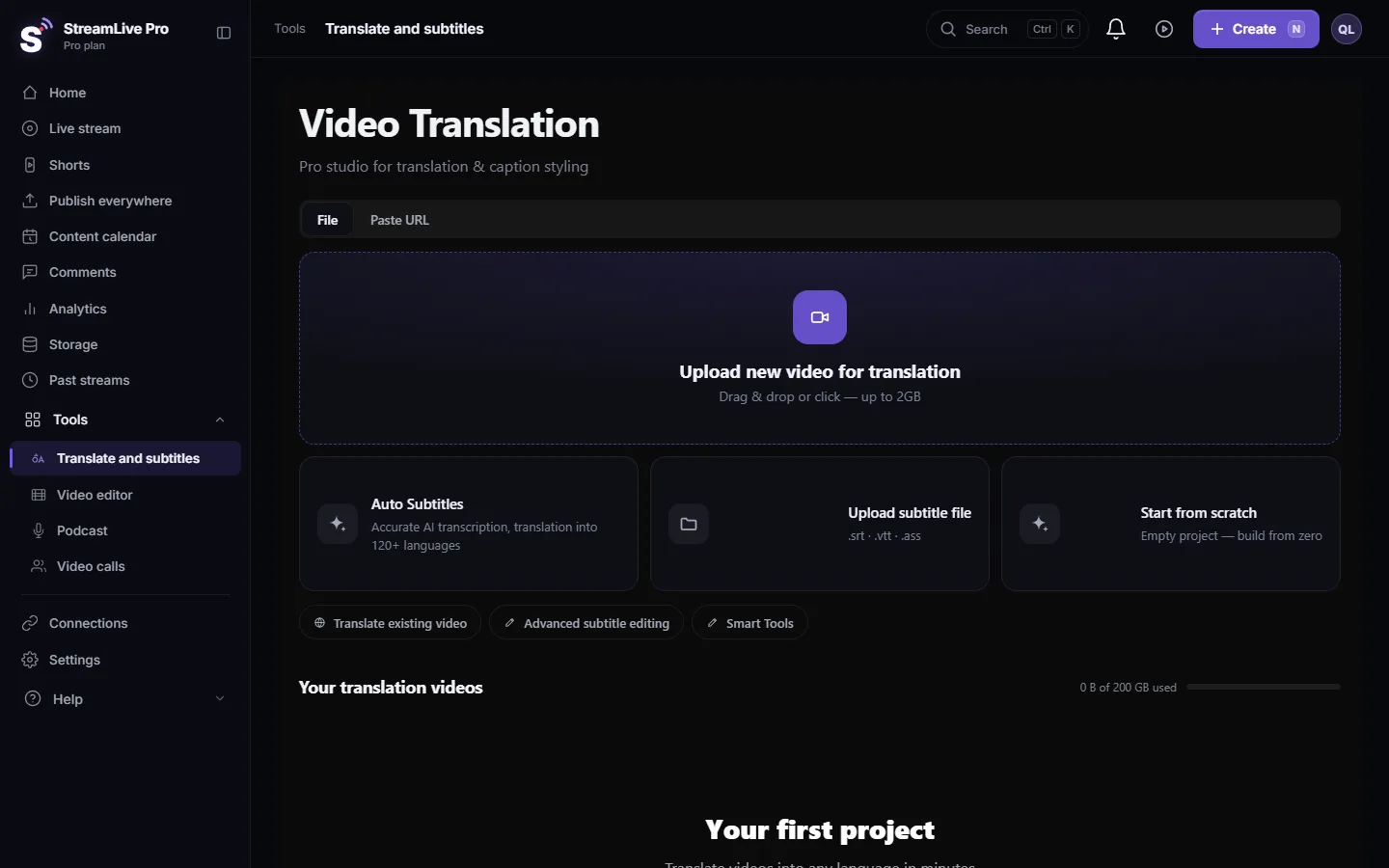
AI polish is a second pass over a finished translation. After the captions are translated, open the project in Translate and subtitles and press the Pro+ Polish button at the bottom corner of the editor. The system picks the lines most likely to need work, reads each with the lines around it and your project glossary, and rewrites the ones that read badly. A message then says how many lines were changed. The changes are written straight into the lines, so save a version first if you want to compare.
What it looks at
Polish does not re-read every line. It picks lines where a first translation tends to go wrong:
| Line type | Why it is picked |
|---|---|
| Lines with terms from your glossary | To make sure the term you fixed is used |
| Long lines | More room for word order and grammar slips |
| Religious and other specialised vocabulary | Words a general translation often renders literally |
| Lines next to ones you edited by hand | Your correction may change how the neighbours should read |
Each line is read with three lines before and after it, so the tone and the subject carry across. A single run handles up to 80 lines. On a long video, run it again for the rest.
Before you start
- Plans. AI polish works on every paid plan, although the button is labelled Pro+. The 7-day trial includes a monthly allowance of polish runs; when it is used up you see a message that says so. After a paid subscription ends, polish stops with "AI polish is available on paid plans". Details: /pricing?lang=en.
- It does not use translation minutes. Polish is counted separately from the minutes of transcription and translation.
- Fix the source first. Polish improves the wording of the translation. A word misheard in the transcript is still wrong after polish. Correct the transcript first: Fix names and terms in a transcript (find and replace).
- Fill the glossary. Names, places and fixed terms in the glossary are kept during polish.
Steps
- Finish the translation. Wait until the project is ready and open it from Your translation videos.
- Save a version. Press Export, open Versions and press Create new version. Close the window.
- Press Pro+ Polish. The button sits at the bottom corner of the editor while a project is open.
- Wait for the message. It says how many lines were polished, or that the translation already reads well and nothing needed changing.
- Read the changed lines. In Subtitles, play the video and read the translation with the speech. Look hardest at names and numbers.
- Compare if needed. In Versions, use Compare versions to see the saved version next to the current one, and restore it if you prefer the earlier text.
- Export. When the lines read right, export as usual: Burn captions into a video (hardcoded subtitles) or Export captions as SRT, VTT or ASS, and which one to use.
What polish will not do
- It will not hear the audio again. It works on the text of the transcript and the translation.
- It will not dub the video or change the speaker's voice. There is no dubbing or voice cloning.
- It will not translate into a language your plan does not include; see Which languages can I translate captions to?.
- It is not a native reader. A person who reads the target language should still watch the video once before you publish.
What can go wrong
- "Translation already smooth" and nothing changed. None of the picked lines needed a change. Edit a bad line by hand; the lines around it will be picked next time.
- A line you liked was rewritten. Restore the saved version, or type the line back. Add the term to the glossary so it is kept next time.
- The trial allowance is used up. The message says so; the allowance renews monthly, or choose a plan.
- "Usage check unavailable, try again shortly". A temporary check failed. Wait a minute and press the button again.
- The button does not show. It appears only while a project is open in the editor. Open the project again.
Frequently asked questions
Does AI polish use my translation minutes?
No. Polish is counted separately from the minutes used to transcribe and translate.
Is AI polish only on Pro?
The button says Pro+, but polish works on every paid plan. The trial has a monthly allowance.
Can I undo AI polish?
The changes are written into the lines. Save a version before you run it, then restore that version if you prefer the earlier text.
Does polish change names I put in the glossary?
No. The glossary is passed to every polished line so those terms stay as you set them.
How many lines does one run handle?
Up to 80 of the picked lines. On a long video, run it again.
Keep reading
Open vs closed captions: burned into the picture or sent as a file the viewer can switch off. What each is good for, which networks take which, and how to make both.
My transcript came out in the wrong languageTranscript in the wrong language? Auto-detect decides from the opening of the video and keeps that choice. Set the source language yourself and run it again.
Edit captions on the timelineEdit captions on the StreamLive Pro editor timeline: move a line, drag its edges to retime it, split it, change its text on the video, and shift the lines after it.
A weekly Torah class online: live, Shorts and a podcastHow to run a weekly Torah class online: a weekday live, scheduling ahead, Shorts with Hebrew captions, translation for students abroad and a podcast episode.
Want to try it? 7-day trial, no credit card.
Start free