 StreamLive Pro
Add captions to Instagram Reels, burned into the video
Add captions to Instagram Reels with StreamLive Pro: transcribe the video, pick a design, keep it clear of the Reels buttons, burn it in, and post the Reel.
For a Reel, captions go into the picture. You transcribe the video in Translate and subtitles, correct the text, choose a design, check it against the Instagram Reels safe-zone guide, and render an MP4 with the captions burned in. That MP4 is the Reel: post it from Publish everywhere or from the Instagram app. The captions then show in the feed, when the Reel is shared, and when someone saves or forwards it.
Two different things are called "caption" on Instagram. This page is about the text drawn on the video. The text under the Reel (the post caption) is written when you publish: Post Instagram Reels from your computer.
Before you start
- Shorts already have captions. Shorts that StreamLive Pro cuts from your broadcasts or uploads come with captions burned in. This page is for any other video you want to post as a Reel. See How to create Shorts from any video, no live stream needed.
- A vertical video. Reels are vertical. If your video is horizontal, make a vertical version first: Turn a horizontal video into a vertical 9:16 video.
- Minutes. Transcription and translation use the plan's translation minutes; amounts are on the /pricing?lang=en. The trial includes 10 translation minutes, for videos up to 10 minutes long, and burned videos made in the trial carry a small watermark.
- For posting from StreamLive Pro. An Instagram business or creator account, connected in Connections.
Steps
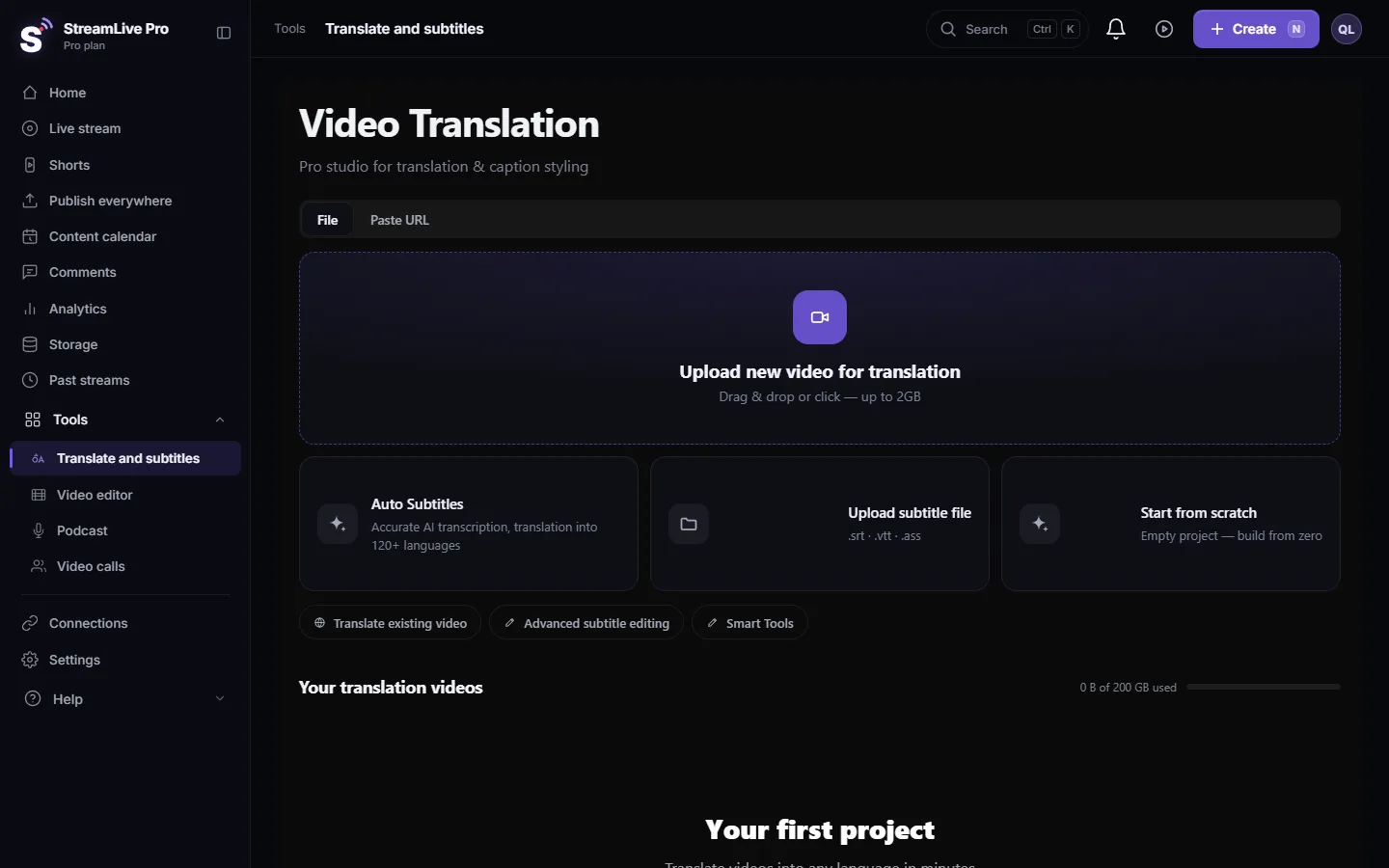
- Upload the video. Open Translate and subtitles and press Upload new video for translation, or open a video you already have from Storage.
- Set the languages. Choose the spoken language under Source language and the same language under Target language for captions in the original language, or another language to translate. Press Start translation.
- Correct the lines. In Subtitles, fix names and numbers and split lines that are too long for a vertical frame.
- Pick a design. Open Templates. Large text with an outline or a background plate reads well on a phone; a highlight on the spoken word keeps the eye on the text.
- Check the Reels safe zone. In the player set Aspect to 9:16, open Safe and choose Instagram Reels. Drag the captions inside the frame, clear of the action column on the right and the caption area at the bottom.
- Render. Press Export and choose MP4 — Burned-in subtitles. The render runs on our server and the file downloads when it is ready.
- Watch it on a phone. Check the first and last caption and one line with a number.
- Post the Reel. In Publish everywhere add the downloaded MP4, tick your Instagram account and publish now or on a schedule. Or upload it in the Instagram app.
Making captions readable on a Reel
| Choice | Why |
|---|---|
| Two short lines at most | A phone screen is narrow; long lines shrink or spill out |
| A design with an outline or a plate | The video behind the text changes all the time |
| Captions in the middle-lower part of the frame | Clear of the account name, the text and the buttons |
| One language per Reel | A second language doubles the text on a small screen |
| The same position for every Reel | Viewers learn where to look |
For Hebrew, the burned video keeps punctuation and numbers on the correct side, because the direction is fixed in the picture. More: Automatic Hebrew captions on Shorts.
Reels in another language
Translate the corrected transcript into the language of your audience and render one Reel per language. Arabic, Russian, French, Spanish and English are among the 25 languages included on every plan: Which languages can I translate captions to?.
What can go wrong
- Captions under the buttons or the text. Move them up with the Instagram Reels guide and render again: Caption safe zones for TikTok, Reels, Shorts and more.
- Black bars above and below. The video is horizontal. Make a vertical version first.
- Text too small on the phone. Increase Size; what looks big on a monitor is small on a phone.
- Watermark on the Reel. Trial renders carry it; paid plans do not.
- Instagram refuses the post. See what Instagram accepts in Post Instagram Reels from your computer.
Frequently asked questions
Can I add captions to a Reel without the Instagram app?
Yes. Burn the captions into the video in StreamLive Pro, then post the Reel from your computer through StreamLive Pro.
Can viewers turn off burned-in captions on a Reel?
No. They are part of the picture. That is also why they stay on when the Reel is shared or downloaded.
Do Hebrew captions show correctly on Reels?
Yes, when they are burned in. The direction of each line is fixed in the picture, so Instagram cannot reorder it.
Can I schedule the captioned Reel?
Yes. In Publish everywhere, add the rendered video, tick your Instagram account and choose a time.
Can I use my own font on Reels captions?
Yes, on the Pro plan you can upload a font to your account and use it in every burned video.
Keep reading
Open vs closed captions: burned into the picture or sent as a file the viewer can switch off. What each is good for, which networks take which, and how to make both.
A weekly Torah class online: live, Shorts and a podcastHow to run a weekly Torah class online: a weekday live, scheduling ahead, Shorts with Hebrew captions, translation for students abroad and a podcast episode.
Add a lower third (name and title) in the video editorAdd a lower third with a name and a role to a recorded video in the StreamLive Pro editor: pick a style, type in Hebrew or English, set when it shows, and export it.
Add titles and text to a video in the editorAdd a title or text on top of a video in the StreamLive Pro editor: pick a title template, type in Hebrew or English, set when it shows and move it on the picture.
Want to try it? 7-day trial, no credit card.
Start free