 StreamLive Pro
Add titles and text to a video in the editor
Add a title or text on top of a video in the StreamLive Pro editor: pick a title template, type in Hebrew or English, set when it shows and move it on the picture.
To put text on a video in the StreamLive Pro editor, open the Titles tab in Properties and click a template. The title is added at the playhead for 3 seconds. Type your text with Edit, set the Duration, and drag the title in the preview to place it. Titles are burned into the exported file, Hebrew included, written right to left.
Titles or captions
Titles and captions are different things in the editor:
| Feature | Titles | Captions |
|---|---|---|
| What they are | Text you write: a heading, a name, a question, a list | The words that are spoken, from the transcription |
| Where they come from | The Titles tab | The Subtitles panel and the subtitles track |
| Timing | You choose when and for how long | Follows the speech, word by word |
| Typical use | Opening hook, speaker's name, a key number | Reading along without sound |
For captions see Edit captions on the timeline.
Before you start
- Open the project. In the menu choose Video editor.
- Write it short. A title on a phone is read in a second or two. Five or six words is plenty.
- Leave room. Keep the title away from the bottom of the frame if the video has captions, and away from the edges in a vertical video, where the network puts its own buttons.
Steps
- Put the playhead where the title starts. The title is added at the playhead.
- Open the Titles tab. In Properties open Titles. Title Templates lists the styles: Bold Statement, Highlight Word, Sticker, Newspaper, Question Hook, Numbered List, Neon and Minimalist.
- Click a template. A message says Title added, and the title appears on the picture for 3 seconds from the playhead.
- Write your text. Under Active titles press Edit on the title. Type in the Text field. Hebrew and English both work, and Hebrew is written right to left.
- Set the length. Change Duration (s) to how long the title should stay. Press Done.
- Place it. Drag the title in the preview to move it. Use its handles to resize and rotate it.
- Check it on the timeline. Play the part with the title. If it covers a face or the captions, move it.
- Delete what you do not need. Under Active titles press Delete.
- Export. Press Export. Titles are burned into the MP4.
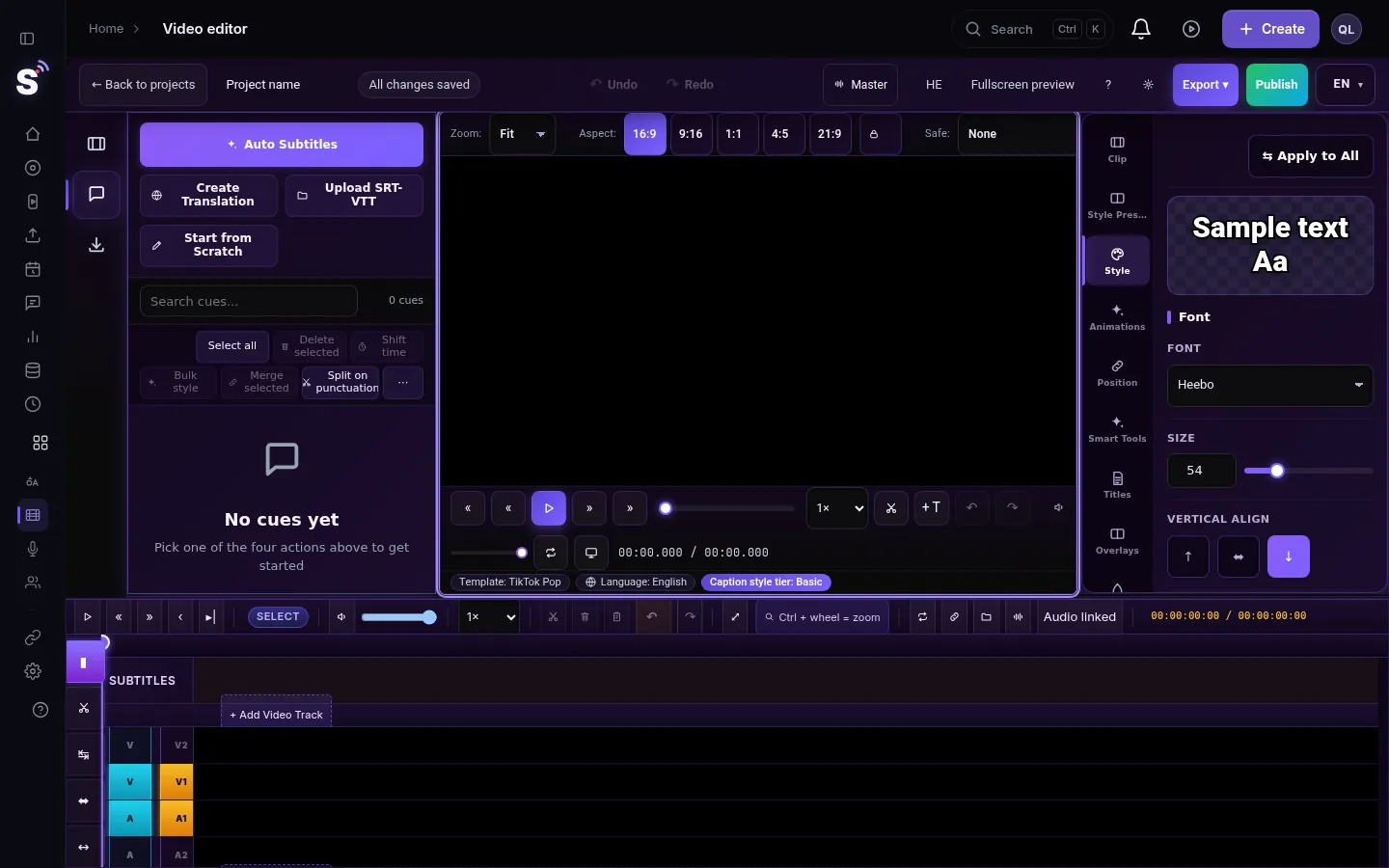
Which template for what
| Template | Good for |
|---|---|
| Question Hook | The first seconds of a Short: a question the video answers |
| Bold Statement | One strong line, a headline |
| Highlight Word | A sentence with one word that matters |
| Numbered List | "3 things..." videos, one point at a time |
| Newspaper | News items and quotes |
| Minimalist | A name and a role, calm interviews |
| Neon, Sticker | Light, playful content |
Logos and lower thirds
A logo or an image on top of the video is a layer, not a title. Add it from the Media library to V2 above the video, or from the Overlays tab in Properties, which also has logo positions and lower thirds. A logo that should appear and disappear softly needs Opacity keyframes; see Keyframes and effects. For a lower third during a live broadcast, the live studio has its own tools: How to make lower thirds for a live stream.
What can go wrong
- The title appears in the wrong place in time. It starts at the playhead you had when you clicked the template. Delete it, move the playhead and add it again, or change its timing.
- Hebrew punctuation is on the wrong side. Type the text in one direction only; a sentence that mixes Hebrew with an English word and a number can show its parts in an unexpected order. Put the English word or number in its own title if it reads wrong.
- The title covers the captions. Drag it higher, or move the captions in the Position tab of Properties.
- The title is cut off in a vertical export. A 9:16 export keeps the centre of the frame. Keep titles near the centre when you will export vertical.
Related pages
- Burning captions and titles into a file: Burn captions into a video
- Editing the spoken captions: Edit captions on the timeline
- Stickers and arrows on the picture: Add stickers to a video
- Export settings: Exporting from the editor — formats and render settings
Frequently asked questions
How do I add text on top of a video?
Open the Titles tab in Properties, click a template, then press Edit under Active titles and type the text. Drag it in the preview to place it.
Can I write titles in Hebrew?
Yes. Titles accept Hebrew and are written right to left, both in the preview and in the exported file.
How long does a title stay on screen?
3 seconds by default from the playhead. Change Duration (s) to make it longer or shorter.
Are titles included when I export?
Yes. Titles are burned into the exported MP4 together with the captions, stickers and logo.
Keep reading
Open vs closed captions: burned into the picture or sent as a file the viewer can switch off. What each is good for, which networks take which, and how to make both.
A weekly Torah class online: live, Shorts and a podcastHow to run a weekly Torah class online: a weekday live, scheduling ahead, Shorts with Hebrew captions, translation for students abroad and a podcast episode.
Add a lower third (name and title) in the video editorAdd a lower third with a name and a role to a recorded video in the StreamLive Pro editor: pick a style, type in Hebrew or English, set when it shows, and export it.
Add captions to Instagram Reels, burned into the videoAdd captions to Instagram Reels with StreamLive Pro: transcribe the video, pick a design, keep it clear of the Reels buttons, burn it in, and post the Reel.
Want to try it? 7-day trial, no credit card.
Start free