 StreamLive Pro
Caption safe zones for TikTok, Reels, Shorts and more
Caption safe zones in StreamLive Pro show where each network's buttons and text cover a video, so captions stay readable on TikTok, Reels, Shorts, LinkedIn and X.
On a phone, the network draws its own buttons, names and descriptions over your video. A caption placed in the wrong spot ends up under the like button or the description. The video player in Translate and subtitles has a Safe menu: choose the network, and a dashed frame shows the area that stays clear on that network. Keep the captions inside the frame and render. The frame is a guide in the preview only; it is never drawn into the exported video.
The guides you can choose
| Option in the menu | Shape it is meant for | What it keeps clear |
|---|---|---|
| TikTok | Vertical 9:16 | The action buttons on the right and the name and description at the bottom |
| Instagram Reels | Vertical 9:16 | The action column on the right and the caption area at the bottom |
| Instagram Story | Vertical 9:16 | The profile row at the top and the reply bar at the bottom |
| Instagram — Feed | Square or 4:5 feed post | A thin margin; the post text sits below the video |
| YouTube Shorts | Vertical 9:16 | The buttons on the right and a deep area at the bottom for title and channel |
| YouTube | Horizontal 16:9 | The player controls at the bottom |
| Facebook Reels | Vertical 9:16 | Like Instagram Reels |
| Feed video | A thin margin | |
| Square or 16:9 | A thin margin | |
| X | 16:9 | A thin margin and the corner at the bottom left |
The frames are our measurements of how each app looks. Networks change their layouts from time to time, so treat the frame as a good margin, not a promise. When in doubt, keep captions a little higher than the bottom edge of the frame.
Before you start
- Choose the shape first. Set the frame shape with Aspect in the player. A 9:16 guide on a 16:9 picture tells you little. To turn a horizontal video into a vertical one, see Turn a horizontal video into a vertical 9:16 video.
- One video, several networks. The vertical guides differ most at the bottom. If one video goes to TikTok, Reels and Shorts, check it with each guide and keep the captions where all three are clear.
Steps
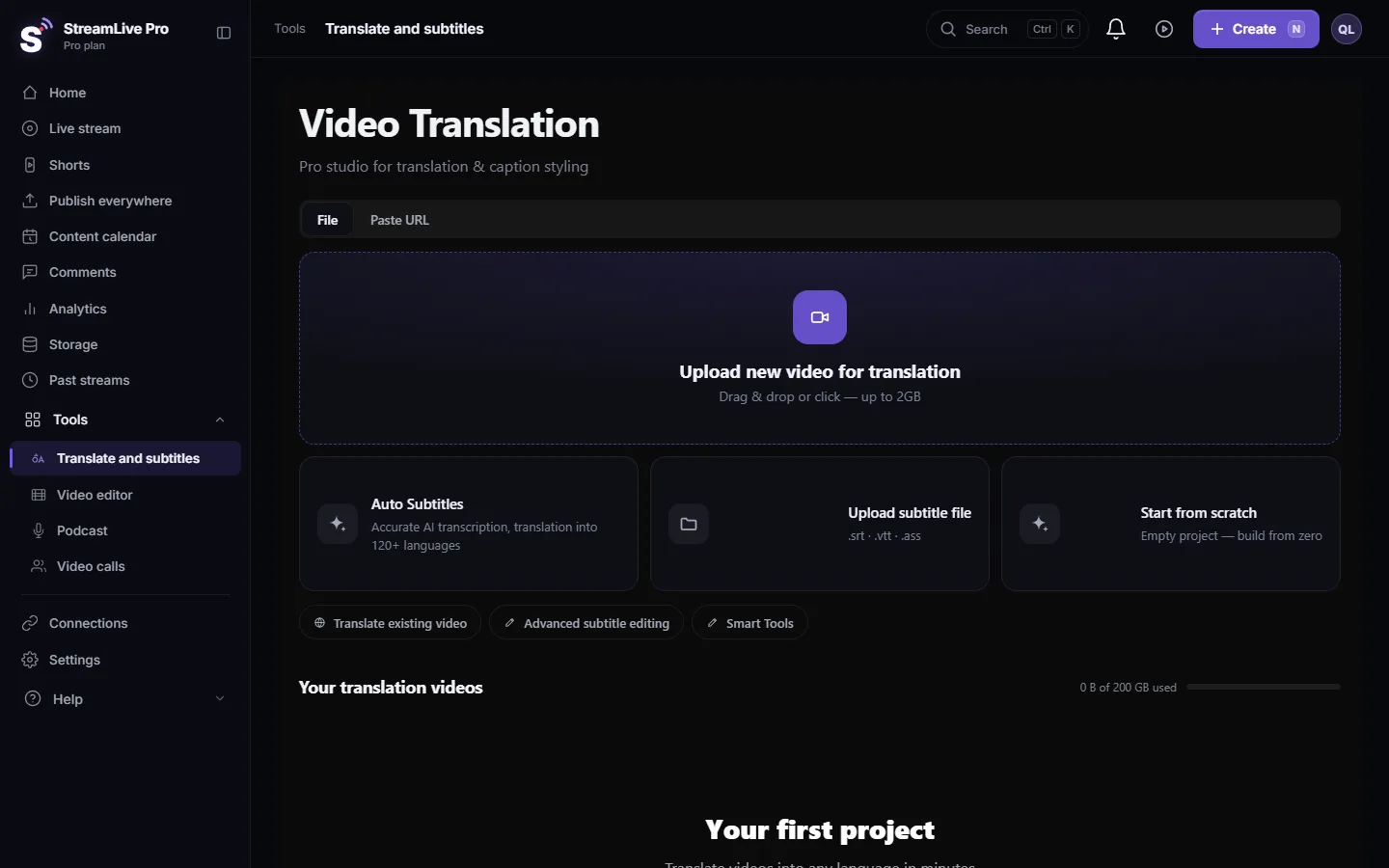
- Open the project. In Translate and subtitles open the video from Your translation videos.
- Set the shape. In the player choose Aspect 9:16 for TikTok, Reels and Shorts, or the shape of your post.
- Turn on the guide. Open the Safe menu and choose the network. A dashed frame with the network's name appears over the video.
- Move the captions. Drag the caption in the preview so it sits inside the frame, above the bottom area. The position applies to all lines.
- Check the size. In Properties set Size. A long line in a large font can spill out of the frame on the sides; split long lines instead of shrinking the text.
- Check other networks. Switch the menu to the next network the video goes to, and adjust if the caption is now covered.
- Turn the guide off and render. Choose None to see the clean picture, then press Export and MP4 — Burned-in subtitles.
What can go wrong
- The caption is still under the buttons after posting. The app's layout on that phone differs from the guide. Move the captions higher and render again.
- The dashed frame appears in the video. It does not; the frame is only in the preview. If you see a frame in the exported file, it is part of the original video.
- The frame does not match the picture. The Aspect setting is wrong for the video. Set the shape again.
- Text cut at the sides. The line is too long for a vertical frame. Split it into two shorter lines.
- The live studio needs the same idea. For titles and logos during a broadcast, the browser studio has its own guides: Safe-zone guides for vertical and square viewers.
Related pages
Frequently asked questions
Is the safe-zone frame burned into my video?
No. It is a guide in the preview only. The exported video contains just your picture and captions.
Where should captions go on TikTok and Reels?
Inside the frame of the network's guide, usually in the lower middle of the picture but clear of the bottom area where the name and description sit.
Do the guides change when TikTok or Instagram change their apps?
The guides are our own measurements, not something the networks publish. Keep a small extra margin, and look at the first post on a phone.
Can I use one position for TikTok, Reels and Shorts?
Usually yes. Check the video with each of the three guides and keep the captions where none of them is covered.
Is there a safe-zone guide for the live studio too?
Yes. The browser studio has its own frames for 9:16, 16:9 and 1:1, shown only to you.
Keep reading
Post one Short to YouTube Shorts, Instagram Reels and TikTok from StreamLive Pro: connect the accounts, pick them, fill TikTok's form, publish. TikTok is manual only.
Which networks give numbers to AnalyticsWhich networks give numbers to StreamLive Pro Analytics: YouTube, Instagram, Facebook Pages, Threads and Twitch, and why TikTok, LinkedIn and X differ.
Publish a finished video to social networksHow to send a finished video or Short to YouTube, Facebook, Instagram, TikTok, Telegram and WhatsApp from inside the system — and what each network accepts.
Connecting your channels — YouTube, Facebook and the restWhat each network needs in order to connect, how brand channels and Pages work, and what to do when a channel is marked disconnected.
Want to try it? 7-day trial, no credit card.
Start free