 StreamLive Pro
Stream to multiple platforms at once
Send one stream and our servers deliver it to YouTube, Facebook, Instagram, TikTok and more. Your upload stays the size of a single stream, even with five destinations.
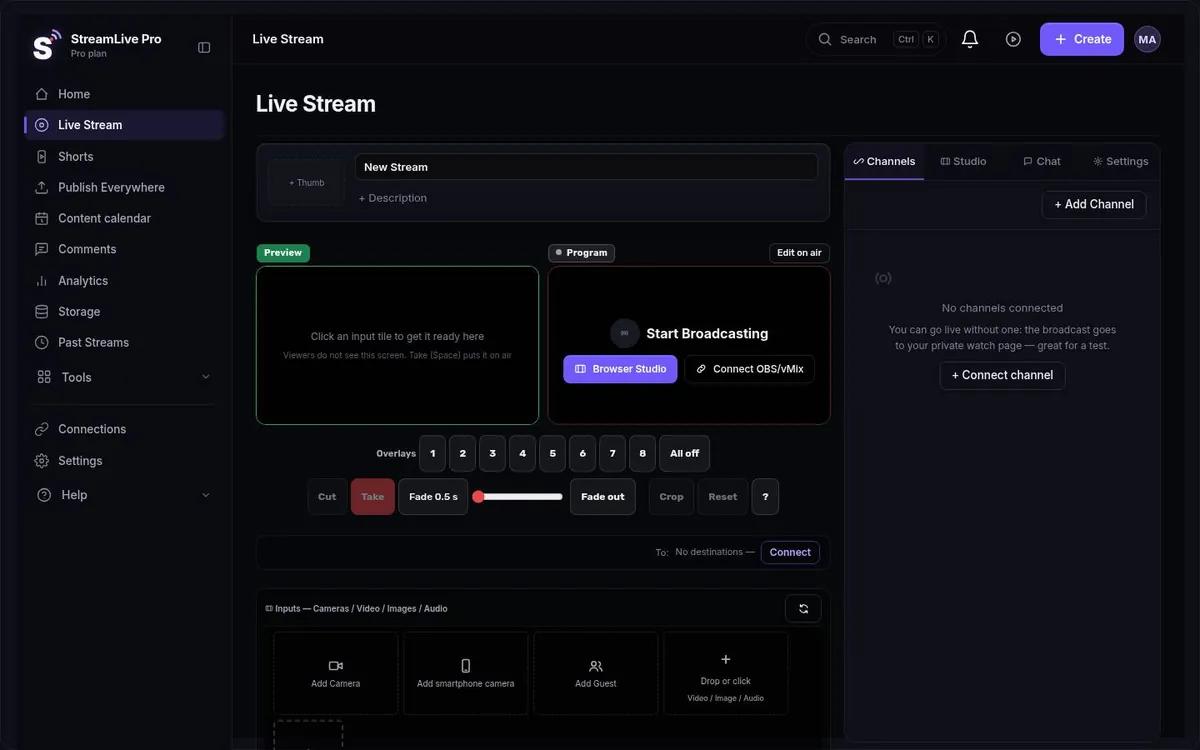
Press "go live" once and the same broadcast appears on YouTube and Facebook, and on Instagram or TikTok if you have a stream key. You do not run three programs and you do not need three times the upload.
How it works: one upload, many destinations
Your computer or phone sends a single stream to StreamLive Pro. Our servers copy that stream and push it to every destination you switched on: YouTube, Facebook, Instagram, TikTok, X, LinkedIn, Twitch, Kick, and any custom RTMP or SRT server (a player on your own website, a second YouTube channel, a news site's own video platform). The copying happens on our side, so the upload you need stays the same when you add a destination.
How many destinations can run at the same time depends on the plan: 3, 6 or 20.
The upload arithmetic: OBS plugins vs a server fan-out
OBS Studio has no built-in way to send to several services at once. The usual answer is a community plugin such as Multiple RTMP Output or Aitum Multistream. Those plugins work, but every extra destination is another full copy of the video leaving your own connection.
Take a stream encoded at 6 Mbps as the example:
| Destinations | Upload with a multi-output plugin | Upload with StreamLive Pro |
|---|---|---|
| 1 | 6 Mbps | 6 Mbps |
| 2 | 12 Mbps | 6 Mbps |
| 3 | 18 Mbps | 6 Mbps |
| 5 | 30 Mbps | 6 Mbps |
The plugin column is plain multiplication: 3 destinations x 6 Mbps = 18 Mbps. Many home connections have a fast download and a much slower upload, and a live stream needs spare room above its bitrate to stay stable when the line wobbles. If a speed test shows 20 Mbps of upload, three plugin outputs at 6 Mbps use almost all of it; one stream to us uses less than a third. How to measure your line and pick a bitrate is covered in upload speed and bitrate for multistreaming.
Step by step: YouTube and Facebook at the same time
- Connect your channels once. Sign in to YouTube and Facebook from the channels panel (connect your channels). On Facebook the destination is a Page you manage, not a personal profile or a group. On YouTube, live streaming must be enabled on the channel; the first time this can take up to 24 hours.
- Open the Live page and switch on the destinations you want for this broadcast.
- Choose how the picture reaches us: the browser studio, your phone, or OBS/vMix.
- Press go live. In the browser studio a camera check of up to 10 seconds runs by itself, then the broadcast starts on every switched-on destination together.
- When you end, vertical Shorts are cut from the broadcast automatically. To keep the full recording, press Record; otherwise it is removed about two hours after the broadcast.
The full walkthrough, including what each network asks for, is in live stream to multiple platforms and go live on each network. You can also schedule the broadcast in advance and, on the Pro and Studio plans, broadcast a pre-recorded video as live.
Instagram and TikTok need a stream key from the network
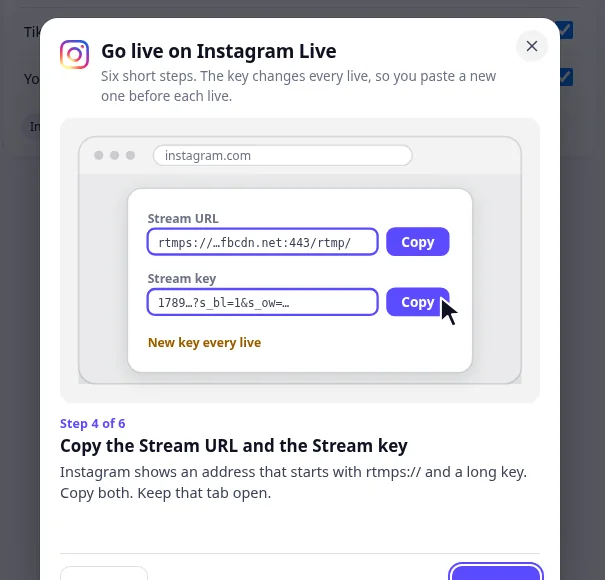
Instagram LIVE and TikTok LIVE go through the stream key that the network gives your account, and Instagram and TikTok decide which accounts get one. We cannot issue that key for them. If your account has a key, paste it into that network's block and the destination runs next to YouTube and Facebook. The key is not permanent: on Instagram it works for one session, and on TikTok and X it changes between sessions, so you paste a fresh one before you go live. The studio warns you before going live if a key is old. LinkedIn needs LinkedIn's approval first. If it does not, the rest of the broadcast still works; that one destination stays off. The steps for finding the key are in Instagram and TikTok stream keys.
Three ways to send the one stream
- Browser studio. Nothing to install. Several cameras, screen share, remote guests by link, logo, lower thirds. See the browser studio.
- Phone. Today through the phone's browser; iPhone and Android apps are coming to the App Store and Google Play. A phone can also join the browser studio as an extra camera. See go live from your phone.
- OBS, vMix or Streamlabs. Send RTMP, RTMPS or SRT to your StreamLive Pro address and key. This opens on a paid plan; the trial covers the browser studio only.
Multistream with OBS, without the plugin
If you like your OBS scenes, keep them. In OBS, go to Settings, Stream, choose Custom, and paste the StreamLive Pro server address and key. Turn off any multi-output plugin destinations, so OBS sends one stream and our servers do the rest. Details: use OBS or vMix with RTMP. If the words "server", "key" and "RTMPS" are new, read RTMP and stream keys explained first. For a side-by-side look at the two tools, see StreamLive Pro vs OBS.
Comments from YouTube and Facebook in one panel
During the broadcast, YouTube and Facebook comments arrive in one panel, and you can reply to both from it. It covers those two networks only. If you need chat from many more networks in one place, Restream covers more of them; see StreamLive Pro vs Restream.
What it does not do
- No captions or translation that viewers see during the live broadcast. This is in development. Captions and translation work on the recording after the broadcast.
- The unified chat covers YouTube and Facebook, not every network.
- Instagram and TikTok depend on the key those networks give your account.
- No free plan. There is a 7-day trial with no credit card, limited to the browser studio, up to 2 destinations, and 2 broadcasts of up to 60 minutes.
- Restream lists more than 30 destinations (checked 4 November 2026). Our list is the networks named above plus any custom RTMP or SRT server. If you need a long list of smaller platforms, check theirs.
Pricing
Plans differ in how many destinations run at once (3, 6 or 20) and how many live hours you get a month (30, 100 or 300). The Creator plan is $29 a month. 7-day trial, no credit card. The trial never turns into a paid plan by itself. Every plan, limit and difference is on the pricing page.
Who uses it
Creators who publish on YouTube and Facebook and do not want to choose between them. Small newsrooms that send the same live report to their site, Facebook and YouTube. Community and synagogue pages that stream a weekly class to Facebook for one audience and YouTube for another (houses of worship). Lecturers, event producers and local businesses. When the broadcast ends, it turns into AI Shorts for the networks you just streamed to.
No credit card. The trial never turns into a paid plan by itself.
Start a 7-day trialFrequently asked questions
Can I live stream to YouTube and Facebook simultaneously?
Yes. Connect both channels once, switch both on before you go live, and the broadcast starts on both together. Comments from both arrive in one panel and you can reply from there.
How much upload speed do I need to stream to three platforms?
The upload of one stream, because the copying to each network happens on our servers. With an OBS multi-output plugin every destination is another copy: three destinations at 6 Mbps need 18 Mbps of upload.
Why can't I stream to Instagram or TikTok?
Both networks require a stream key that they give to your account, and they decide which accounts get one. We cannot issue it. Without a key that destination stays off and the others keep working.
Can I stream to multiple platforms for free?
StreamLive Pro has no free plan; there is a 7-day trial with no credit card and up to 2 destinations. A free route is an OBS multi-output plugin, if your upload can carry one full copy per destination.
Can I stream to multiple platforms from my phone?
Yes, today through the phone's browser. The phone sends one stream and our servers deliver it to every destination. iPhone and Android apps are on the way to the App Store and Google Play.
I already use OBS. Do I have to stop?
No. Set OBS to your StreamLive Pro server address and key and turn off the multi-output plugin. OBS sends one stream and we fan it out. External encoders open on a paid plan.