 StreamLive Pro
A live streaming studio in your browser
Cameras, guests, graphics and a go-live button in one browser tab. Nothing to install, for you or for your guests.
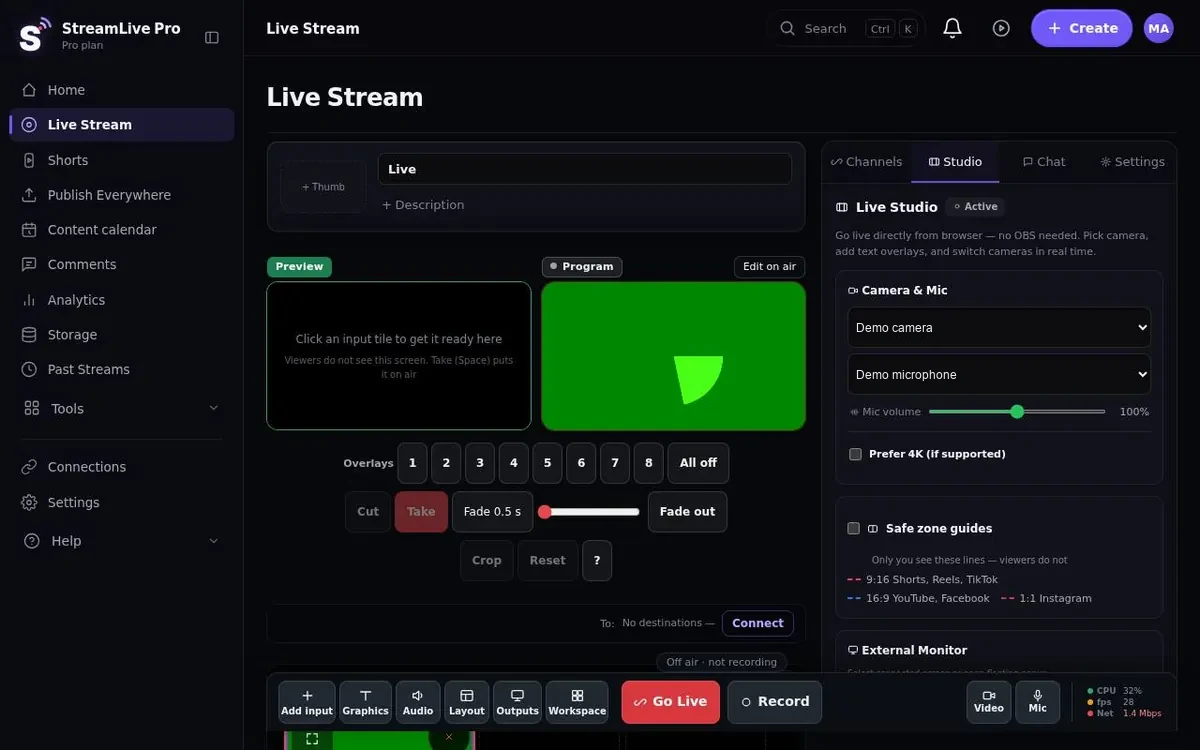
The browser studio is a full live production desk in a web page. You open it, allow the camera and microphone, and you have Preview and Program monitors, several camera inputs, guests, graphics and a go-live button. No download, no driver, no plugin.
What runs in the tab
- Several cameras with Preview and Take. Each input appears as a small tile. Click one to put it in Preview, check it, then press Take to send it to Program, the picture viewers see.
- A phone as an extra camera. Open a link on the phone and it joins as a camera in the phone's browser. With the app, on its way to the stores, the studio also shows the phone's battery and signal, and you can switch lens and zoom. See phone as a camera.
- Screen share for slides, a website or a document.
- Green screen with an eyedropper to pick the exact colour of your backdrop, or a virtual background if you have no green cloth. See green screen and virtual studio.
- Logo and overlays on 8 overlay channels, lower thirds for names and titles, and a news ticker along the bottom. See lower thirds.
- Safe-frame guides for 16:9, 9:16 and 1:1, so a lower third does not get cut off when the same picture ends up vertical.
- A saved studio setup restored in one click, so next week's class starts with the same cameras, logo and titles.
Guests by link
You send a guest an invite link. They open it on a computer or phone, see themselves on a preparation screen and choose camera and microphone, and you decide when they come on air. Mix-minus is applied, so each guest hears everyone except their own voice and you do not get an echo loop. Nothing to install on their side. Details: guests and invitations and record a podcast with remote guests.
Who is speaking: the automatic director
Link each microphone to a camera and the picture follows whoever is talking. This is on the Pro and Studio plans, in the live studio and in the podcast studio. You can still take over by hand at any moment.
Going live from the browser, step by step
- Open the studio and allow the camera and microphone.
- Add inputs: a webcam, a phone by link, a screen share.
- Add a logo and a lower third with your name.
- Switch on the destinations for this broadcast (YouTube, Facebook and others).
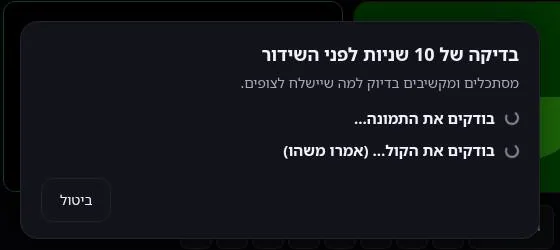
- Press go live. A check of up to 10 seconds runs by itself and confirms there is picture and sound before anyone sees you. With no picture, the broadcast does not start.
- Switch cameras with Preview and Take as you go.
- End the broadcast. Shorts are cut from it automatically. To keep the full recording, press Record; otherwise it is removed about two hours after the broadcast.
The studio sends one stream from your computer; our servers deliver it to every destination. That is why adding Instagram or a second YouTube channel does not slow your connection. More on that on the multistream page.
Stream from the browser without OBS: what you gain and what you give up
| Browser studio | OBS Studio | |
|---|---|---|
| Install | None | Install and update yourself |
| Many networks at once | One upload, fan-out on our servers | One service, or a plugin that uploads once per destination |
| Capture cards, many wired cameras | Webcams, phones and screen share | Strong |
| Plugins and deep scene control | A fixed set of tools | Large plugin ecosystem |
| Price | Paid plan; 7-day trial | Free and open source |
OBS is the better choice if you rely on a capture card, a plugin, or complex scenes built over years. You do not have to choose: OBS can send one stream to your StreamLive Pro key on a paid plan. See StreamLive Pro vs OBS.
Compared with other browser studios such as StreamYard, the differences are in the plan details and in what happens after the broadcast; see StreamLive Pro vs StreamYard.
What the browser studio does not do
- No captions or translation that viewers see during the broadcast; this is in development. Captions are added to the recording afterwards.
- The automatic director needs the Pro or Studio plan.
- It does not take a capture card's many inputs the way installed software does. For PTZ and NDI cameras, see PTZ camera streaming (desktop app, coming soon).
- 4K recording is only on Pro and Studio.
What you need on your side
- A computer with a webcam, or a phone, and a microphone. A USB microphone or a headset sounds better than a laptop's built-in one, and the studio cannot fix a bad microphone.
- An upload speed that carries one stream with room to spare. Because the fan-out to networks happens on our servers, you need the same upload for one destination as for five. How to measure it: upload speed and bitrate for multistreaming.
- Your channels connected once (connect your channels). After that, every broadcast is a matter of switching destinations on. For networks that work with a stream key, such as Instagram and TikTok, you paste a fresh key before you go live.
- A wired connection when you can. Wi-Fi works, but a cable removes one common cause of a frozen picture.
An example: a weekly class with a guest teacher
A lecturer streams every Tuesday from a home office. The laptop webcam shows a wide shot; a phone on a small stand joins by link as a close-up. A guest teacher from another city joins with an invite link and waits until the lecturer brings them on air. The saved studio setup brings back the logo, a lower third with the lecturer's name and the two camera tiles. The broadcast goes to YouTube and Facebook together. When it ends, the first Shorts are already being cut, and the recording stays because the lecturer pressed Record. Next Tuesday the same setup opens in one click. For more on classes like this, see lecturers and online courses.
Pricing
The browser studio is in every plan and in the trial. 7-day trial, no credit card. The trial never turns into a paid plan by itself. Plans differ in destinations at once (3, 6 or 20) and live hours a month (30, 100 or 300); Creator is $29 a month. Details: pricing. New to this? Start with get started and go live.
Who it suits
Teachers and lecturers who stream from a laptop with a phone as a second angle. Interview shows with guests at home. Community pages run by volunteers who need the same setup every week. Small newsrooms that bring a reporter in by link.
No credit card. The trial never turns into a paid plan by itself.
Start a 7-day trialFrequently asked questions
Can I stream from the browser without OBS?
Yes. The browser studio has what a regular broadcast needs: several cameras, switching, guests, logo and titles. If you need a capture card or plugins, keep OBS and send its output to us.
Do guests have to install anything?
No. They open an invite link on a computer or phone, choose camera and microphone on a preparation screen, and you bring them on air when you are ready.
How many cameras can I use?
Several webcams, phones joined by link and a screen share, switched with Preview and Take. A capture card with many inputs is better served by installed software.
Is the browser studio in the free trial?
Yes. In the 7-day trial the browser studio is the only way to go live, with up to 2 destinations and 2 broadcasts of up to 60 minutes. OBS and vMix open on a paid plan.
Can I save my setup for next week?
Yes. The studio setup is saved and restored in one click: cameras, logo and titles. Useful for a class or show that repeats every week.