 StreamLive Pro
 vs OBS Studio: an honest comparison (November 2026)
OBS builds the picture on your computer; StreamLive Pro sends it to every network and turns it into Shorts and captions. Here is what each does, where each wins, and how to use both.
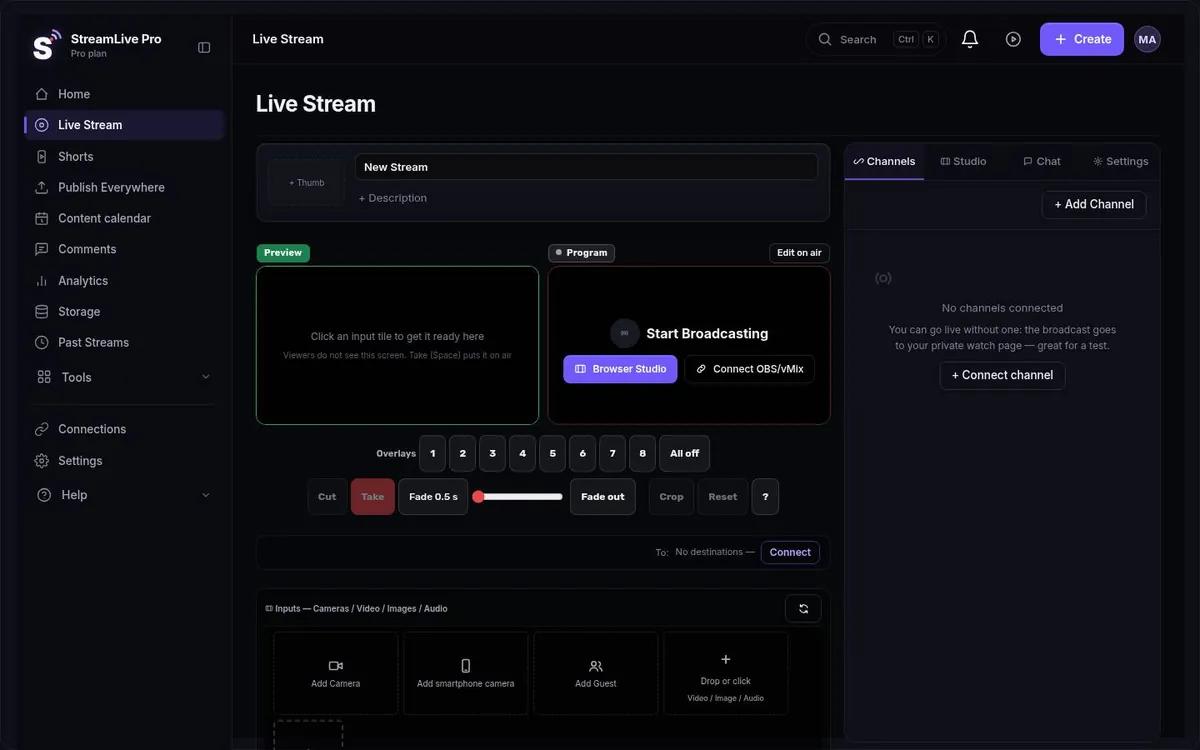
OBS Studio and StreamLive Pro are different kinds of product, which makes this comparison easier than most. OBS is a free, open-source program you install on your own computer: it builds the picture from scenes and sources, records it, and sends it to a server. StreamLive Pro is a web service: it can build the picture too (in a browser studio), but its main work happens on its servers, where one stream is copied to several networks, cut into Shorts, captioned and translated. You can also use both together. This page lays out the facts; for the longer narrative read An OBS Studio alternative that runs in the browser.
A note before the table: we are building our own desktop app, StreamLive Pro Studio, for Windows and Mac. It is not publicly available yet ("coming soon"), so it is not part of this comparison. When it is released we will compare it here. Our separate article StreamLive Pro Studio vs OBS Studio describes the preview build.
The facts, side by side (checked 4 November 2026)
| OBS Studio | StreamLive Pro (web) | |
|---|---|---|
| Price | Free | No free plan. 7-day trial, then $29, $85 or $199 a month |
| Licence | Open source (GPLv2) | Closed, hosted service |
| Runs on | Windows, Mac and Linux, installed | A web browser, no install; phone browser too |
| Works offline | Yes, recording to your own disk | No, needs an internet connection |
| Several networks at once | Not built in: community plugins (for example Multiple RTMP Output, Aitum Multistream) or a relay service | Built in: 3, 6 or 20 destinations at once, by plan |
| Upload needed for 3 networks | With plugins, one upload per destination: 3 times your stream bitrate | One stream; copies are made on our servers |
| Scenes, sources, plugins | Scenes and sources, a large plugin ecosystem | Fixed studio: cameras, Preview and Take, screen share, green screen, 8 overlay channels, lower thirds, ticker |
| Remote guests | Not built in | By link, with a preparation screen and mix-minus |
| Recording | Local, to your disk | Cloud recording when you press Record (otherwise removed about two hours after the broadcast); 4K on Pro and Studio |
| Shorts after the stream | Not built in | 10, 30 or 300 a month, 9:16, captions, reframed to the speaker |
| Captions and translation | Not in OBS itself; plugins may add some of it | Per-word Hebrew and English captions, translation into 143 languages (120, 500 or 1,500 minutes a month) |
Source: obsproject.com, OBS licence (GPLv2) on GitHub, StreamLive Pro pricing. Checked 4 November 2026.
How we checked: we read obsproject.com on 4 November 2026 and the plugin pages for multistreaming, and took our own column from our live billing data and product. OBS changes with every release and plugins come and go, so "not built in" means not in OBS itself; a plugin may add it.
Prices change. OBS is free; our prices are on the pricing page and are filled into this table from billing.
Where OBS is the better choice
- It costs nothing. No plan, no hour limit, no account.
- Full local control. You choose the encoder, bitrate, keyframe interval and every scene. A hosted service makes many of those choices for you.
- The plugin ecosystem. If you can describe a feature, someone has probably written an OBS plugin or script for it. Our studio does only what it ships with.
- It works offline. OBS records to your disk whether or not the internet is up, and keeps running if a cloud service goes down. StreamLive Pro does not work without a connection.
- Linux. OBS runs on Linux. Our studio runs in a browser, which is not the same as a native Linux app.
- Game capture and heavy local scenes. OBS reads capture cards, game windows and as many sources as the machine can carry, directly. A browser sees only what the operating system offers it as a camera or a shared screen.
Where StreamLive Pro is the better choice
- Several networks from one upload. OBS does not multistream on its own. With a plugin, each extra destination is another full upload from your connection. If OBS is set to 6 Mbit/s, three destinations need 18 Mbit/s of upload, and five need 30. Here your computer sends one stream and our servers make the copies, so the upload stays at 6. See upload speed and bitrate for multistreaming.
- Guests without extra software. Send a link; the guest joins from a browser, joins muted, you decide when they go on screen, and they hear a mix without their own voice.
- What happens after the stream. Shorts are cut automatically when the broadcast ends, with Hebrew or English captions placed right to left where needed, and you can translate the captions into 143 languages. Captions and translation are not shown to viewers during the live broadcast; that is still in development.
- An editor and publishing. A recording you kept opens in a multi-track editor; a finished video can be published to your connected networks now or on a schedule.
- A MacBook not meant for streaming. If OBS is too heavy for your MacBook while it encodes several outputs, the browser studio is an option: it runs in the browser, and the copying to networks happens on our servers.
- Nothing to set up on a borrowed computer. Open the address, sign in, and the studio setup you saved is restored in one click.
Using both together
This arrangement costs you nothing in control. Keep OBS for building the picture. Point it at StreamLive Pro instead of at YouTube:
- In StreamLive Pro, open the Live Stream page and choose to connect OBS or vMix. You get a server address and a stream key, for RTMP, RTMPS or SRT.
- In OBS, go to Settings, Stream, choose Custom, and paste the address and key.
- In StreamLive Pro, tick the networks you want: YouTube, Facebook, Instagram, TikTok, X, LinkedIn, Twitch, Kick, or any RTMP or SRT server.
- Start streaming in OBS. One stream leaves your computer, and it reaches every network you ticked.
After the broadcast the Shorts and captions are made from what OBS sent, and the recording is kept if you pressed Record. External encoders open on a paid plan; the 7-day trial covers the browser studio only. Full steps: using OBS or vMix with RTMP, and if you want the background, RTMP and stream keys explained.
Can OBS live stream to Facebook and YouTube at the same time? Not on its own. You can add a multistream plugin, which uploads a separate copy to each, or send one stream to a service that does the copying. StreamLive Pro is one such service.
What about our desktop app
StreamLive Pro Studio, our desktop app for Windows and Mac, is coming soon. It is not downloadable today, so do not plan a production around it yet. When it ships it will be free with a free account, with multistreaming and Shorts coming from a plan. Details as they stand are on the desktop page.
No credit card. The trial never turns into a paid plan by itself.
Start a 7-day trialMore on the same subject: live streaming software, multistreaming, StreamLive Pro vs Restream, and the comparison hub.
Frequently asked questions
Can OBS live stream to Facebook and YouTube at the same time?
Not on its own. A plugin such as Multiple RTMP Output sends a separate copy to each network, so your upload grows with every destination. Or you send one stream to a service like StreamLive Pro that does the copying.
Can I use OBS with StreamLive Pro?
Yes. Paste our server address and stream key (RTMP, RTMPS or SRT) into OBS, and StreamLive Pro sends the stream to every network you ticked. This opens on a paid plan, not in the trial.
What is a good OBS alternative for Mac?
The StreamLive Pro studio runs in a browser, so there is nothing to install on the Mac and the copying to networks happens on our servers. Our own desktop app for Mac and Windows is not downloadable yet.
Does StreamLive Pro work offline like OBS?
No. It is a web service and needs a connection. If you must record without internet, OBS is the better tool.
Is StreamLive Pro free like OBS?
No. There is no free plan; there is a 7-day trial with no credit card. OBS is completely free and open source.