 StreamLive Pro
Live streaming for houses of worship: services and classes
A weekly service or class, a volunteer at the laptop, and an audience split between YouTube, Facebook and a WhatsApp group. Here is how to stream it, and turn each session into captioned Shorts.
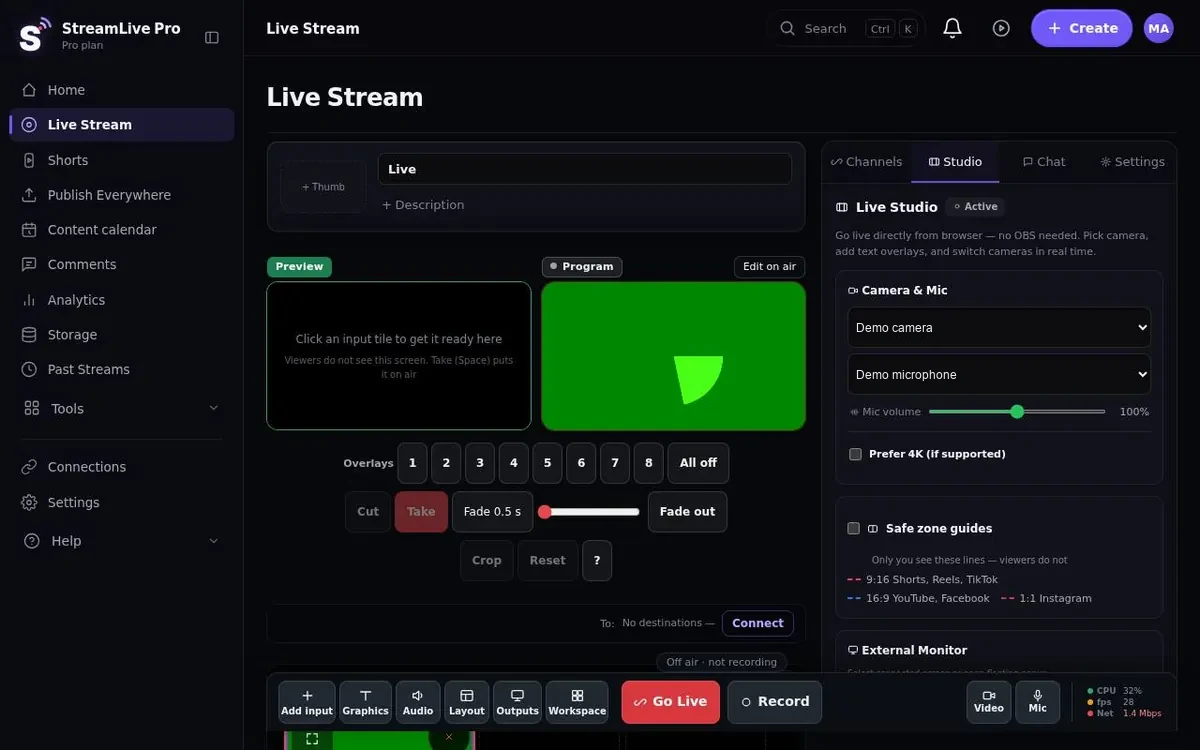
A weekly class or a Sunday service, an audience waiting for it on YouTube, on Facebook and in a WhatsApp community group, and a volunteer at the controls rather than a technician. Below: what you need in the room, how to reach several networks at once, how each class or sermon becomes captioned Shorts, and what the system does not do. Our step-by-step guide is how to live stream a synagogue or church service, and for a teaching session how to live stream a Torah class.
Live stream setup for a church or synagogue
There are two good ways to start, and you do not need to buy anything to find out which one suits you.
A phone and nothing else. Open StreamLive Pro in the phone's browser, put the phone on a tripod facing the speaker, and go live. Our iPhone and Android apps are coming to the App Store and Google Play; today you work from the browser. The weak point is sound: a phone microphone three metres away also picks up the air conditioning and every door. A clip-on microphone plugged into the phone fixes most of that.
A computer, a camera and a microphone. A laptop in the hall, a webcam or a camera through a capture card, and a microphone into the computer. Open the studio in the browser, with nothing to install, and pick the camera and microphone. You can add the phone as a second camera, for example on the lectern or the board, and switch between them with Preview and Take. The phone joins through a link that opens in its browser.
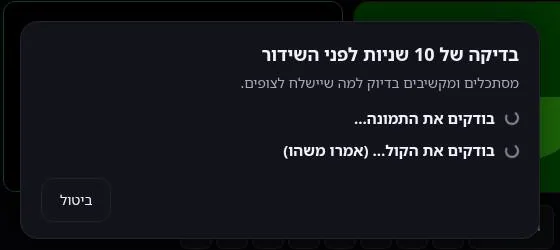
Before each session there is a 10-second camera check: you see that picture and sound are arriving before you go on air, not halfway through.
Reaching YouTube, Facebook and the WhatsApp group
One broadcast reaches every network you connected: YouTube, Facebook, Instagram, TikTok and others. The computer or phone uploads a single stream, and the copies are made on our servers, so an ordinary building connection does not have to carry three streams. How many destinations at once depends on the plan: 3, 6 or 20. More on multistreaming.
Three things to check before the first session. On Facebook you stream to a Page you manage, not to a personal profile or a group. On YouTube, live streaming must be enabled on the channel, and the first time this can take up to 24 hours. Instagram and TikTok need a stream key from the network, and it changes for every live.
During the session, YouTube and Facebook comments arrive in one panel, and whoever runs the broadcast can reply to both from there or pass a question to the speaker. Comments from other networks do not come into that panel.
What about WhatsApp? WhatsApp is not a live destination. What works: send the YouTube link to the group before you start, and afterwards publish the Shorts or the recording. The system can also upload a finished video to WhatsApp and Telegram (publishing to social networks). On Pro and Studio it also works the other way: a video a volunteer sends into a connected WhatsApp or Telegram group can be published to the community's connected accounts.
Shorts with captions from every session
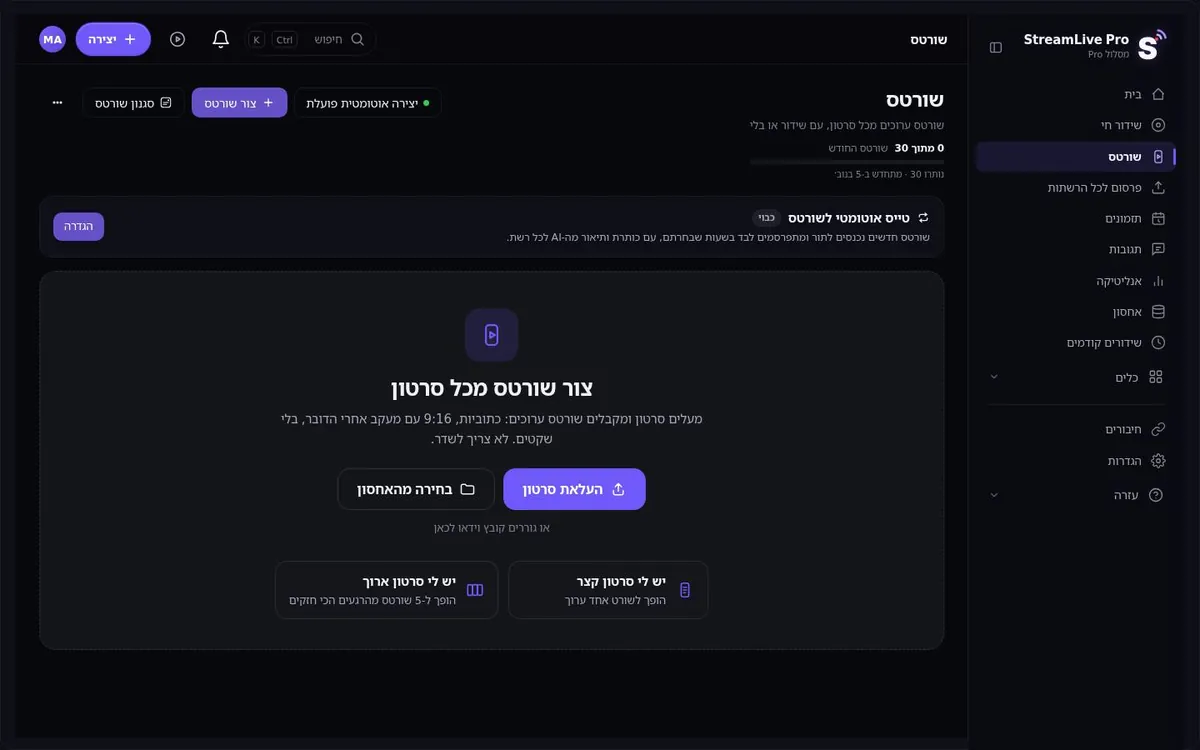
An hour-long class is a lot to ask of someone who has never heard the speaker. One minute with one complete idea is a good way in. When the broadcast ends, the system cuts vertical 9:16 Shorts, reframed to follow whoever is speaking, with captions and a thumbnail. Shorts per month by plan: 10, 30 or 300.
Hebrew captions run right to left properly: punctuation and numbers on the correct side, even when the current word is highlighted. English captions work the same way, and there are more than 80 caption designs. Automatic transcription often gets Aramaic terms, abbreviations and book titles wrong, so read the captions before you publish. The choice of moments is automatic too and can miss: sometimes the strongest minute is an answer to a question from the room. See Hebrew captions for Shorts.
If part of your community reads another language, the captions of a Short or of the full recording can be translated into 120+ languages, a whole sentence at a time (120, 500 or 1,500 minutes a month by plan). Translation appears in the recording and the Shorts, not during the live broadcast: live captions and translation are still in development, and there is no dubbing.
Scheduling ahead
You can schedule a broadcast in advance with a date, time, title and networks. A class or a service can be set up days before, when there is time, rather than in the last rushed minutes. See scheduling a broadcast in advance.
The system does not know your calendar. It does not start or stop broadcasts for you. A broadcast scheduled from a prepared video (Pro and Studio) goes out at the time you set without any check of the date, so check it before you save. A broadcast from OBS or another encoder goes out only if a signal reaches us. Whether and when you broadcast, and what may be done when, is your decision and your rabbi's or pastor's.
A stream run by volunteers
When the stream depends on one person, the day that person is away there is no class online. You can invite others to the account as team members: one runs the broadcast, another reviews and publishes the Shorts. The number of team seats comes with the plan; details are on the pricing page.
One more thing that helps volunteers: the whole studio setup (cameras, logo, a lower third with the class name, destinations) is saved once and restored in one click.
One thing not to forget: to keep the full class, press Record. Without it, the video is removed about two hours after the broadcast ends. The automatic Shorts are cut from it before that.
What it costs
There is no free plan. There is a 7-day trial with no credit card, and it does not turn into a paid plan by itself. The trial covers the browser studio, up to 2 destinations, 2 lives of up to 60 minutes, and 10 Shorts with a small watermark: enough to stream a real class and see what comes out of it. After that, plans start at $29 a month. If you run several classes a week, have a team of volunteers, or want to publish from a WhatsApp group, look at Pro on the pricing page.
No credit card. The trial never turns into a paid plan by itself.
Start a 7-day trialFurther reading: turning a live stream into Shorts, automatic captions and translation, and the live stream checklist.
Frequently asked questions
Can we live stream a church service with just a phone?
Yes. Open StreamLive Pro in the phone's browser and go live. Add a clip-on microphone, because a phone microphone at a distance picks up a lot of room noise.
Does the system start or stop streams by my calendar?
No. The system does not know your calendar. It only brings up a broadcast you scheduled, at the time you set, so check the date. When to broadcast is your decision.
Can we stream directly into a WhatsApp group?
No, WhatsApp is not a live destination. Send the group the YouTube link, and after the session publish the Shorts or the recording there.
How accurate are the captions?
Transcription handles everyday speech well, but Hebrew and Aramaic terms, abbreviations and names often come out wrong. Read and correct the captions before you publish.
How many volunteers can work on the account?
The number of team seats comes with the plan and is listed on the pricing page. That lets one volunteer run the broadcast while another publishes the Shorts.