 StreamLive Pro
Upload your own font for captions
Upload your own font for captions in StreamLive Pro: a TTF, OTF, WOFF or WOFF2 file up to 5 MB, saved to your account and used in every burned video.
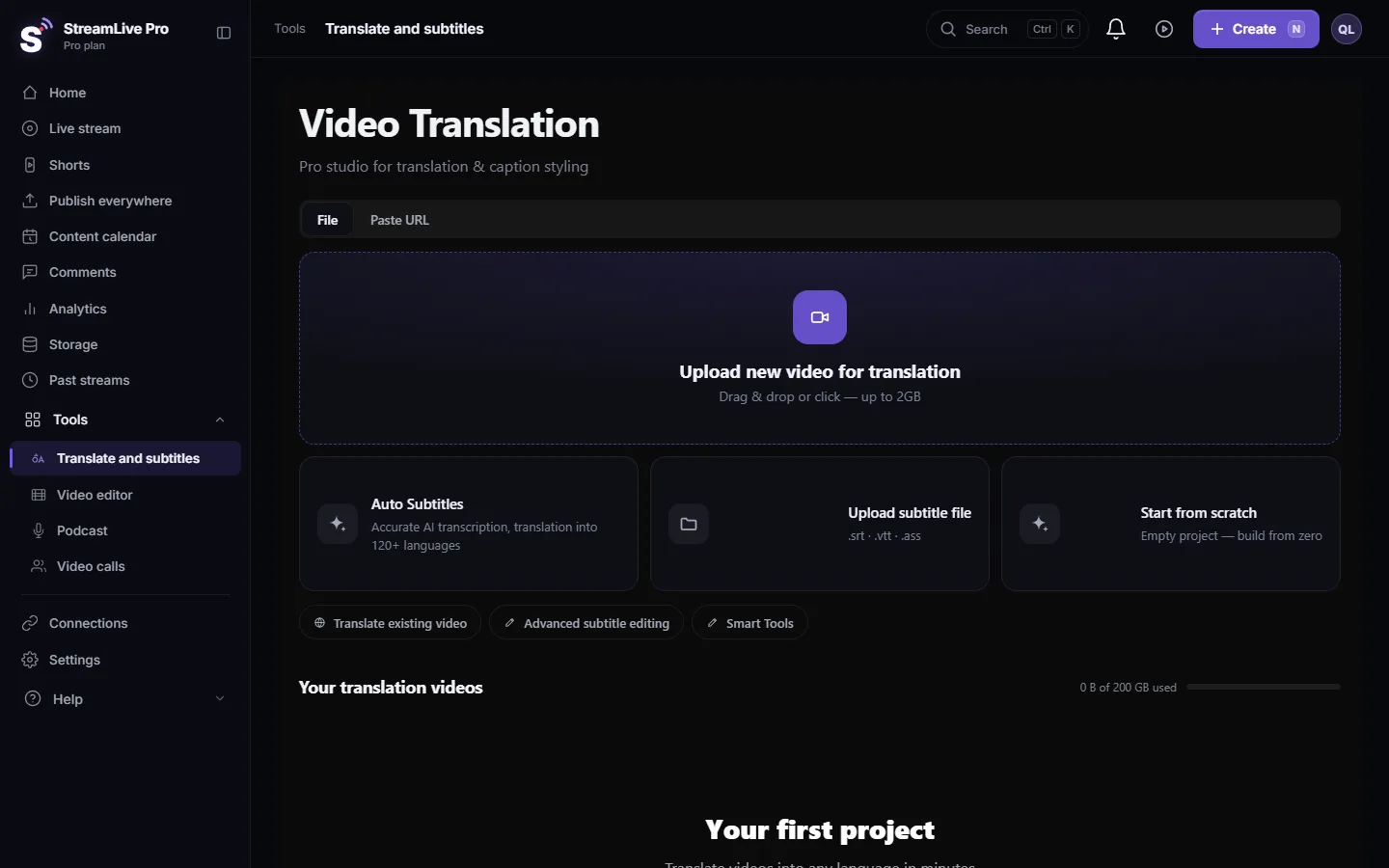
If your brand has its own typeface, you can use it for captions. In Translate and subtitles, open a project, go to Properties, open the Font list and choose Upload custom font… at the bottom. Pick a TTF, OTF, WOFF or WOFF2 file. The font is saved to your account, appears in the font list of every project, and is used when you burn the captions into a video. Saving a font to the account is part of the Pro plan.
Before you start
- Plan. Uploading a font to the account is open on the Pro plan; see the /pricing?lang=en. On other plans the upload is refused with a message; the font then shows in the preview until you reload the page, but it is not saved and the render cannot use it.
- File type and size. TTF, OTF, WOFF or WOFF2, up to 5 MB per file. Larger files are refused with "Font file is too large".
- The file name becomes the font name. "BrandSans-Bold.ttf" appears in the list as "BrandSans-Bold". Rename the file before uploading if you want a cleaner name. The name may not contain / \ " ' < > { } or ;.
- One file per weight. Each file is one font. For bold and regular, upload two files with two different names.
- Letters for your language. For Hebrew or Arabic captions, the font must contain Hebrew or Arabic letters. When you choose your own font, the system uses it as it is and does not swap in a Hebrew face, so a Latin-only font leaves you with missing letters.
- The right to use it. Upload only fonts your licence allows you to use in videos you publish.
Steps
- Open a project. In Translate and subtitles, open any project from Your translation videos.
- Open the font list. In Properties, find the Font section and open the Font list.
- Choose Upload custom font. The last item is Upload custom font…. Pick the font file from your computer.
- Wait for the confirmation. When the account has saved it you see Font added, and the font is selected for the captions.
- Check the preview. Play a few lines, including one with punctuation and one with a number. Each name in the list is drawn in its own typeface, so you can compare.
- Use it in other projects. Open another project: the font is in its list too, after your built-in fonts.
- Render. Press Export and MP4 — Burned-in subtitles. The render server loads your account fonts, so the video looks like the preview.
Messages you may see
| Message | What it means | What to do |
|---|---|---|
| "Custom fonts require a Pro plan." | Your plan does not include saving fonts | See the /pricing?lang=en, or use one of the built-in fonts |
| "The font was not saved to your account ... it will work until you reload" | The upload was refused (plan, size or name) | Read the reason in the message and fix it |
| "Font file is too large (max 5MB)." | The file is over 5 MB | Use the WOFF2 version, which is usually smaller |
| "A font with that family name already exists." | A font with the same name is already in your account | Rename the file and upload again |
| Font load failed | The browser could not read the file as a font | Check that the file opens on your computer |
| "Font is used by an active project." | You tried to remove a font while a project using it is being processed | Wait for that project to finish |
What can go wrong
- Boxes instead of Hebrew letters. The font has no Hebrew. Choose a font that supports Hebrew, or go back to a built-in Hebrew font.
- Punctuation looks odd in Hebrew. Some fonts draw punctuation for Latin text only. Try the line in the preview with a question mark before you render. More: Hebrew captions reversed or punctuation on the wrong side.
- The font disappeared after a reload. It was not saved to the account; the earlier message gave the reason.
- The caption is too wide on vertical video. Wide fonts take more room. Check with the safe-zone guide: Caption safe zones for TikTok, Reels, Shorts and more.
Related pages
Frequently asked questions
Which font files can I upload?
TTF, OTF, WOFF and WOFF2, up to 5 MB per file.
Do I have to upload the font again for each project?
No. It is saved to your account and appears in the font list of every project.
Is my font used in the burned video, or only in the preview?
In the burned video too. The render server loads the fonts saved in your account.
Can I use my own font for Hebrew captions?
Yes, if the font contains Hebrew letters. The system uses your font as it is and does not replace it with a Hebrew face.
Which plan do I need to upload a font?
Saving a font to the account is part of the Pro plan. On other plans you can choose from the built-in fonts.
Keep reading
Open vs closed captions: burned into the picture or sent as a file the viewer can switch off. What each is good for, which networks take which, and how to make both.
A weekly Torah class online: live, Shorts and a podcastHow to run a weekly Torah class online: a weekday live, scheduling ahead, Shorts with Hebrew captions, translation for students abroad and a podcast episode.
Add a lower third (name and title) in the video editorAdd a lower third with a name and a role to a recorded video in the StreamLive Pro editor: pick a style, type in Hebrew or English, set when it shows, and export it.
Add titles and text to a video in the editorAdd a title or text on top of a video in the StreamLive Pro editor: pick a title template, type in Hebrew or English, set when it shows and move it on the picture.
Want to try it? 7-day trial, no credit card.
Start free