 StreamLive Pro
English subtitles for a Hebrew video
English subtitles for a Hebrew video: transcribe the Hebrew, correct it, translate to English in StreamLive Pro, then upload the SRT to YouTube or burn it in.
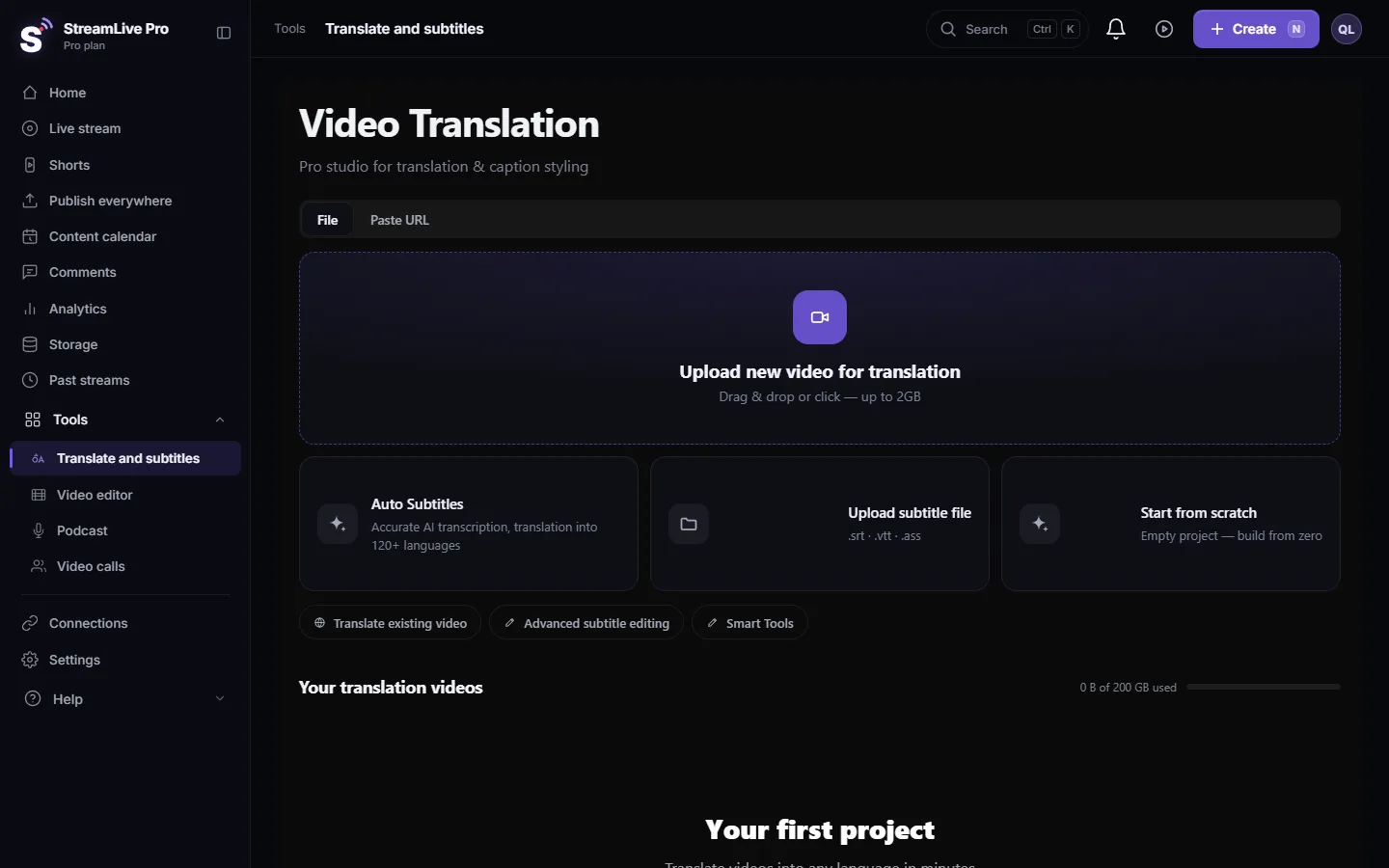
To add English subtitles to a Hebrew video, upload it in Translate and subtitles, choose Hebrew as the source and English as the target, and start. You get English captions timed to the Hebrew speech; the voice stays Hebrew. The result is best when you correct the Hebrew transcript first, then translate. English is included on every plan, the trial too.
Before you start
- Minutes. Each run uses translation minutes equal to the video's length; amounts per plan are on the /pricing?lang=en. The trial includes 10 translation minutes, for videos up to 10 minutes long.
- Clear Hebrew audio. One microphone near the speaker beats a room microphone. Two people talking at once lowers the transcript the most.
- An English reader for the check. Translation reads fluently even where it is wrong. Someone who reads English well should watch the result.
- After the broadcast, not during. Captions and translation that viewers see during a live are not available. Translate the recording; see Transcribe a live stream after the broadcast.
Steps
- Transcribe the Hebrew. Open Translate and subtitles, press Upload new video for translation, choose Hebrew under both Source language and Target language, and press Start translation. The same language on both sides gives a transcript.
- Correct the Hebrew. In Subtitles, fix names, terms and numbers. Recurring names go fastest with find and replace.
- Agree the English spellings. Add Hebrew terms and names with their English form to the project Glossary (for example the spelling a speaker uses for his own name, or "Gemara" rather than a translation). The translation run uses those terms.
- Translate to English. In the same project open Translate, choose English under Pick target language and run it. Whole sentences are translated and split back into timed lines, so the English follows English word order.
- Read the English against the video. Click a line to hear it. Watch for the points in the next table.
- Fix reading speed. English often needs more characters than the Hebrew it translates. Split or shorten lines that leave the screen before they can be read.
- Export. Press Export: SRT — Subtitles for YouTube or an editor, or MP4 — Burned-in subtitles for Shorts, Reels and WhatsApp.
What to check in the English
| In the Hebrew | The risk in English | What to do |
|---|---|---|
| A dropped subject ("הלכנו", "אמר") | The wrong pronoun is guessed | Read who is speaking and fix "we", "he", "they" |
| Hebrew names and places | Translated as words, or spelled several ways | Transliterate once, add to the Glossary, replace the variants |
| Torah and Jewish terms | Turned into a loose English equivalent | Keep the term your audience knows (Halacha, Mitzvah), with a short gloss the first time if needed |
| Hebrew dates and holidays | Converted wrongly or dropped | Keep the Hebrew date if it matters, add the civil date if it helps |
| Slang and idioms | Translated word for word | Rewrite the meaning in plain English |
| Quoted verses | A paraphrase where a known translation is expected | Use the translation your audience recognises, consistently |
Reading speed
Netflix's English guide, a public reference for subtitling, uses up to 42 characters per line, two lines at most, and up to 20 characters per second for adult programmes (English (USA) Timed Text Style Guide). As arithmetic: two full lines of 42 characters need 84 / 20 = 4.2 seconds on screen. Hebrew is written without most vowels, so the English version of a Hebrew line usually has more characters, and a fast speaker produces English lines that need condensing, not only splitting. More on this in How to translate video subtitles into other languages.
Hebrew words inside English lines
If you keep a Hebrew word in Hebrew letters inside an English line, our English file keeps that line left to right, so the sentence does not flip around the Hebrew word. Most viewers of English subtitles read transliteration more easily, though; use Hebrew letters only when you mean to.
YouTube: a second language track
On YouTube, upload the English SRT as an English track and keep the Hebrew file as a Hebrew track. YouTube's own automatic captions cover the video's own language only, so the English track comes from you. Steps: Upload SRT captions to YouTube.
What can go wrong
- English full of errors that start in the Hebrew. The transcript was not corrected first. Correct it, then translate again; a new run uses minutes.
- A term translated differently in each line. Add it to the Glossary and translate again, or fix the lines with find and replace.
- Lines flash by. Split or shorten them in the line list.
- "Video too long" in the trial. The trial handles videos of up to 10 minutes. Translate a part, or see the /pricing?lang=en.
Frequently asked questions
Can I add English subtitles to a Hebrew video on the trial?
Yes. English is included on every plan, the trial too. The trial includes 10 translation minutes, for videos up to 10 minutes long.
Should I correct the Hebrew before translating?
Yes. Every error in the Hebrew transcript is copied into the English. Correct names and terms first, then translate.
Does the speaker's voice change to English?
No. You get English subtitles; the Hebrew voice stays. There is no dubbing or voice cloning.
How do I keep Hebrew terms like Halacha as they are?
Add them to the project Glossary with the English form you want before the translation runs.
Can I get English and Hebrew subtitles on the same YouTube video?
Yes. Upload each SRT as its own language in YouTube Studio. Viewers choose the language in the player.
Keep reading
Upload SRT captions to YouTube: make and correct the file in StreamLive Pro, then add it in YouTube Studio as a caption track, one file per language.
Open and closed captions: burned in or a separate fileOpen vs closed captions: burned into the picture or sent as a file the viewer can switch off. What each is good for, which networks take which, and how to make both.
My transcript came out in the wrong languageTranscript in the wrong language? Auto-detect decides from the opening of the video and keeps that choice. Set the source language yourself and run it again.
Edit captions on the timelineEdit captions on the StreamLive Pro editor timeline: move a line, drag its edges to retime it, split it, change its text on the video, and shift the lines after it.
Want to try it? 7-day trial, no credit card.
Start free