 StreamLive Pro
Cut and split clips in the video editor
Split a clip in the StreamLive Pro video editor with S, trim its edges, remove the parts you do not want and close the gaps, all in the browser.
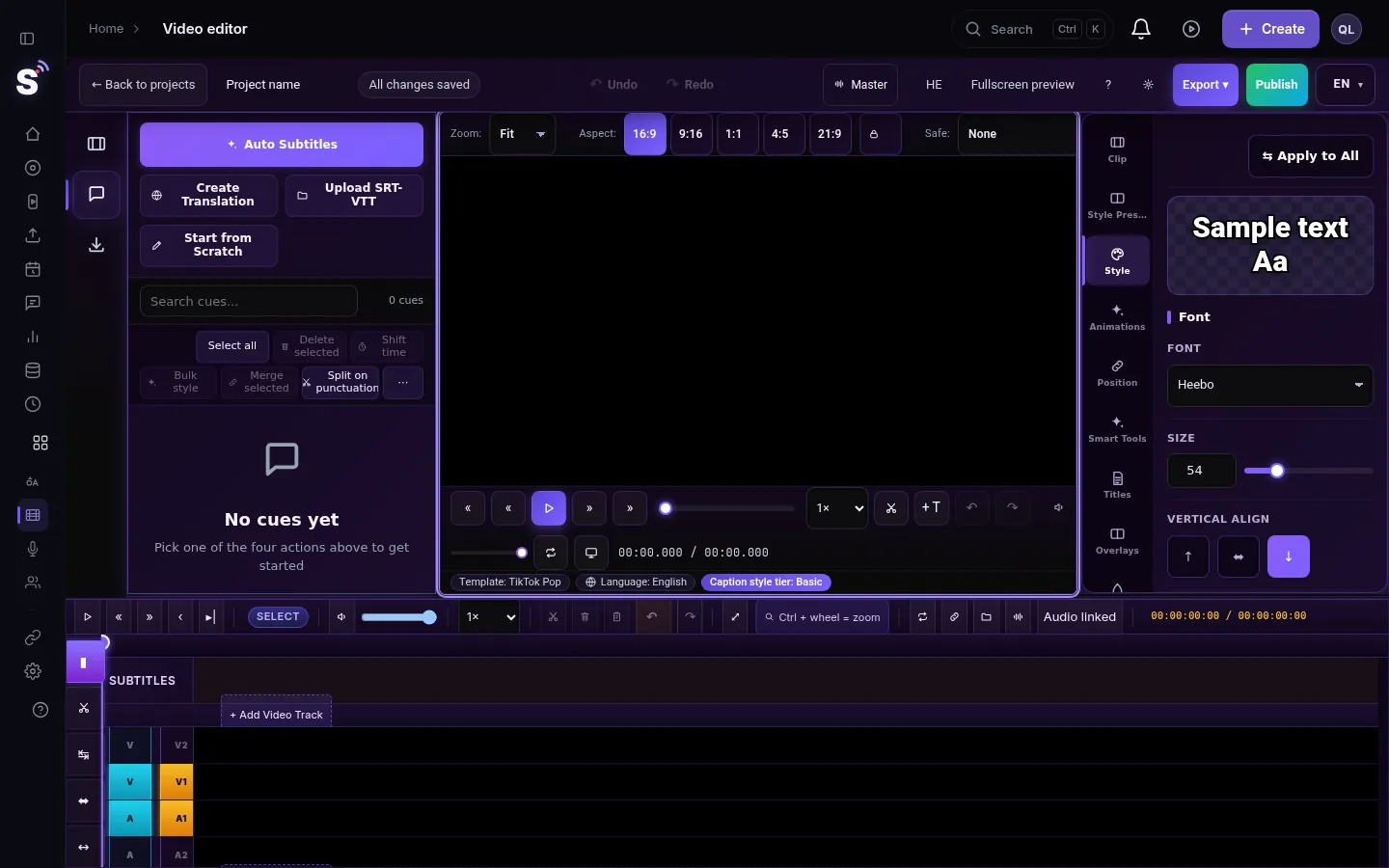
To cut a video in the StreamLive Pro editor, select the clip on the timeline, put the playhead where the cut should be and press S. The clip becomes two clips. Select the part you do not want and press Delete to leave a gap, or Shift+Delete to remove it and pull the later clips back. To shorten a clip from the start or the end, drag its edge.
Before you start
- Open the video in the editor. In the menu choose Video editor and open a project, or use Edit on a Short or a past broadcast. Files from your computer go to the Media library first; from there drag them onto a track or click them.
- The timeline runs left to right, also in the Hebrew interface. The start of the video is on the left.
- Nothing to save. Every cut is saved by itself; see Undo, history and autosave.
- Ctrl+K is not the split key here. Chrome keeps Ctrl+K for its own search, so the key never reaches the page. Use S.
Steps
- Select the clip. Click it on the timeline. A selected clip has a bright outline.
- Place the playhead. Click the time ruler, or play and pause at the moment. Zoom the timeline in with + to place it more precisely.
- Split it. Press S, or right-click the clip and choose Split at Playhead. The playhead has to be inside the selected clip; if it is outside, S switches snapping on or off instead.
- Split every track at once. Press Shift+S to cut all video and audio tracks at the playhead, for example to cut picture, music and a logo layer in one move. Locked tracks are skipped.
- Remove the unwanted part. Select it and press Delete to leave a gap, or Shift+Delete (Ripple Delete, close gap in the right-click menu) so the clips after it move back.
- Trim instead of split. Drag the left or right edge of a clip to shorten or lengthen it without moving it.
- Check the cut. Play a few seconds before and after. If a word is cut, press Ctrl+Z and split one or two frames later.
- Export. Press Export when the edit is done. See Exporting from the editor — formats and render settings.
Linked picture and sound
A video clip and its own sound are linked. When you split one of them, its partner is cut at the same point, so speech stays in sync. The editor refuses a move that would put the picture and the sound out of sync and tells you why. Other tracks, such as music or a logo layer, are cut only with Shift+S.
Captions follow the cut
If the video has captions, deleting a part of the video also deletes the caption lines that belonged to it, and the editor tells you how many lines went with it. That keeps the captions in sync with what is left. If you delete a part by mistake, Ctrl+Z brings the clip and its lines back.
Useful keys
| Key | What it does |
|---|---|
| S | Split the selected clip at the playhead |
| Shift+S | Split every unlocked track at the playhead |
| Delete | Remove the selected clips, leave a gap |
| Shift+Delete | Remove and close the gap |
| Ctrl+D | Duplicate the selected clips |
| Ctrl+Z / Ctrl+Y | Undo / redo |
| Space | Play and pause |
The full list is in Video editor timeline basics.
What can go wrong
- S does nothing. No clip is selected, the playhead is outside the selected clip, or the track is locked. Click the clip, move the playhead into it, and unlock the track in its header.
- The clips after the cut did not move back. You used Delete, which leaves a gap. Use Shift+Delete, or right-click the gap's neighbour and choose Ripple Delete.
- Captions disappeared with the cut. They belonged to the part you deleted. Undo, then cut a little later so the lines you want stay.
- The sound jumps at the cut. The cut falls mid-word. Move one or two frames and split again, or add a short fade on the audio clip (see Fade in and fade out).
Frequently asked questions
What is the shortcut to split a clip?
S splits the selected clip at the playhead. Shift+S splits every unlocked video and audio track at the same point. Ctrl+K does not work in Chrome because the browser keeps it.
How do I remove the middle of a video?
Split at the start and at the end of the part, select the part between the two cuts and press Shift+Delete. The rest closes up.
Can I cut the sound without cutting the picture?
Split works on the selected clip. When picture and sound are linked they are cut together, so a separate music or voice clip on its own audio track is the way to cut sound alone.
Does cutting delete anything from my original file?
No. The cut only changes the edit. The original video in Storage stays whole, and Ctrl+Z restores the clip.
Keep reading
Add stickers to a video in the StreamLive Pro editor: arrows, highlight boxes, Subscribe and Like badges, reactions, with their place, size and timing.
Change a video's aspect ratio in the editorSwitch a video between 16:9, 9:16, 1:1 and 4:5 in the StreamLive Pro editor, choose which part of the picture stays, lock the frame, and export at the network's size.
Fade in, fade out and dissolves in the video editorAdd a fade in, fade out, dip to black or white, or a dissolve at a cut in the StreamLive Pro editor, and fade music with the handles on audio clips.
Keyframes and effects in the video editorAnimate a clip with keyframes in the StreamLive Pro editor, such as a slow zoom, a move or a fade of opacity, and add looks like black and white or a vignette.
Want to try it? 7-day trial, no credit card.
Start free