 StreamLive Pro
Upload a video to YouTube from StreamLive Pro
Upload a finished video to your YouTube channel from StreamLive Pro: title, who can watch, made for kids, cover, Shorts, scheduling and daily upload limits.
To put a finished video on YouTube, open Publish everywhere, add the file, tick your YouTube channel, answer YouTube's two required questions (who can watch, and whether the video is made for kids), and publish now or at a time you choose. The upload runs on our servers, so you can close the tab once the file has finished uploading to StreamLive Pro.
This page is about uploading a video file. Going live on YouTube is a different flow: see How to go live on YouTube from your computer.
Before you start
- Your channel connected. In Connections, sign in with the Google account that owns the channel. It appears as YouTube channel. A video always goes to the channel of the connection you tick, so if you run two channels, connect each one.
- A video file. YouTube takes video only on the publish screen, not photos or text posts. The file can be up to 6 GB, or you can pick one you already have in Storage.
- Your plan's daily YouTube uploads. Each plan allows a number of YouTube uploads a day; see /pricing?lang=en. When you reach it, the screen says so and the extra uploads go out the next day. Nothing is dropped.
Steps
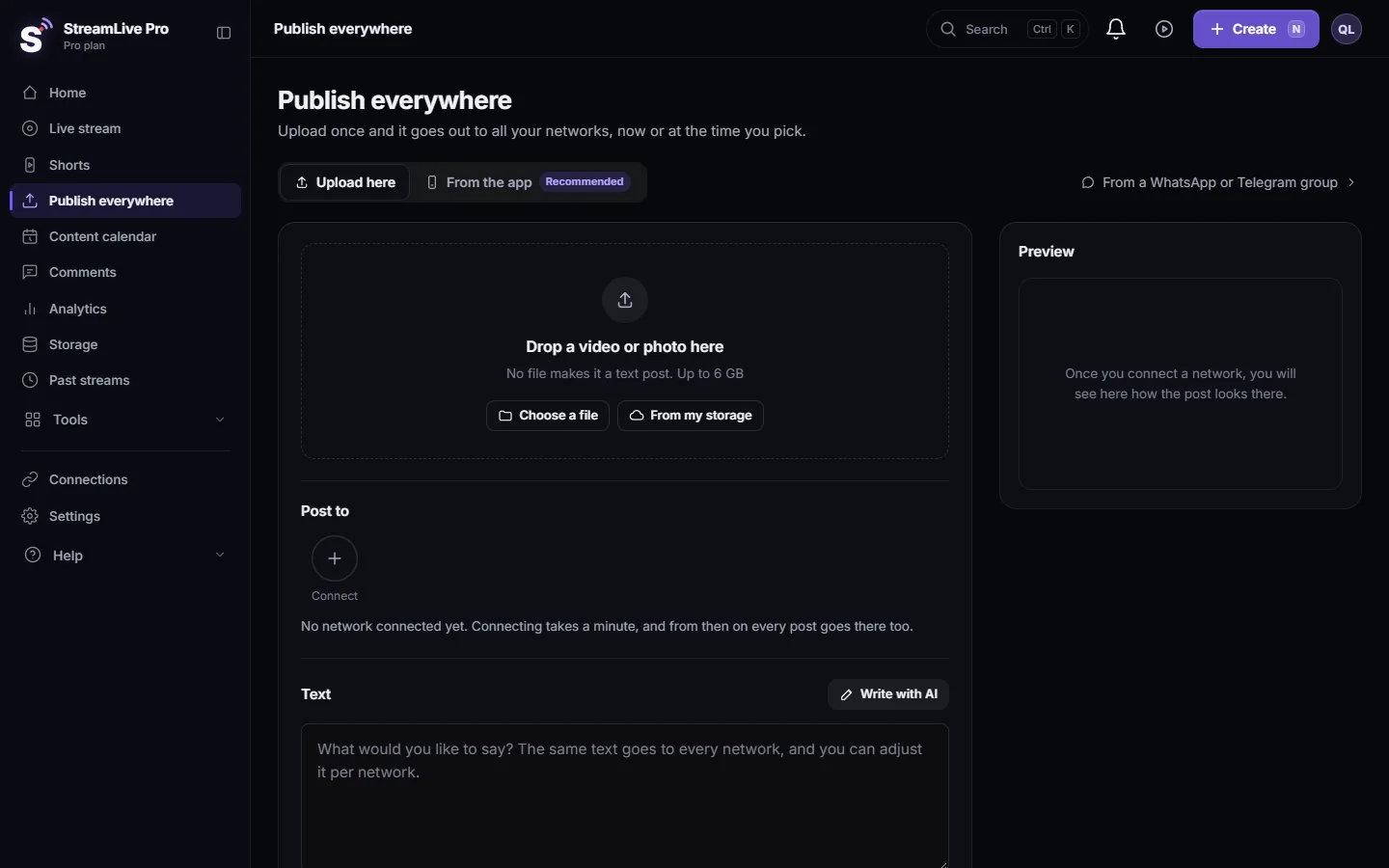
- Open the publish screen. In the menu click Publish everywhere. Drop the video on Drop a video or photo here, or click Choose a file or From my storage. Wait until the upload bar finishes; until then keep the tab open.
- Pick the channel. Under Post to, click your YouTube channel so it is selected. If it shows Needs reconnecting, click Reconnect first.
- Write the text. The text you write becomes the YouTube description, exactly as you wrote it. Nothing is added to it.
- Set the title. In the YouTube section under the networks, fill in YouTube title. It takes up to 100 characters. If you leave it empty, the first line of your text is used.
- Choose who can watch. Under Who can watch on YouTube pick Public, Unlisted or Private. This choice applies to YouTube only.
- Answer the kids question. Say whether the video is made for kids. YouTube requires an answer, and the button stays locked until you give one. Your answers are remembered per channel for next time.
- Publish or schedule. Under When choose Now, or Schedule with a date and time. Then click the button at the bottom (for example "Publish to YouTube").
- Check the result. In Activity, lower on the same page, the YouTube mark on the post turns green with a link to the video, or shows the reason it failed.
Long video or Short
YouTube decides on its own. A vertical video of up to 3 minutes is treated as a Short (Get started creating YouTube Shorts); anything else is a regular video. The publish screen shows Short: goes out as Shorts, Reels and TikTok or Regular video after it reads the file, so you know before you publish.
StreamLive Pro does not add #Shorts or any other text to your description. If you want the tag, type it yourself.
The cover image
You can add a cover in the publish screen. YouTube accepts a custom thumbnail only from a verified account (Add custom thumbnails on YouTube). If your channel is not verified, the video still goes up and keeps the frame YouTube picks; the cover is skipped, not the video.
What YouTube gets from us, and what it does not
| Field | What happens |
|---|---|
| Title | Your YouTube title, or the first line of the text |
| Description | Your text, as written |
| Who can watch | Your choice: Public, Unlisted or Private |
| Made for kids | Your answer |
| Category | Fixed. Change it in YouTube Studio after the upload if it matters |
| Tags, playlists, end screens | Not set from StreamLive Pro. Add them in YouTube Studio |
What can go wrong
| Symptom | Likely cause | Fix |
|---|---|---|
| The button says "Choose who can watch on YouTube" | No privacy chosen | Pick Public, Unlisted or Private |
| "More uploads go out tomorrow" next to the YouTube counter | You reached your plan's YouTube uploads for today | Leave it; the upload goes out tomorrow by itself |
| "YouTube daily API quota is used up" | YouTube's shared daily quota ran out | The upload is queued and starts after midnight Pacific time |
| The video is up but without my cover | The channel is not verified for custom thumbnails | Verify the channel on YouTube, then set the cover in YouTube Studio |
| The upload failed with a sign-in message | The YouTube connection expired | Reconnect, then Retry |
| It went up as a regular video, not a Short | It is horizontal or longer than 3 minutes | See Turn a horizontal video into a vertical 9:16 video |
Related pages
- Publish a finished video to social networks: how publishing works across networks.
- Post a Short to YouTube Shorts, Reels and TikTok: one Short to YouTube, Reels and TikTok.
- Schedule social media posts to several networks at once: scheduling, and the Content calendar.
- My post failed on one network: when one network fails.
Frequently asked questions
Can I upload to YouTube without keeping my computer on?
Yes, once the file has finished uploading to StreamLive Pro. After that our servers send it to YouTube, also at a scheduled time.
Why must I answer whether the video is made for kids?
YouTube requires every uploader to declare it. StreamLive Pro sends your answer and does not guess it for you.
Does StreamLive Pro add #Shorts to my description?
No. The description goes to YouTube exactly as you wrote it. YouTube recognises a Short by its shape and length.
Can I upload to a different channel than the one I connected?
No. A video goes to the channel of the connection you tick. Connect each channel you want to post to.
What happens if I upload more videos than my plan allows in a day?
The extra uploads wait and go out the next day. They are not lost, and the screen tells you how many are left for today.
Keep reading
Your YouTube upload says it is queued? Why it waits for midnight Pacific time, how to check when it starts, and what to do when it cannot wait.
Short or regular video: how each network gets your videoHow StreamLive Pro decides if your video goes out as a YouTube Short, a Reel or a regular video: shape and length per network, and how to get the other one.
Schedule social media posts to several networks at onceSchedule one post to YouTube, Facebook, Instagram, Threads, Telegram and more from one screen, then edit, copy or cancel it in the Content calendar.
The daily limit on YouTube uploadsWhy StreamLive Pro uploads a set number of videos to YouTube per day on each plan, what happens to the uploads over it, and when the queued ones go out.
Want to try it? 7-day trial, no credit card.
Start free