 StreamLive Pro
Markers, snapping and looping on the editor timeline
Mark moments with M, jump between markers, name them, turn snapping on or off with Shift+N, and loop a part of the video while you edit in the StreamLive Pro editor.
Three small tools on the editor's timeline save a lot of scrubbing. Markers are flags you drop with M on moments you want to come back to, such as a good quote or a cut to make. Snapping pulls what you drag onto the playhead, markers and whole seconds, so edits line up. Loop region replays one short part again and again while you fix captions or a cut. All three are for you while editing; none of them appears in the exported video.
Before you start
- Open the project. In the menu choose Video editor.
- Markers are saved with the project. They are still there when you open the project tomorrow.
- Snapping is on when you open the editor. The button Snap to grid (Shift+N) shows its state.
- Shortcuts work when the cursor is not in a text box. Click the timeline first.
Steps
- Drop a marker. Play the video and press M at the moment you want, or press Add marker (M) above the timeline. A marker appears on the ruler at the playhead.
- Jump between markers. Shift+M goes to the next marker, Ctrl+Shift+M to the previous one.
- Name your markers. Open the Markers panel from the button above the timeline. It lists every marker with its time. Click the pencil to rename one (for example "good quote" or "cut here"); click a row to jump to it.
- Remove a marker. In the panel press the X on its row, or right-click the marker on the ruler and choose Remove marker.
- Line up captions with snapping. Drag a caption block on the subtitles track near the playhead or a marker; it snaps onto it. Hold Alt while you drag to place it freely.
- Turn snapping off when it gets in the way. Press Shift+N, or the Snap to grid (Shift+N) button.
- Loop a short part. Put the playhead where the part starts and press Loop region. Playback repeats a four-second section from there. Press it again to stop.
- Loop an exact range. Press I at the start of the part and O at its end. The loop follows the In and Out points, so playback repeats exactly that range.
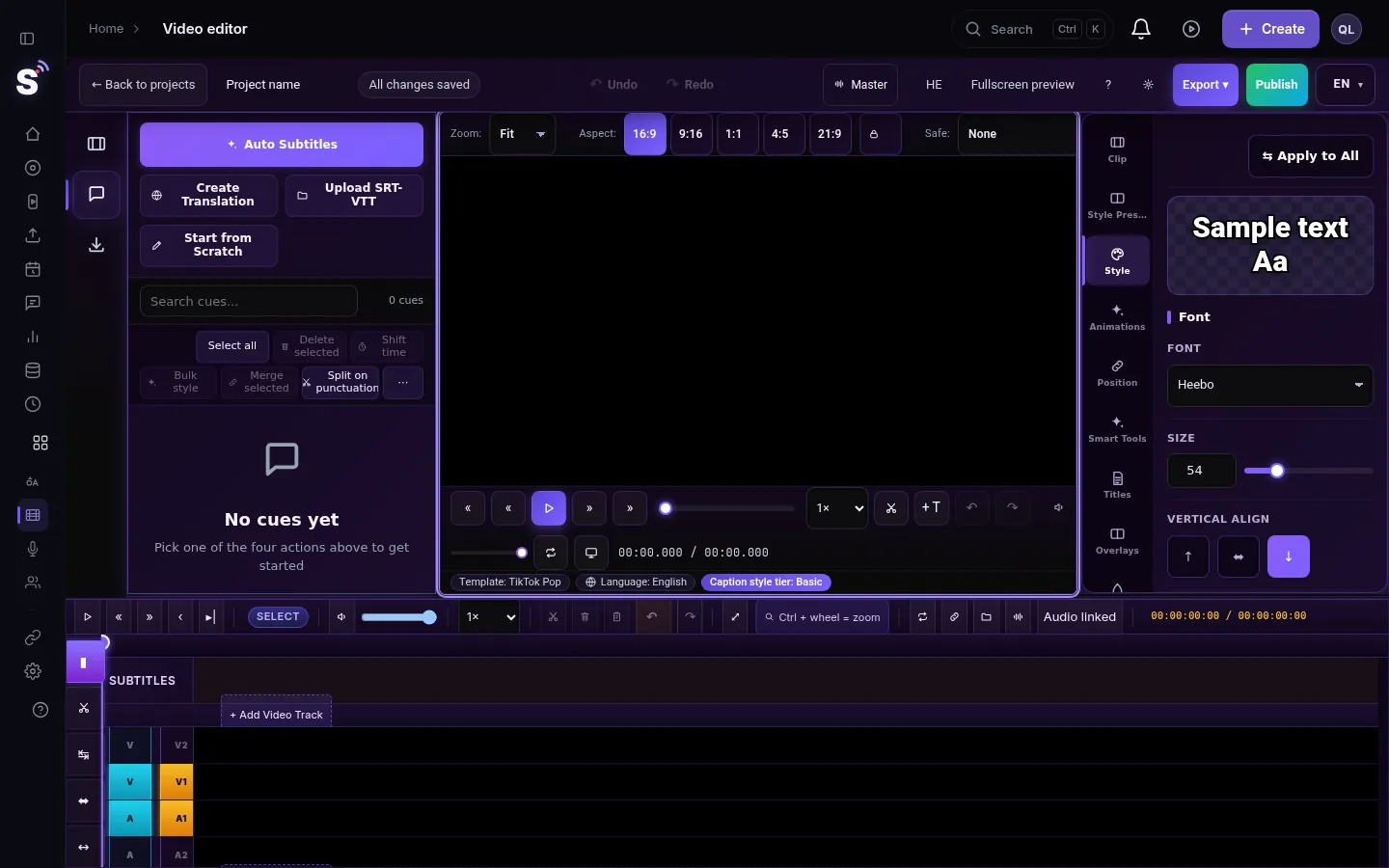
What snapping pulls to
| You drag | It snaps to |
|---|---|
| A caption block on the subtitles track | The playhead, the start and end of the video, markers, whole seconds |
| A video or audio clip | The start of the timeline, the playhead, the edges of neighbouring clips on the track |
For captions the pull reaches at most about an eighth of a second, and one caption does not pull another, so you can place two captions a few frames apart. Clips snap when their edge comes within a few pixels of a target; zoom in on the timeline to place a clip closer without it jumping.
Good uses
| Task | Tool |
|---|---|
| Watching a long recording once and marking the parts for Shorts | M on every good moment, then names in the Markers panel |
| Fixing the timing of one sentence of captions | I and O around the sentence, then loop it while you move the captions |
| Cutting exactly on a beat or a sentence start | A marker on the spot, then drag the clip edge onto it with snapping on |
| Placing captions freely, a few frames apart | Hold Alt while dragging, or turn snapping off |
What can go wrong
- M did nothing. The cursor is in a caption or title text box. Click the timeline and press M again.
- The loop does not start. The video has not loaded yet, or the playhead is at the very end. Move the playhead earlier and press Loop region again.
- The loop keeps jumping back. Loop region is still on. Press Loop region again to switch it off.
- A caption jumps to a whole second. That is snapping. Hold Alt while you drag, or press Shift+N.
- The markers are not in the exported file. They are not meant to be. To show a moment in the video itself, add a title; see Add titles and text to a video in the editor.
Related pages
- All the keys: Keyboard shortcuts in the video editor
- Moving caption timing: Edit captions on the timeline
- Cutting at a marker: Cut and split clips in the editor
Frequently asked questions
How do I add a marker in the video editor?
Press M while the timeline is active, or the Add marker button above it. The marker is placed at the playhead.
Can I give a marker a name?
Yes. Open the Markers panel, click the pencil next to the marker and type a name.
How do I stop clips from snapping?
For caption blocks, hold Alt while dragging or press Shift+N. Clips snap only when their edge comes very close to a target; zoom in to place them freely.
Can I loop a section while editing captions?
Yes. Press I at the start and O at the end of the section; playback repeats that range until you press Loop region to switch it off.
Keep reading
Open vs closed captions: burned into the picture or sent as a file the viewer can switch off. What each is good for, which networks take which, and how to make both.
What is B-roll? Cutaway footage explainedWhat is B-roll: cutaway footage laid over a speaker to show what they talk about. A-roll vs B-roll, when it helps a Short, and how StreamLive Pro adds it.
Live streaming glossary: the terms you will meetA live streaming glossary in plain words: stream key, RTMP, SRT, bitrate, multistream, Preview and Program, ISO, captions, reframe. Where each shows up in StreamLive Pro.
Turn a podcast episode into Shorts with captionsTurn a podcast episode into vertical Shorts: pick the recording in Shorts, get up to 5 captioned clips that follow the speaker, check them and publish to every network.
Want to try it? 7-day trial, no credit card.
Start free