 StreamLive Pro
What is B-roll? Cutaway footage explained
What is B-roll: cutaway footage laid over a speaker to show what they talk about. A-roll vs B-roll, when it helps a Short, and how StreamLive Pro adds it.
B-roll is footage you cut to while someone keeps talking. The main shot, usually a person speaking to the camera, is called the A-roll. The B-roll is everything else: a close-up of the product they mention, the street they describe, hands writing on a board. The voice keeps running from the A-roll; only the picture changes for a few seconds, then returns to the speaker.
The names come from film editing, when the main footage and the cutaway footage sat on two separate reels, A and B. The reels are gone, but the idea stayed: one track carries the story, the other shows it.
A-roll and B-roll side by side
| Feature | A-roll | B-roll |
|---|---|---|
| What it shows | The person talking, the main action | What the person talks about, the surroundings, details |
| Sound | The sound you keep | Usually muted under the A-roll voice |
| Length on screen | Most of the video | Short cutaways, often a few seconds each |
| Where it comes from | Your own recording | Your own extra shots, or a licensed stock library |
| Without it | No video | The video still works, it is just more static |
Why editors use B-roll
- To show, not only tell. A speaker who says "the old market" holds attention longer when the viewer sees a market for a moment.
- To hide a cut. When you remove a cough or a long pause, the jump in the picture is obvious. Laying a few seconds of B-roll over the cut hides it while the voice continues.
- To change the pace. A long single shot of one person can feel slow on a phone. A few cutaways give the eye something new.
- To cover a problem. A moment where the camera lost focus, or someone walked through the frame, can be covered by another shot.
When B-roll hurts
B-roll is not always an improvement. It works against you when:
- The footage does not match what is said. A random city shot under a talk about a family recipe confuses the viewer. A wrong cutaway is worse than none.
- The speaker is the point. In a heartfelt answer, a joke with a facial reaction, or a teacher explaining with their hands, cutting away loses the moment.
- It is too frequent. If the speaker is hardly seen, the viewer stops connecting to them.
- The footage is sensitive. Accidents, weapons, injuries or tragedy shown under casual speech feel wrong, and some platforms limit such content.
- You do not have the rights. Footage taken from someone else's video, or from a library without a licence, can get your post removed.
Types of B-roll
| Type | Example |
|---|---|
| Detail | Hands on a keyboard, a page being turned |
| Location | The outside of the building, the street, the hall before guests arrive |
| Process | Steps of a recipe, a product being assembled |
| Archive | Older photos or clips of the same subject, used with permission |
| Screen | A screen recording of the website or app being discussed |
| Stock | Licensed footage from a library, when you cannot film it yourself |
B-roll in StreamLive Pro Shorts
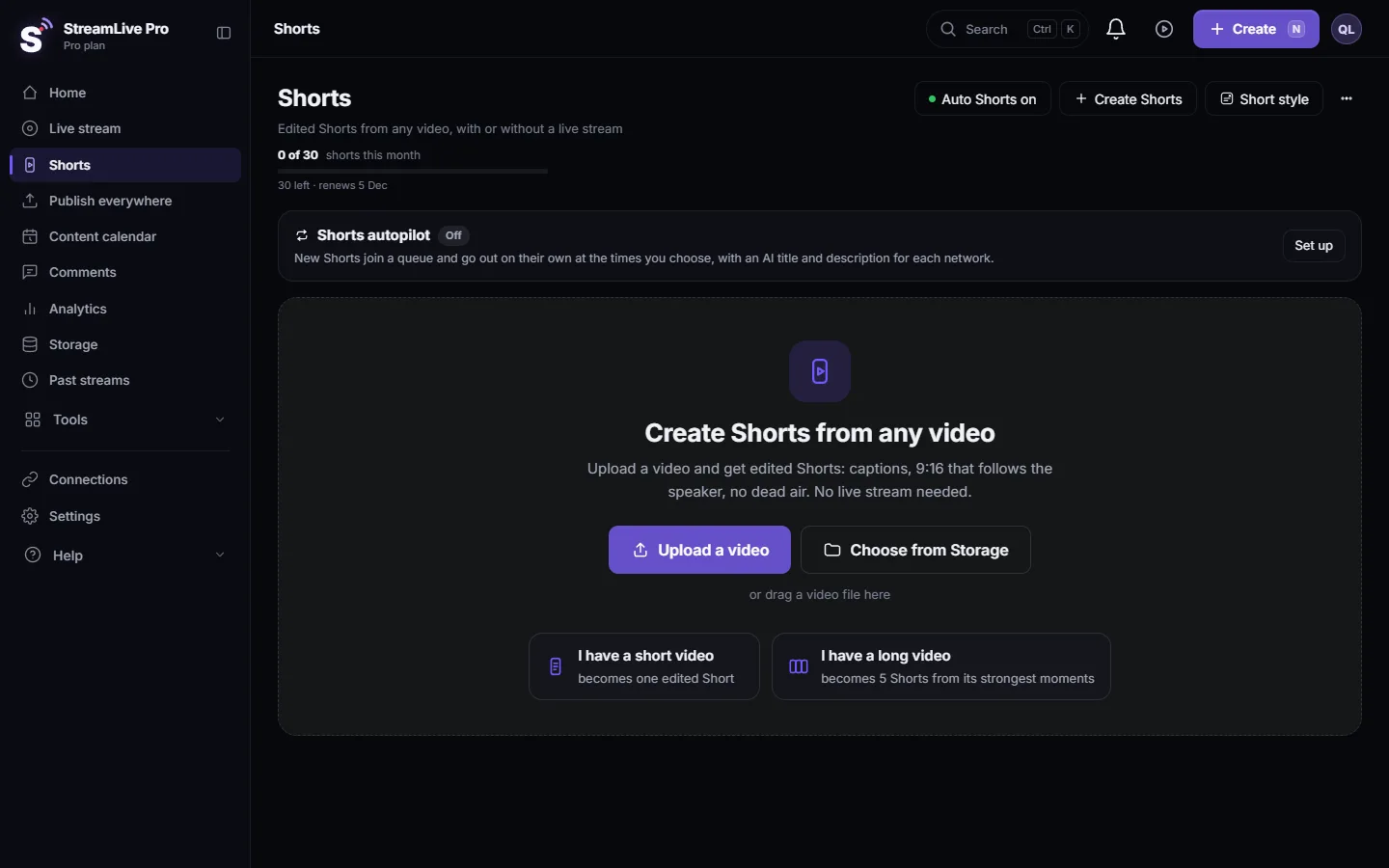
Automatic Shorts can add B-roll for you. In Shorts, the Short style button at the top of the page opens a sheet with a B-roll switch, described in the app as "Footage that matches what is said". It is on by default and can be turned off.
How it decides:
- It listens to the words. A cutaway is chosen only when it matches a topic actually said in the clip. If nothing in the library matches well enough, no B-roll is added; the clip stays on the speaker.
- The speaker stays on screen. The total time covered by cutaways in a Short is capped, and each cutaway lasts only a few seconds, with varied lengths so the rhythm does not feel mechanical.
- Sensitive footage is held back. Footage about accidents, war or other hard subjects is not used unless the speech itself is clearly about that subject, and some footage is never used.
- Customers get licensed footage only. The library offered to customer accounts contains only footage with a recorded licence.
- Pace matters. How many cutaways a Short gets depends on the pace of the edit: a calmer edit uses fewer, a more dynamic one more.
If a Short got a cutaway that does not fit, edit the Short before you publish it, or switch B-roll off for future Shorts. See Edit a Short before you publish it and How the moments for your Shorts are chosen.
Adding your own B-roll in the editor
For a longer video, or a Short you want to finish by hand, the video editor has several video tracks. Put the speaker on V1 and your cutaway on V2 above it; the upper track covers the lower one while the A-roll sound continues. Mute the cutaway's own sound, or lower it, so it does not fight the voice. A short fade in and out softens the change: Fade in, fade out and dissolves in the video editor. Track basics: Work with several video and audio tracks.
Tips for filming your own B-roll
- Film it the same day. The light, clothes and place match the main recording.
- Hold each shot for at least ten seconds. You will use three, but you need room to choose.
- Film details. Close-ups cut in more easily than wide shots.
- Keep the camera steady. A shaky cutaway draws attention to itself.
- Do not film people who did not agree. Hands, objects and places are safer than faces.
Related terms
- Cutaway: a single B-roll shot inserted into the A-roll.
- Insert: a close-up detail shot, often of an object the speaker handles.
- Jump cut: a visible jump in the picture where something was removed; B-roll is one way to hide it.
- ISO recording: a separate file for each camera, a source of extra angles: What is ISO recording? Each camera in its own file.
Frequently asked questions
What does B-roll mean in video?
B-roll is the extra footage shown while the main speaker keeps talking: details, places or actions that illustrate what is said.
What is the difference between A-roll and B-roll?
A-roll is the main footage, usually the person speaking. B-roll is the cutaway footage laid over it, normally without its own sound.
Can I turn off B-roll in automatic Shorts?
Yes. Open Short style at the top of the Shorts page and switch B-roll off. Future Shorts stay on the speaker.
Why did my Short get no B-roll?
Nothing in the library matched what was said closely enough, so the clip stayed on the speaker. That is deliberate: no cutaway is better than a wrong one.
Keep reading
Turn a podcast episode into vertical Shorts: pick the recording in Shorts, get up to 5 captioned clips that follow the speaker, check them and publish to every network.
A weekly Torah class online: live, Shorts and a podcastHow to run a weekly Torah class online: a weekday live, scheduling ahead, Shorts with Hebrew captions, translation for students abroad and a podcast episode.
Video podcast setup by budget: one person or twoVideo podcast setup by budget: one person or two, dynamic mics in untreated rooms, camera angles, light, ISO recording, Spotify and Apple video, and Shorts.
Descript alternative: Descript vs StreamLive ProDescript alternative for transcription in Hebrew and more: languages, exports, remote recording, clips and live, from Descript's pages checked November 2026.
Want to try it? 7-day trial, no credit card.
Start free